

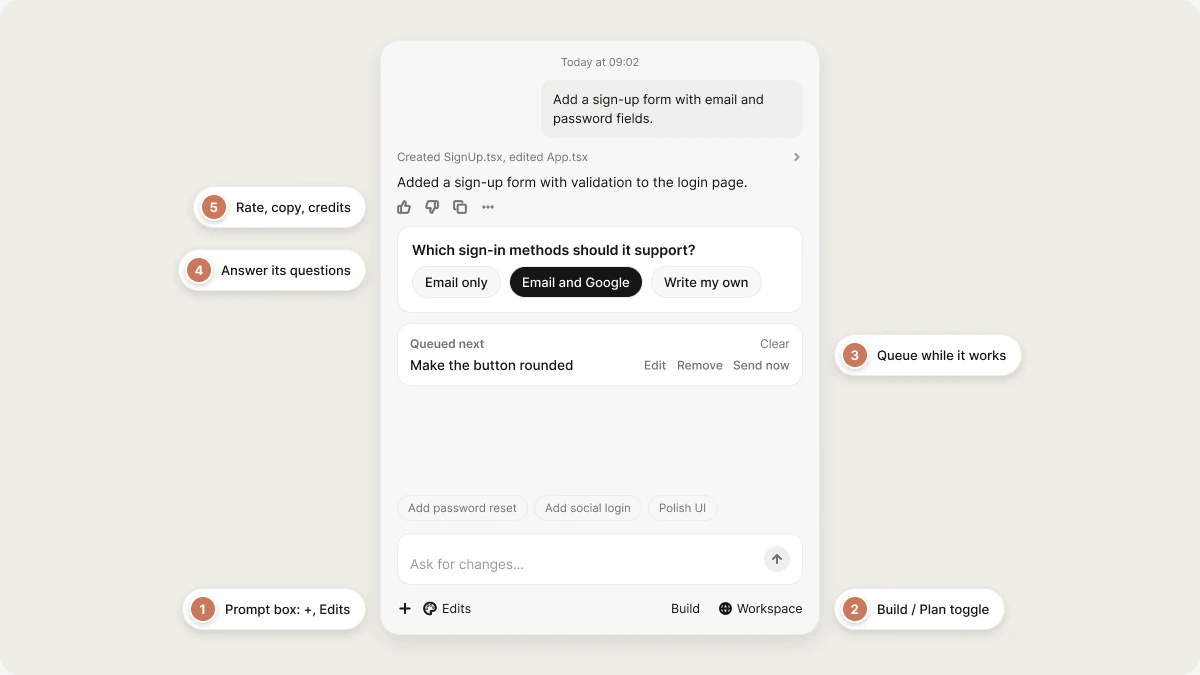
The prompt box
Type your message into the text field at the bottom of the chat panel, then press Enter or click the send button. Shift+Enter starts a new line. Describe the outcome you want rather than the implementation:- The + button: Attach files, take a screenshot, pick a skill, choose connectors, or pick a database. The options are listed under The + menu below.
- Edits: Turn on element selection in the preview, so your next message is about the element you click. See Edit directly from the preview.
- Plan: Switch between Build and Plan mode. See Modes.
- Project access: A globe or lock icon that shows whether the project is open to your Workspace or Restricted. Project owners and admins can change it here.
- Type @ to reference a file in your project, or another project in your workspace. See Cross-project referencing.
- Type / to pick a skill for this message. See Skills.
Modes
The Plan toggle next to the chat input switches how Vibely responds:- Build (the default, toggle off): Vibely makes changes directly in your project. This is the right choice for most requests, from small tweaks to whole features. See Build mode.
- Plan (toggle on): Vibely investigates and writes a plan without touching your code. Review it, edit it, and click Approve & Build when you’re happy. Use it for bigger features or anything you want to think through first. See Plan mode.
The + menu
Click the + button next to the chat input to open the menu:- Add files or photos: Attach files from your computer. See Attach files as context.
- Take a screenshot: Opens your browser’s screen capture dialog so you can pick a tab, window, or screen. Vibely attaches the image to your message.
- Skills: Pick a skill to run with this message, or go to Manage skills and Add skill. See Skills.
- Connectors: Turn a connected service on or off for this build, or go to Manage connectors and Add connector. Turning a connector off here leaves it connected; it only stops Vibely from using it in this build. See Connectors.
- Database: Pick the Supabase organization and project Vibely should build against. See Supabase.
Attach files as context
Attachments show Vibely what you mean. Attach a design mockup to match, a screenshot of a bug to fix, or a document to build from, like a product brief or a spreadsheet of data. Attachments work the same on the home screen, so you can attach files to the very first prompt of a new project. To add files, use Add files or photos in the + menu, drag files into the chat, or paste them. You can attach images (PNG, JPEG, GIF, WebP, SVG), PDF, Word, Excel, PowerPoint, text, Markdown, and CSV files, Figma.fig files, and short videos (MP4, MOV, WebM).
You can attach up to 5 files per message, and each file can be up to 10 MB. Larger files are skipped with a message telling you which ones.
Attachments show as chips above the input before you send and stay on the sent message. Click an image to open it full size, or a readable document to open it in a preview panel.
To put an image into your app itself rather than show it to Vibely, attach it and tell Vibely where it goes:
While Vibely works
Vibely working on one request doesn’t block you.Queue your next message
Anything you send while Vibely is working joins a queue above the chat input instead of interrupting the current run. Queued messages run one at a time, in order, when the current run finishes. From the queue you can:- Reorder messages with Move up and Move down.
- Edit or Remove a queued message.
- Send now to send a message without waiting.
- Pause and resume the whole queue, or Clear it.
Follow the work
While Vibely works, the chat shows what it’s doing: the files it reads and writes, the commands it runs, its checklist for bigger requests, and any subagents it hands research to. The Code view also shows files updating live as Vibely writes them.Stop mid-task
Click the Stop button while Vibely is responding, or press Esc when you’re not typing in a field. Vibely keeps the work completed so far. You can then send a new message with better direction.Answer Vibely’s questions
When Vibely needs more direction, it pauses and shows a question card instead of guessing. Each question has answer options, and you can pick one or write your own answer.- Move between questions and review your answers before submitting.
- Skip a single question, or skip them all. Your other answers still go through.
- For open-ended visual work, Vibely can show design directions to choose from, so you steer the look before it builds. See Design guidance.
Act on Vibely’s responses
When Vibely finishes a task, a row of actions under its response lets you react without typing:- Like / Dislike: Rate the response, with an optional note about what worked or didn’t.
- Copy: Copy the response text.
- More options (⋯): Shows Worked for, how long Vibely worked on the message, and Credits used, what it cost. See Credits.
Edit a message and try again
If an earlier request sent things the wrong way, hover over one of your own messages and click Edit and try again. Rewrite the message and confirm with Revert and resend: your project’s files go back to how they were before that message, that message and everything after it leave the conversation, and Vibely runs your new version instead. This works on your own messages only, and not while Vibely is still working. Your database is not rolled back. See Version history.Fix errors and get unstuck
Two cards can appear in the chat on their own:- Build error: The build broke. Click Try to fix · Free and Vibely reads the error and attempts a fix. Show technical details reveals the raw output.
- Runtime error: Your running app threw an error. Try to fix · Free sends it to Vibely. Restore last version rolls your files back to the newest version from before the errors started.
1
Ask Vibely to investigate
Describe what you see and what you expected. Vibely can read errors, logs, and console output.
2
Revert and re-prompt
Use Edit and try again on the message where things went wrong, and give a clearer, more specific instruction.
3
Plan before rebuilding
Turn on Plan and ask Vibely to outline an approach first. Review the plan, adjust it, then approve it.
Suggestions from Vibely
After a response, Vibely may suggest what to build next as chips above the chat input. Click one and it fills the prompt box with the full prompt, so you can adjust the wording before sending. Nothing is sent until you send it.FAQ
Do messages in the project chat cost credits?
Do messages in the project chat cost credits?
Yes. Each message that Vibely works on uses credits from the workspace that owns the project. More options on a response shows Credits used. Try to fix · Free on an error card doesn’t use credits. See Credits.
Can I send several instructions at once?
Can I send several instructions at once?
Yes. Put them in one message, or keep typing while Vibely works: each message you send joins the queue and runs after the current one. See Queue your next message.
How do I undo what a message did?
How do I undo what a message did?
Hover your message, click Edit and try again, and confirm Revert and resend. If your app is throwing errors, Restore last version on the runtime error card rolls back to the last version from before the errors. See Version history.
How do I attach images and files?
How do I attach images and files?
Use Add files or photos in the + menu, drag files into the chat, or paste them. Take a screenshot in the same menu captures your screen. See Attach files as context.
Can I change the code myself instead of using chat?
Can I change the code myself instead of using chat?
You can read every file in the Code view. To edit code yourself, connect the project to GitHub and work in your own tools; your commits sync back into Vibely. See View your project’s code and GitHub.
What happens if I close my browser while Vibely is working?
What happens if I close my browser while Vibely is working?
Vibely keeps working. Your request runs on Vibely’s servers, not in your browser, so you can come back later and find the result in chat.
What happens if I run out of credits while Vibely is working?
What happens if I run out of credits while Vibely is working?
The run pauses and a card appears in chat. Click Add credits to keep going. See Credits.
Can Vibely notify me when it's done?
Can Vibely notify me when it's done?
Yes. Vibely may show an Enable notifications banner above the chat input. Enable it to get a browser notification when Vibely completes a task, or dismiss it and keep working.
Related topics
Find your way around the editor
Where every tool in a project lives.
Plan mode
Plan a change before Vibely builds it.
Iterate on your web app
What to type, and when to use each tool.
Prompting best practices
Get better results from every message.