

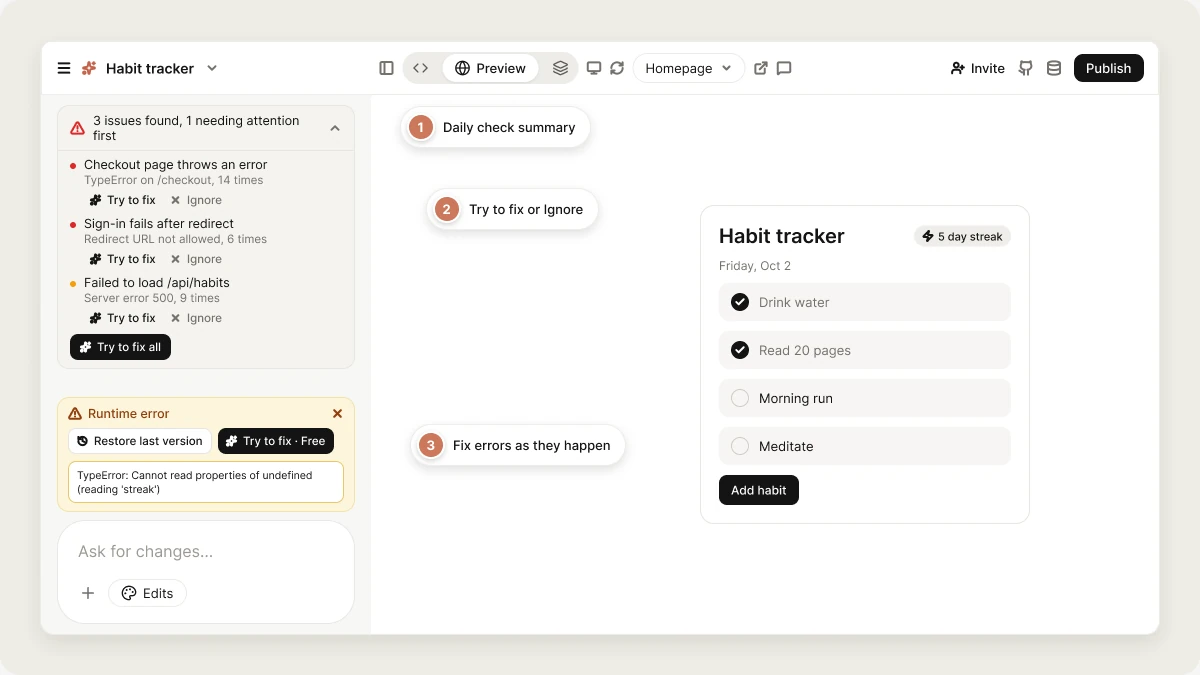
Monitoring is about errors in your app, not uptime. There are no synthetic probes or “is my site up” pings. Vibely reports what real visitors’ browsers and devices send back.
What gets reported
Every published web app includes a small error reporter. It catches uncaught errors, promise rejections nobody handled, and explicitconsole.error calls, and sends each one with its message, stack trace, the page it happened on, and the browser or device.
Errors from browser extensions and third-party scripts (analytics tags, chat widgets) are filtered out, since they aren’t your app breaking.
How monitoring works
Monitoring turns on automatically the first time you publish a project. Once a day (around 06:00 UTC), Vibely looks at the errors your app reported over the last 7 days, groups repeats, filters out noise, and picks up to 8 findings, most serious first. Findings are ranked by how much they affect visitors. Errors that break loading, hydration or sign-in are always treated as serious, and errors on the live site rank higher the more often they happen.How findings are shared
- Notifications: when a check finds new issues that matter, you get a notification in Vibely, and a push notification if you’ve allowed them, for example “An error is affecting visitors of My App”. You get at most one notification per check.
- In the editor: a summary appears above the project chat, such as “3 issues found, 1 needing attention first”.
Review and fix findings
Expand the summary above the chat to see each finding. You can:- Try to fix: sends the finding to Vibely as a build request. Vibely reproduces the problem first, then fixes it.
- Try to fix all: sends every open finding in one request.
- Ignore: removes a finding you don’t need to act on (not relevant, already fixed, or not worth fixing). Click Undo to bring it back.
Monitoring found that the checkout page throws an error. Before changing anything, explain what is causing it and how you’d fix it.
Errors while you build
You don’t have to wait for the daily check. When the preview or your live app throws, a Runtime error card appears in the project with two options:- Try to fix · Free: sends the error to Vibely to fix. Using this button doesn’t cost credits.
- Restore last version: rolls back to the last version before the breaking change.
Mobile
Mobile apps report JavaScript errors from inside the app: render errors, uncaught errors from buttons, timers and network callbacks, and unhandled promise rejections. Fatal errors are sent immediately, repeats are grouped, and each app launch sends at most 25 reports.Sending errors somewhere else too
For long-term history, alerting rules or release tracking, ask Vibely to add Sentry (you supply the DSN). It works alongside Vibely’s reporting rather than replacing it.Limitations
- Monitoring reports errors that visitors’ browsers and devices send. It doesn’t test your app, check uptime, or find bugs that don’t throw an error.
- There are no email alerts, and the schedule isn’t configurable yet.
- Vibely can rank a finding higher or lower than you would. Ignore the ones that don’t matter.
FAQ
Does monitoring fix issues automatically?
Does monitoring fix issues automatically?
No. Monitoring finds and explains issues. You decide whether to send a finding to Vibely.
Do I need to turn monitoring on?
Do I need to turn monitoring on?
No. It turns on the first time you publish a project.
Why did I get an alert for something that works now?
Why did I get an alert for something that works now?
Findings come from errors visitors hit over the last week. The problem may have been temporary, or already fixed by a change you made since. Ask Vibely to check whether it still happens before fixing it.
Do findings include errors from my preview?
Do findings include errors from my preview?
Yes, but errors that only happened in the preview are ranked low. Errors on your live site rank higher.
Related
Publish
Put your app live and push fixes.
Debugging prompts
How to describe a bug so it gets fixed.
Analytics
See who visits your app.
Ship your mobile app
TestFlight, Play tracks and store submission.