

Agent integrations are available for web apps. Mobile projects show “Agent integrations are available for web apps.”
How it works
You start from Manage → Agent integrations in the editor, or by asking in chat. Vibely then:- Asks who should be able to call the tools: people signed in to your app, or anyone.
- Adds an MCP server to your app at
/mcp, built on the@vibelyai/mcp-jslibrary. - Writes one file per tool, based on what your app actually does. For example, a listings app might get
search_listingsandcreate_listing. - Sets up sign-in to match your answer.
How this differs from Vibely’s other MCP features
Vibely uses MCP in three ways, and each one connects different things:
These combine: once your app is published with an agent integration, you can add it to your own connectors and use it in Vibely chats. See Use your app in Vibely chats.
Should you add an agent integration?
Agent integrations work best when your app holds data, workflows or knowledge people want to reach from wherever they already work. Each tool is one action.
An integration adds little when your app is mainly visual or interactive (a game, a portfolio), when it has no meaningful action or data for an assistant, or when the only possible tools would be slow, expensive, or unsafe to run twice.
Prerequisites
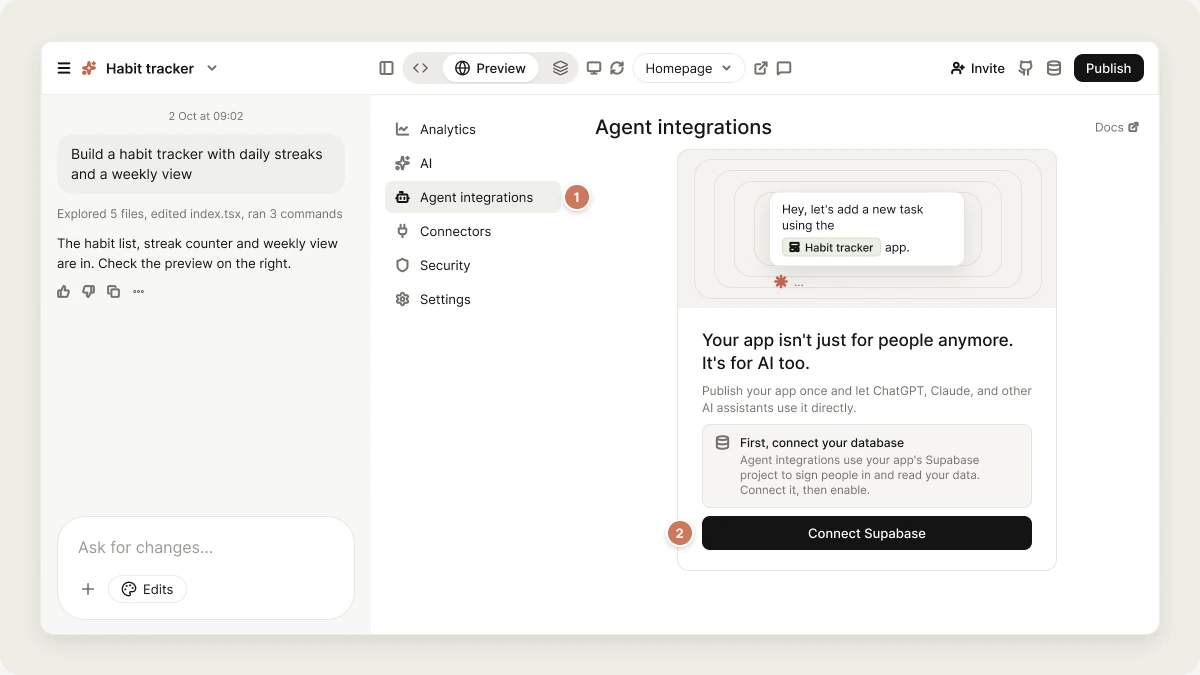
- A web app with a connected Supabase project. The integration uses your app’s Supabase project to sign people in and to read data. If none is connected, the panel shows First, connect your database with a Connect Supabase button.
- A published app. The MCP link only works on your published app. See Publish.
- Public website access. If your site is published with restricted access, the panel warns “AI assistants may not reach your MCP”. Assistants connect from outside your workspace, so publish the site publicly. Sign-in still protects the tools.
Costs and credits
- Enabling the integration, and every change you ask for afterwards, is a normal build turn and uses credits like any other build.
- Tool calls don’t use Vibely credits. Each call runs your app’s own logic against your Supabase project, so any costs come from your Supabase plan and any paid services your tools call.
Set up your agent integration
1
Open Agent integrations
In your project, open Manage → Agent integrations.
2
Enable the integration
Click Enable agent integrations. Vibely sends “Add agent integrations (MCP) to this app” to the chat and starts a build. If a build is already running, the panel shows Queued — starts when the current build finishes.
3
Choose who can connect
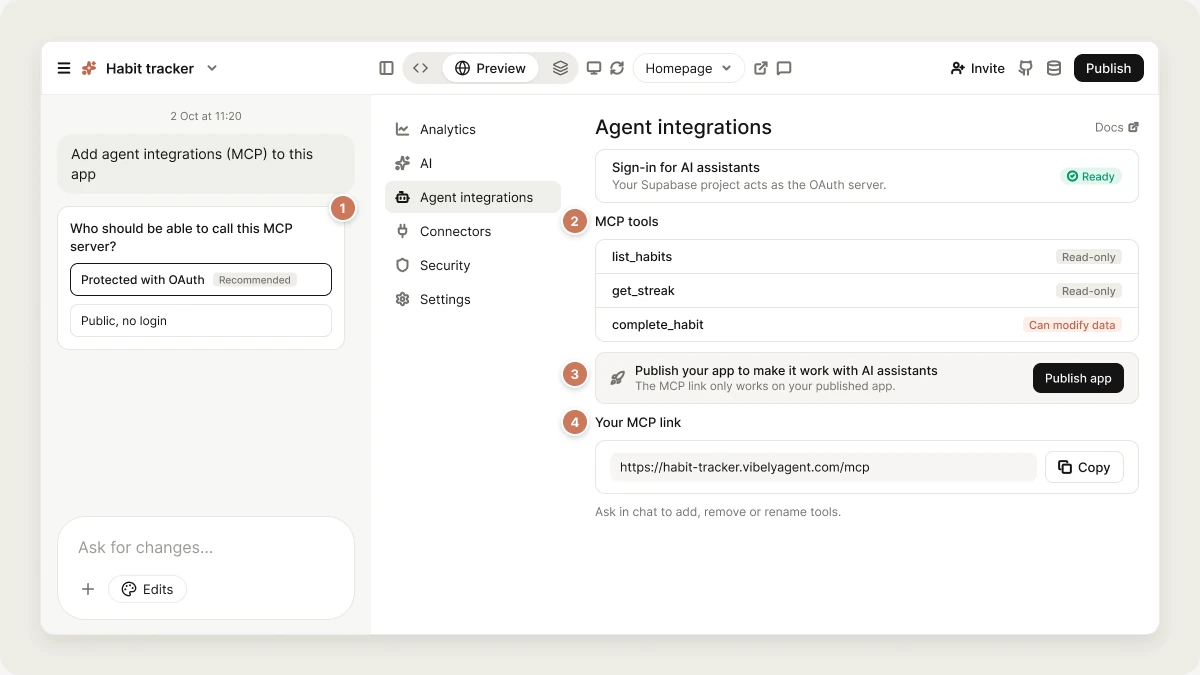
Vibely asks Who should be able to call this MCP server?
- Protected with OAuth (recommended): people sign in to your app before their assistant can call any tool. This is the default.
- Public — no login: anyone with the link can call every tool. Only pick this when everything the tools return is safe to make public.
4
Review the tools
Under Your MCP → MCP tools, each tool is marked Read-only or Can modify data. Ask in chat to add, remove, rename or change any of them, for example: “Add tools for bookings.”
5
Publish your app
Click Publish app on the panel, or publish from the editor header. Until you do, the panel shows “Publish your app to make it work with AI assistants”. After later tool changes it shows Publish your latest changes with an Update button.
6
Copy the MCP link
The Your MCP link card shows
https://<your app>/mcp. Click Copy and share it with your users.Access and sign-in
Protected integrations use your app’s Supabase Auth as the OAuth 2.1 server. The Sign-in for AI assistants row shows whether your Supabase project is ready (Ready or Action needed). If it isn’t, click Enable and Vibely turns on the OAuth server for your connected project. Vibely also adds a consent screen to your app at/.vibely/oauth/consent.
When someone connects, their assistant sends them to your app’s sign-in page and then the consent screen. Every tool call after that runs as that user, so your row-level security applies exactly as it does in the app.
Access applies to the whole server: either every tool requires sign-in or none does. Inside a protected server, a tool can still check roles or plans. To switch a public integration to protected, click Add sign-in on the access card.
If your Supabase project still uses legacy JWT signing keys, sign-in works, but the panel recommends switching to asymmetric keys for faster, more reliable sign-in.
Connect your users
The How to connect card in the panel has these steps with your link filled in:- ChatGPT
- Claude
- Claude Code, Cursor, VS Code
Settings → Apps & Connectors → Advanced settings, turn on Developer mode, then Create. Paste the MCP link, choose OAuth for a protected app or No authentication for a public one, and save. Enable it from the composer in a chat.
Use your app in Vibely chats
Once the app is published, click Add to Vibely on the Overview card. The app is added to your connectors, and you can mention it in any Vibely chat to pull live data or run its tools.Maintain the integration
- Publish after every change. Tool changes only go live when you publish.
- Ask users to refresh. Assistants cache the tool list. After you add, remove or rename tools and publish, users refresh the connector (ChatGPT: open the connector and click Refresh; Claude: disconnect and connect it again). Other changes take effect on publish.
- Library updates are automatic. Each time you publish, Vibely moves the server to the newest compatible
@vibelyai/mcp-jsversion (fixes within 1.x, never a breaking major version), checks that your app still typechecks and your tools still load, and puts the previous version back if anything fails. Your publish never waits on this and never fails because of it. - Your link follows your primary domain. If you change it, users reconnect with the new link.
Remove the integration
Click Remove agent integrations at the bottom of the panel, or ask in chat, then publish. Unpublishing the app also takes the MCP server offline immediately.Best practices
- Start small and read-only. Add write tools for the actions users actually come for.
- Give tools clear names and descriptions. Assistants choose tools by them.
- Keep inputs narrow (an ID, a search term) and return only the fields the task needs.
- Make write tools safe to retry. Assistants may repeat a call after a timeout.
- Keep tools fast. Assistants time out on long work.
Limitations
- Web apps only.
- No built-in rate limit or spending cap.
- Assistants act only when a user asks. Your app can’t push alerts to them.
FAQ
Is this a copy of my app?
Is this a copy of my app?
No. The MCP server is part of your published app. It runs your app’s own logic against your own Supabase project.
Will this expose private data?
Will this expose private data?
Only what your tools return. With Protected with OAuth, each call runs as the signed-in user and your row-level security applies. With Public — no login, treat everything the tools return as public.
Can I make only some tools public?
Can I make only some tools public?
No. Access applies to the whole server. Use a protected server and have individual tools check roles or plans if some should be available to more people than others.
Users can't see my latest tools
Users can't see my latest tools
Publish your changes, then ask users to refresh the connector in their assistant.
The panel says "Your MCP server doesn't load"
The panel says "Your MCP server doesn't load"
A tool file has an error. Click Ask Vibely to fix and Vibely sends the error to the agent.
Assistants can't reach my MCP link
Assistants can't reach my MCP link
Check that the app is published and that its website access is public. A restricted site blocks assistants before they reach sign-in.
Related
Publish
Put your app, and its MCP server, live.
Supabase
The database and sign-in your tools use.
Vibely MCP server
Build in Vibely from Claude, ChatGPT or Cursor.
Security best practices
Row-level security and safe data access.