

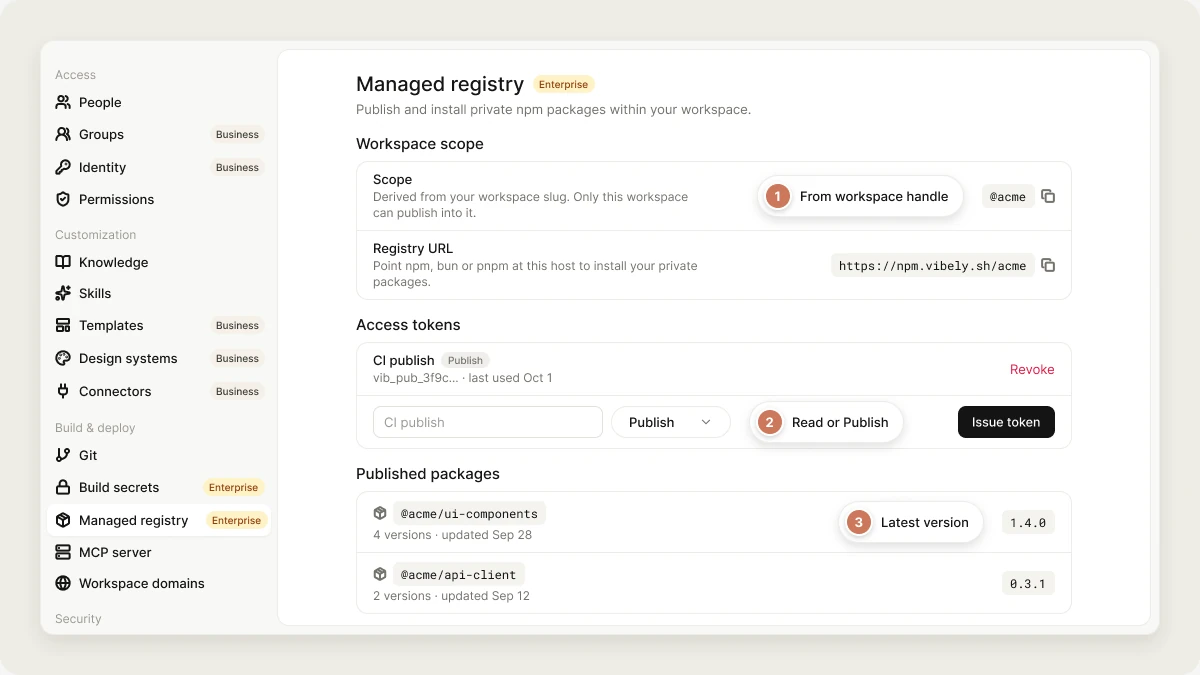
Open the managed registry from Settings → Build & deploy → Managed registry.
Why use a managed registry
Teams often keep shared code, such as a design system, utility functions, or an internal API client, in private npm packages that shouldn’t be public. With a managed registry you can:- Install internal packages in Vibely projects without running your own registry.
- Keep proprietary code private.
- Reuse versioned internal libraries consistently across projects.
Common use cases
- Internal component libraries: install your organization’s UI components in Vibely projects.
- Shared utilities: reuse validation, formatting, or data-fetching code across projects.
- Internal SDKs: install API clients that can’t be published publicly.
Prerequisites
- The Enterprise plan.
- The owner or admin role to issue tokens.
Your scope
Your registry publishes into one npm scope, taken from your workspace’s slug. A workspace with the slugacme publishes packages named @acme/.... The scope can’t be chosen, which is what stops one workspace from publishing into another’s namespace.
If your workspace has no valid slug, the page says the registry has no scope yet. Rename the workspace in Settings → Workspace settings to create one.
Set up the managed registry
1
Open the registry settings
Go to Settings → Managed registry. The page shows your Scope and Registry URL, with buttons to copy each.
2
Issue an access token
Under Access tokens, choose a Capability, give the token a name, and select Issue token. Copy the token right away. It’s shown once and can’t be retrieved again.
3
Publish a package
In your package’s own repository, add the
.npmrc snippet from the settings page, set NPM_TOKEN to a publish token in your CI environment, and run npm publish. The package name must start with your scope.View published packages
Published packages appear under Published packages on the same settings page, with how many versions each has and when it was last updated.Use a private package in a project
To install from the registry, your projects need a read token.1
Store a read token as a build secret
In Settings → Build secrets, add a build secret named
NPM_TOKEN whose value is a read token.2
Point your scope at the registry
In the Package registries card on the same page, select Add registry. Enter your scope, paste the Registry URL, and choose
NPM_TOKEN as the token. Vibely keeps the matching .npmrc block in every project in the workspace.3
Ask for the package
Prompt the agent with the package name, just like a public package:
.npmrc block references the token by name, so it’s never written into your project’s files:
Rotate or revoke a token
Tokens can’t be edited in place. To rotate one:1
Issue a replacement
Same capability, with a name that says what it’s for.
2
Update where it's used
Replace the value of the build secret, or your CI variable, that holds the old token.
3
Revoke the old token
Select Revoke next to it. Installs and publishes using it start failing immediately, which shows you anything you missed.
Limits
FAQ
Do all projects in my workspace have access?
Do all projects in my workspace have access?
Yes, once the scope is added under Package registries with a read token. Every project in the workspace gets the same
.npmrc block.Can I republish a version?
Can I republish a version?
No. A version can be published once. Publish a new version instead.
What if my packages already live in another registry?
What if my packages already live in another registry?
You don’t need the managed registry. Add that registry’s token as a build secret and add the registry under Package registries.
Related
Build secrets
Where your registry token lives.
npm packages
How Vibely installs packages.
Workspace settings
Everything else admins control.
Vibely for Enterprise
What the Enterprise plan includes.