

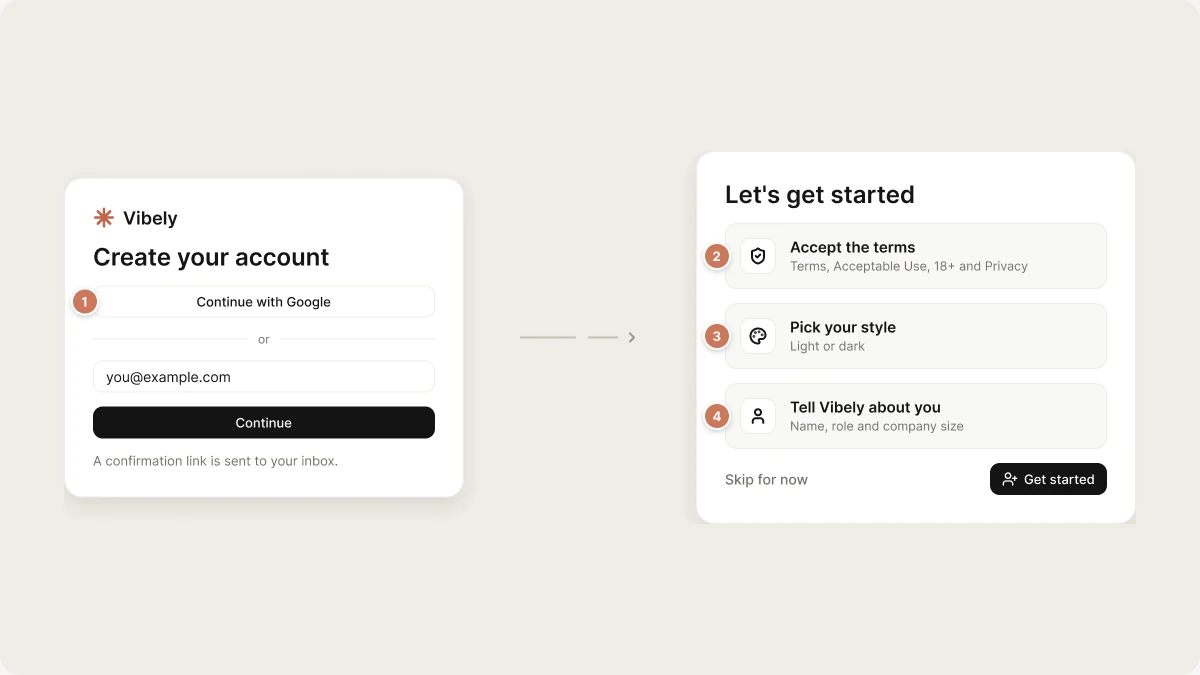
Sign up at vibely.sh
Create an account at vibely.sh/signup using either method:- Continue with Google: one click, no password to remember.
- Email and password: enter your email, select Continue, choose a password of at least six characters, and select Continue again. Vibely sends a confirmation link to your inbox. Click it to activate your account and finish signing in.
If your company has set up single sign-on, you don’t need a separate button. Enter your work email and select Continue, and Vibely sends you to your company’s identity provider automatically. SSO is available on Business and Enterprise plans.
Finish setting up
The first time you sign in, Vibely opens a short Let’s get started screen:1
Accept the terms
Agree to the Terms and Conditions and Acceptable Use Policy, confirm that you are at least 18, and consent to the Privacy Policy. Promotional emails are optional. Select Get started.
2
Pick your style
Choose a light or dark look for Vibely.
3
Tell Vibely about you
Enter your name, pick the role that fits you best, and say how many people work at your company.
vibelyagent.com address. See Plans and Credits.
Sign in to an existing account
Sign in at vibely.sh/login with the method you signed up with: Continue with Google, or your email and password. If you signed up with email but try to sign in before clicking the confirmation link, Vibely shows the Confirm your email panel again so you can resend the link.Reset your password
If you signed up with email and password:- Go to vibely.sh/login.
- Enter your email and select Continue.
- Select Forgot password? under the password field.
- Open the email and follow the link to set a new password.
If sign-up doesn’t work
- “Sign-up with disposable or placeholder email addresses is not allowed.” Use a real, long-lived email address.
- “Incorrect email or password.” The email already has an account and the password doesn’t match. Use Forgot password?, or sign in with Google if that is how you signed up.
- “SSO is not available for this email domain.” Your company’s SSO isn’t set up for Vibely yet. Check with your admin, or use another sign-in method.
- A CAPTCHA appears. Complete it, then select Continue again.
Access your account settings
Open the account menu from your avatar in the sidebar and select Settings, then choose Account in the settings menu. You can also go straight to vibely.sh/settings/account. Account settings hold your display name, email, linked accounts, and Delete account. See Account settings and Delete your account.Account vs. workspace
Your account and your workspaces are separate:- Your account is you: your sign-in, your profile, and your preferences.
- A workspace is where you work, alone or with people you invite. It holds projects, members, billing, and credits.
What’s next
- Build and publish your first app in about ten minutes with the Quick start.
- Find your way around the dashboard.
- Invite your team from Settings → People. See People.
- Upgrade your plan for more credits, mobile apps, and custom domains. See Plans.