

your-app.vibelyagent.com. You pick one branded subdomain for the workspace, and every app published from it uses it.
https://<app-name>--<workspace>.vibelyagent.com
For example, if your workspace’s branded subdomain is acme, a project published as dashboard lives at dashboard--acme.vibelyagent.com.
- Available on: Business and Enterprise plans
- Location: Settings → your workspace name → Branded app URLs
Why use branded app URLs
- Every app in the workspace has a consistent, recognizable address.
- Clients and teammates can tell at a glance which apps are yours.
- Apps stay branded before, or instead of, setting up custom domains.
Set up branded app URLs
A workspace has one branded subdomain.
1
Choose your branded subdomain
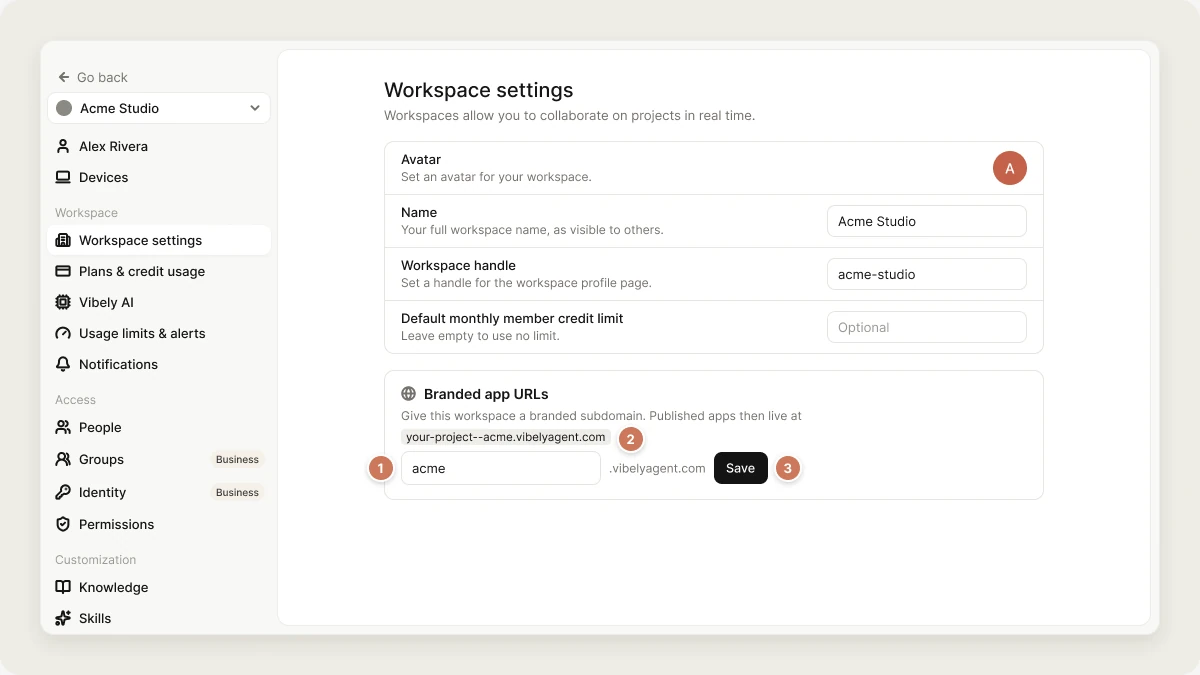
Go to Settings → your workspace name → Branded app URLs. Type your subdomain in the field (for example
acme). The card shows a preview of your app addresses.The subdomain must be 3–63 characters: lowercase letters, numbers and single hyphens, with no hyphen at the start or end and no double hyphen. Common words like www, api, app, admin and docs are reserved, and each subdomain can be used by only one workspace.2
Save
Click Save. There’s nothing to provision: the address works as soon as you publish.
3
Publish your apps
Publish as usual. The branded address applies to each app the next time it’s published, so republish existing apps with Update to move them to the branded pattern.
Which URL your app uses
- Apps published after you save use
<app-name>--<workspace>.vibelyagent.com. - Apps that were already live switch at their next publish.
- A project can also have a custom domain. Custom domains keep working alongside the branded address.
Turn off branded app URLs
Clear the field in Settings → your workspace name → Branded app URLs and click Save. Apps go back to the plain<app-name>.vibelyagent.com pattern the next time they’re published.
Troubleshooting
I can't turn on branded app URLs
I can't turn on branded app URLs
Check that your workspace is on Business or Enterprise. The field is locked on other plans.
That branded subdomain is already taken
That branded subdomain is already taken
Another workspace uses it. Pick a variation, such as your company name plus a suffix.
My app still shows the old address
My app still shows the old address
The branded address applies at publish time. Open Publish and click Update.
Related
Publish
Put your app live and push updates.
Custom domain
Serve an app on a domain you own.
Admin settings
Other workspace-wide settings.
Enterprise
Vibely for larger organizations.