

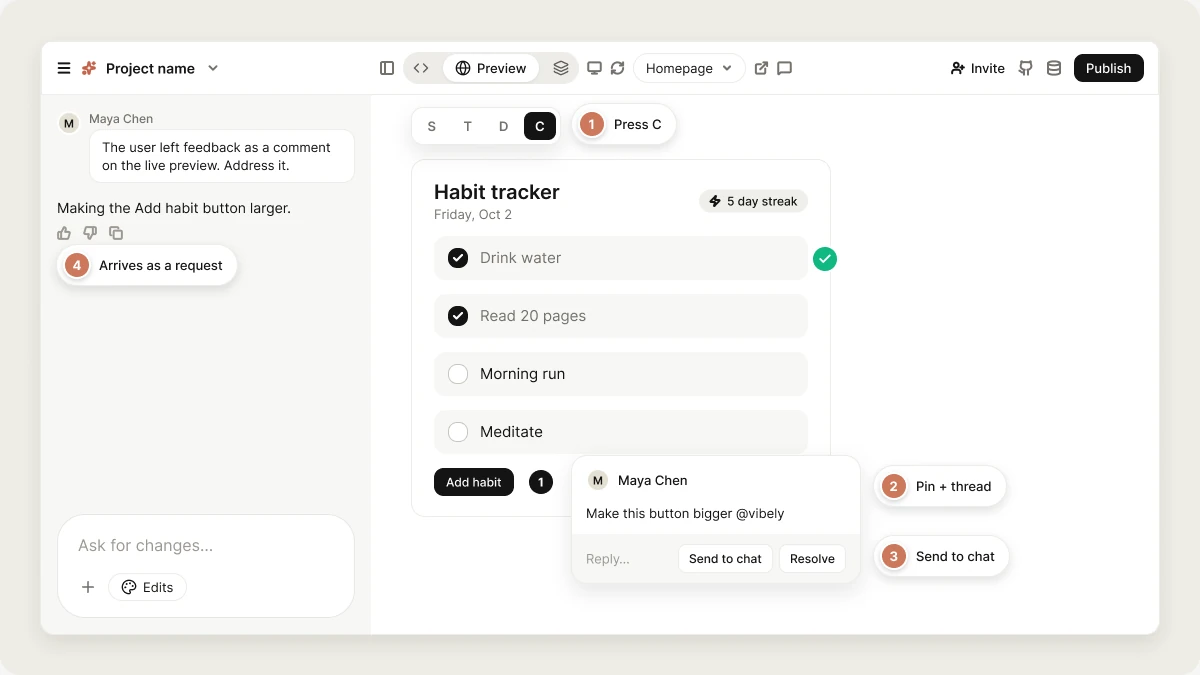
Create a comment
- Turn on comment mode: press
C, or click the Comments icon in the editor header and choose Comment mode. - Click anywhere in the preview to drop a pin.
- Type your comment in the box that opens.
- Press Enter or click Comment. (Shift+Enter adds a new line.)
S select, T text, D draw, C comment). Turning it on turns the others off. See Preview.
Reply to a comment
Click a pin to open its thread, type in Reply… at the bottom, and press Enter. Everyone with access to the project can see and reply to any thread.Send feedback to Vibely
Comments don’t reach the agent on their own. When you’re ready for a change to be built, send the thread in one of two ways:- Mention Vibely: write
@vibelyanywhere in a comment or reply. - Send to chat: click Send to chat on the thread.
Resolve comments
When the feedback has been handled, open the thread and click Resolve. Resolved threads stay in the list, dimmed, and their pin turns green. Click Resolved to reopen a thread. Resolving needs edit access to the project. Viewers can comment and reply, but don’t get a Resolve button; they see a Resolved label on threads someone else has resolved.Edit and delete comments
You can edit or delete your own comments only. Edited comments are marked (edited), and deleted ones show as [Deleted] so the rest of the thread still makes sense.Reactions
Add a reaction to any comment: 👍 ❤️ 🎉 🙏 👀. Reactions are visible to everyone in the thread.Comments sidebar
Click the Comments icon in the header and choose All comments to open the sidebar. It lists every thread in the project, open and resolved, with the most recently active first. Use Search comments to find threads by text or author, and click a thread to open it. The badge on the Comments icon counts open (unresolved) threads.Notifications
When someone replies to a thread, everyone who already commented in it gets a New reply on a comment notification in Vibely (and a push notification, if you’ve allowed them). Starting a new thread doesn’t send a notification, so mention@vibely or tell your team when you need attention on it.
FAQ
Who can leave comments?
Who can leave comments?
Anyone who can open the project, including people with Can view access. Comments are available on all plans. People who only have a preview link can’t comment; invite them to the project instead.
Do comments use credits?
Do comments use credits?
No. Leaving comments is free. When you send a thread to Vibely with
@vibely or Send to chat, the resulting build uses credits like any other chat message.Can I see comments from other pages?
Can I see comments from other pages?
Yes. Pins in the preview are filtered to the page you’re viewing, but the sidebar lists threads from every page, and each thread shows the page it was left on. Pins left before Vibely recorded the page appear on the home page.
What happens to a pin when the layout changes?
What happens to a pin when the layout changes?
Pins are placed by position in the preview, not attached to an element. If the page layout changes a lot, a pin can end up next to a different element. The thread itself, and the page it was left on, are always kept.
Related
Preview
Preview modes and toolbar.
Collaboration
Invite people and assign roles.
Share a project
Invite links and preview links.
Visual edits
Change the UI directly in the preview.