

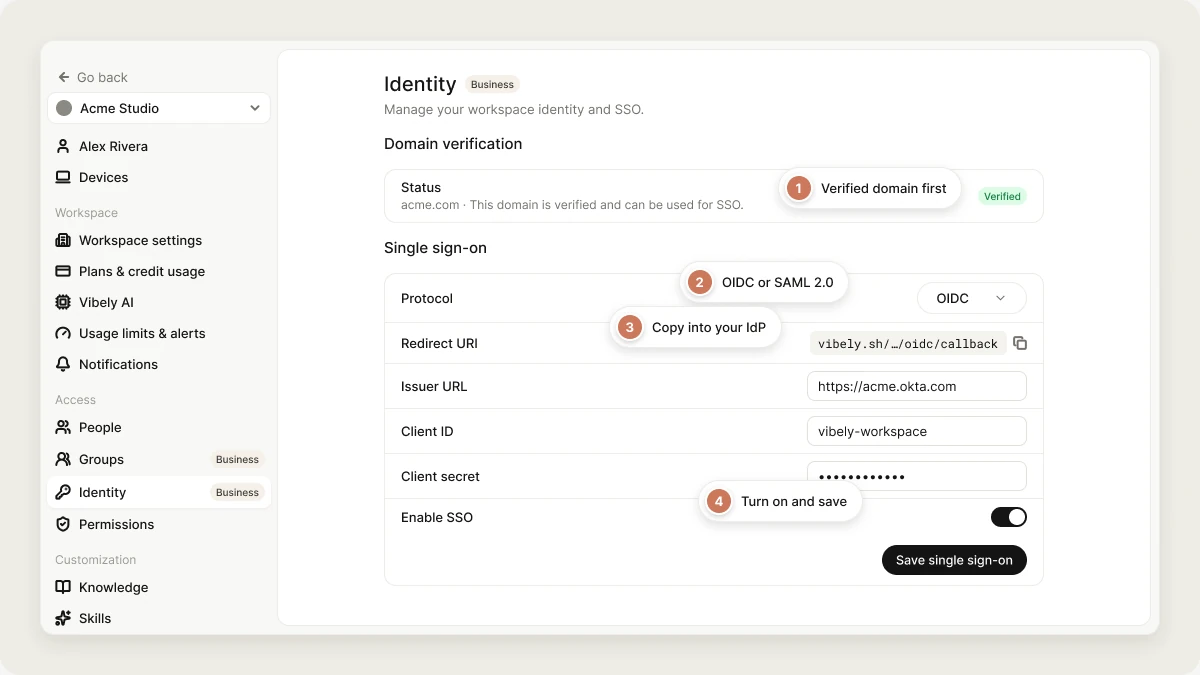
This page covers SSO for your team’s access to Vibely itself. To add sign-in to an app you build, see Authentication.
Supported SSO protocols
- OpenID Connect (OIDC) is recommended. You can set it up end to end yourself.
- SAML 2.0 works with any SAML IdP. Your IdP’s metadata has to be registered with Vibely’s sign-in service first, which support does for you.
Prerequisites
- Admin access to your IdP (Okta, Microsoft Entra ID, Auth0, or another provider).
- The owner or admin role in a Business workspace.
- A verified domain. See Verify your domain.
Start SSO setup in Vibely
1
Open Identity
Go to Settings → Access → Identity.
2
Verify your domain
Under Domain verification, confirm the status is Verified.
3
Choose a protocol
Under Single sign-on, pick OIDC or SAML 2.0 in Protocol. The fields change to match.
4
Configure your IdP
Copy the values Vibely shows into your IdP. See the reference below and the guide for your provider.
5
Enter your IdP's details
For OIDC, paste the issuer URL, client ID, and client secret. For SAML, paste the provider ID.
6
Turn it on
Turn on Enable SSO and click Save single sign-on.
7
Set the join role
Under User provisioning, set Role on first SSO login. Start with Viewer if you’re unsure.
IdP configuration reference
- OIDC
- SAML
- Application type: web application (a confidential client with a client secret)
- Grant type:
Authorization Code, with PKCE (S256) - Redirect URI:
https://vibely.sh/api/v1/public/oidc/callback(also shown on the Identity page as Redirect URI) - Scopes:
openid,email,profile - The ID token must include the user’s
email.
What Vibely checks on every sign-in
For OIDC, Vibely reads your IdP’s discovery document, requires itsissuer to match the URL you entered exactly, and validates the ID token’s signature, issuer, audience, expiry, and nonce before signing anyone in.
For both protocols, the email your IdP sends must be on your workspace’s verified domain. A sign-in for someone@other.com is rejected even if your IdP vouches for it.
Require SSO
Once SSO works, you can turn on Require SSO to make your IdP the only way to join the workspace and to use Vibely as a member. It turns off invitations and external collaborators, and signs out any member (except the workspace owner) whose session didn’t come through your IdP, such as a password or Google sign-in. You can also set a Session duration of 24 hours, 48 hours, or 7 days, after which members sign in through your IdP again. See Require SSO and session duration.Provider-specific setup guides
Complete Start SSO setup in Vibely first so you have the values to copy.Okta
- OIDC
- SAML
- Applications → Create App Integration → OIDC - OpenID Connect → Web Application.
- Grant type: Authorization Code.
- Sign-in redirect URI: the Vibely redirect URI.
- Assign the people or groups who should get in.
- Copy the Client ID and Client secret into Vibely. The issuer is
https://<your-org>.okta.com, or your custom authorization server’s issuer if you use one. Use exactly theissuervalue from the IdP’s discovery document.
Microsoft Entra ID
- OIDC
- SAML
- App registrations → New registration.
- Redirect URI: platform Web, the Vibely redirect URI.
- Certificates & secrets → New client secret. Copy the secret’s Value, not its ID.
- The issuer is
https://login.microsoftonline.com/<tenant-id>/v2.0. Use the v2.0 endpoint: v1.0 reports a differentissuerand is rejected.
Auth0
- OIDC
- SAML
- Applications → Create Application → Regular Web Application.
- Allowed Callback URLs: the Vibely redirect URI.
- Copy the Domain, Client ID, and Client Secret.
- The issuer is
https://<your-tenant>.auth0.com/. Vibely handles the trailing slash either way.
Configure other providers
Any provider works if it supports one of the protocols:- OIDC: the provider must publish
/.well-known/openid-configurationat its issuer, support the authorization-code grant with PKCE, and put anemailclaim in the ID token. Register a confidential web client with the Vibely redirect URI and theopenid email profilescopes. - SAML 2.0: configure the ACS URL and entity ID, send
EmailAddressas the Name ID, and send the metadata URL to Vibely support.
Manage an existing SSO setup
- Rotate the OIDC client secret: paste the new secret and save. Leaving the field blank keeps the stored secret, so you can change other fields without re-entering it. The secret is stored encrypted and never shown again.
- Change the domain: changing the email domain clears verification. Verify again before sign-ins resume.
- Turn SSO off: turn off Enable SSO and save. Sign-in goes back to Google and email.
Signing in
Your team goes to the normal Vibely sign-in page and enters their work email. If the domain is set up for SSO, they’re sent to your IdP. A domain routes to SSO only when all of these are true:- Enable SSO is on
- the domain is verified
- the workspace is on Business
- every field the protocol needs is filled in
Troubleshooting
Errors come back to the sign-in page as/login?error=<code>.
An issuer mismatch is almost always a trailing slash or a version difference: Entra v1.0 instead of v2.0, or an Okta custom authorization server whose issuer is
/oauth2/<id> rather than your org URL. Open <issuer>/.well-known/openid-configuration in a browser and copy its issuer field exactly.FAQ
Which plans include SSO?
Which plans include SSO?
The Business plan.
Can I start sign-in from my IdP's app dashboard?
Can I start sign-in from my IdP's app dashboard?
No. Sign-in starts from the Vibely sign-in page.
Can I connect more than one identity provider?
Can I connect more than one identity provider?
No. A workspace has one SSO configuration for its one verified domain.
Do existing members need to do anything?
Do existing members need to do anything?
No. Next time they sign in with their work email, Vibely sends them to your IdP. Their account, projects, and role stay the same.
Can my IdP groups set workspace roles?
Can my IdP groups set workspace roles?
Through SCIM, yes. Vibely exposes three role groups (Admins, Editors, Viewers) that you map your IdP groups onto. See SCIM.
Related
Identity
Verify your domain and choose how people join.
SCIM
Provision and deprovision members from your IdP.