

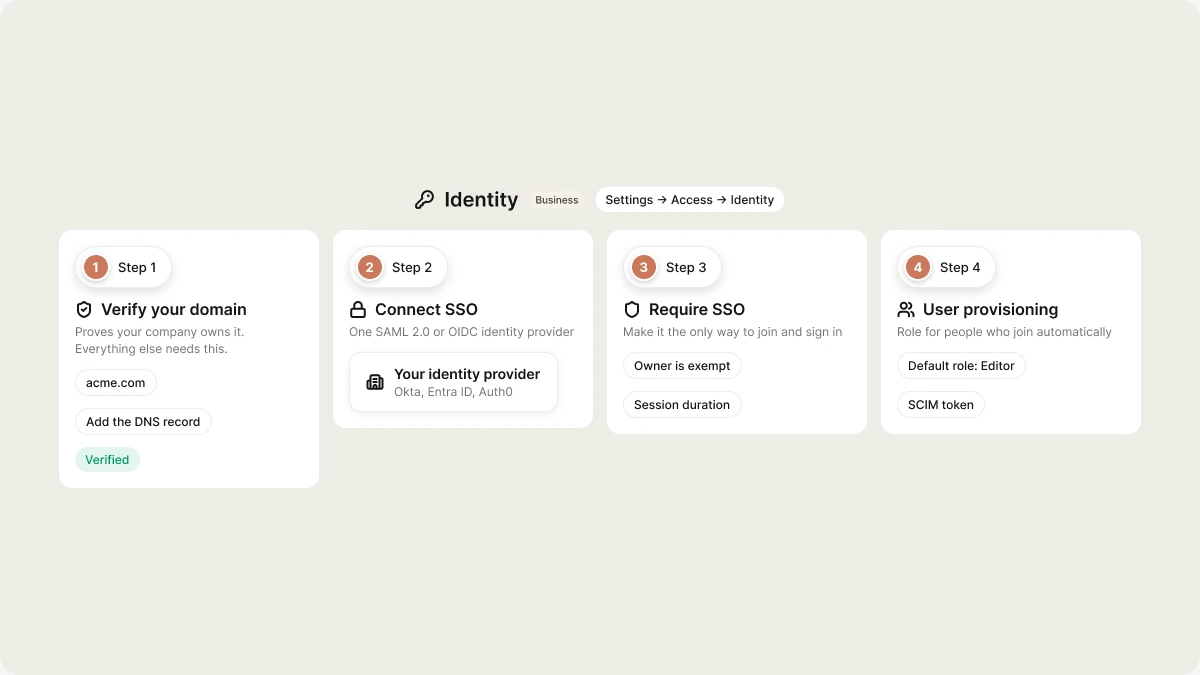
- Available on: Business
- Access: workspace owners and admins
- Location: Settings → Access → Identity (
vibely.sh/settings/identity). The same SSO and SCIM controls also appear in Settings → Security center.
This page is about how your team signs in to Vibely itself. To add sign-in to an app you build, see Authentication.
What’s on the Identity page
Verify your domain
Verifying a domain proves your company owns it. Nothing else on the Identity page works until it’s verified, and verification is what stops another workspace from claiming a domain likegmail.com.
Before you start
- A Business workspace, and the owner or admin role in it.
- Access to your domain’s DNS settings, or someone who can add a record for you.
Verify a domain
1
Enter your email domain
Under Domain verification, enter the domain your team’s email addresses end in, for example
acme.com (not @acme.com and not a URL), and click Save.2
Copy the DNS record
Vibely shows a TXT record:
3
Add the record at your DNS provider
If your provider adds the domain for you (the name field already shows
.acme.com), enter just _vibely-verify.4
Click Verify
Vibely looks up the record and compares it with the one it gave you. The status changes from Pending to Verified. DNS changes can take a few minutes to propagate; if the check fails, wait and try again.
How domain verification works
- A workspace verifies one email domain.
- A domain can belong to only one workspace. If another workspace already claimed it, saving it fails with “already linked to another workspace”.
- Changing the domain clears its verification. You get a new record and have to verify again.
Troubleshooting verification
User provisioning
Once your domain is verified and SSO is on, people from your company can join the workspace without an invitation.Role on first SSO login
When someone with an email on your verified domain signs in and isn’t a member yet, Vibely adds them to the workspace with the role you choose here: Viewer, Editor, or Admin. It defaults to Editor, which can create and publish projects, so set it deliberately. This happens on any successful sign-in by an address on your domain, not only sign-ins through your identity provider, unless you require SSO. If the person’s default workspace is a free one they own, Vibely also makes your workspace their default, so they land in the company workspace instead of their personal one. A paid personal workspace is never touched.SCIM provisioning
Your identity provider can create, update, and remove members for you. Issue a SCIM token here and set the Role for SCIM users. See SCIM.How provisioning methods interact
Provisioned members are managed like everyone else: they appear in People, where you can change their role or remove them.
Require SSO and session duration
With a verified domain and SSO enabled, you choose how strict sign-in is:
You can only require SSO once the domain is verified; otherwise the workspace could lock itself out.
How Require SSO is enforced
Vibely checks every request from a member of an SSO-enabled Business workspace. If Require SSO is on and the member’s session didn’t come through your identity provider (for example, they signed in with a password or with Google), Vibely signs them out and sends them to the sign-in page with the message “Your workspace requires single sign-on.” They sign in again with their work email to go through your identity provider.- The workspace owner is exempt, so they can always get back in to fix the SSO setup if the identity provider breaks.
- It applies to all of the member’s Vibely usage, not just this workspace. A member who also belongs to other workspaces has to sign in through SSO to use any of them.
Session duration
Session duration offers 24 hours, 48 hours, or 7 days (the default). It sets how long an SSO sign-in lasts. When a member’s SSO session is older than the setting, Vibely signs them out with the message “Your single sign-on session has expired”, and they sign in again through your identity provider. Changes to Require SSO and Session duration take effect within about a minute.FAQ
Can I verify more than one domain?
Can I verify more than one domain?
No. Each workspace verifies one email domain.
Nobody is being added automatically. Why?
Nobody is being added automatically. Why?
Automatic joining needs the domain verified and SSO enabled on a Business workspace. If SSO is required, the sign-in also has to come through your identity provider.
SSO sign-in falls back to a password prompt.
SSO sign-in falls back to a password prompt.
A domain only routes to SSO when all of these are true: SSO is enabled, the domain is verified, the workspace is on Business, and every field the chosen protocol needs is filled in. See SSO troubleshooting.
Related
SSO
Connect Okta, Entra ID, Auth0, or any SAML 2.0 or OIDC provider.
SCIM
Provision and deprovision members from your identity provider.
People
Manage members after they join.
Privacy & security
Restrict invitations to your company’s domains.