

Why Supabase
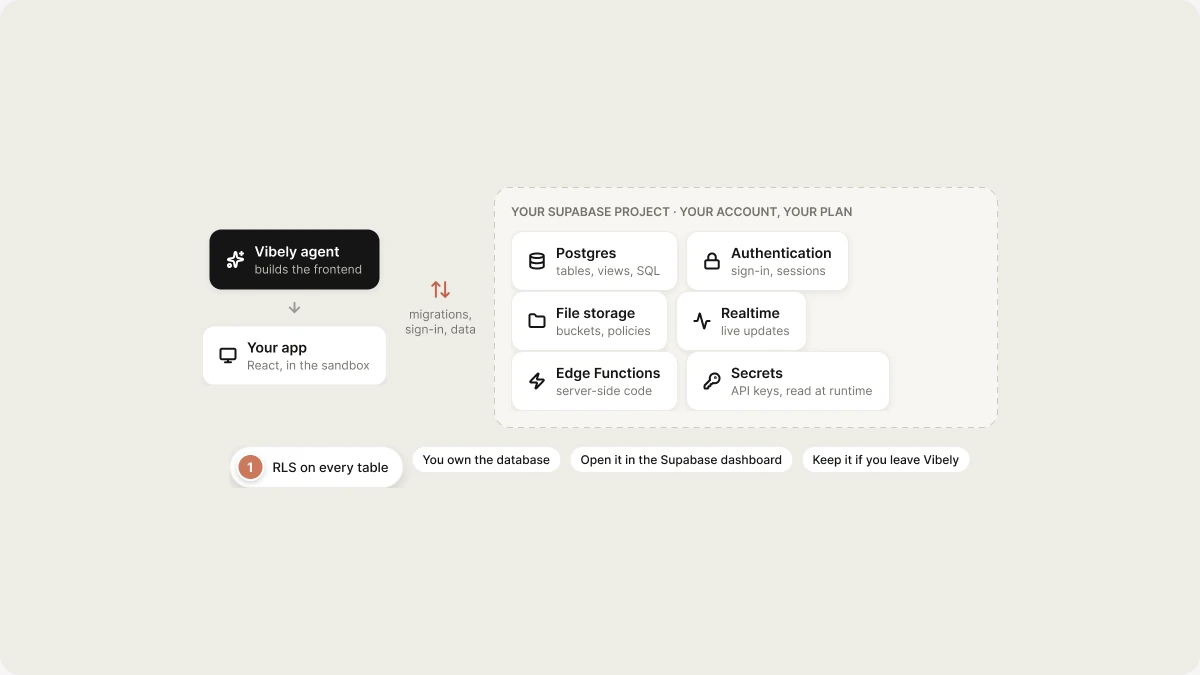
- Real data from the first feature. Tables, sign-in, and file storage work as soon as the project is linked. There is nothing to deploy separately.
- Secure by default. Every table the agent creates gets row-level security (RLS) in the same migration, so one user’s data is not served to another.
- You own it. The database is a normal Supabase project. You can open it in the Supabase dashboard, query it, back it up, or keep using it if you leave Vibely.
What’s included
After you link a Supabase project, the agent can use everything Supabase provides:
Your app’s AI features run through Vibely AI, which also needs a linked Supabase project because its calls are made from an Edge Function.
Connect Supabase to a project
You can start from either end: ask for a backend feature in the chat, or connect first from the editor.- From the chat
- From the editor
Ask for something that needs a backend, for example sign-in or saved data. The agent shows a Connect Supabase card in the chat and keeps building on mock data in the same turn, so you can see the feature before any database exists. Select the card whenever you are ready. When the link completes, Vibely starts a new turn that creates the real tables and switches your app from mock data to the database.
1
Connect your Supabase account
Select Connect Supabase account. Supabase opens in a window where you sign in and authorize Vibely for an organization. Finish in the Supabase window and come back to the editor.
2
Choose a project
Pick one of the organization’s projects from the list. Vibely links an existing Supabase project. It does not create one from the dialog, so if the organization has no projects yet, select Open supabase.com, create one there, and come back.
3
Link it
Select Link with your project’s name. Vibely reads the project’s API keys (it never reads your data to link it), checks that the project’s services are healthy, and stores the project URL and anon key for your app.
Your Supabase account connection belongs to you, not to one project. Organizations you authorize are available across all your Vibely workspaces, and you choose which Supabase project each Vibely project links to.
Build with your database
Once linked, describe the data your app needs in plain language. For example:- Writes a SQL migration that creates the tables, and enables row-level security with policies in the same migration.
- Applies the migration to your linked Supabase project.
- Reads the live schema back before it writes any query, so the code matches what actually exists.
- Wires your app to the tables with the Supabase client.
Destructive changes need your approval
When a migration or query would delete data, such asDROP TABLE, TRUNCATE, or a DELETE or UPDATE with no WHERE clause, the turn pauses and asks you to approve it before anything runs. There is no setting that skips this.
Edge Functions
Ask for server-side behavior, such as “email me when a new lead is added” or “handle the Stripe webhook”, and the agent writes an Edge Function in your project’ssupabase/functions folder. Vibely deploys changed functions to your linked Supabase project for you, and pushes your project’s secrets to Supabase’s Edge Function secret store before each deploy.
Functions require a signed-in user’s token by default. A function is public only when your project declares it, for example a webhook that a third-party service calls.
Example prompts
Manage the connection
Changing or removing the link stops the agent from running migrations or reading the schema for that project. It does not delete your Supabase project or its data, which stay in your Supabase organization.
Troubleshooting
I see "OAuth permissions missing" or migrations fail with a 403
I see "OAuth permissions missing" or migrations fail with a 403
Supabase rejected the request because your authorization doesn’t include the database permissions Vibely needs to run migrations. Select Reconnect in the connection dialog to authorize again. Supabase applies permissions when you authorize, and refreshing an existing connection does not pick up new ones, so a fresh authorization is required. If the error persists after reconnecting, contact Vibely support.
"Supabase session expired"
"Supabase session expired"
Your Supabase authorization expired or was revoked. Select Reconnect Supabase and authorize again. Your project link and data are unaffected.
"Could not verify project health. It may still be starting up."
"Could not verify project health. It may still be starting up."
A newly created or just-restored Supabase project can take a few minutes to start. Wait, then try linking again.
The app still shows mock data
The app still shows mock data
The project isn’t linked yet. Ask the agent to connect Supabase again, and it raises the Connect Supabase card. Once linked, the agent’s next turn moves the app onto the real database.
FAQ
Who pays for the database?
Who pays for the database?
You do, directly to Supabase, on your Supabase plan. Vibely does not resell database capacity. Building with the agent uses your Vibely credits as usual.
Can I undo a migration?
Can I undo a migration?
Migrations are forward-only. The agent writes a new migration that reverses the change rather than editing one that has already been applied. Reverting your code in version history does not roll back the database.
Can I use the Supabase dashboard directly?
Can I use the Supabase dashboard directly?
Yes. It’s your project. You can browse tables, run SQL, and manage auth settings in the Supabase dashboard at any time. Tell the agent about changes you make there so it doesn’t work from an outdated picture of the schema.
What happens to my data if I leave Vibely?
What happens to my data if I leave Vibely?
Nothing. The Supabase project stays in your organization with all its data. See Ownership.
Related

Authentication
Add sign-in and configure your app’s redirect URLs.

Secrets
Store API keys your Edge Functions read at runtime.

Security best practices
RLS policy patterns and where trust boundaries sit.

Vibely AI
Add AI features that run from your Edge Functions.