

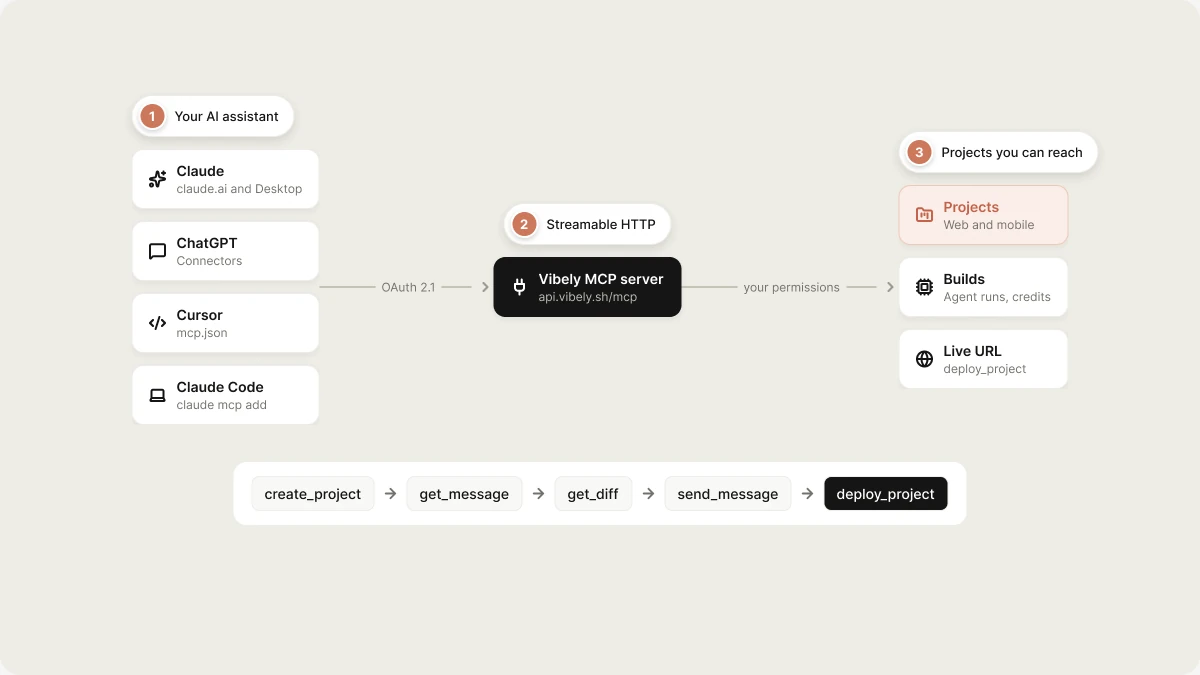
What is the Vibely MCP server?
Vibely exposes itself as a Model Context Protocol (MCP) server athttps://api.vibely.sh/mcp. Connect it once, and your AI assistant can create Vibely projects, iterate on them, review what changed, query their databases, and publish them, all without leaving the client you’re already working in. It works for web apps and native iOS and Android apps, and it is available on every plan.
This is the reverse of custom MCP servers, which let the Vibely agent call your tools while it builds. The Vibely MCP server lets your AI assistant call Vibely.
What MCP is
MCP is an open standard that lets AI agents discover and call external tools. When an assistant connects to an MCP server, it sees the tools available and decides when to use them. The Vibely MCP server makes Vibely one of those tools. The server uses Streamable HTTP and signs you in with OAuth 2.1. There is no API key to copy or paste.Supported AI clients
Vibely provides setup steps for:- Claude (claude.ai and Claude Desktop)
- ChatGPT
- Claude Code
- Cursor
- VS Code
- Codex
The flow
- Your assistant calls
create_projectwith a description of what to build. - Vibely builds the project. The call waits for the first build, or your assistant polls
get_messageif the build takes longer. - Your assistant reviews the result with
get_diff,list_files, andread_file. - You keep refining through
send_message, and Vibely keeps building. - When you’re happy,
deploy_projectpublishes it and returns the live URL. Mobile projects can also be built and submitted to the stores.
Who this is for
- People who work in an AI assistant or editor such as Claude, ChatGPT, Cursor, or Claude Code, and want to create and iterate on Vibely projects without switching windows
- Teams who want Vibely as one step in a larger agent workflow: scaffold an app, publish it, and hand off the URL
Why use the Vibely MCP server
- Agent-driven building: let your assistant scaffold and iterate on Vibely projects in natural language.
- Code inspection: read files, diff changes, and browse edit history.
- Web and mobile: preview mobile apps on a phone, start native builds, and submit to TestFlight or Google Play from the same conversation.
- Cross-tool workflows: combine Vibely with other MCP-connected tools in one session.
Common use cases
Prerequisites
- A Vibely account on any plan
- Allow third-party AI apps turned on for your workspace. It is on by default; owners and admins can turn it off. See Controls for workspace owners and admins.
- An MCP client, such as one of the supported AI clients
Before you connect
How to connect
Workspace members can also find the server URL and the setup snippet for each client inside Vibely, under Settings → Connected AI apps (vibely.sh/settings/connected-apps).Claude
Claude
Open Settings → Connectors → Add custom connector, paste
https://api.vibely.sh/mcp, and sign in to Vibely when prompted. This works in claude.ai and Claude Desktop.ChatGPT
ChatGPT
Open Settings → Connectors → Create, choose MCP server, paste
https://api.vibely.sh/mcp, and pick OAuth.Claude Code
Claude Code
Run this in your terminal:Then run
/mcp inside Claude Code and choose Authenticate.Cursor
Cursor
Add this to
~/.cursor/mcp.json, or use Settings → MCP → Add server:VS Code
VS Code
Add this to
.vscode/mcp.json, then start the server from the MCP view:Codex
Codex
- which app is asking;
- where you will be sent back to; and
- what the app will be able to do.
Permissions
Every token acts with your Vibely permissions, so an assistant can never do anything you couldn’t do yourself in Vibely. Access is granted per scope:
If an assistant calls a tool it wasn’t granted, the server responds with a standards-compliant
insufficient_scope challenge, and the assistant can ask you for the extra permission.
Manage connected apps
Settings → Connected AI apps lists every app with access to your account under Apps with access, showing:- the permissions it holds;
- when it connected;
- when it was last used; and
- a feed of its recent tool calls.
Controls for workspace owners and admins
Under Settings → Connected AI apps → AI app access, owners and admins can:- Turn off Allow third-party AI apps. The workspace’s projects become invisible to every connected app, even for members whose other workspaces allow them.
- Set Approved apps only: an allowlist of app domains (for example
claude.ai) or client IDs, one per line. Leave it empty to allow any app your members approve. - Turn off Allow running SQL or Allow publishing for AI apps, while still allowing everything else.
Credits
create_project, send_message, and approve_plan run the Vibely agent, which spends your workspace’s credits exactly as it does in the editor. Every other tool is free.
Before an agent run starts, the server checks the balance. If the workspace is out of credits, the tool returns OUT_OF_CREDITS with an upgrade_url instead of starting. Retrying an identical create_project or send_message within about two minutes returns the original run (deduplicated: true), so you are never charged twice.
Secrets stay in Vibely
When the agent needs an API key, the run reportswaiting_for_input, and the assistant sends you to the editor to enter it. Keys never pass through an AI app. The same goes for connecting OAuth services such as Stripe: you finish those in the browser.
Available tools
The machine-readable version of this list is athttps://api.vibely.sh/mcp/skill.md. Tools are grouped by the scope they need.
workspaces:read
workspaces:write
projects:read
projects:write
projects:deploy
database:write
Skill file
A skill file tells your assistant how to drive the Vibely MCP server well: when to use it, how to sequence tool calls, and which patterns to follow. Vibely publishes it atapi.vibely.sh/mcp/skill.md. It is generated from the server’s tool registry, so it always matches the tools the server exposes. Download it and add it to your client’s skills or instructions, for example .claude/skills/vibely-mcp/SKILL.md for Claude Code.
Security
The authorization server implements the MCP authorization specification in full:- OAuth 2.1 with PKCE (S256), required on every sign-in.
- Client registration through Dynamic Client Registration (RFC 7591) or a Client ID Metadata Document, fetched with SSRF protection. Plain
httpredirect addresses are only accepted forlocalhost. - Server discovery through Protected Resource Metadata (RFC 9728) and Authorization Server Metadata (RFC 8414).
- Audience-bound tokens (RFC 8707). A token issued for this server is refused anywhere else.
- Short-lived access tokens that last one hour.
- Rotating refresh tokens with theft detection. A replayed refresh token revokes its whole token family.
- Hashed storage. Tokens, codes, and client secrets are stored only as SHA-256 hashes.
- Rate limits per connection and per IP.
- Audit log. Every tool call is recorded, without its arguments.
Troubleshooting
Tools don't show up after connecting
Tools don't show up after connecting
- Connected through the client’s UI: remove the Vibely connector and add it again to re-run sign-in.
- Using a config file: check the JSON is valid and the
vibelyentry is inside the existingmcpServers(orservers) object, then restart the client.
Workspace not found
Workspace not found
Call
list_workspaces to get valid workspace IDs. If you have several workspaces and don’t pass workspace_id to create_project, the response lists available_workspaces so you can choose one.Project not found
Project not found
The project ID is wrong, the project was deleted, or you no longer have access. Call
list_projects to find the right ID.This project has no database yet
This project has no database yet
Call
enable_database first. It shows what it would create and waits for you to confirm before creating a Supabase project in your account.Workspace policy does not allow AI apps to publish or run SQL
Workspace policy does not allow AI apps to publish or run SQL
An owner or admin has turned off Allow publishing or Allow running SQL under AI app access. Publish or run SQL from the Vibely editor instead, or ask them to change the setting.
This workspace requires two-factor authentication to publish
This workspace requires two-factor authentication to publish
Publish from the Vibely editor, and enter your two-factor code when asked. Set up two-factor authentication in Settings → Account if you haven’t yet.
Too many requests from this connection
Too many requests from this connection
You hit the per-connection rate limit. Wait a minute and try again.
FAQ
What's the difference between the Vibely MCP server and custom MCP servers?
What's the difference between the Vibely MCP server and custom MCP servers?
Custom MCP servers let the Vibely agent call your external tools while it builds. The Vibely MCP server is the reverse: it lets your assistant, such as Claude, ChatGPT, or Cursor, call Vibely and manage your projects.
Which plans can use the Vibely MCP server?
Which plans can use the Vibely MCP server?
All plans. Owners and admins can turn it off for their workspace, or limit it to approved apps.
Can I connect with an API key?
Can I connect with an API key?
No. OAuth is the only way to connect.
Does the MCP server use my credits?
Does the MCP server use my credits?
Only
create_project, send_message, and approve_plan, which run the agent. Every other tool is free.What permissions does the MCP server have?
What permissions does the MCP server have?
Exactly yours, narrowed to the scopes you granted. An assistant can never do more than you could in Vibely.
Related
Custom MCP servers
Give the Vibely agent access to your own tools.
Agent integrations
Make the apps you build usable by AI agents.
Connectors
Everything Vibely can connect to.
Credits
What spends credits and what is free.