

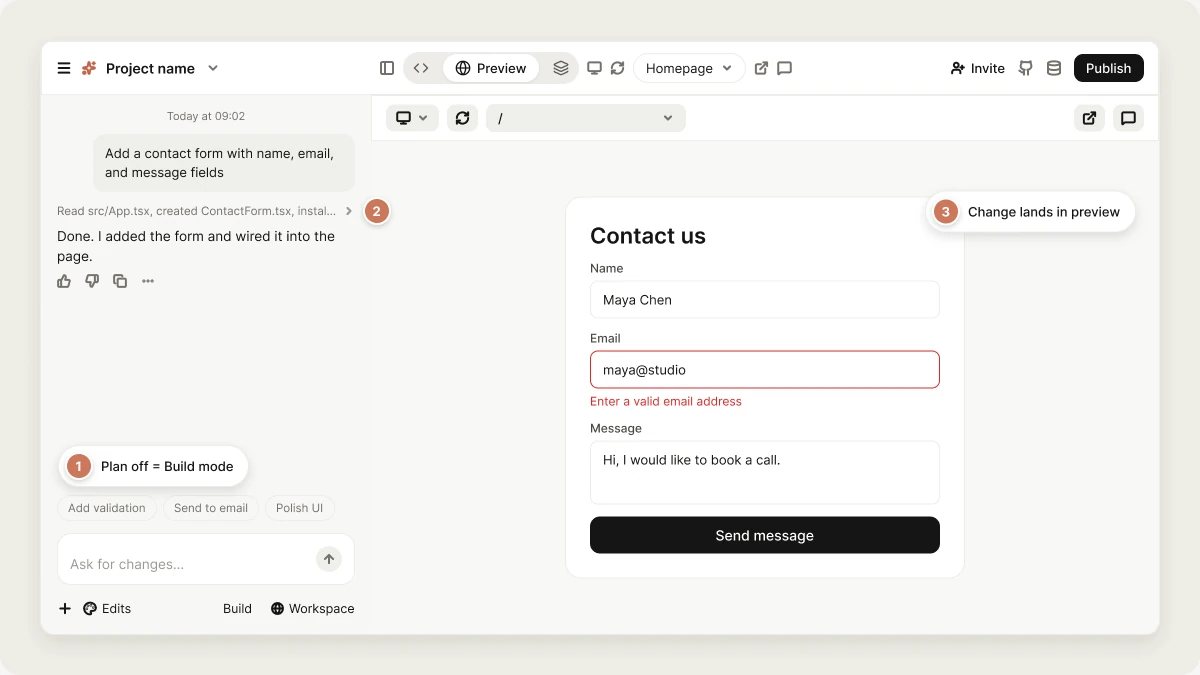
Overview
Build mode is Vibely’s default mode. Everything you send in the project chat runs in Build mode unless you turn on the Plan toggle. When you give Vibely a task, it takes it from start to finish. It reads your project for context, edits the files that need to change, installs dependencies, rebuilds the preview, and fixes problems it runs into along the way. You can follow each step in the project chat while it works and review the result when it’s done. Build mode also handles questions. There is no separate chat mode to switch into. When your message is a question rather than a request for a change, Vibely answers it without changing your code. See Ask questions without changing code.What Build mode is for
Use Build mode to:- Implement a feature or a change once you know what you want
- Fix bugs and errors
- Refactor code across multiple files
- Apply coordinated changes across pages, components, the database, and configuration
- Connect services, such as your Supabase project or a connector
- Generate images for your app
- Ask how something in your project works, or talk through an idea
How to use Build mode
Build mode is active whenever the Plan toggle next to the send button is off. Describe what you want and send your message. Clear requirements and constraints help Vibely get it right the first time. Be specific about what you wantAsk questions without changing code
You don’t need to switch modes to ask a question. Before each message runs, Vibely reads it and decides whether you are asking for a change or asking something.- Questions and discussion get a direct answer in the chat. Vibely can read your project’s code to answer, search the web, use skills, and use your connected tools, but it does not create, edit, or delete any files.
- Requests for a change run as a normal build.
- An attached image, such as a screenshot or mockup
- Elements you selected in the preview with Edit from the preview
- A sketch you drew on the preview
Follow the work
While Vibely works, the project chat shows each step as it happens: the files it reads and edits, the commands it runs, and the tools it uses, such as web search or image generation. For larger requests, Vibely may send read-only subagents to investigate parts of your project in parallel, and those show up as their own rows. This helps you:- Follow progress on longer builds
- Understand what Vibely is doing and why
- Spot early when the work is heading somewhere you didn’t intend
Send follow-ups while Vibely works
You don’t have to wait for Vibely to finish before you type the next message. Messages you send while Vibely is working are queued and run in order as their own requests after the current one ends. You can reorder, edit, or remove queued messages, pause the queue, or choose Send now to stop the current request and run that message next. See Queue your next message.Debugging and verification
Build mode does more than make sure the code compiles. As it works, Vibely can:- Read build errors and fix them before it finishes
- Read runtime errors from your running preview
- Check your database schema when a change touches data
- Run a security scan of your project
Pricing
Build mode is usage-based. The cost of a message depends on the work Vibely does to complete it, such as:- How much of the project it needs to read
- How many files it changes
- How many steps and tools it uses, such as web search or image generation
Control the cost of a Build mode request
- Scope each prompt narrowly. Ask for one change at a time and name the files or areas to touch. Broad prompts like “clean up the app” explore more of the codebase and change more files, which costs more.
- Plan first for large or unfamiliar changes. A Plan mode message reads and proposes without writing code, so you can check the approach before you spend credits on the build.
- Stop a request in progress. Click Stop, or press Esc when you’re not typing in a field. Vibely keeps the work done so far, and you’re charged only for that work. To discard it too, use Undo last change or version history.
- Watch the steps. If the task is growing beyond what you intended, stop early and send clearer direction.
- Check your balance before large tasks. See your remaining credits in Settings → Plans & credit usage.
FAQ
Does Vibely modify my project directly in Build mode?
Does Vibely modify my project directly in Build mode?
Yes. Vibely applies changes directly to your project. Each response lists the files it changed, and you can restore an earlier version at any time from version history.
Is there a separate Chat mode?
Is there a separate Chat mode?
No. Build mode answers questions on its own. When your message is a question, Vibely replies in the chat and doesn’t change any files. For a structured plan you approve before anything is built, use Plan mode.
Vibely answered my request instead of making the change. What do I do?
Vibely answered my request instead of making the change. What do I do?
Reply with a direct instruction, such as “Yes, make that change” or “Go ahead and build it.” Vibely reads the previous exchange, so a short confirmation is enough.
What happens if errors occur during implementation?
What happens if errors occur during implementation?
Vibely reads build and runtime errors and keeps fixing until the issue is resolved or it needs your input. If an error remains, click Try to fix · Free on the error card. See Debug your app.
Can I send messages while Vibely is working?
Can I send messages while Vibely is working?
Yes. They queue and run in order after the current request. Use Send now on a queued message to stop the current request and run that one next.
How do I stop a request, and what happens when I do?
How do I stop a request, and what happens when I do?
Click Stop, or press Esc when you’re not typing in a field. Vibely keeps the changes made so far and charges only for the work completed. To remove those changes, use Undo last change or restore an earlier version.
When should I switch to Plan mode?
When should I switch to Plan mode?
Switch to Plan mode when you want to:
- Think through a complex change before implementation
- Compare approaches
- Review or edit a plan before any code changes
- Investigate an issue and agree on a fix first
Can I reference a specific file in the project chat?
Can I reference a specific file in the project chat?
Yes, in web projects. Type To reference another project in your workspace, see Cross-project referencing.
@ and pick a file from your project, then describe the change:Related topics
Plan mode
Review and approve a plan before Vibely builds.
Project chat
Everything you can do in the project chat.
Cross-project referencing
Reuse code from other projects in your workspace.
Credits
How credits are counted and where to see your balance.