

Overview
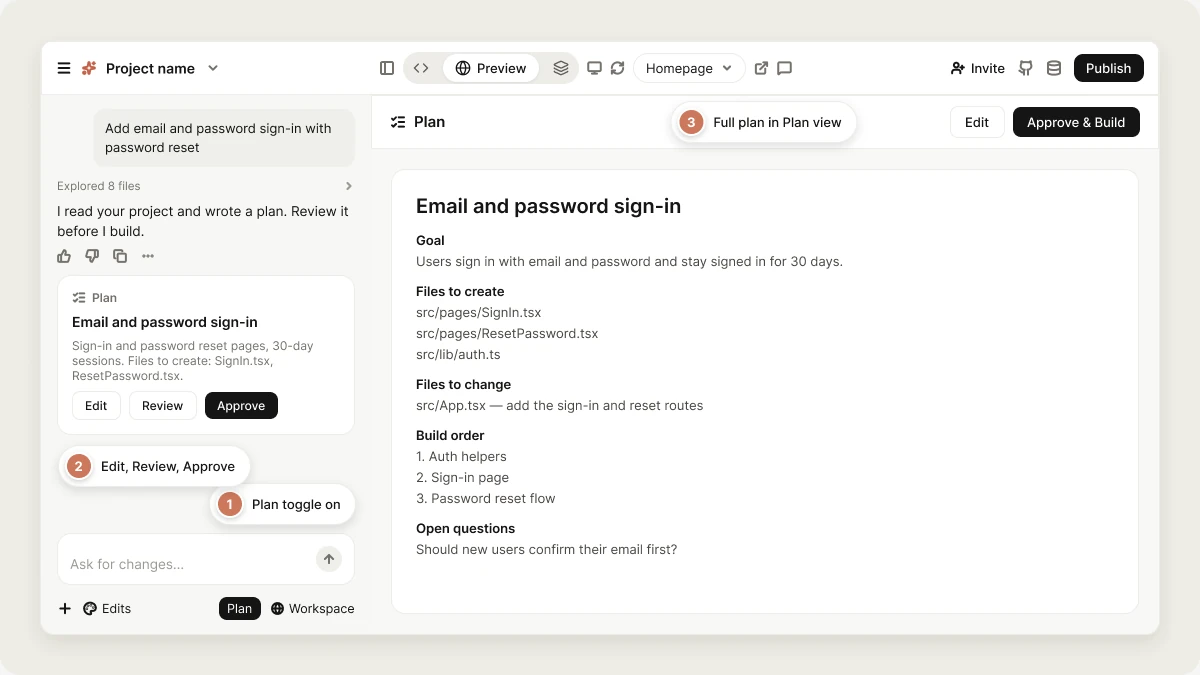
Plan mode turns a change you have in mind into a written plan that you review and approve before any code is written. Vibely investigates your project, reading files, your database schema, and current errors where relevant, then proposes how it would build the change. You read the plan, edit it or ask for revisions, and Vibely builds only what you approve. Vibely often asks a few clarifying questions before it proposes a plan. When it has a concrete implementation to propose, the plan appears in the project chat and in the Plan view. Plan mode never modifies your code. A Plan mode message is priced by the work it took, the same way as a Build message. See How Plan mode messages are priced.What Plan mode is for
Use Plan mode when you know roughly what you want and want to see how Vibely would build it before it does:- Scope a larger feature and see the files, components, and data it needs
- Investigate a bug and agree on the fix before any code changes
- Compare approaches, understand the tradeoffs, and pick one
- Design a database schema before you build on it
- See which parts of the app a change will touch
- Give collaborators a written plan to review before the build starts
How to use Plan mode
You can use Plan mode in two ways:- Start in Plan mode when you create a new project or begin a larger feature. The Plan toggle is available in the prompt box on the dashboard too.
- Switch to Plan mode at any point during development.
Turn on Plan mode
Click the Plan toggle next to the send button. When it’s on, the button is highlighted and reads Plan. Click it again to go back to Build mode. Then describe the change you want planned. Be specific about what you wantReview and approve a plan
When Vibely has a plan ready, a plan card appears in the project chat showing the start of the plan, with three actions:- Edit: change the plan text directly in the card.
- Review: open the full plan in the Plan view, next to the chat.
- Approve: accept the plan and start building.
- Click Edit to rewrite the plan as markdown, then Save & Approve to build from your edited version, or Cancel to discard your edits
- Click Approve & Build to accept the plan as it is
- Close the view and keep talking in the chat
- Vibely switches back to Build mode
- The build starts immediately, using the approved plan as its brief
Ask for changes to the plan
While a plan is waiting for approval, the chat input reads Describe changes you’d like to the plan…. Type what should change and send it. Vibely revises the plan, and the new version shows what changed: added lines are highlighted and removed lines are struck through. You can revise a plan up to five times. After the fifth revision, Vibely asks for a final decision: approve the plan as it stands, or send a new message to start a fresh plan.A plan waits 30 minutes for a decision. If you don’t approve it in that time, it expires, and you can send the request again to plan it fresh.
Plans and persistence
When you approve a plan, Vibely saves it to.vibely/plan.md in your project, so you can open it in the code editor like any other file. Approving a new plan replaces the file with the new plan.
Every plan also stays in your project chat history, where you can reopen it from its card.
How Plan mode messages are priced
A Plan mode message is charged for the AI work it actually took (at least 0.5 credits), whether it ends in a plan, a clarifying question, or an answer. Asking for a revision is a new Plan mode message, priced the same way. When you approve a plan, Vibely builds it in Build mode. The build is billed as usage-based Build mode work, separately from the planning messages.FAQ
Does Plan mode ever change my code?
Does Plan mode ever change my code?
No. Vibely only reads your project in Plan mode. Code changes happen after you approve a plan and Vibely switches to Build mode. The one file Vibely writes on approval is the plan itself, at
.vibely/plan.md.Does Plan mode cost credits?
Does Plan mode cost credits?
Yes. Each Plan mode message is charged for the work it took, like a Build message. Building the approved plan is billed separately as Build mode work.
Where are plans stored?
Where are plans stored?
The latest approved plan is saved to
.vibely/plan.md. Earlier plans stay in the project chat history.Can I edit plans before approving them?
Can I edit plans before approving them?
Yes. Click Edit on the plan card or in the Plan view, change the text, and click Save & Approve. Vibely builds from your edited version.
What can Vibely look at while planning?
What can Vibely look at while planning?
Can I use Plan mode for debugging?
Can I use Plan mode for debugging?
Yes. Plan mode is well suited to investigating an issue and agreeing on a fix before any code changes.
Can Vibely switch into Plan mode by itself?
Can Vibely switch into Plan mode by itself?
Yes. For a large or ambiguous request sent in Build mode, Vibely may stop before writing code and present a plan for your approval first.
Related topics
Build mode
Implement changes and ask questions.
Subagents
How Vibely investigates larger tasks.
Project chat
Everything you can do in the project chat.
Credits
How credits are counted.