

- a name, which is also its
/command, - a description that tells Vibely when to use it,
- and instructions in markdown that Vibely follows when the skill applies.
/skill-name in your prompt, or let Vibely apply it automatically when a task matches.
Skills use the same SKILL.md shape as Claude and other tools that follow the Agent Skills convention, so you can bring an existing skill file into Vibely.
Skills vs. knowledge
Skills and knowledge complement each other.- Knowledge is always included. Use it for rules that apply to everything Vibely does, such as coding standards or brand guidelines.
- Skills are loaded only when relevant. Use them for instructions that matter for specific tasks, such as a launch checklist, a release-notes format, or a review routine.
Your skills and built-in skills
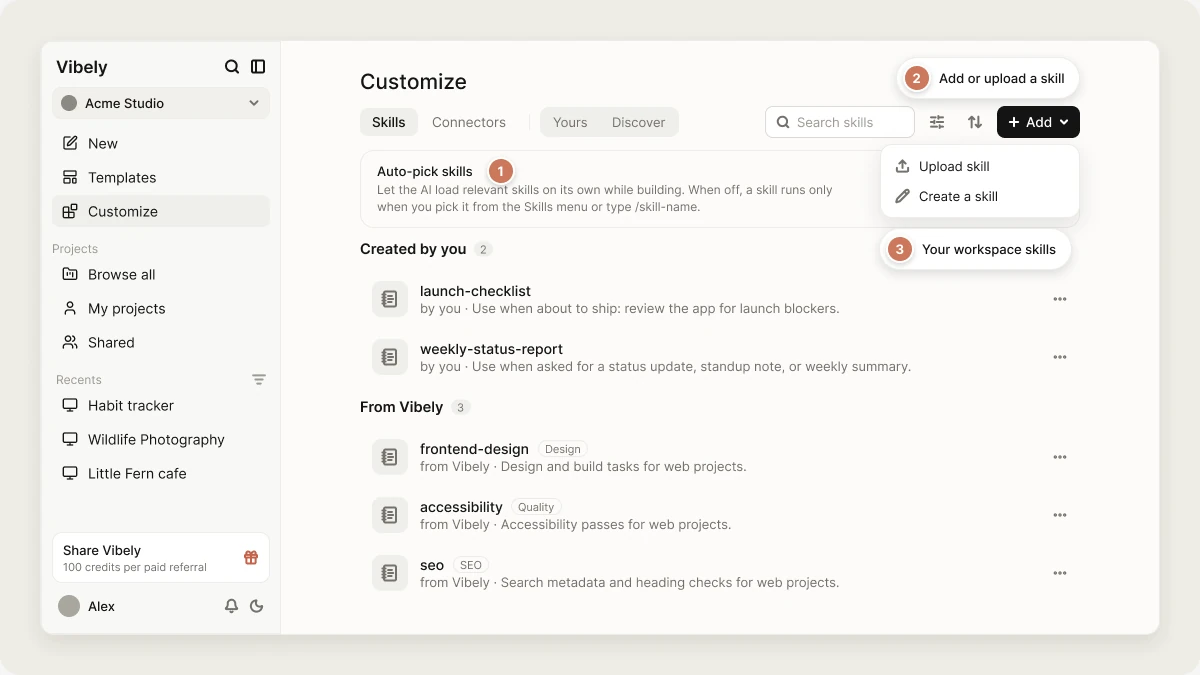
Skills live on the Customize page. Open Customize from the sidebar, then the Skills tab. The list shows two kinds of skills:- Workspace skills are custom skills your team adds. They’re shared with every project in the workspace.
- Built-in skills are maintained by Vibely and available in every workspace without setup. Open one and its details show Source: Built-in. You can turn a built-in skill off for your workspace, but you can’t edit or delete it.
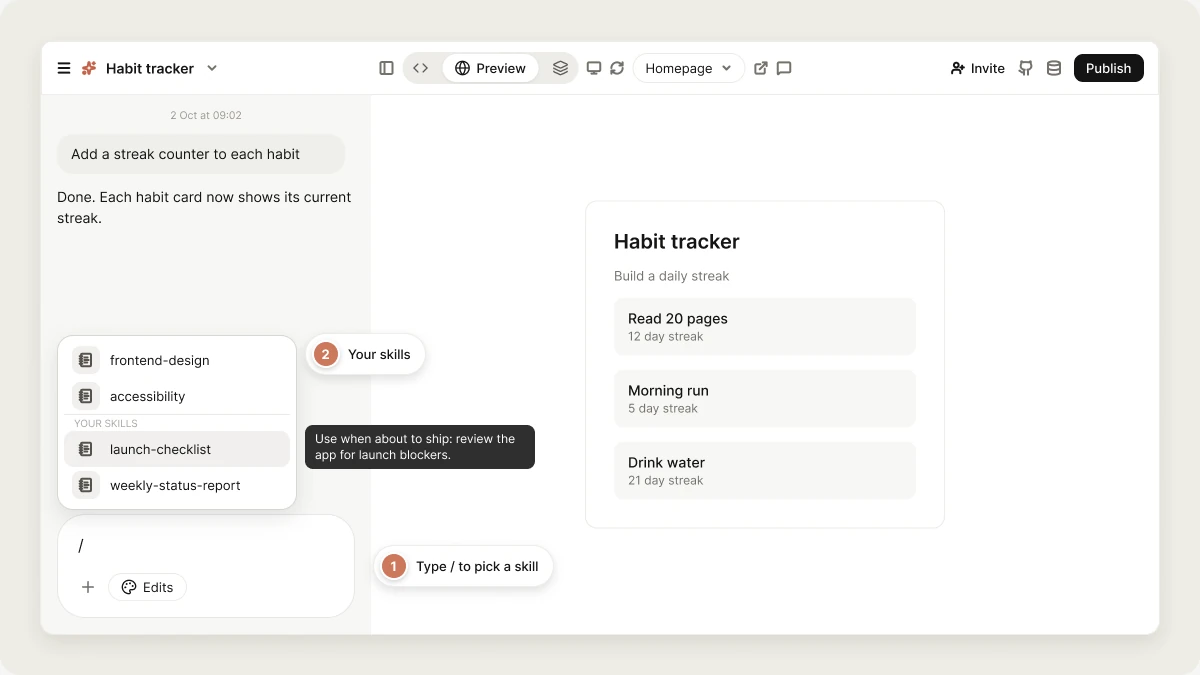
Both kinds appear in the Skills list when you type
/ in the prompt box, and both can be applied automatically.
What skills are for
Skills work best for repeatable, task-specific workflows, when you want Vibely to handle the same kind of task the same way every time:- Launch checks: pre-ship checklists and release-readiness reviews
- Recurring content: release notes, changelog entries, support replies, and marketing copy
- Review playbooks: landing-page reviews, copy reviews, accessibility passes, and SEO reviews
- Internal processes: onboarding-flow reviews, QA passes, and handoff steps
- Task-specific style guides: tone of voice or formatting rules for one kind of content
Who can manage skills
Add a skill
Workspace owners and admins can add skills in two ways. On the Customize → Skills page, click Add, then choose Upload skill or Create a skill. You can also reach both from the prompt box: click +, open Skills, and choose Add skill.Create a skill
Choose Add → Create a skill to write one from scratch. The form has four parts:- Skill name: a short ID like
launch-checklist. The form shows how it will be invoked, for example Invoked as/launch-checklist. - Description (optional): when Vibely should use this skill. Start with “Use when…” and describe the scope and boundaries.
- Allow Vibely to use this skill automatically: on by default. Turn it off and Vibely only uses the skill when you pick it from the Skills list or type
/skill-name. - Instructions: the markdown Vibely follows once the skill is loaded, such as steps, constraints, examples, and the output you expect.
Upload a skill
Choose Add → Upload skill, then drag in or browse for either:- a
.md,.markdown, or.txtfile of up to 1 MB, or - a
.zipor.skillarchive of up to 10 MB that contains aSKILL.mdfile, the format skills exported from Claude and other tools use. Vibely imports theSKILL.mdclosest to the top of the archive. Other files in the archive, such as references and scripts, aren’t imported.
name and a description:
when_to_use: extra guidance on when the skill applies, added to its description (up to 500 characters).triggers: phrases that, when they appear in your message, make Vibely load the skill up front (up to 10 phrases, 80 characters each).
Use a skill
Vibely can use skills in two ways: automatically, or when you invoke one.Let Vibely choose automatically
When your request matches a skill, Vibely can apply it without you doing anything. Every skill’s name and description is available to Vibely on every message, and it loads a skill’s full instructions when the task calls for it. If your message contains one of an uploaded skill’striggers, Vibely loads that skill up front. At most one skill is loaded this way per message.
A launch-checklist skill, for example, applies when you say you’re about to ship. It doesn’t affect unrelated work.
Automatic use is controlled in two places on Customize → Skills:
- Auto-pick skills, at the top of the page, turns automatic use on or off for the whole workspace. When it’s off, Vibely uses a workspace skill only when you invoke it.
- Each workspace skill’s switch turns automatic use off for that one skill. The skill stays in the Skills list, and you can still invoke it.
Invoke a skill directly
Type/ in the prompt box to open the Skills list, pick a skill, and keep typing your request. You can also click + and open Skills. The skill is added to your message, telling Vibely which instructions to follow.
Think of the skill as the how and your prompt as the what:
Manage your skills
Go to Customize → Skills and click a skill to open its details.- Edit or delete: open the ⋯ menu on a workspace skill and choose Edit skill or Delete skill. Deleting a skill removes it from every project in the workspace, and its instructions can’t be recovered.
- Turn automatic use on or off: use the switch in the skill’s details. When a workspace skill is off, Vibely doesn’t pick it on its own, but anyone can still invoke it from the Skills list or with
/skill-name. - Turn a built-in skill off: the same switch on a built-in skill removes it from every project in the workspace until you turn it back on.
Anatomy of a skill
- Name: up to 64 characters. Vibely converts it to lowercase letters, numbers, and hyphens, for example
Launch Checklistbecomeslaunch-checklist. A workspace skill can’t replace a built-in skill with the same name. - Description: a short sentence that tells Vibely when to use the skill. It’s the main signal Vibely uses to decide whether to load it, so start with “Use when…” and be concrete.
- Instructions: the markdown body, up to 100,000 characters. Include steps, constraints, examples, edge cases, and the output format.
Write clear skill descriptions
The description is the most important part of a skill. If it’s vague, Vibely may not load the skill when you expect, or may load it for unrelated tasks. Too vagueExample skill
Skill nameBest practices
- Lead with the trigger. Start the description with “Use when…” and describe the request concretely.
- Give each skill one job. Split broad guidance into focused skills.
- Say what to avoid. Telling Vibely what not to do is often as important as what to do.
- Put always-on rules in knowledge instead. Skills are for behavior that matters only in specific situations.
- Write it like a short playbook. Short sections, bullets, and direct instructions.
- Show, don’t just tell. Include concrete values, example copy, or example output.
- Review and prune. Delete skills you no longer need. A stale skill is worse than none.
FAQ
What is the character limit for a skill?
What is the character limit for a skill?
Instructions can be up to 100,000 characters, and an uploaded file up to 1 MB. Names are limited to 64 characters.
How does Vibely decide when to use a skill?
How does Vibely decide when to use a skill?
It reads each skill’s name and description and decides whether the skill fits your request. Uploaded skills with
triggers are loaded up front when your message contains a trigger phrase. If a skill isn’t being used when you expect, make its description more explicit, or invoke it with /skill-name.Can more than one skill apply to the same message?
Can more than one skill apply to the same message?
Yes. Vibely can load more than one skill when a message needs them. Keep skills focused so they combine cleanly rather than contradicting each other.
Do skills cost credits?
Do skills cost credits?
Not on their own. Adding or editing a skill on the Customize page is free. Using a skill has no extra charge beyond the message that uses it, though a skill’s instructions can lead Vibely to do more work, which the message is priced on.
Can I import a skill from GitHub or a ZIP file?
Can I import a skill from GitHub or a ZIP file?
Yes. Upload a
.zip or .skill archive, or the SKILL.md file on its own, with Add → Upload skill. From an archive, only SKILL.md is imported. Bundled files next to it aren’t.Can I manage skills from another AI tool?
Can I manage skills from another AI tool?
Yes. The Vibely MCP server lets tools such as Claude and ChatGPT list, create, update, and delete workspace skills on your behalf.
What is the difference between a skill and knowledge?
What is the difference between a skill and knowledge?
Knowledge is always included as background context. Skills are loaded when a request calls for them. Use knowledge for rules that apply to every message, and skills for instructions that apply to specific tasks.
Related topics
Knowledge
Instructions Vibely reads on every message.
Workspace admin settings
Manage your workspace.
Vibely MCP server
Manage skills from other AI tools.
Design guidance
How Vibely shapes the look of your app.