

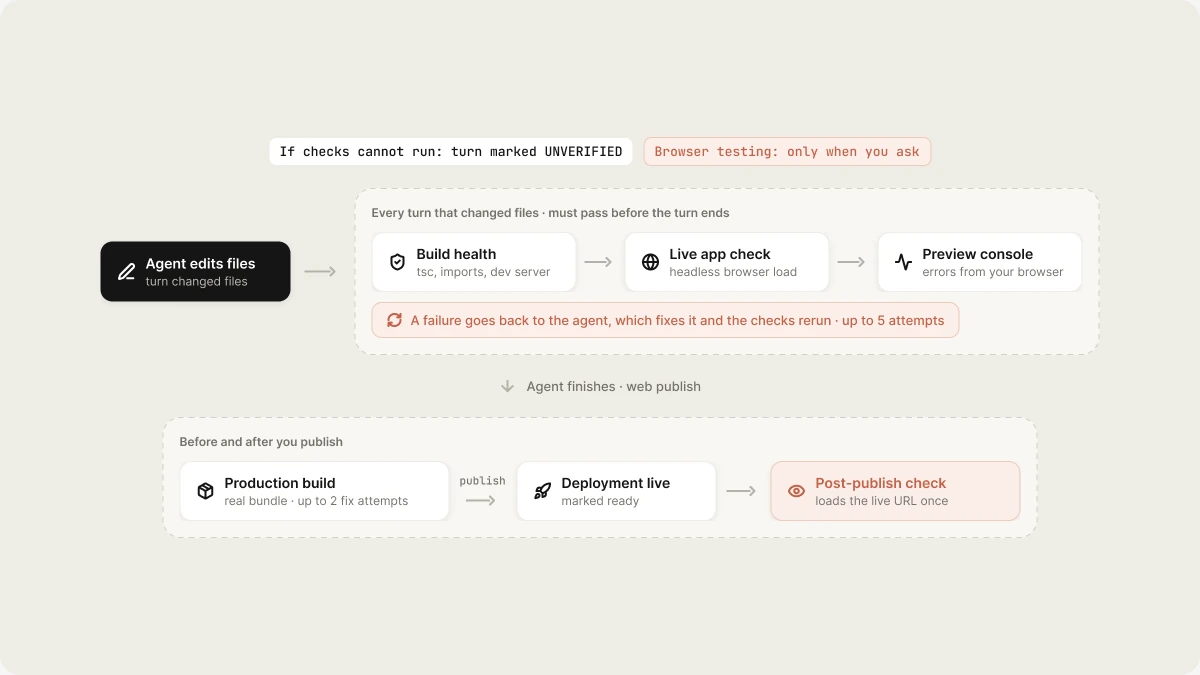
What Vibely observes
While verifying, Vibely can see:- Type errors, broken imports, and packages used without being installed.
- The error overlay, uncaught errors, and render crashes when the app loads.
- Console errors captured from the preview open in your browser.
- Failed requests for your own assets, and Supabase API calls that return errors.
- A page that renders almost nothing, with no error to explain why.
Automatic checks
These run without you asking and don’t use extra credits beyond the turn itself.The check after every change
When the agent has written or edited files, it can’t end the turn until the checks pass.1
Build health
Route types are regenerated, the TypeScript compiler runs, the code is scanned for imports of packages that aren’t in
package.json, and the dev server is asked whether it’s still responding.2
Live app check
A headless browser in the cloud sandbox opens the routes this turn changed and reports what happened. When several routes need checking, they load in one browser session.
3
Preview console
Errors captured from the preview in your browser since this turn’s changes are read back.
If the checks can’t run at all, for example because the sandbox stopped responding, the turn is accepted and marked UNVERIFIED rather than reported as clean.
The production build
A dev server isn’t a bundler, so some problems only appear in a real build. Web projects get a full production build after the agent finishes, with up to 2 fix attempts if it fails. Mobile projects get the equivalent: a real Metro bundle.After you publish
Some faults exist only in the deployed app. After a web deployment is marked ready, Vibely loads the live URL once and records what a first visitor would have hit. This never blocks the publish: your app stays live, and any findings are recorded as errors you can see and act on. See Monitoring.Browser testing
Browser testing checks real user behavior by driving your app’s preview in a browser. The agent can open a route, click buttons, fill forms, confirm that specific text actually rendered, read page errors and the network log, and reopen the page at a mobile width. Use browser testing when:- a bug needs a click-through to reproduce
- you want a multi-step flow such as onboarding, sign-in, or checkout confirmed end to end
- the issue may depend on routing, authentication, or timing
Tests in your code
Vibely doesn’t add a test runner to new projects. If you want automated tests, such as unit tests for a form or a pricing rule, ask for them and the agent writes them and sets up what they need.Mobile apps
Verification for an Expo project is narrower than on the web, and it matters before you submit to a store.
What isn’t checked:
- Native features in the preview. The in-editor preview is a web build. It doesn’t exercise the camera, push notifications, biometrics, secure storage, or in-app purchases. See Native features.
- Real devices. Nothing taps through your app on a phone before you do. Use Expo Go, TestFlight, or Play internal testing.
- Store readiness. A successful native build means the binary compiled, not that it works or will pass review.
FAQ
Do I need to ask for tests on every change?
Do I need to ask for tests on every change?
No. Every change is already type-checked and loaded in a browser automatically. Ask for a browser test when you want a specific flow clicked through, and for written tests when you want a rule locked down.
What if a problem doesn't go away after a few attempts?
What if a problem doesn't go away after a few attempts?
Ask the agent to test the flow in the browser, so it can see the problem the way a user does. Describe the exact steps and what you expected. If it still isn’t resolved, restore a version that worked from version history, then try a smaller change. See Debugging.
Does verification run in the background without me knowing?
Does verification run in the background without me knowing?
The automatic checks run as part of every turn and every publish. Browser testing never runs silently: it happens only when you ask for it or report a bug.
Related
Preview
Try your app as you build it.
Debugging
How to describe a bug so it gets fixed.
Security view
Scan your project for vulnerabilities.
Monitoring
See errors from your live app.