

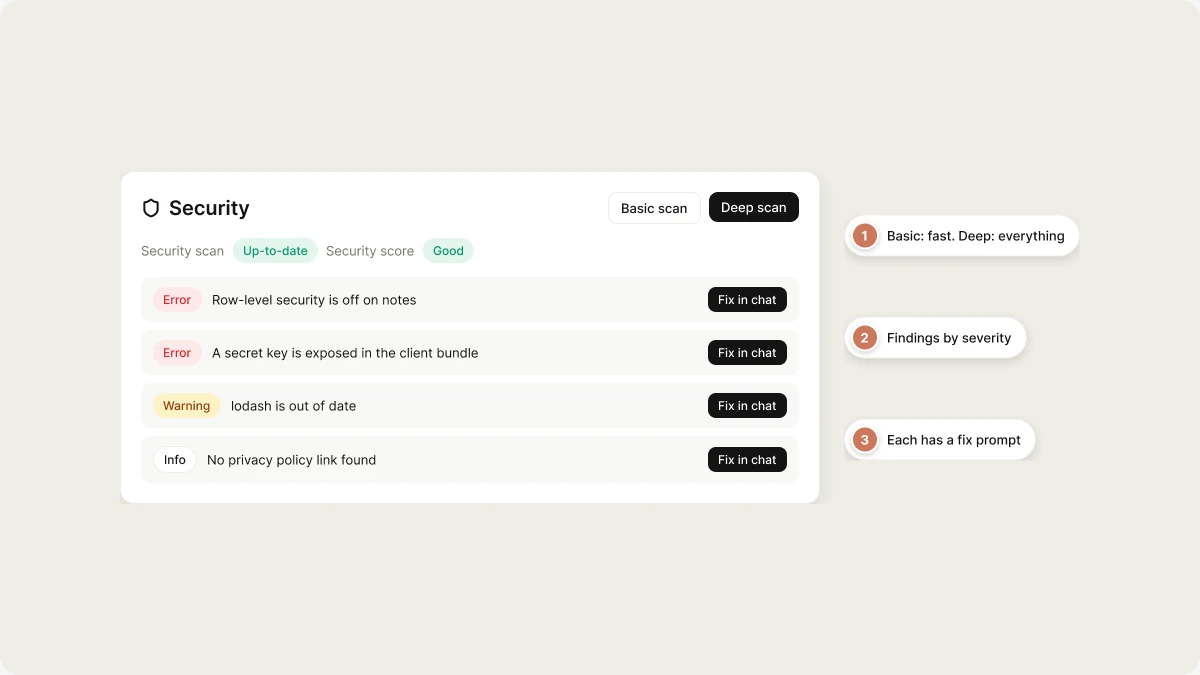
Why use the Security view
- Catch issues before you publish. Misconfigured database access, exposed secrets, and vulnerable packages are easier to fix before real users arrive.
- Focus on what matters. Findings are grouped by severity, so you can fix errors first and review the rest later.
- Fix from the chat. Each finding carries its own fix prompt, so you don’t have to explain the problem to the agent yourself.
- Know when results are stale. The scan status tells you when your project has changed since the last scan.
Understanding scan status
The status next to Security scan summarizes the whole project:
Findings describe a snapshot of your code. When you edit the files a finding points at, it doesn’t update on its own: the status changes to Outdated and you run a new scan.
The view also shows a Security score (Excellent, Good, Fair, or At risk) based on your open findings.
Run Basic and Deep scans
Use the buttons at the top of the view. Both scans are free.
The row-level security and database scanners need a linked Supabase project. Without one, they’re skipped with an info note and the other scanners still run.
Run a scan:
- before publishing
- after significant code or database changes
- after adding or updating packages
- periodically for apps in production
Included security findings
Mobile projects get the mobile rules automatically.
Review and fix findings
All findings appear under Detected issues, grouped by severity. Filter by severity at the top of the list.
Expand a finding to see which scanner produced it, the file and line, an explanation, and a Suggested fix. If the latest scan found nothing, the view says so, but a clean scan doesn’t guarantee your app has no security risk.
You can address findings in several ways:
- Fix one finding. Select Fix. Vibely writes a prompt naming the finding, the file and line, and the suggested fix, and puts it in the chat. Review it, send it, and check the changes like any other edit.
- Fix everything open. Select Try to fix all to put one prompt covering every open finding in the chat.
- Update vulnerable packages. Select Auto-fix deps to upgrade vulnerable packages to their fixed versions. It only makes non-major upgrades, because a major version can change behavior. Majors are left for you to decide.
- Ignore a finding. If a finding doesn’t apply, select Ignore this finding and give a reason. The reason is logged with your name, and you can Unignore it at any time.
Review project dependencies
The Project dependencies card lists packages with known vulnerabilities from the latest deep scan. Select Export JSON to download the list for an audit or compliance review.Leaked password protection
When a Supabase project is linked, the view shows a Leaked password protection switch. Turn it on to block sign-ups and password changes that use passwords found in known data breaches (Have I Been Pwned).Improve scan accuracy with security memory
Select Edit security memory to add project-specific context. The scanners read it on every run. Use it to explain things that look wrong but are correct in your app, for example:Publishing and security
Every publish starts a Basic scan in the background. It doesn’t block that publish: the deploy proceeds and the findings land in the Security view. Workspace owners and admins can go further with settings in Settings → Privacy & security. They apply to every project in the workspace:
A blocked publish tells you which setting blocked it. The same rules apply to web publishing and mobile store submissions. See Privacy & security.
Before a mobile build
A web deploy can be rolled back in a minute. A native binary in store review can’t. Once submitted, you wait out the review, then submit a new build and wait again. So on mobile, scan first:1
Run a Deep scan before the build
From the Security view, or ask for a security scan in the chat.
2
Clear every Error finding
Judge warnings case by case. Fix errors.
3
Then start the build
See Ship to stores.
Scheduled scans
On the Business plan, workspace admins can run deep scans on a schedule (weekly or monthly) for all projects or published projects only. Set this up in the Security center.Best practices
- Keep findings current. Rescan when the status says Outdated, especially after adding features, changing database access, or updating packages.
- Fix errors first. Error findings are usually exploitable.
- Combine scans with a review. Now and then, ask the agent to review your app’s security in the chat. A narrative review can catch issues the scanners miss.
- Be deliberate when ignoring. Ignore a finding only when it clearly doesn’t apply, and revisit ignored findings as your app changes.
- Keep monitoring after publishing. New features and new vulnerabilities in packages both create new findings.
FAQ
How do I open the Security view?
How do I open the Security view?
Select Manage in the editor header, then Security.
What does Outdated mean?
What does Outdated mean?
Your project changed since a scanner last ran, so its findings may no longer match your code. Run a Basic or Deep scan to refresh them.
What's the difference between a Deep scan and asking the agent to review security?
What's the difference between a Deep scan and asking the agent to review security?
A Deep scan runs Vibely’s scanners and updates the findings in the Security view. Asking the agent to review your app’s security in the chat gives you a written review and recommendations, and uses credits like any other chat turn. They’re complementary.
Who can run scans and fix findings?
Who can run scans and fix findings?
Anyone with edit access to the project. Viewers can see the Security view but can’t run scans or change findings.
What happens if I publish with critical findings?
What happens if I publish with critical findings?
Unless your workspace has Block publishing with critical issues turned on, the publish goes ahead. The publish dialog shows how many critical issues were found so you can review them first.
Related
Security best practices
Avoid the most common findings in the first place.
Security center
Findings and dependency risk across your workspace.
Privacy & security settings
Publishing gates and other workspace policies.
Publish your app
Where the publish-time scan runs.