

Prerequisites
You don’t need a Mac for iOS — EAS builds in the cloud.
First build
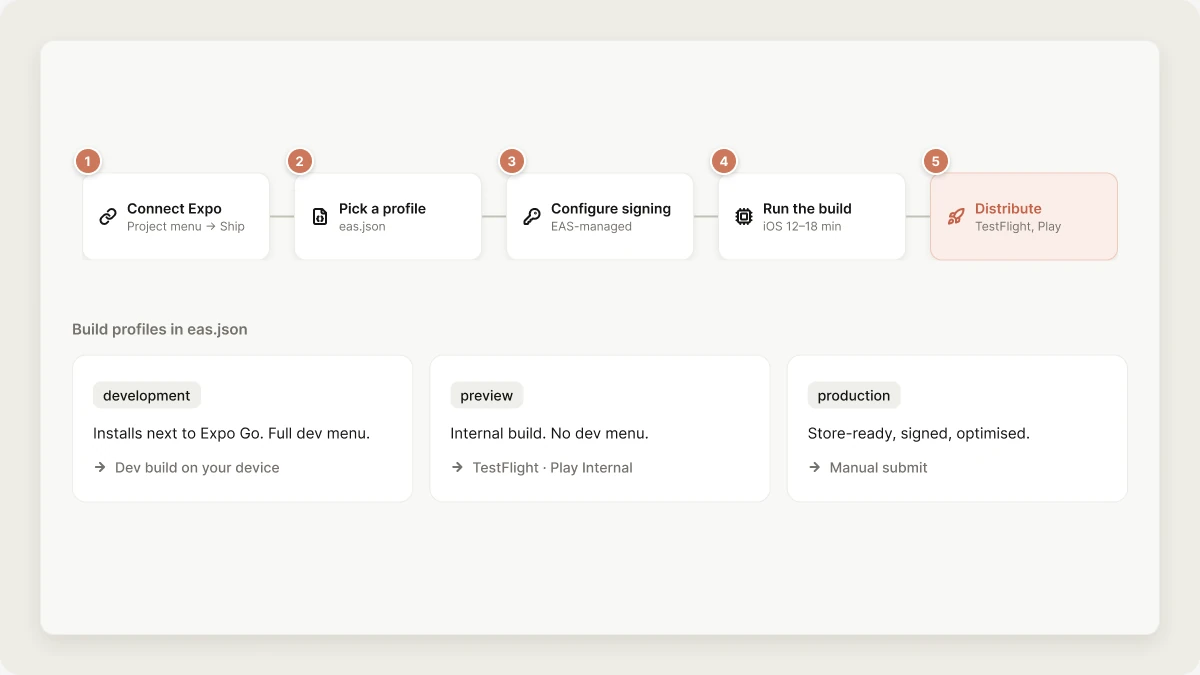
1
Connect Expo
Project menu → Ship → Connect Expo. Sign in via OAuth.
2
Pick a build profile
EAS profiles live in
eas.json. The template ships three:development— installable on your device alongside Expo Go; full dev menu.preview— internal distribution build (TestFlight / Play Internal); no dev menu.production— store-ready, signed, optimised.
3
Configure signing
EAS can manage iOS certificates and Android keystores for you. Click Use EAS-managed credentials unless you have a reason not to. EAS rotates and renews them automatically.
4
Run the build
Click Build for the platform + profile you want. Vibely runs
eas build --profile <name> --platform <ios|android> in the sandbox. iOS builds typically take 12–18 min; Android 8–12 min, queued behind any other builds in the EAS free tier.5
Distribute
- iOS preview → automatically uploaded to TestFlight; testers get an email.
- Android preview → uploaded to Play Console internal testing track.
- Production → manual submit step; see below.
TestFlight (iOS)
After the first preview build:- App appears in App Store Connect → TestFlight under your team.
- Add internal testers (up to 100) by email — they get the build instantly, no review needed.
- For external testers (up to 10K), the first build of each version requires Apple’s “beta app review” — usually <24 h.
- Testers install via the TestFlight app on their device.
Play Internal Testing (Android)
Same pattern:- App appears in Play Console → Testing → Internal testing.
- Add testers by Google account email or an email list.
- They get an opt-in URL; once opted in, the app shows up in their Play Store with the test build.
- No Google review for internal builds.
Submitting to the App Store
When you’re ready for production:- Run a
productionprofile build. - EAS auto-uploads to App Store Connect.
- In App Store Connect → App Store tab, fill out: name, description, keywords, category, age rating, screenshots, privacy policy URL, support URL. Those fields are the whole of your discoverability — limits, weights and what to put in each are in App Store optimization.
- Submit for review. Apple’s review currently averages 24–48 h (occasionally days for the first submission of an app).
- Once approved, choose “Release this version” — it goes live worldwide within an hour.
- Permissions explained. Every permission your app requests has a clear
NSCameraUsageDescription(etc.) string written by the agent at the moment the permission is added. - No mock content. The agent removes placeholder text and
lorem ipsumbefore suggesting you ship. - Login walls. If your app can be tried without an account, Apple wants a clear path to do so. The agent flags this if you say “ship it” with no anonymous path.
- Web checkout for digital goods. Don’t use Stripe to unlock features — see Native → IAP.
- Sign in with Apple missing. Offer Google, Facebook, or X login and Guideline 4.8 requires an equivalent option that limits collection to name and email, lets the user hide their email address, and doesn’t collect in-app interactions for ads. Email/password doesn’t satisfy it — see Authentication → Guideline 4.8.
Submitting to Play
Connect Google Play once (Publish → Google Play → paste the service-account JSON from Google Cloud), then the Publish panel drives the release the same way the iOS panel drives TestFlight:- Pick a release track — internal, closed (alpha), open (beta), or
production — and hit Submit. The AAB is uploaded with
eas submit. - The panel polls Google until the release actually appears on that track. An
accepted upload is not a release: a build can sit in
draft, or behalted, and the panel says which rather than reporting success. - Promote moves the release onto a wider track when you’re ready. Play only promotes forward through internal → alpha → beta → production, so the panel offers only the tracks above the one you’re on.
Promoting to production publishes to every Play user immediately, so it is
always an explicit click — never a side effect of a build or a submission.
What still happens in Play Console
The Play Developer API cannot create these, so they stay manual — do them once, before your first production release:- Store listing (title, descriptions, graphics, screenshots)
- Content rating questionnaire
- Data safety form
- Target audience and pricing
Updates after launch
You have two update paths:- Native update. Anything that changes native code or
app.jsonconfig (permissions, plugins, native modules) requires a new build + store submission. Slow but unavoidable. - OTA via EAS Update. Anything that’s just JavaScript / assets — the vast majority of changes — ships via
eas update. Users get the new code on next app launch, no store review.
Rollbacks
OTA updates can be rolled back instantly from EAS dashboard or viaeas update:republish. Native rollbacks require submitting the previous build to the store and waiting for review. Test on TestFlight / Play Internal before promoting to production.