

1
Sign in
Go to vibely.sh and sign in.
2
Pick Mobile App
On the new-project screen, choose Mobile App. This selects
vibely-expo (Expo SDK 57 + React Native).3
Describe your app
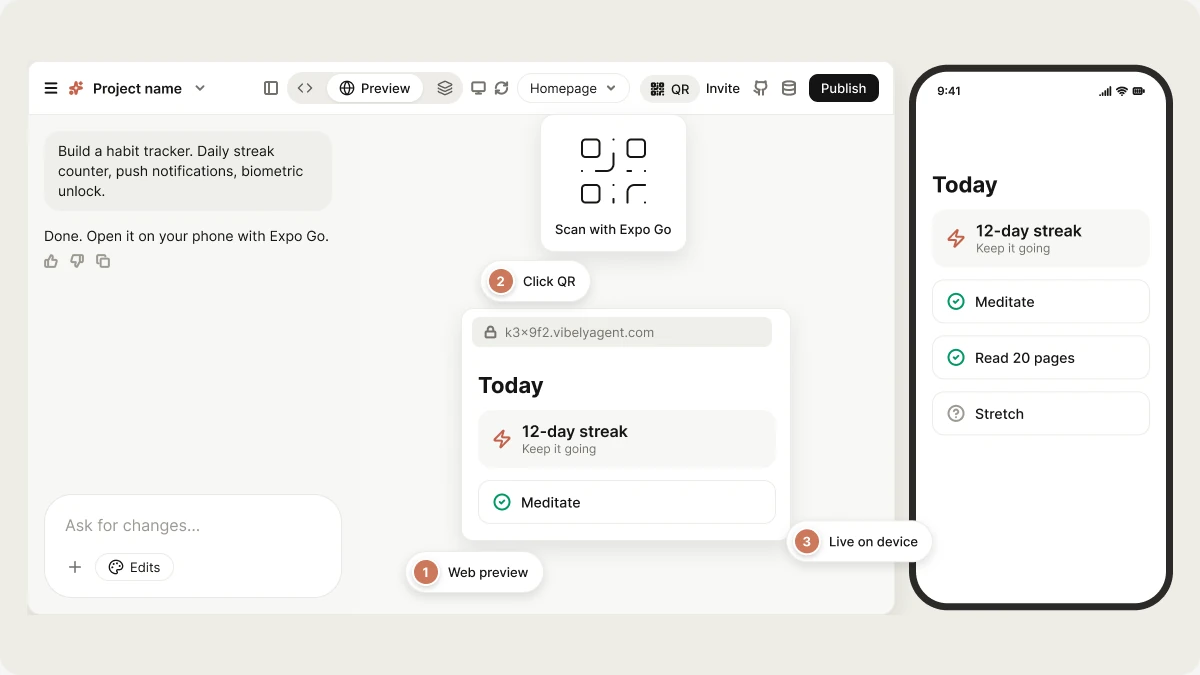
Be specific about platform-flavoured features. “Build a habit tracker. Daily streak counter, push notifications at user-chosen times, biometric unlock. Use Supabase for auth and storage.” beats “habit tracker.”Mention native APIs you need (push, camera, biometrics, location, contacts) — the agent will pick the right Expo SDK module.
4
Open the web preview
The right pane shows a
<short-id>.vibelyagent.com iframe — the Metro web target. Use this to iterate on layout and logic.5
Scan with Expo Go
Install Expo Go on your phone. Click QR in the project header and scan with your camera (iOS) or the Expo Go app (Android). The app loads on-device with hot reload.Expo Go is required to test camera, push, biometrics, secure storage, and most other native APIs.
6
Iterate
Prompt freely. Each turn updates code; both web preview and the device refresh together. “Add a stats screen with a 30-day heatmap.” “Move the streak counter into the header.”
7
Build for the App Store / Play Store
See Ship to stores. You’ll need an Apple Developer account (25) for Android. Vibely drives the EAS build and uploads on your behalf.
Tips for a good first prompt
The mobile first-prompt checklist — naming native features so they route to the right Expo module, picking a navigation pattern, orientation, and a vibe in mobile terms — is in Prompting → Your first prompt.What “good” looks like at the end of turn 1
- File-based routes under
src/app/(Expo Router) with at least Home + one detail / settings screen. - Working tab or stack navigation between them.
StyleSheetstyling driven by the theme tokens, consistent with your stated vibe.- Auth wired if you mentioned it (Supabase magic link or OAuth).
- Native modules added if you mentioned them (push, secure-store, etc.).
<Text> placeholders, prompt: “Replace placeholder content with real screens — no Coming soon text.”
Web preview vs Expo Go: when to use which
Use the web preview for fast iteration; switch to Expo Go before saying “ship it.”
Next
Native capabilities
Camera, push, biometrics, geolocation, deep links.
Ship to stores
EAS builds, TestFlight, Play Console.