

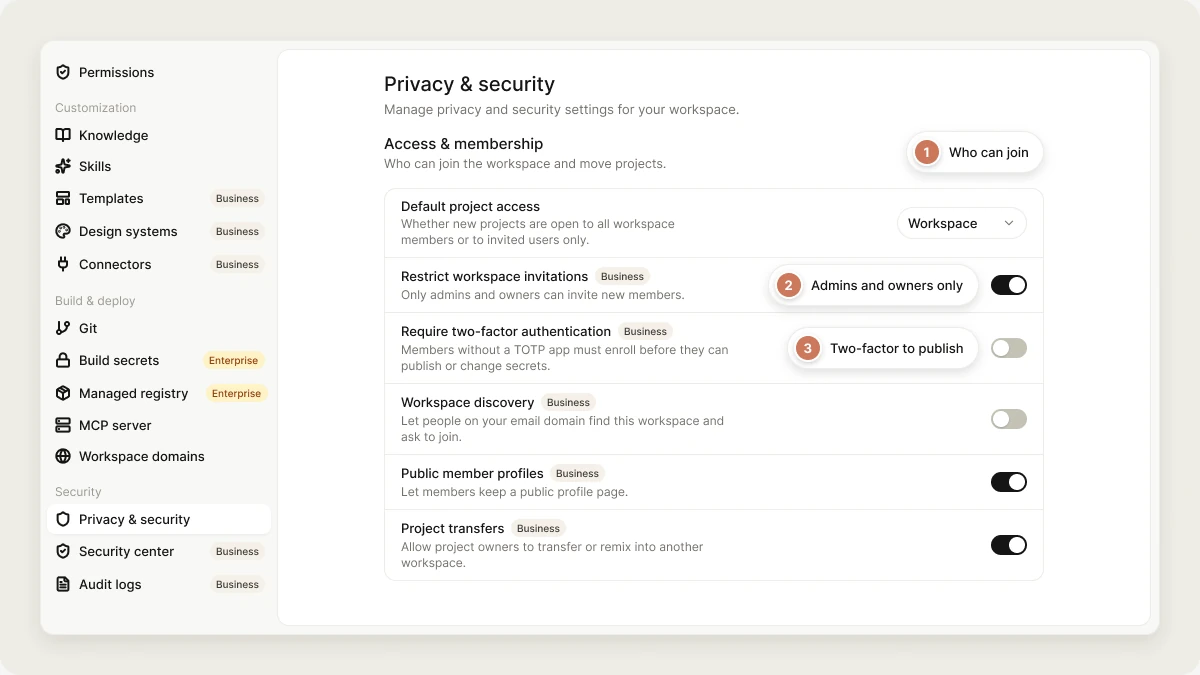
Most controls on this page need the Business plan and carry a Business badge. Rows with no badge work on every plan.
Access & membership
Who can join the workspace and move projects out of it.Default project access
Who can open new projects by default:- Workspace: every workspace member can open the project.
- Restricted (Business): only people invited to the project.
Restrict workspace invitations
When on, only admins and the owner can invite new members. Turning it on also shows Allowed email domains: enter comma-separated domains (for exampleacme.com, team.io) and invitations to addresses outside them are refused.
Require two-factor authentication
When on, publishing and changing build secrets need a session that has passed a two-factor (TOTP) check. Members who try one of those actions without it are asked for the 6-digit code from their authenticator app; after they verify, they retry the action. Members set up two-factor authentication themselves in Settings → Account. See Two-factor authentication. Before you turn this on, ask everyone who publishes to set it up, or they won’t be able to publish or change build secrets.Workspace discovery
Lets people whose email domain matches an existing member’s find this workspace in their workspace switcher and request to join. An owner or admin still has to approve each request in Settings → People; approved people join as Editor. Free mail domains such asgmail.com never match. Turning it on needs the Business plan.
Public member profiles
Lets members keep a public profile page. Turn it off and every member profile in the workspace stops being visible to visitors.Project transfers
Lets members who own a project remix it into another workspace, including a personal one. Turn it off to keep every project inside this workspace.Require workspace editor role
When on, members with the Viewer workspace role can open projects but never change them, even projects they own.External project collaborators
The highest project role you can give someone outside the workspace, on invitations and shared invite links:Publishing
How projects are published to the web, and what stops a publish.Default website access
Who can see newly published websites: Anyone, Workspace (signed-in workspace members only, the default), or Private. Changing it from Workspace needs the Business plan. Publishers can pick a different audience for each project when they publish. See Publish your web app.Who can publish externally
Block publishing with critical issues
Refuses to publish a project while it has unresolved critical (error-level) security findings. Available on every plan, and we recommend turning it on for every workspace.Block publishing with PII
Refuses to publish a project while it has unresolved sensitive-data findings in its source. See Sensitive data scanning.Require basic security scan before first publish
Every project must finish a security scan before it’s published for the first time. Re-publishing an already-published project isn’t affected. Available on every plan; pairs well with blocking on critical issues. If it blocks you, run a scan from the project’s security view, then publish. See Security view.Chat send protection
What happens when a chat message looks like it contains a secret (such as an API key) or personal data:
Store API keys as secrets instead of pasting them in chat. See Secrets.
Sharing
Preview link sharing
Lets people create temporary public preview links to their apps. Turn it off to block new preview links. See Share your project.Code downloads
Lets members download project source as a zip or a single file. When off, downloads are refused for everyone in the workspace.Cross-project sharing
Lets projects in this workspace read files from other projects in it. Available on every plan. See Cross-project referencing.Abandoned projects
Flag published projects nobody has touched for a while. Nothing is deleted automatically.
A published project that passes this window shows the Published but inactive for N+ days signal in Workspace Insights, where N is the number of days you picked. Choose Never to turn the signal off.
MCP connectors
Remote MCP connectors
Lets workspace members connect MCP servers the agent can call from chat. Turning it off (Business) removes existing MCP connections. See Custom MCP servers.Data protection
Sensitive data scanning
When on (the default), the security scan also looks for personal data hardcoded in your project’s source, such as seed data, test fixtures, or leaked records, and raises findings. It detects:
It skips dependency folders, build output, and lock files, and files over 256 KB. Matches are redacted in the finding, so the finding itself doesn’t expose the data.
Sensitive-data findings show up in the project’s security view and drive the Unresolved sensitive-data (PII) findings signal in Workspace Insights. To stop such projects from going live, turn on Block publishing with PII.
Turning scanning off (Business) skips the check in every project.
Allow data collection for training
By default, Vibely never uses your code, prompts, or project data to train models or for internal evaluation. Turn this on only if you want to contribute anonymized data to help improve the product. It applies to the whole workspace and is available on every plan.Block public storage buckets
Stops the agent from creating publicly readable storage buckets in your connected Supabase database. Available on every plan. See Supabase.Related
Security center
Your workspace’s security posture and scan results.
Workspace Insights
Which projects need a security review first.
Security best practices
Keep what you build safe.
People
Invite members and manage roles.