

- Available on: Business
- Access: workspace owners and admins
- Location:
vibely.sh/security-center→ Workspace Insights (the first tab of the security dashboard), or Settings → Security center → Open Workspace Insights
What you can do
- See which projects are high priority for review, and why.
- Find projects that have never been scanned.
- Spot published apps nobody has touched in a while (60 days by default).
- Find projects with no owner or with secrets configured.
- Compare credit use across projects.
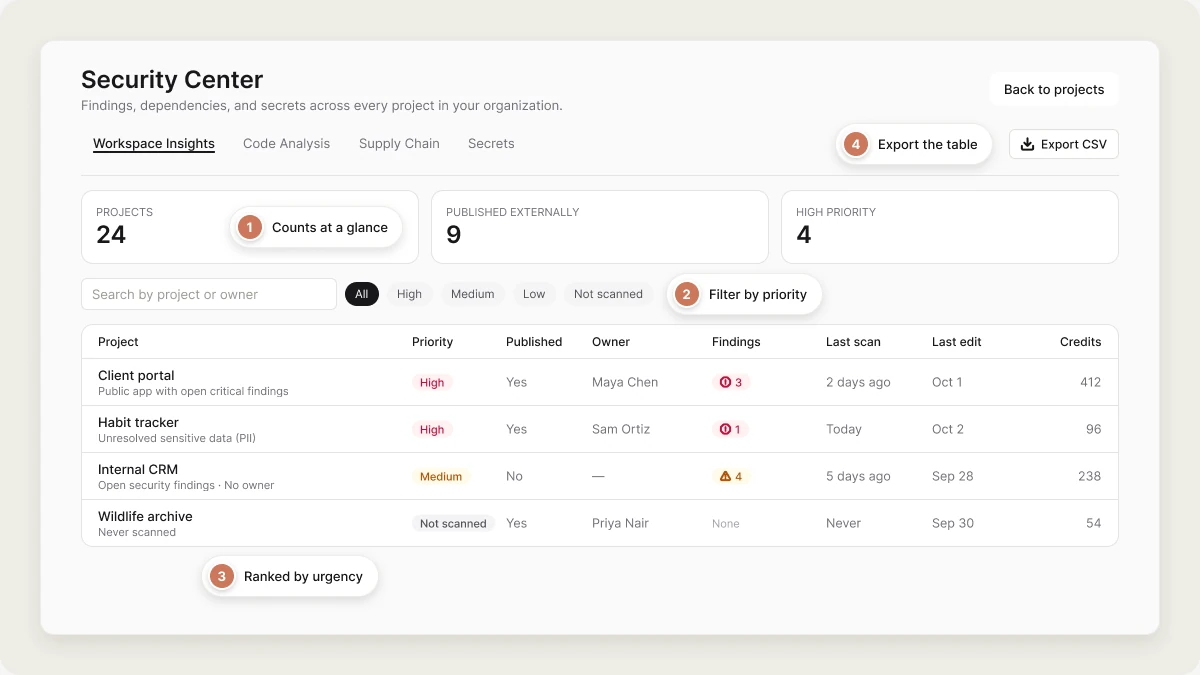
- Export the whole table to CSV for a spreadsheet or a ticket.
How Workspace Insights works
Where findings and signals come from
Findings come from the same five scanners the per-project security view runs: database access rules (RLS), database, code, dependencies, and sensitive data. Publish status, ownership, activity, secrets, and credits come from the project itself.Review priority
Each project collects signals, and its priority is the highest level any of its signals reaches:
N comes from Mark as abandoned after in Privacy & security: 60 days by default, or 30, 90, or 180. Set it to Never to turn the signal off. “Inactive” means no edit, message, or deploy in that time.
A project that has never been scanned is Not scanned, whatever else is true about it: no findings isn’t evidence of safety.
Dashboard overview
Summary cards
Three counts across the top: Projects, Published externally, and High priority.Quick filters
Filter the table by priority: All, High, Medium, Low, or Not scanned.Search
Search by project name or owner name.Project table
Rows are ordered by urgency: High, then Medium, then Not scanned, then Low. Unscanned projects sit above clean ones on purpose, because “we don’t know” is a worse position than “we looked and it was fine”.Export to CSV
Click Export CSV to download the table. The file includes, per project: name, priority, published, owner, errors, warnings, info, PII findings, secrets count, credits used, last scan, last edit, and the full list of signals.Work the list
1
Scan what's never been scanned
Filter to Not scanned and run a scan on anything published.
2
Triage High
Filter to High. Fix critical findings on public apps and resolve sensitive-data findings first.
3
Decide on stale apps
For each “published but inactive” project, decide whether it should still be live at all. If not, unpublish it.
Important notes
Mobile projects
The table covers web and mobile projects, but Published means one thing: a live Vibely deployment. For a mobile project that’s the web export, not an App Store or Google Play release. A mobile app with thousands of installs can show as unpublished here, and the 60-day signal won’t fire for it. Track store releases in Ship. Findings, owner, secrets, credits, and last edit are accurate for both kinds of project.Related
Security center
Posture, scheduled scans, and the rest of the security dashboard.
Security view
Scan one project and fix its findings.