

Command palette
Press Cmd+K (Mac) or Ctrl+K (Windows/Linux) to open the command palette, or click Search in the sidebar. It works on the dashboard and inside the editor.Searching
Before you type anything, the command palette shows your recent projects, grouped by when you last opened them: Today, Yesterday, and Older. Start typing to filter by project name. Use the arrow keys to move through the list, Enter to open the highlighted row, and Esc to close the palette. Clicking a row opens it too.Quick navigation
Below your projects, the palette also lets you jump to:
Type part of a command’s name, such as
mobile or account, to filter to it.
The sidebar
The sidebar keeps the projects you use most one click away:- Pinned: Projects you pinned. Hover a project under Recents, click its ⋯ button, and choose Pin. Pins are saved in this browser.
- Recents: The projects you opened last. The same ⋯ menu has Open in new tab, Copy link, Rename, and Delete.
- Projects: Shortcuts to the four views of your projects list: Browse all, Favorites, My projects, and Shared.
Project list
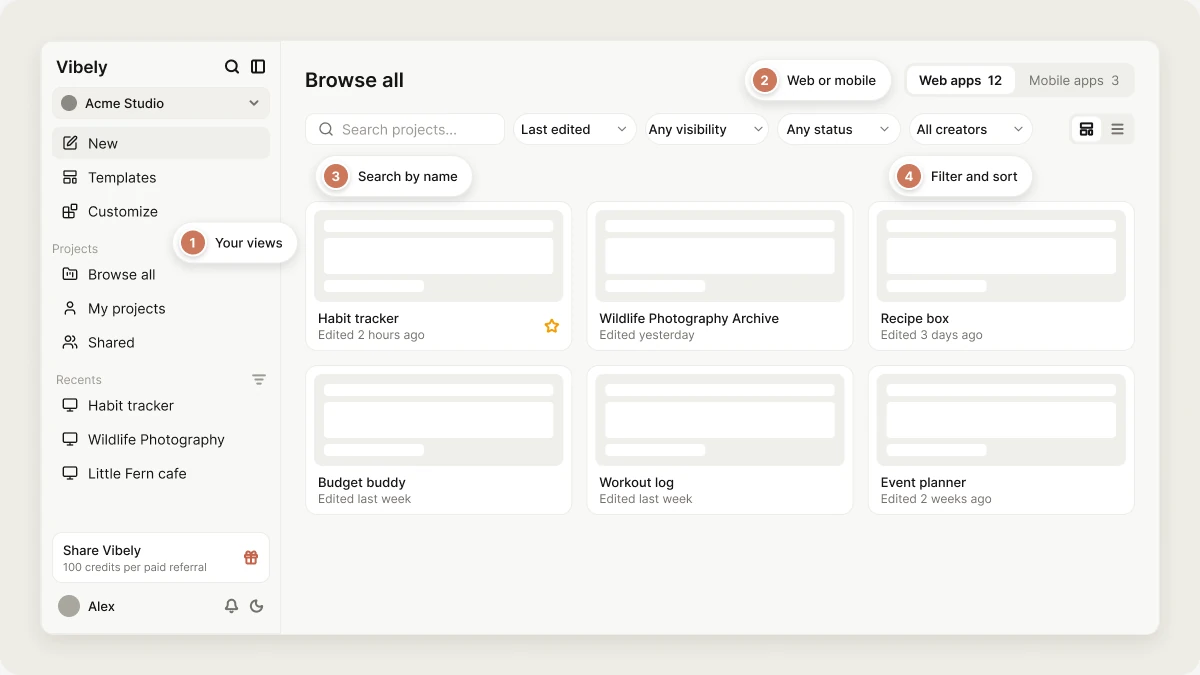
Open Browse all in the sidebar to see your projects list. It has four views:Web apps and Mobile apps
A switch above the list splits your projects into Web apps and Mobile apps, with a live count on each side. If you build both, it’s the fastest way to get to the right half of your work.Search
Type in the Search projects… box to filter the list as you type. Search matches a project’s name, its tags, and its category. It doesn’t search inside your code.Filter and sort
Four dropdowns sit next to the search box:- Sort: Last edited (the default), Name A-Z, Name Z-A, or Newest first.
- Visibility: Any visibility (the default), Public, or Private.
- Status: Any status (the default), Active, or Archived.
- Creator: All creators (the default) or Me.
Switch display mode
Use the buttons at the end of the toolbar to switch between Grid view, with a thumbnail for each project, and List view, a compact list grouped by when you last worked on each project.The view you’re on and the Web apps or Mobile apps switch are saved in the page address, so a link you share opens the same view. Your search text, sort order, and filters reset when you reload the page.
Star your favorite projects
Open a project card’s ⋯ menu and choose Star. Starred projects appear under Favorites and sort to the front of your home screen. Choose Remove star in the same menu to unstar a project. Vibely doesn’t have project folders. Stars, pins, the Web apps and Mobile apps switch, and search are the ways to organize and find your projects.FAQ
Why did my pinned projects disappear?
Why did my pinned projects disappear?
Pins are saved in your browser, so they don’t follow you to another browser or device, and clearing your browser data removes them. Use Star instead for favorites that follow your account.
Can I search inside my project's code?
Can I search inside my project's code?
Not from the projects list. Open the project, switch to the Code view, and use Search files to find a file by name. See View your project’s code.
Related topics
Dashboard
A tour of the home screen and sidebar.
Projects in Vibely
Create, organize, and manage projects.
Find your way around the editor
Where every tool in a project lives.
Collaboration
Invite people to a project.