

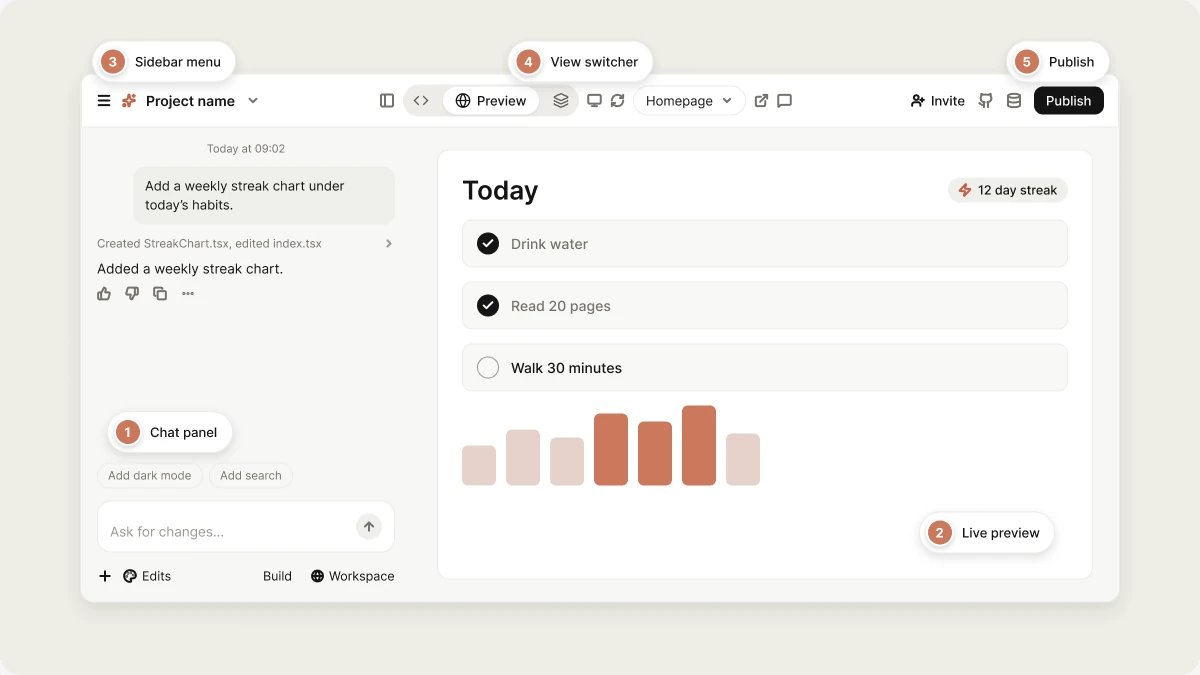
The layout described here is the desktop browser experience. In a narrow window some header controls fold into a ⋮ menu, and on a phone the chat and preview become separate full-screen views with a project actions menu next to the chat input. See On a phone.
The two main areas
- Chat panel (left): Where you tell Vibely what to build and follow its progress. See Work with Vibely in the project chat.
- Preview (right): A live, interactive version of your app that updates as Vibely works. See Preview and test your app.
Sidebar
The menu icon in the top-left corner opens the same sidebar you see on the dashboard, so you can move around Vibely without leaving the editor. Hover the icon to peek at the sidebar, or click it to keep it open. The sidebar gives you:- New: Go back to the home screen to start another project.
- Templates: Browse working apps you can start from. See Templates.
- Customize: Manage skills and connectors. See Skills and Connectors.
- Search: Open the command palette. The shortcut is Cmd+K (Mac) or Ctrl+K (Windows/Linux).
- Projects: Browse all, Favorites, My projects, and Shared. See Find and search projects.
- Pinned and Recents: The projects you pinned and the ones you opened last. Hover a project and click its ⋯ button to Pin, Open in new tab, Copy link, Rename, or Delete it.
- Account menu: Your settings, plans, language, documentation, help, and Sign out.
Project name
Your project’s name sits in the header next to the menu icon. To rename the project, open Manage → Settings → General and click Rename. See Project settings.Show or hide the chat panel
The chat toggle next to the project name collapses the chat panel to give the preview the full window, and brings it back. It appears on large screens.View switcher
The switcher in the header changes what the right side of the editor shows:- Preview: The default view. Shows your app running live, so you can click through it the way your users will. See Preview and test your app.
- Code: A file tree and code editor over your project’s files, updating live while Vibely writes them. You can edit, save, and delete files here too. Available on paid plans. See View and edit your project’s code.
- Manage: The rest of your project’s tools, listed below.
The Manage panel
Click Manage to open a panel with tools for running and growing your app:Preview controls
While the Preview view is open, the header carries the controls for moving around your app: the device size toggle, Reload preview, the page selector, Open preview in new tab, and Comments. See Preview controls. Next to them are two more:- History (clock icon): Opens Version history, where you can restore or bookmark any saved version of your project. See Version history.
- SEO & AI search (magnifying glass): Checks how search engines and AI answer engines will read your app, with a score and a one-click fix for each finding. Web projects only. See SEO and AI search.
Top right controls
From left to right:- Invite: Invite collaborators, set the project’s access, and create a preview link. See Collaboration and Sharing.
- GitHub: Connect the project to a repository, open it, or open it in Edit in VS Code once it’s connected. See GitHub.
- Supabase: Connect your Supabase account and link a project for database, auth, and storage. See Supabase.
- Feedback: Send feedback about this project to the Vibely team.
- Upgrade: Appears on the Free plan.
- Publish: Deploy your web app to its live URL, or push an update. On a mobile project, Publish opens the App Store and Google Play flow instead. See Publish your web app and Ship to the stores.
Command palette
Press Cmd+K (Mac) or Ctrl+K (Windows/Linux) anywhere in Vibely to open the command palette and jump to a project, create a new Web or Mobile project, or open your workspace and account settings. See Command palette.Keyboard shortcuts
On a phone
On a phone, the chat and the preview each take the full screen. Next to the chat input, the ⋯ button opens Project actions:- Share and Publish
- Project settings
- Code: Browse your project’s files and read any file.
- Files: Opens your project knowledge.
- More: Security scan, analytics, comments, connectors, reload preview, and feedback.
- History: Your saved versions, which you can restore. See Version history.
FAQ
Where are project settings?
Where are project settings?
In the editor, open Manage → Settings. Outside the editor, open a project card’s ⋯ menu on the dashboard and choose Settings. On a phone, tap ⋯ next to the chat input and choose Project settings. See Project settings.
Where are my app's analytics?
Where are my app's analytics?
Open Manage → Analytics. Analytics are available for web projects. See Analytics.
How do I open the code?
How do I open the code?
Click Code in the view switcher. The code view needs a paid plan. See View and edit your project’s code.
Where do I manage who can access my project?
Where do I manage who can access my project?
In the Invite panel in the top right. That’s where you invite collaborators, set roles, set Project access, and create preview links. See Collaboration.
How do I switch to another project?
How do I switch to another project?
Click the menu icon in the top-left corner to open the sidebar and pick a project, or press Cmd+K (Mac) or Ctrl+K (Windows/Linux) and type its name.
I don't see a control described here. Where did it go?
I don't see a control described here. Where did it go?
When the right side of the editor is narrow, several controls fold into the ⋮ menu, so try widening your window or dragging the divider. Some tools also appear only for web projects or on paid plans.
Related topics
Work with Vibely in the project chat
Prompts, attachments, plan mode, and fixes.
Preview and test your app
The live app and the preview toolbar.
Find and search projects
The command palette and dashboard filters.
Sync with GitHub
Two-way sync with your repository.