

What are workspace templates?
Workspace templates are available on the Business and Enterprise plans. They let your team reuse an approved project as the starting point for new ones, so styling, branding, and structure stay consistent. A workspace template is one of your own projects, published for your workspace. When someone starts a project from it, the template’s whole codebase is copied into the new project, including:- File structure
- Components and styles
- Configuration files
- Project setup and scaffolding
Workspace templates are your team’s own projects. They’re different from the starter templates every Vibely project begins from, described in Web app templates and Mobile app templates.
Why use workspace templates?
- Keep design and architecture consistent across projects
- Start new projects from a proven codebase
- Skip repetitive setup work
- Share good patterns across the workspace
Prerequisites
- Your workspace must be on the Business or Enterprise plan. On other plans, the Templates page shows an upgrade prompt, and existing templates can’t be listed.
- You must be a workspace owner or admin, and have permission to publish the project you’re promoting.
- The project must belong to the same workspace.
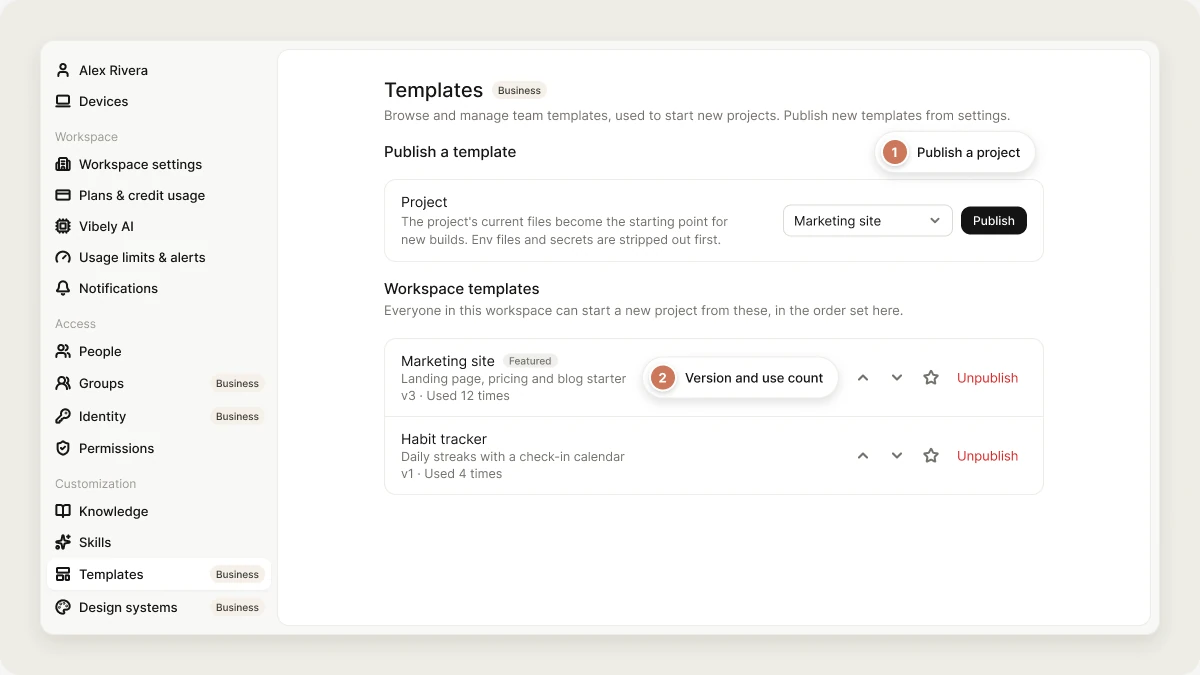
Publish a template
1
Open Templates
Go to Settings → Templates.
2
Pick a project
Under Publish a template, choose the Project to promote.
3
Click Publish
The project’s current files become the starting point for new projects. Environment files and secrets are stripped out first.
Update a template
To update a template, publish the same project again. Vibely updates the existing template with the project’s current files and increases its version number, rather than creating a second template. Projects already created from the template don’t change.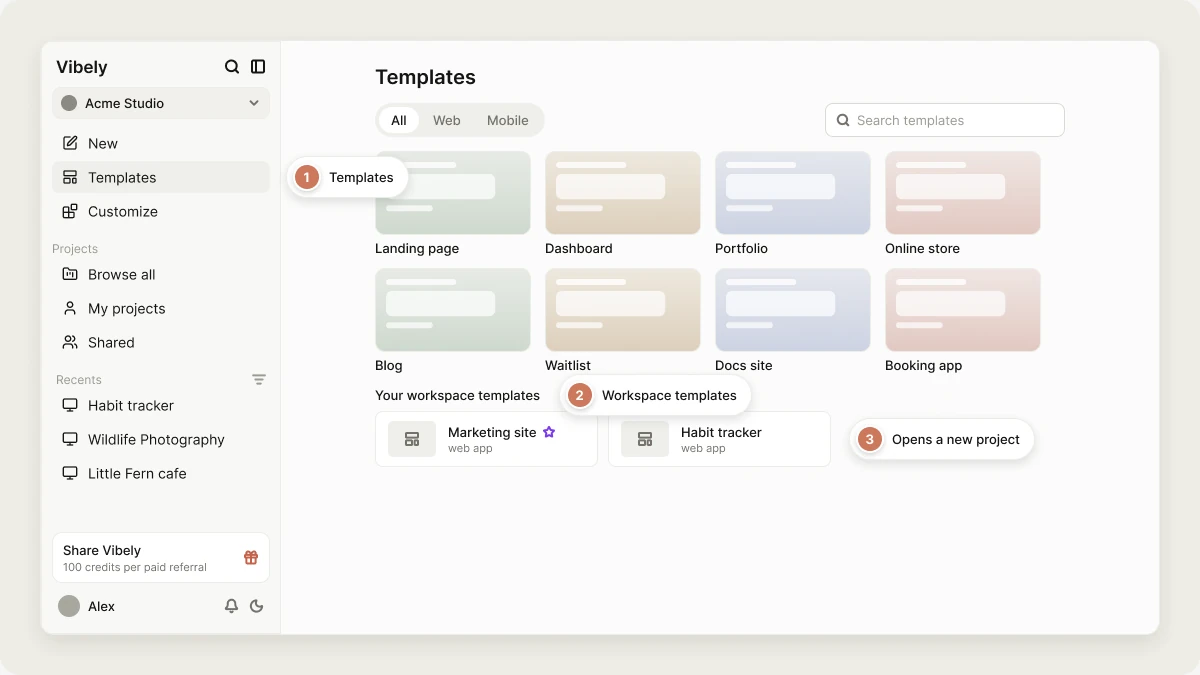
Manage workspace templates
In Settings → Templates, under Workspace templates:- Feature: pin a template to the top of the list, marked with a star in the template picker. Click Unfeature to undo it.
- Move up and Move down: set the order members see.
- Unpublish: remove the template. The source project isn’t affected, and you can publish it again later.
Start a project from a workspace template
Workspace templates appear on the Templates page in the sidebar, under Your workspace templates, after Vibely’s own templates. Pick one and Vibely creates the project in your current workspace and opens it. You can also do this from an AI tool through the Vibely MCP server: list your templates withlist_template_projects, then pass one to create_project.
A new project created from a workspace template gets:
- Every file from the template
- The template’s project type, web or mobile
Mobile templates and store identifiers
A mobile template’sapp.json is copied as is, including its iOS bundle identifier and Android package name. Two apps made from the same template would otherwise share the same store identity.
- If you use a mobile template, set a new bundle identifier in the new project’s mobile app settings before its first build. Identifiers can’t change after the first build, because the App Store and Google Play don’t allow it.
- If you publish a mobile template, remove
ios.bundleIdentifierandandroid.packagefrom the source project’sapp.jsonfirst. New projects then stop at the first build with a clear message asking for an identifier, instead of silently reusing yours.
FAQ
Who can see workspace templates?
Who can see workspace templates?
Everyone in the workspace, in the order set on the Templates page. Workspace templates are never listed publicly.
Does unpublishing a template delete the project?
Does unpublishing a template delete the project?
No. It only removes the template. The source project stays as it is.
What happens to templates if we downgrade?
What happens to templates if we downgrade?
Workspace templates need the Business plan. After a downgrade, the Templates page shows an upgrade prompt and templates can’t be listed or used until you upgrade again.
Related topics
Design systems
Share design rules instead of code.
Design guidance
How Vibely shapes the look of a new project.
Workspace admin settings
Manage your workspace.
Plans
Compare Business and Enterprise.