

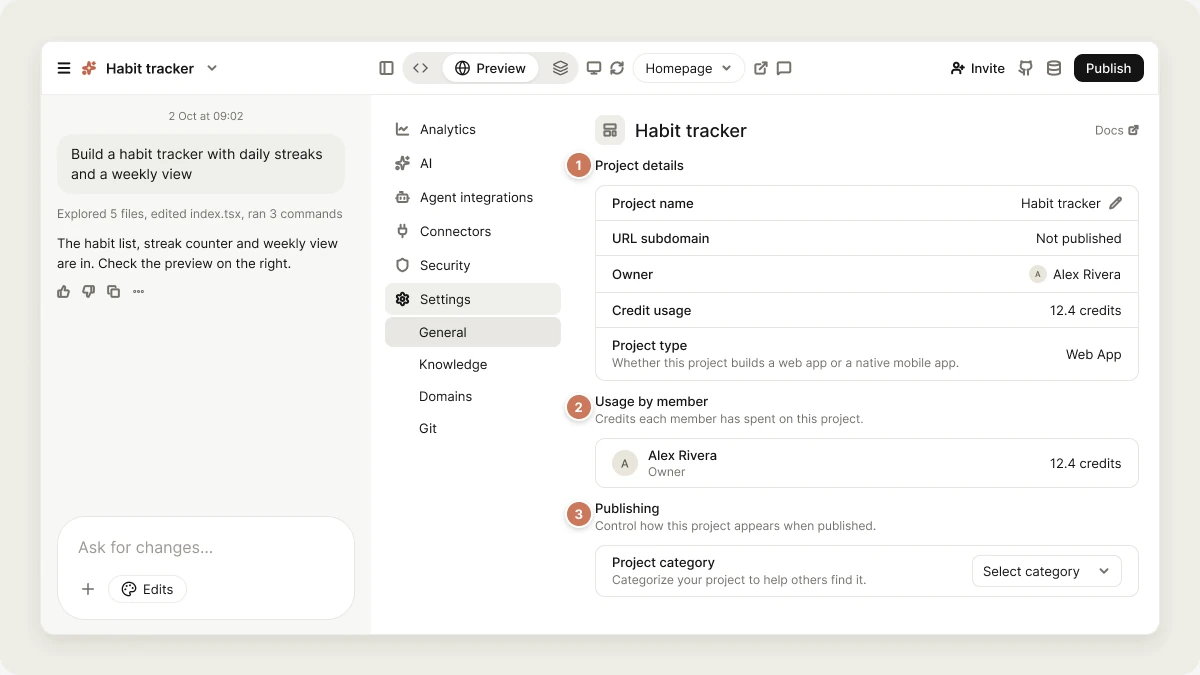
Where to find project settings
In the editor:- Manage panel: Click Manage in the view switcher, then Settings. The panel has four tabs: General, Knowledge, Domains (web projects), and Git. See The Manage panel.
- On a phone: Tap ⋯ next to the chat input and choose Project settings.
- Dashboard: Open a project card’s ⋯ menu and choose Settings. This opens the full settings page at
/code/project/<id>/settings, with the project’s sections under Project in the sidebar and your workspace and account settings below them.
Collaborators and invite links don’t live here. Manage who can work in the project, and create preview links, from the Invite button in the top right of the editor. See Collaboration and Sharing.
General
The General tab (called Project settings on the full settings page) opens by default and contains most settings.Overview
- Project name: The project’s display name. Click the pencil to rename it. Renaming also updates the project’s URL slug.
- URL subdomain: The address of your published web app, as a link. It reads Not published until you publish for the first time.
- Owner: Who owns the project.
- Created at: When the project was created.
Usage by member
A table of the credits each person has spent in this project, with their workspace role. Messages from workspace members come out of the project’s workspace credits; collaborators invited from outside the workspace are charged to their own workspace. This is where you see who spent what. It reads No usage recorded for this project yet. until the first message is billed. See Credits.Access and sharing
- Enable public remixing: Let anyone with the project link view the latest version of your app and make their own copy of it. Off by default. Turning it on shows the link with a Copy link button. People who remix get a copy of your project’s files, so make sure the code doesn’t contain passwords, API keys, or personal data. See Remix a project.
- Project category: Web App, Mobile App, API, Website, Tool, or Other. This helps people find the project. It doesn’t change how the project builds.
- Project access: Workspace lets every workspace member open the project in the editor. Restricted limits it to you and the people you invite, and requires a Business plan. New projects start with your workspace’s default access, set in Privacy & security.
Project access controls who can open the project in the editor. Who can visit the published site is a separate setting in the publish flow. See Sharing.
Project
- Rename project: The same rename dialog as the pencil in Overview.
- Disable analytics: Stop collecting visitor analytics for this project. Off by default, so analytics are collected. See Analytics.
- Use as a template: Publish this project as a template everyone in your workspace can start from. Turn it off to unpublish it. Business plan. See Templates.
Danger Zone
- Delete project: Permanently deletes the project, its files, its preview environment, and its deployment history. Click Delete and confirm.
Knowledge
The Knowledge tab is where you write standing instructions for this project: what the product is, who it’s for, and the rules Vibely should follow, like your brand colors or naming conventions. Vibely follows them in every message, so you don’t have to repeat them in the chat. The same tab also shows your workspace-wide knowledge. See Knowledge.Domains
The Domains tab is where you connect a domain you own to your published web app. Custom domains need a paid plan, and the tab appears on web projects only, because mobile apps publish to the app stores. See Custom domains.Git
The Git tab connects your project to a GitHub repository with two-way sync: changes Vibely makes are committed to your repository, and commits you push are pulled back into your project. A project uses one Git connection at a time. See GitHub. The same tab has Download codebase, which saves your project’s source code as a.zip file on any plan. See Download your project’s codebase.
Mobile app
Mobile projects have a Mobile app section on the full settings page, with your app’s store credentials, deep links, permissions, and release details for the App Store and Google Play. See Ship to the stores.Other settings you might be looking for
FAQ
Where do I change who can see my project?
Where do I change who can see my project?
Project access in General controls who in your workspace can open the project in the editor. To invite specific people or create a preview link, use the Invite button in the editor. See Collaboration and Sharing.
How do I rename my project?
How do I rename my project?
Open Manage → Settings → General and click the pencil next to Project name, or Rename under Rename project. You can also rename from a project card’s ⋯ menu on the dashboard, or from the project’s ⋯ menu under Recents in the sidebar.
Can I transfer a project to someone else or move it to another workspace?
Can I transfer a project to someone else or move it to another workspace?
Not directly. To get a copy of the project into another workspace, switch to that workspace and remix it. The copy is independent of the original.
Is deleting a project reversible?
Is deleting a project reversible?
No. Deleting a project is permanent. If you might need it later, download the code or remix it before deleting.
Related topics
Projects in Vibely
What a project is and how to manage it.
Remix a project
Public remixing and what a copy includes.
Find your way around the editor
Where every tool in a project lives.
Privacy & security
Workspace defaults for new projects.