

The catalog
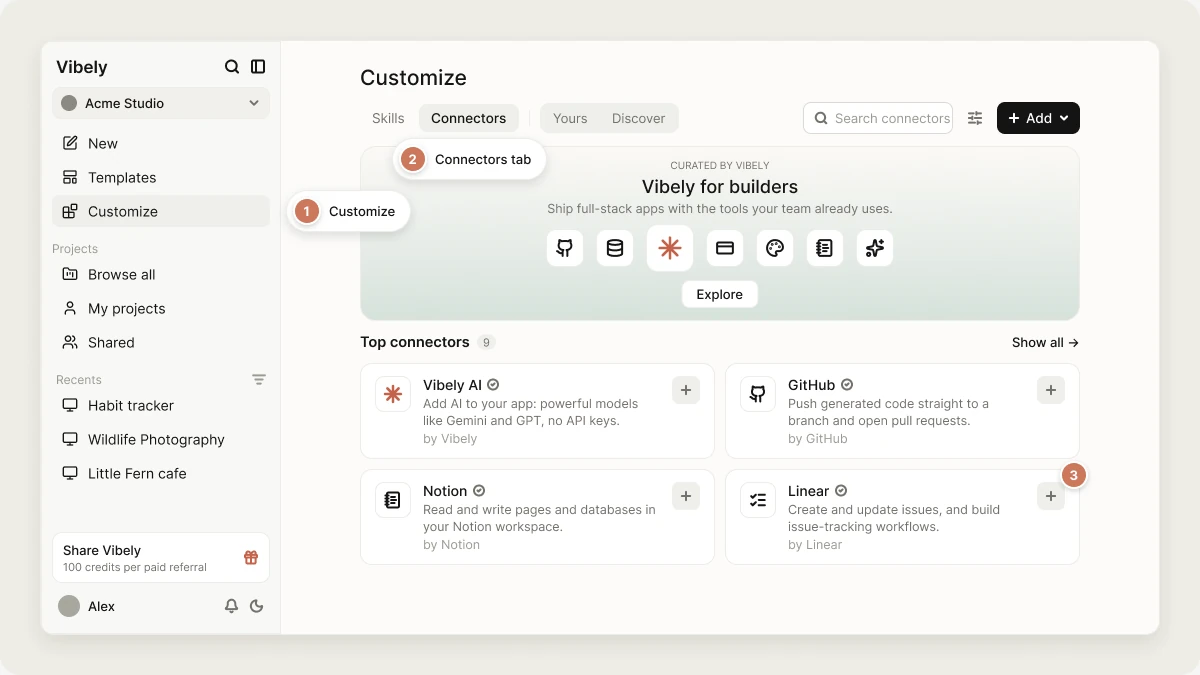
Your own custom MCP servers appear in the same list under the Custom category.
App connectors
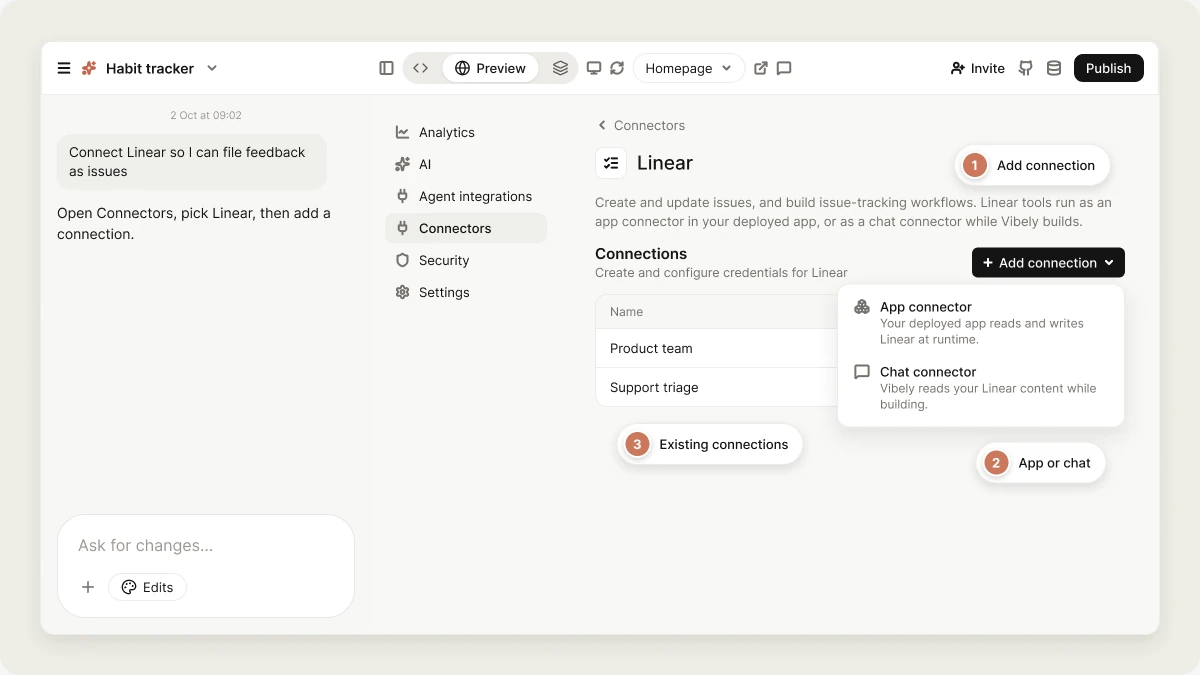
An app connector makes a tool part of the app you publish. When a visitor submits a form, your app can create a Linear issue. When a customer checks out, it charges a card with Stripe.How app connections work
An app connection uses one shared account. You, or an admin, sign in to the tool once, and every request from every project and every visitor goes through that account. Connections belong to your workspace, not to one project. Once Notion is connected, any project in the workspace can use it, and every workspace member with access to those projects builds against the same account. For OAuth connectors such as GitHub, Notion, and Linear, your app never holds the token. The agent writes a Supabase Edge Function that calls the tool through the Vibely connector gateway, and the gateway attaches the credential on the server.Connect a tool
1
Open the connector
Open Customize → Connectors and select the tool. The detail panel shows what the connector does and lists its existing connections.
2
Add a connection
Click Add connection. If the connector offers both types, choose App connector (“Your deployed app reads and writes … at runtime”) or Chat connector.
3
Authenticate
For OAuth tools, a new window opens so you can sign in and approve access. Make sure your browser doesn’t block pop-ups. For API-key tools, paste the keys into the form. Vibely stores them encrypted and never shows them to the agent.
4
Build with it
Ask for the feature in your project’s chat, for example:The agent writes the integration into your app, usually a client wrapper plus a Supabase Edge Function. If the connector needs keys that aren’t set yet, it asks for them in a secure dialog.
By default, only workspace owners and admins can connect connectors, and the agent only uses app connector tools when the person prompting has that permission. An owner can grant it to editors under Manage connectors in Settings → Permissions. See Admin controls.
Chat connectors
A chat connector lets the agent read one of your tools while it builds, so results match your real work instead of guesses. Chat connectors use MCP (Model Context Protocol). You don’t need to know anything about MCP to use them.How chat connections work
- Personal to you. You connect with your own account. Teammates who want the same tool connect their own accounts.
- Build-time only. The agent uses the connection in your project chats. Your published app and its visitors can’t reach it. If your app needs the data at runtime, use an app connector.
- Only what you can already see. Each connection sees only what your account can open in that tool. Figma also needs a Dev or Full seat for Dev Mode output.
- Switch it off per chat. In the composer’s + → Connectors menu, each chat connector has a switch. Turning it off stops the agent using it without disconnecting, so turning it back on doesn’t need another sign-in.
Connect a chat connector
1
Open the connector
Open Customize → Connectors and select Figma, Miro, Notion, or Linear.
2
Add a connection
Click Add connection. For Notion and Linear, choose Chat connector (“Vibely reads your … content while building”).
3
Authorize
Sign in to the tool in the window that opens and approve access.
Approve connector actions
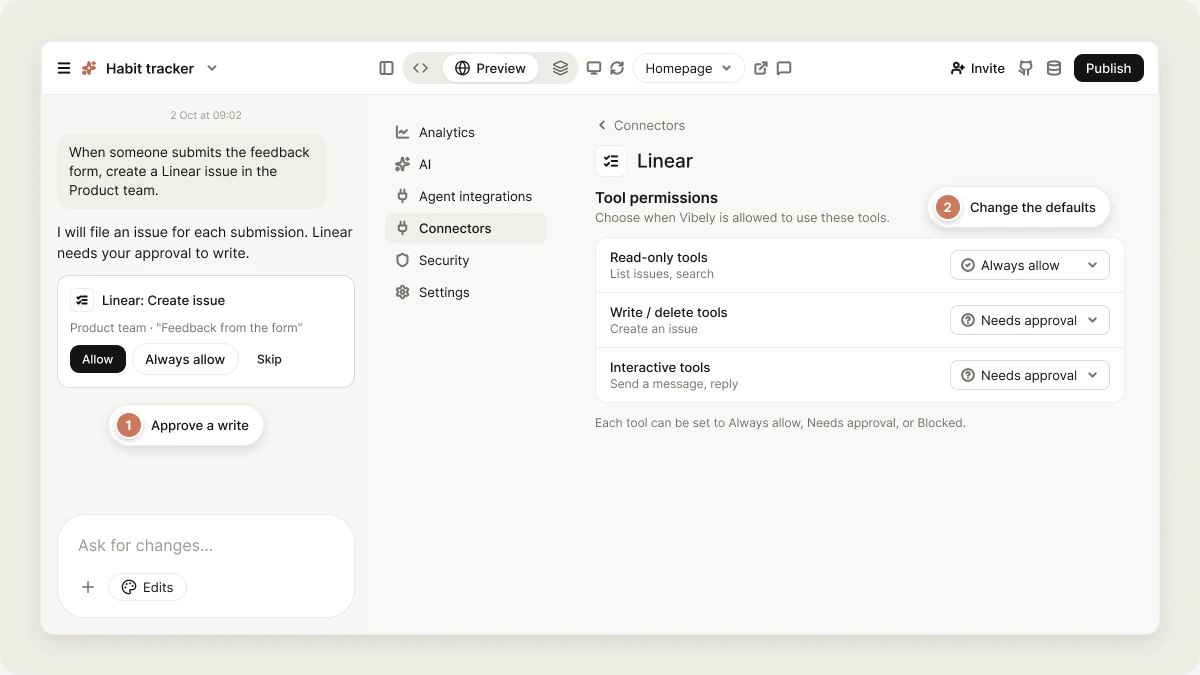
The agent can read through a connection freely, but by default it stops and asks before it changes anything. When it wants to create, update, delete, or send something through a connector, it shows an approval in the chat that names the action. You can:- Allow: run this one action.
- Always allow: run this action and similar ones on the same connector from now on without asking.
- Skip: don’t run it.
Linear also asks before reads by default, because tickets can hold private discussion.
To change the defaults, open the connector and use Tool permissions. Each group has a setting for the whole group, and you can set individual tools to Always allow, Needs approval, or Blocked. The Agent access item in the connector’s overflow menu sets all of them at once. Only workspace owners and admins can change tool permissions.
Manage a connection
Open Customize → Connectors and select the connector. The Connections table lists each connection with its name, type, and when it was last updated.- Reconnect: shown when a connection needs to be authorized again, for example after the tool revoked access.
- Disconnect: removes the connection’s saved credentials. You’ll have to connect again to use it. Apps that call the tool through this connection stop working until you do.
- Bring your own OAuth app: workspace owners and admins can replace Vibely’s shared OAuth app with their own for some connectors. The panel shows the exact redirect URI to register in the provider’s developer console.
FAQ
Who can see the data an app connection returns?
Who can see the data an app connection returns?
Anyone who can use your app. An app connection runs on one shared account, so every project and every visitor works with that account’s data. If each user should only see their own data, use a per-user connection.
Are my credentials in my project's code?
Are my credentials in my project's code?
No. OAuth tokens stay in the Vibely connector gateway, and keys are stored encrypted as secrets. The agent references them by name and never writes the value into a file. See Auth and credentials.
Why can't I connect a connector?
Why can't I connect a connector?
Check these in order:
- Your role. By default only owners and admins can connect connectors. An owner can grant Manage connectors to editors in Settings → Permissions.
- Workspace controls. An admin may have turned the connector off, or turned off Remote MCP connectors for chat connectors. See Admin controls.
- Your browser. OAuth opens a new window. If nothing happens, allow pop-ups for Vibely and try again.
Do connections carry over when someone remixes my project?
Do connections carry over when someone remixes my project?
No. A remix copies the project’s files only. Your workspace secrets and connected services are never copied, so the person who remixes connects their own.