

- App connector. Your published app reads and writes Notion while people use it: a blog whose posts live in a Notion database, or a form that adds rows to your Notion CRM.
- Chat connector. Vibely reads your Notion pages while you build, so a spec, PRD, or brief in Notion becomes the input for your app.
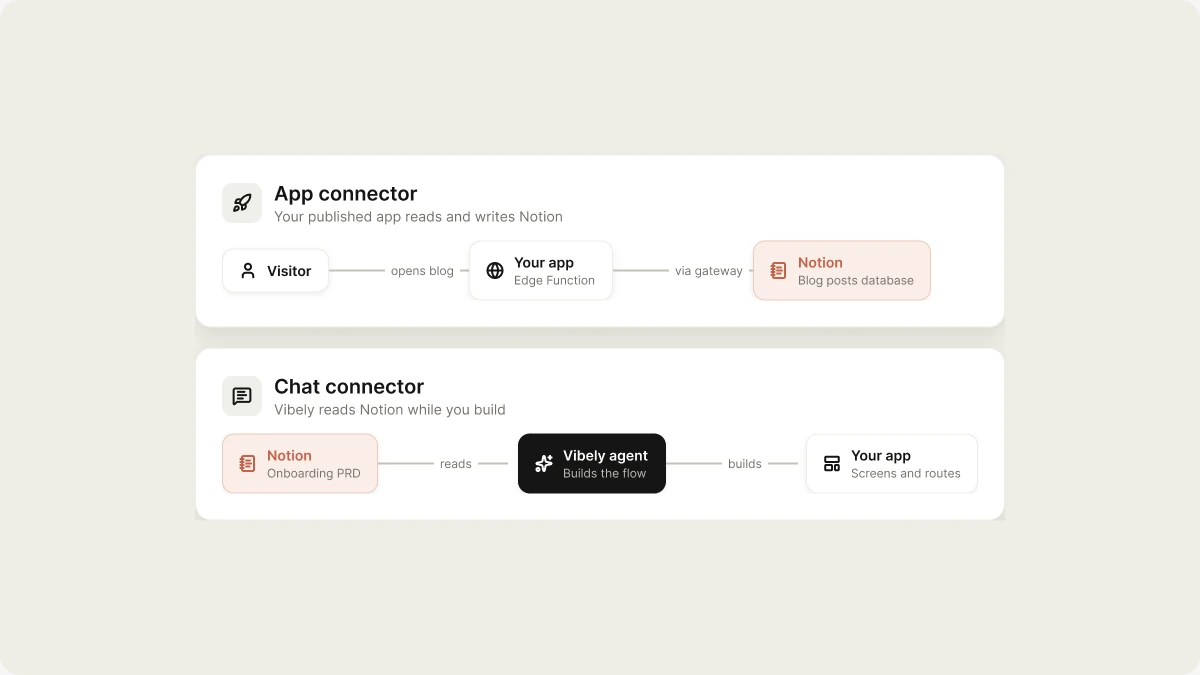
What you can build
With the app connector, your app can read pages and blocks, query databases with filters and sorts, create pages, append blocks, and update database rows.
Before you start
- A Notion workspace where you can add integrations.
- A plan for which pages and databases to share. Notion grants access page by page during authorization, and the connection can see only what you share.
- Permission to add connectors in your Vibely workspace. See Admin controls.
Notion API usage counts against your Notion plan. Notion bills you directly.
Connect Notion
- App connector
- Chat connector
1
Open the connector
In the sidebar, go to Customize → Connectors and select Notion.
2
Add a connection
Click Add connection, then connect.
3
Authorize in Notion
A Notion window opens. Pick the pages and databases your app should reach, then approve.
4
Ask for the feature
In the project chat, describe what you want, for example
Pull my Notion roadmap database into a public status page.How each connection works
App connector. The connection runs on one shared Notion account: yours, or whoever authorized it. Every visitor to your published app reads and writes Notion as that account, so share only what the app should reach. Your app calls Notion through Vibely’s connector gateway, which holds the token, so the token never ships in your app’s code. Chat connector. The connection is personal to you. Only you can use it, it runs through Notion’s hosted MCP server, and it isn’t part of the app you publish.Limitations
- Only shared pages are visible. A page you didn’t share during authorization looks empty to the connection. To add pages, reconnect and share them.
- One shared account for the app connector. Every user of your published app acts as the account that authorized it.
- Some Notion features, such as synced blocks and certain database views, don’t come through the API.
Manage or disconnect Notion
- The app connection is under Customize → Connectors → Notion. Disconnecting it stops your published app from reaching Notion. The generated code stays and starts failing until you reconnect or remove it.
- The chat connection is under Settings → Connectors. Removing it only stops Vibely from reading Notion while you build. Your published app isn’t affected.
FAQ
Do I need both connections?
Do I need both connections?
No. Use the app connector if your published app needs Notion. Use the chat connector if you only want Vibely to read your docs while it builds.
Can each user of my app connect their own Notion?
Can each user of my app connect their own Notion?
No. The app connector uses one shared account for everyone who uses your app.
Can my teammates use my chat connection?
Can my teammates use my chat connection?
No. Chat connections are personal. Teammates connect their own Notion accounts.
Related
Connectors
App and chat connectors explained.
Connector catalog
Every connector you can add.
Linear
Another app and chat connector.
Admin controls
Who can add connectors.