

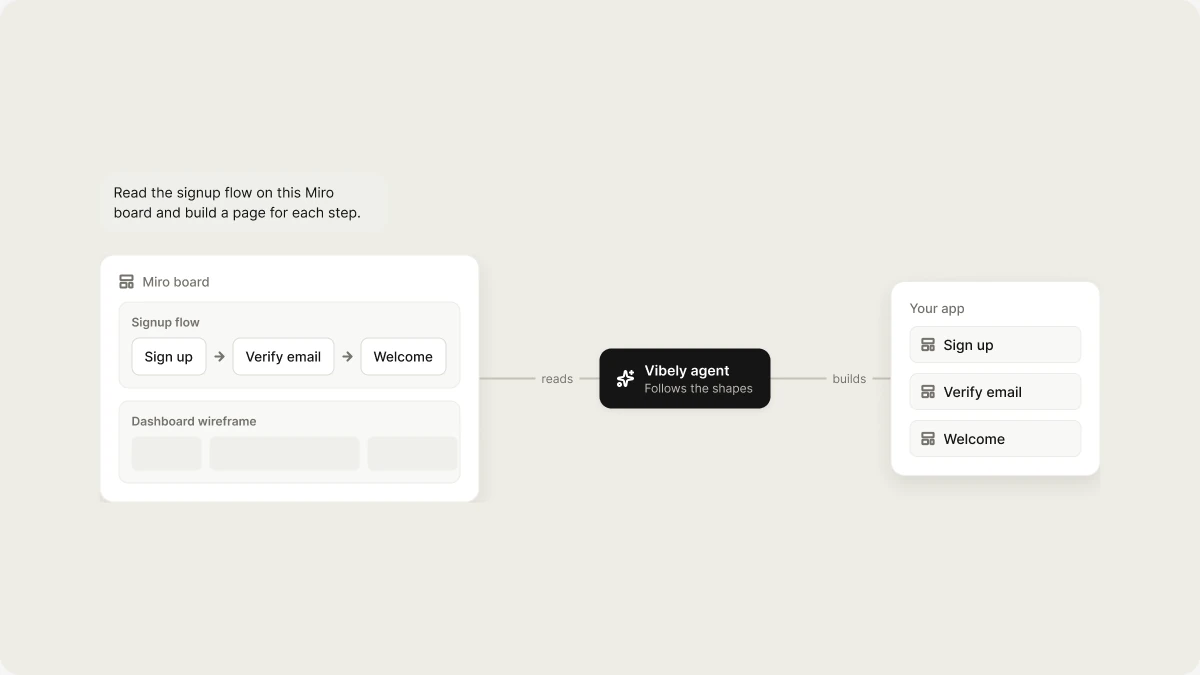
What you can build
Before you start
- A Miro account that can open the board. The connection sees only the boards you can see.
- A board that’s easy to read: named frames, connected shapes, and grouped sticky notes.
The frame called Checkoutis a much better instruction thanthe board.
Miro seats and usage are billed by Miro on your Miro plan.
Connect Miro
1
Open MCP settings
Go to Settings → Connectors. Miro is listed with the other prebuilt chat connectors.
2
Connect
Click Connect next to Miro and sign in to Miro in the window that opens.
3
Point Vibely at a board
In the project chat, paste the board URL and name the frame you want, for example
Build the checkout screens from the Checkout frame on https://miro.com/app/board/…. You can switch Miro on or off for your messages from the composer’s + menu under Connectors.How the connection works
- Personal to you. You connect with your own Miro account, and only you can use the connection. Teammates connect their own accounts.
- Build time only. Vibely reads the board when you ask. There’s no live sync, and board content isn’t shipped in your app.
- Read first, write when asked. Vibely can also create and update items on a board when you ask it to.
Limitations
- Only boards your account can open.
- A whiteboard isn’t a spec. Overlapping stickies, hand-drawn shapes, and unlabeled arrows are ambiguous, so Vibely may ask you what you meant.
- No live sync. Ask again after the board changes.
Manage or disconnect Miro
Go to Settings → Connectors to see or remove your Miro connection. Removing it stops Vibely from reading your boards. Your published app isn’t affected.FAQ
Can my published app read Miro boards?
Can my published app read Miro boards?
No. Miro connects only as a chat connector, so it’s available to Vibely while you build, not to your app at runtime.
Can my teammates use my Miro connection?
Can my teammates use my Miro connection?
No. Chat connections are personal. Teammates connect their own Miro accounts.
Related
Figma
Build from your Figma designs.
Connectors
App and chat connectors explained.
Custom MCP servers
Connect a tool that isn’t in the catalog.
Connector catalog
Every connector you can add.