

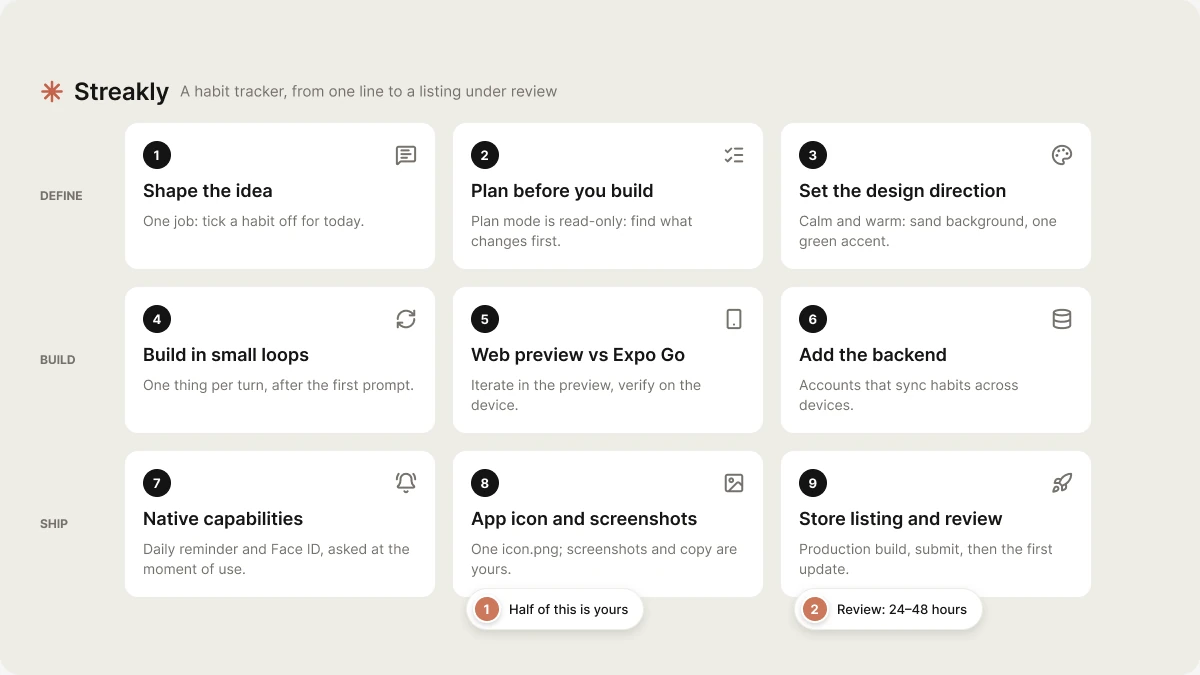
1. Shape the idea
The first prompt decides the shape of everything after it, so spend two minutes narrowing before you type. Three questions:
That is the whole V1. Everything else — social sharing, a friends leaderboard, widgets — is a later turn. An app that does one thing completely beats an app that stubs six.
Turn it into a prompt by naming the job, the sections, the platform constraints and the feel:
2. Plan before you build
Turn 1 does not need a plan — the brief above is the plan. The turn that does need one is the first change that touches many files at once. For Streakly that was making streaks survive a change of timezone, which turned out to touch storage, the day boundary, the streak calculation and the reminder time. One read-only turn first:3. Set the design direction early
Direction is cheap on turn 1 and expensive on turn 40, because it lives in the theme constants and every screen written after it inherits it. Say it in the words that move things:- A hue the domain actually wears. Purple or violet as a default accent is the single loudest tell of a generated app. Habit tracking wears green, warm neutrals, terracotta — pick one.
- Both colour schemes. Dark mode is OS-driven. A screen that looks right in the light preview can be unreadable on a phone at night if any colour was written as a hex literal instead of a theme token.
- Type. Loading a real font family is the loudest single change you can make — every screen is mostly text, and an app on the system face reads like every other app on the phone whatever the palette does.
4. Build in small loops
After turn 1, one thing per turn. Streakly’s first ten turns, roughly:
Each of those lands cleanly because each names one thing. A turn that asked for all six would have produced six shallow attempts.
Full loop, including the QR handoff: Build your first mobile app.
5. Web preview versus Expo Go on a real device
You get two surfaces, and using the wrong one costs hours. The web preview in the right pane is instant and is where layout, navigation, forms and logic belong. Expo Go on your phone is the truth, and is the only place camera, push, biometrics, secure storage and the real feel of a tap exist. The trap is believing a native feature is broken because it did nothing in the browser. It was never going to. The full matrix of what works where is in Web preview vs Expo Go. Rule of thumb for Streakly, and for anything else: iterate in the preview, and never say “ship it” without one pass on the device.6. Add the backend when data needs to survive
Streakly ran for a dozen turns with no backend at all, on device storage. That was correct. A habit log that only you can see does not need a database. The backend arrives with a requirement, not a hunch. For Streakly it was “I want the same habits on my iPad.” That is sync, which is accounts, which is Supabase.- Connecting is non-blocking. The agent raises the connect card and keeps building the screens in the same turn; they rewire themselves once the connection lands.
- Every table ships with row-level security in the same migration. The app’s key is in the bundle and can be read out of it, so the policies are the only thing standing between your users’ data and everyone else’s.
7. Native capabilities
Streakly needed exactly two: a daily reminder, and Face ID on the journal notes.- Permission at the moment of use, never on launch. Reviewers reject apps that ask for everything up front, and users decline them.
- The permission config ships in the same turn as the module. Apple auto-rejects a build whose
Info.plistis missing a usage description; on Android a missing permission fails silently at runtime — Android 13+ will show no notification at all withoutPOST_NOTIFICATIONS, and nothing errors.
8. App icon and store screenshots
This is the stage with no reference page, because it is the stage that is half yours.What the build produces
You author one file —assets/images/icon.png, a square mark, full-bleed, no baked-in rounded corners and no margin of its own, because every platform applies its own mask. On a mobile first build the agent generates it, overwrites the placeholder, reuses the art for splash-icon.png and favicon.png, and sets the splash and adaptive-icon background colours in app.json to carry your direction.
Everything below is derived from that one file on every build. Do not hand-author any of it:
Two things that quietly ruin a branded build: leaving both
backgroundColor values in app.json at #FFFFFF (a finished mark then sits in a white ring on Android and flashes a white launch screen), and leaving expo.name at the template default, which is what appears under the icon on the home screen.
If your app sends notifications, the Android notification icon is a separate asset and is not derived from the app icon. It must be a white-on-transparent silhouette; anything with colour renders as a solid white square on Android 5 and up.
What the stores demand
The app icon is a build artefact. Everything else on the listing is metadata that never ships inside the binary, and nothing in the project derives it.
Screenshot dimensions change when the stores add a device size, so take the required sizes from App Store Connect and Play Console at the moment you upload rather than from any doc, including this one.
What you still have to make
- The screenshots themselves. Nothing generates them. Take them on the largest device size each store currently requires, from a build with real seeded data — not an empty state, and not lorem ipsum.
- The framing. Plain device captures are allowed on both stores. A short headline over each one converts better, and the agent can write those headlines from what the app does.
- The listing copy. Name, subtitle, description, keywords. Ask for it — it is the one part of stage 8 the agent does well, and it is drafted from the actual app rather than from your memory of it.
- The upload. Neither store’s API accepts a listing from a build. Screenshots, feature graphic, store icon and copy go in by hand, once.
Pushing the derived 512×512 icon to a live Play listing is a separate, explicitly requested step — never a side effect of submitting a build, because the listing is public and shared across every track.
9. Store listing, review, and the first update
Connect Expo, run aproduction build, and EAS uploads it to App Store Connect or Play. On iOS you fill out the listing, submit for review (currently averaging 24–48 hours, longer for a first submission) and release. On Play you pick a track, submit, and promote forward when you are ready — internal, then closed, then open, then production, and Play’s first review can take up to a week.
TestFlight, Play tracks and promotion, the rejection list, OTA versus native updates, and rollbacks are all documented in Ship to stores — that page is the reference for this stage, and this guide will not repeat it.
Two things worth internalising before your first submission. A rejection costs almost nothing: builds, updates and store submissions are not metered, so only the one turn that triggered the build is charged, and resubmitting is free. And the first update is the real test — paste the reviewer’s note verbatim into the chat, guideline number included, and ask the agent to work out what in the app triggered it.
Next
Prompt library
Every prompt in this guide, plus the six mobile-only ones.
Ship to stores
EAS builds, TestFlight, Play tracks, rollbacks.
Native capabilities
Camera, push, biometrics, deep links.
Debugging
When the build and the store both say no.