
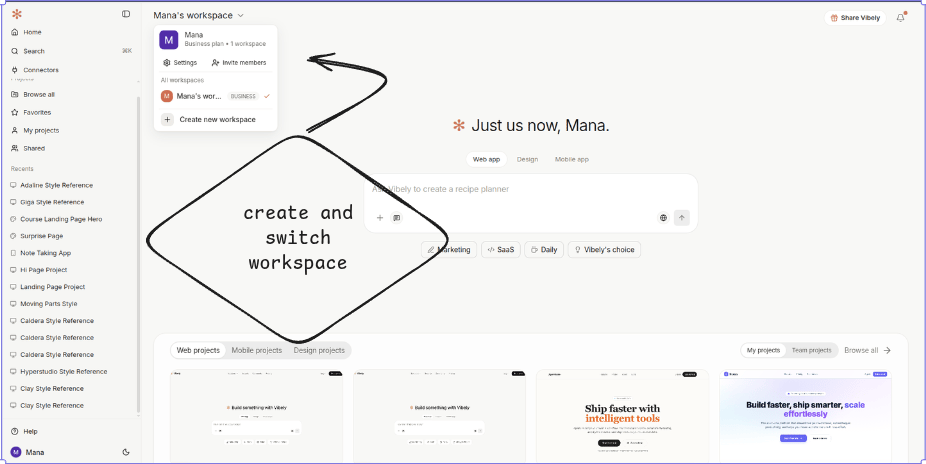
What lives in a workspace
Creating workspaces
Your default workspace is created free when you sign up. That one’s on the house. Any additional workspace is paid — creating one is a pay-then-create flow. The dialog asks for a name and slug, then the plan you want for that workspace (Pro or Business). You complete payment in Razorpay before the workspace exists; the server only creates the org after the charge confirms. A few details worth knowing:- Each workspace is its own billing unit. One workspace = one subscription. There is no “team billing” that spans workspaces.
- If you close the Razorpay window or the payment fails, nothing is created on the server. No half-finished org, no cleanup to do.
- Slug collisions are handled automatically with a suffix — the dialog tells you the final slug before you pay.
- On a successful payment the client switches you straight into the new workspace.
Personal vs. team workspaces
The structure is the same; the difference is intent.- Personal workspace — created automatically on sign-up. Just you, your projects, your billing. Most people stay here for solo work.
- Team workspace — you create it explicitly and invite people. Roles control who can do what. Billing is workspace-level, not per-member.
- Client workspace (agency pattern) — typically one workspace per client. The client pays (or you pay and bill them), you ship work, then transfer ownership at handoff.
When to split workspaces
Splitting workspaces is cheap; merging them later is not. A few rules of thumb:- Different products under the same umbrella usually belong in separate workspaces, especially if they have different stakeholders or budgets.
- Personal vs. work — keep weekend projects out of your company workspace. Tax records and project ownership get cleaner.
- Client work — one workspace per client lets you transfer ownership at handoff without exporting / importing anything.
Switching workspaces
The workspace picker in the top-left shows everything you have access to. Switching is instant — the project list, connectors, member list, and billing all swap to the new context. Each workspace remembers its own last-opened project, so coming back doesn’t lose where you were.Renaming or deleting a workspace
Admins can rename the workspace and update its slug from Settings → General. Slug changes update share URLs immediately; old URLs stop resolving, so plan the rename when you’re not mid-handoff. Deletion lives in the same panel under Danger zone and is owner-only. It cascades to every project, deploy, connector, and member access record — only the audit log of the deletion itself is preserved.Plan gating at a glance
See Plans and credits for pricing and credit grants.
Next
People
Invite members, assign roles, and manage access.
Project settings
Per-project configuration: collaborators, GitHub, secrets, model pinning.
Admin settings
Billing, connected accounts, security policies, Security Center.
Customize Vibely
Account-level personalization that follows you across workspaces.