
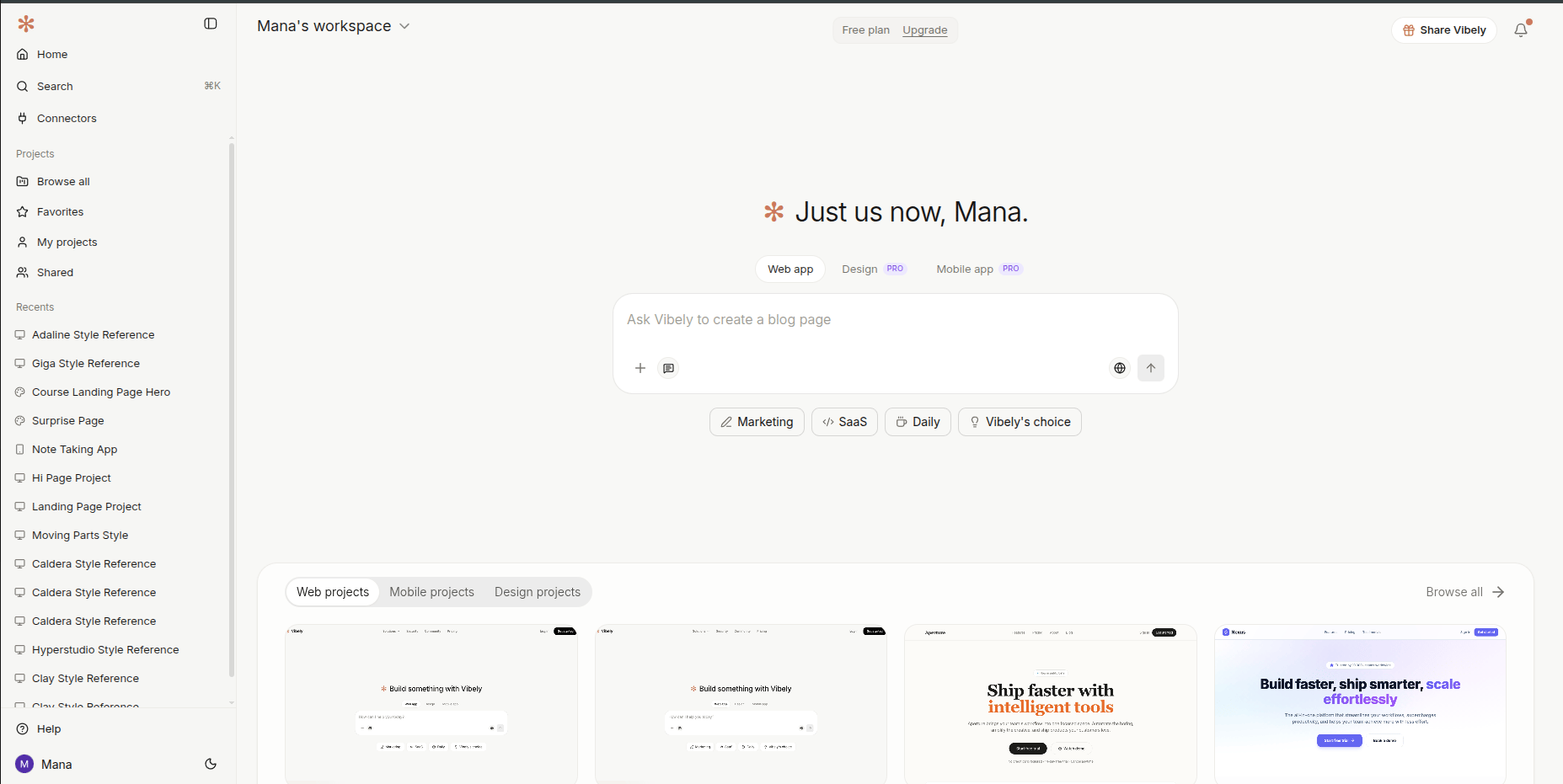
Home
The home view is built around one thing: start something new, or pick up where you left off.- Build prompt — type what you want to build and pick the mode: Web App, Mobile App, or Design. Hit go and Vibely scaffolds the project and drops you straight into the chat composer.
- Starter prompts — curated examples you can click and run. Useful when you’re warming up or want to see how the agent thinks before writing your own brief.
- Recent projects — your 12 most-recent projects, in last-touched order. One click opens any of them.
- Pinned projects — favourites you’ve pinned to the top, separate from Recents. Pins are per-user, so each member sees their own.
- Credit & plan pill — your current balance and plan. Click to jump to billing.
Projects view
When you want the full list, switch to Projects from the sidebar.- Grid or list layout — toggle whichever matches what you’re scanning for. Both views show the thumbnail, project name, last-edited time, and collaborators.
- Filter tabs — Browse all, Favourites, My projects, Shared.
- Filter by type — Web, Mobile, Design.
- Filter by visibility — Workspace (visible to your workspace), Restricted (owner-only, Business), or projects you’ve made publicly remixable. See Project settings → Visibility for what each level means.
- Sort — Last edited, Name A–Z, Name Z–A, Newest first.
- Search — find a project by name.
- Per-project actions — open, rename, star, toggle visibility, delete, or copy the share link from the card’s menu.
- Quick “create new” card sits at the start of the grid so you can scaffold a project without going back home.
Workspace switcher
Top of the sidebar. Click to switch between workspaces you belong to, create a new workspace, or jump straight to that workspace’s settings. Switching is instant — the project list, connectors, member list, and billing all swap to the new context.Share Vibely
The Share Vibely button sits in the header next to your avatar. Click it to open the referrals dialog — share link, conversion stats, and the terms. Vibely grants 100 credits per paid referral. See Referrals for the full flow.Notifications
Bell icon in the top bar. Three tabs:- Inbox — approve or decline incoming project access requests.
- Updates — mentions, comments, shares, and deploy alerts. Mark individual items as read, or Mark all read in one click.
- What’s New — platform announcements published by Vibely’s team — feature launches, model upgrades, important changes. The bell shows a small unread dot when a new announcement lands; open the tab to clear it. Mirrors the public
/changelog.
Account menu
Click your avatar (top right) to reach:- Profile and settings
- Billing and plans
- Language — EN, ES, FR, DE, IT, PT, JA, KO, HI
- Theme — Light, Dark, or System
- Documentation
- Sign out
Command palette
⌘K (Mac) / Ctrl+K (Windows / Linux) opens the command palette from anywhere — dashboard, inside a project, settings.
- Search projects by name.
- Run quick commands: open the dashboard, create a Web / Mobile / Design project, open docs, jump to workspace or account settings.
- Navigate with
↑ ↓ Enter Esc.
Next
Find and search
Search, filters, sorting, and the command palette.
Project settings
Everything you can configure inside a project.
Workspace overview
How workspaces and projects relate.
Plans and credits
What the credit pill links to and how the meter runs.