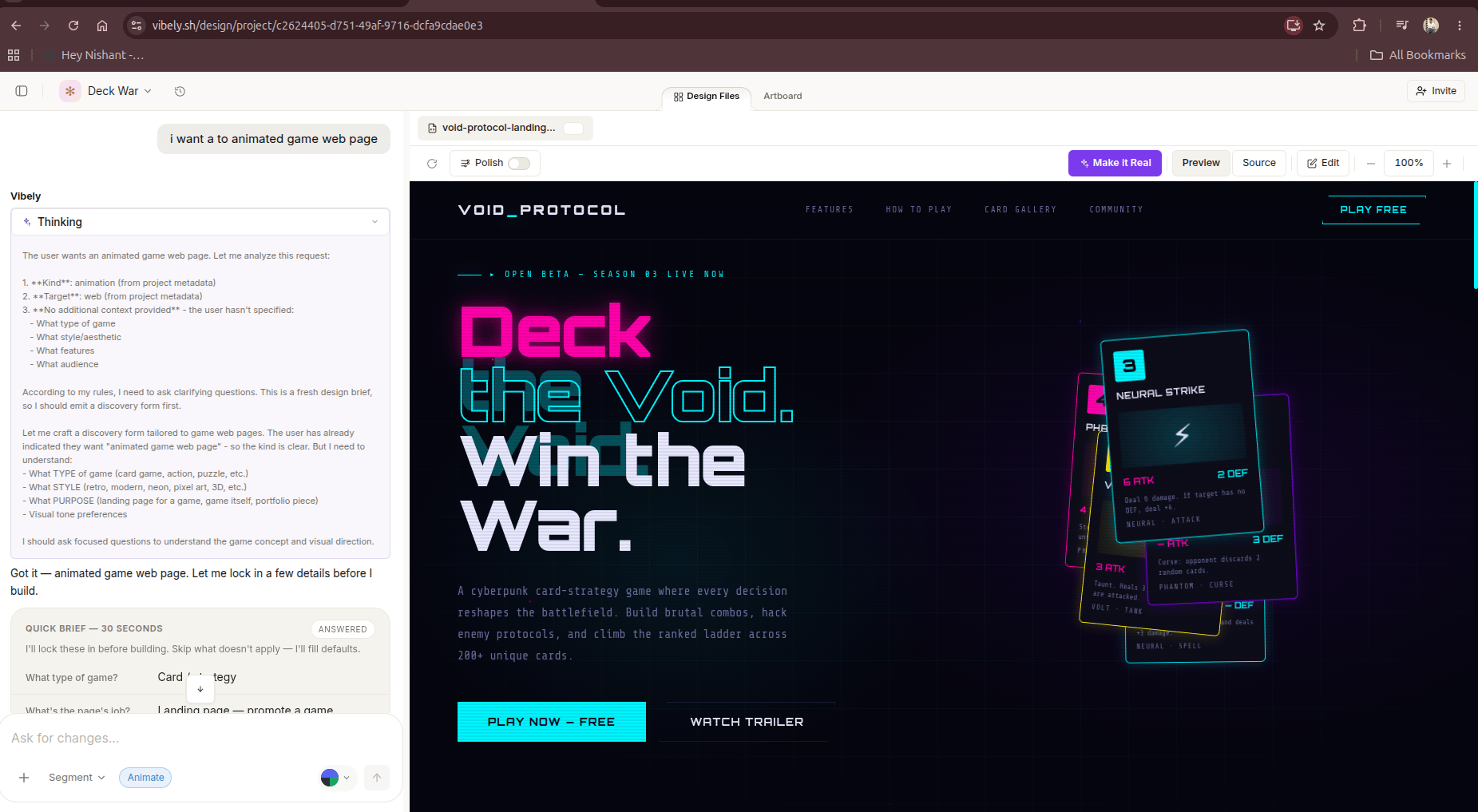
Artboard
Where every design you generate lives. Compare side by side, cluster, cull, pick.
Make it real / Build
One click turns a design into a working React + Tailwind project you can deploy.
DESIGN.md
Auto-generated design system doc — colors, typography, components — for handoff.
Design language
What Design Mode is great at, and how to prompt for it.
The flow
- Pick Design on the new-project screen.
- Describe what you want to see. “A landing page for a habit-tracking app — warm, friendly, hand-written-journal energy with streak screenshots and a free CTA.”
- Answer 3–4 clarifying questions. Niche, audience, primary action, tone references. One-line answers are enough — they tune the first design to your case instead of a generic template.
- First design lands on the artboard in 30–60 seconds. Pan, zoom, hover, click — it’s interactive, not a flat image.
- Generate more if you want options. Every new prompt drops a new design next to the existing one — nothing is overwritten.
- Pick the one you love → Make it real / Build. Vibely converts the design into a React component tree, spins up a fresh project, and drops you into a live preview.
- Iterate as a real app. From here you’re in Web App Mode — add data, auth, payments, deploy.
Prompt inputs
A text prompt is the minimum — but the composer also lets you attach references and constrain the output up front, so the first design lands closer to what you want.- Reference URL — paste a link to a site whose layout, tone, or vibe you want as inspiration. The platform fetches it and uses it as a visual reference.
- DESIGN.md upload — drop in an existing DESIGN.md and the design generates against your colors, typography, spacing, and component patterns.
-
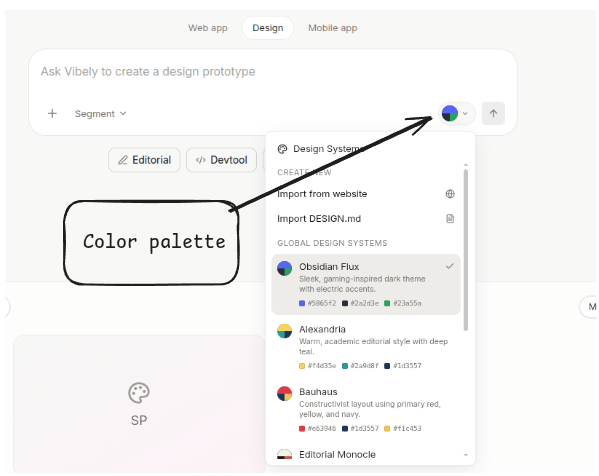
Color palette — pick or paste a palette; every generated design uses it instead of inventing one.
- Image / file upload — upload a screenshot, mood board, logo, or PDF as a reference. The platform reads it and matches the style.
-
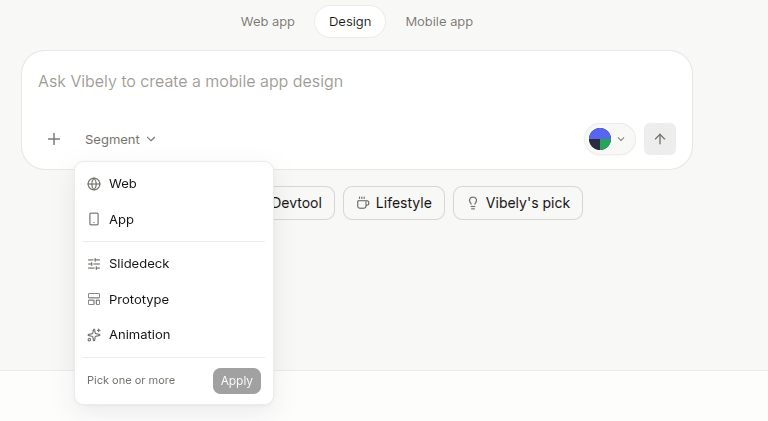
Segment — choose Web, App, Slide, Deck, or Animation. Canvas size, conventions, and export options follow. Animation is its own segment for standalone motion work (loaders, intros, micro-interactions); the Web/App/Deck segments also accept an animated treatment as a property of the layout.
Modes
Pick the surface up front; defaults and export options shape themselves to fit.Prototype — web or app
The default. Everything that’s a self-contained interactive layout.- Web — landing pages, dashboards, multi-page sites, component sets. Prompt one page or describe an entire SaaS site at once and Vibely produces every page with consistent colors, fonts, and components.
- App — phone screens at native dimensions (390 wide), tablets (768). Onboarding flows, settings, feeds, profiles, multi-tab apps. Follows iOS or Material conventions when you name the platform.
Deck
Pitch decks, investor updates, kickoff presentations — each slide a full 16:9 canvas. Prompt the whole deck at once (“a 10-slide investor pitch, dark mode, premium feel”) and Vibely generates every slide with a consistent design system. Static (PDF/PNG export, presenter mode) or animated (transitions, scroll-driven reveals); animated decks export to a live web page so motion plays in real time when shared.Template
Pre-bundled designs you can drop as a starting point —digital-eguide, social-carousel, magazine-poster, dating-web, gamified-app, weekly-update, pricing-page, and more. Iterate with inline edits and Make it real / Build at the end.
Design system
A coherent palette + typography + component set generated together so your brand DNA stays consistent across every other artifact you make. Use this mode first if you want the rest of the session (prototypes, decks, templates) to inherit a shared identity.Artboard
Where every design you generate lives and gets compared. Most design tools make you commit early; the artboard is built for keeping options open.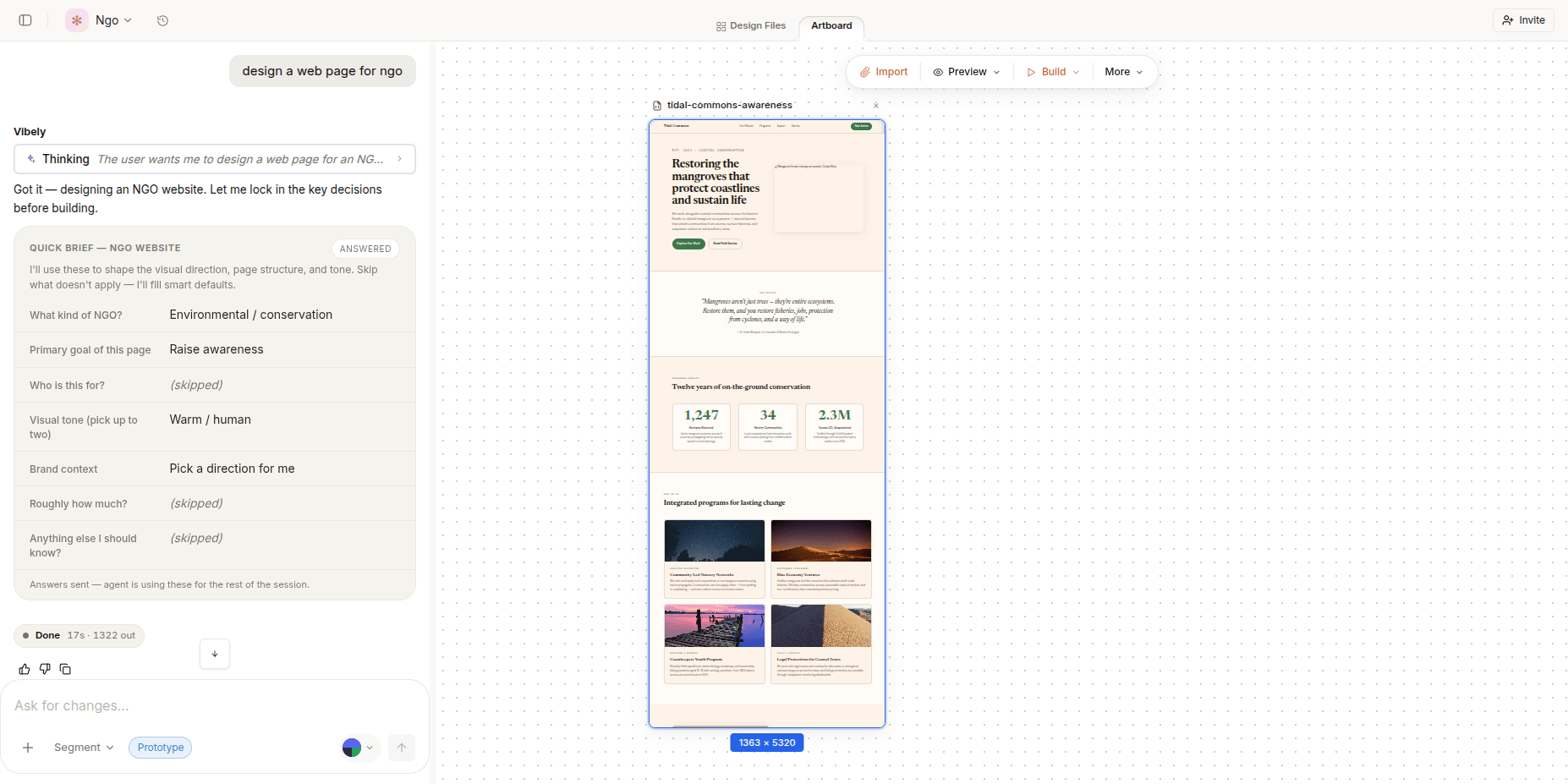
- All your designs live in one place, side by side, as live interactive previews.
- Generate 2–6 variations of the same idea and compare them together.
- Group related designs, archive the ones you’ve ruled out.
- Multi-select to duplicate, delete, or build several at once.
- Click any design for duplicate, delete, bring to front/back, Make it real / Build, or Variants — Variants generates a new visual treatment of the same idea on a fresh artboard so you can A/B without losing the original.
- Pan, zoom (0.1× to 4×), and rearrange freely.
- Resize a design and the layout reflows responsively.
- Switch between Desktop, Tablet, Mobile, or custom size.
- Auto-saves as you work; offline cache keeps state safe.
- Read-only share link for stakeholders, no Vibely account needed.
Import
When you have several designs on the artboard, Import picks one of them as the active target so your next prompts and edits apply to that design.- Select any design on the artboard and hit Import.
- That design becomes the focus — subsequent prompts (“make the header bigger,” “swap to dark mode,” “add a pricing section”) modify it instead of generating a new one.
- The other designs stay untouched on the artboard.
- Hit Import on a different design any time to switch focus.
Preview
- Full-screen preview — view the design without the artboard chrome.
- Device preview — Desktop / Tablet / Mobile, with responsive reflow.
- Interactive mode — animations, hover states, and scroll effects play live.
- Share preview link — read-only URL for stakeholders, no Vibely account needed.
- Dark / light toggle — preview both themes if the design supports them.
Make it real / Build
The conversion path from a chosen design to a working web app.- Pick a design and hit Make it real / Build to turn it into a working React + TypeScript + Tailwind app.
- The design is split into reusable components — buttons, cards, sections, layouts, pages.
- Colors, fonts, spacing, and radii become CSS variables; hardcoded values get rewritten to clean semantic classes (
text-primary, nottext-[#6366f1]). - Optional shadcn/ui wiring for atoms.
- DESIGN.md travels with the code so styling stays consistent.
- A sandbox builds and runs the app; live preview URL appears next to your design.
- Multi-page designs export together with routing set up.
- The project becomes a Web App Mode project — ready for auth, database, payments, deploys.
- Won’t ship code with broken imports, missing types, or hardcoded colors.
Build menu
- Build to Web App — React + TypeScript + Tailwind, full project with routing.
- Build multi-page — several designs become one app with shared routing and tokens.
- Choose component library — default vs. shadcn/ui.
- Live build progress — sandbox spins up, deps install, dev server starts, preview URL streams back.
- Split view — design on one side, live built app on the other.
More
Per-design actions from the right-click menu and the design header.- Download HTML — single self-contained file.
- Download as ZIP — design + DESIGN.md + assets together.
- Generate DESIGN.md — mood, colors, typography, spacing, components, animations.
- Duplicate — copy the design back onto the artboard.
- Rename — set a custom title.
- Share read-only link — stakeholder review without edit access.
- Delete — remove the design from the artboard.
- Project settings — name, visibility, collaborators.
Inside each design
What runs automatically every time you generate or edit — no toggles, no setup.- Enhance Prompt — short prompts get expanded into a full brief (mood, sections, palette, audience) before generating.
- Clarifying questions — if a key choice is missing, you get asked instead of guessed at.
- Design Loop — multi-page sites generate in sequence with consistent style across every page.
- Inline edits — “make the header bigger,” “switch to dark mode,” “tighten spacing” — targeted changes without losing the rest.
- Design system extraction — DESIGN.md auto-generated with mood, colors, typography, spacing, component patterns, and animations.
- No placeholders — designs ship with real content, not lorem ipsum.
- Self-contained output — every design is a single HTML file with Tailwind, custom theme, Google Fonts, and animations.
What it doesn’t do
- No backend. Design Mode is frontend only. Click Make it real / Build and continue in Web App Mode for auth, database, payments.
- Not a brand identity tool. Bring your colors, fonts, and logo; the platform won’t define a brand from scratch.
- No 3D or physics. Static and animated 2D layouts only.
- HTML preview ≠ pixel-perfect Figma. Animations and interactions reflect what the browser can do.
- No security scan in Design Mode today. The security scanner runs against web and mobile projects; design files don’t have a scan surface. Once you Make it real / Build, the resulting web project gets the full scan.
When to use Design Mode vs. Web App Mode
These aren’t either-or. The natural flow is Design Mode → Make it real / Build → Web App Mode.