> ## Documentation Index
> Fetch the complete documentation index at: https://docs.vibely.sh/llms.txt
> Use this file to discover all available pages before exploring further.
# Dashboard overview
> Find your way around the Vibely dashboard: start new projects, reopen existing ones, switch workspaces, and reach your settings.
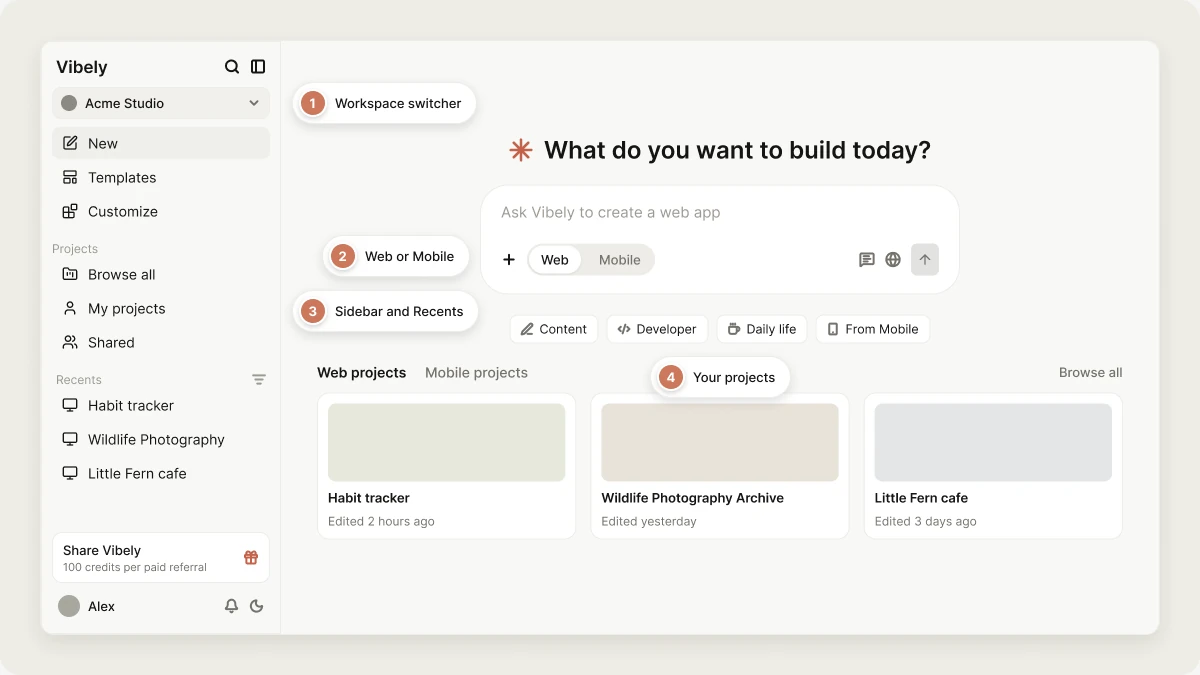
The dashboard is your starting point in Vibely. It is where you start new projects, reopen existing ones, switch between workspaces, and get to your settings. You land here after you sign in, and you can return at any time by selecting **New** in the sidebar.
 ## Start a new project
The prompt box sits in the middle of the dashboard. Describe what you want to build and send it, and Vibely creates a new project and starts building. See [Quick start](/introduction/quickstart) for a guided first build, and [Prompting best practices](/prompting/best-practices) for how to write a good first prompt.
You can be as brief or as detailed as you like: `a todo app with dark mode` works, and so does a multi-paragraph specification.
### Choose Web or Mobile
The **Web** and **Mobile** tabs above the prompt box decide what kind of project you create:
* **Web**: a React web app you publish to a URL. See [Web apps](/features/web-apps/overview).
* **Mobile**: a native iOS and Android app built with Expo. See [Mobile apps](/features/mobile-apps/overview). Mobile projects need a Pro plan or higher; on the Free plan, selecting **Mobile** offers an upgrade.
### The `+` menu
Select **+** in the prompt box for more options:
* **Upload files or photos**: attach mockups, screenshots, documents, or images for Vibely to use as context.
* **Take a screenshot**: capture your screen and attach it.
* **Start from a template**: pick one of your [workspace templates](/features/design/workspace-templates) or one of Vibely's templates, and Vibely creates the project from it.
* **Skills**: apply one of your workspace's [skills](/features/context/skills) to the new project.
* **Connectors**: add a [connector](/integrations/connectors/overview), such as Stripe or GitHub, so the first build can use it.
* **Database**: pick a Supabase organization or project to use as the app's backend. See [Supabase](/integrations/supabase).
### Plan before building
By default, your first message starts building right away. Select the **Plan mode** toggle next to the send button to have Vibely write a plan first, which you review and approve before any code is written. See [Plan mode](/features/agent/plan-mode).
### Project access
The globe or lock button next to the send button sets who in the workspace can see the new project:
* **Workspace**: every member of the workspace.
* **Restricted**: only you and the people you invite. Restricted projects are a Business plan feature.
You can change this later from the project. See [Collaboration](/features/collaboration/overview).
### Quick-start ideas
When the prompt box is empty, a row of suggestion chips sits under it. Hover a suggestion to preview its prompt in the box, and select it to start from it.
## Sidebar and navigation
The sidebar on the left gives you access to everything in your workspace. Collapse or expand it with the button at its top.
### Navigation
* **New**: return to the dashboard and start a new project.
* **Templates**: browse templates and start from a working app. See [Templates](/features/design/workspace-templates).
* **Customize**: manage your workspace's [skills](/features/context/skills) and [connectors](/integrations/connectors/overview).
* **Search**: search your projects and jump to pages such as Settings. Shortcut: `⌘K` (Mac) or `Ctrl+K` (Windows and Linux).
### Projects, Pinned, and Recents
* **Projects**: **Browse all** opens the full project list; **Favorites** shows projects you have starred; **My projects** shows only projects you own. See [Find a project](/features/projects/projects-and-folders).
* **Pinned**: projects you've pinned to the top of the sidebar.
* **Recents**: the projects you opened most recently.
Hover a project in **Pinned** or **Recents** and open its menu for **Pin** or **Unpin**, **Open in new tab**, **Copy link**, **Rename**, and **Delete**.
### Upgrade card
On the Free plan, an **Upgrade to Pro** card appears in the sidebar. Select it to compare plans and upgrade. See [Plans](/features/account/plans).
## Workspace switcher
The workspace name at the top of the dashboard opens the workspace switcher. From it you can:
* Switch to another workspace you belong to. Each workspace has its own projects, members, billing, and credits.
* See each workspace's plan and renewal date.
* Select **Create new workspace**.
* Join a workspace listed under **Workspaces you can join**.
The plan pill beside it shows your current plan. See [Workspace](/features/workspace/overview).
## Your projects
Below the prompt box, your projects appear as cards, split into **Web projects** and **Mobile projects** tabs. Each card shows the project's preview and when it was last edited. Select a card to open it in the editor, or **Browse all** to see the full list.
On the Business plan, you can switch between **My projects** and **Team projects** to see work across the workspace.
## Account menu
Select your avatar in the sidebar to open the account menu:
* **Language**: change the language of the Vibely interface.
* **Settings**: open workspace and account settings. See [Account settings](/features/account/settings).
* **View all plans**: compare plans and manage your subscription.
* **Documentation**: open these docs.
* **Take the tour**: replay the guided tour of the dashboard.
* **Help**: open a support form.
* **Sign out**: log out of your account.
## Keyboard shortcuts
| Shortcut | Action |
| - | - |
| `⌘K` / `Ctrl+K` | Search projects and commands |
For shortcuts inside a project, see [Editor](/features/projects/editor).
## Related
Build and publish your first app.
Create, organize, and manage projects.
Members, billing, and shared credits.
Search, filter, pin, and star projects.
## Related topics
- [MCP Client Overview](/reference/mcp/overview.md)
- [API Overview](/api-reference/overview.md)
- [Build Mode Overview](/reference/engine/overview.md)
- [Project settings](/features/projects/settings.md)
- [Implement changes in Build mode](/features/agent/build-mode.md)
This documentation is built and hosted on [Mintlify](https://mintlify.com), a developer documentation platform.
## Start a new project
The prompt box sits in the middle of the dashboard. Describe what you want to build and send it, and Vibely creates a new project and starts building. See [Quick start](/introduction/quickstart) for a guided first build, and [Prompting best practices](/prompting/best-practices) for how to write a good first prompt.
You can be as brief or as detailed as you like: `a todo app with dark mode` works, and so does a multi-paragraph specification.
### Choose Web or Mobile
The **Web** and **Mobile** tabs above the prompt box decide what kind of project you create:
* **Web**: a React web app you publish to a URL. See [Web apps](/features/web-apps/overview).
* **Mobile**: a native iOS and Android app built with Expo. See [Mobile apps](/features/mobile-apps/overview). Mobile projects need a Pro plan or higher; on the Free plan, selecting **Mobile** offers an upgrade.
### The `+` menu
Select **+** in the prompt box for more options:
* **Upload files or photos**: attach mockups, screenshots, documents, or images for Vibely to use as context.
* **Take a screenshot**: capture your screen and attach it.
* **Start from a template**: pick one of your [workspace templates](/features/design/workspace-templates) or one of Vibely's templates, and Vibely creates the project from it.
* **Skills**: apply one of your workspace's [skills](/features/context/skills) to the new project.
* **Connectors**: add a [connector](/integrations/connectors/overview), such as Stripe or GitHub, so the first build can use it.
* **Database**: pick a Supabase organization or project to use as the app's backend. See [Supabase](/integrations/supabase).
### Plan before building
By default, your first message starts building right away. Select the **Plan mode** toggle next to the send button to have Vibely write a plan first, which you review and approve before any code is written. See [Plan mode](/features/agent/plan-mode).
### Project access
The globe or lock button next to the send button sets who in the workspace can see the new project:
* **Workspace**: every member of the workspace.
* **Restricted**: only you and the people you invite. Restricted projects are a Business plan feature.
You can change this later from the project. See [Collaboration](/features/collaboration/overview).
### Quick-start ideas
When the prompt box is empty, a row of suggestion chips sits under it. Hover a suggestion to preview its prompt in the box, and select it to start from it.
## Sidebar and navigation
The sidebar on the left gives you access to everything in your workspace. Collapse or expand it with the button at its top.
### Navigation
* **New**: return to the dashboard and start a new project.
* **Templates**: browse templates and start from a working app. See [Templates](/features/design/workspace-templates).
* **Customize**: manage your workspace's [skills](/features/context/skills) and [connectors](/integrations/connectors/overview).
* **Search**: search your projects and jump to pages such as Settings. Shortcut: `⌘K` (Mac) or `Ctrl+K` (Windows and Linux).
### Projects, Pinned, and Recents
* **Projects**: **Browse all** opens the full project list; **Favorites** shows projects you have starred; **My projects** shows only projects you own. See [Find a project](/features/projects/projects-and-folders).
* **Pinned**: projects you've pinned to the top of the sidebar.
* **Recents**: the projects you opened most recently.
Hover a project in **Pinned** or **Recents** and open its menu for **Pin** or **Unpin**, **Open in new tab**, **Copy link**, **Rename**, and **Delete**.
### Upgrade card
On the Free plan, an **Upgrade to Pro** card appears in the sidebar. Select it to compare plans and upgrade. See [Plans](/features/account/plans).
## Workspace switcher
The workspace name at the top of the dashboard opens the workspace switcher. From it you can:
* Switch to another workspace you belong to. Each workspace has its own projects, members, billing, and credits.
* See each workspace's plan and renewal date.
* Select **Create new workspace**.
* Join a workspace listed under **Workspaces you can join**.
The plan pill beside it shows your current plan. See [Workspace](/features/workspace/overview).
## Your projects
Below the prompt box, your projects appear as cards, split into **Web projects** and **Mobile projects** tabs. Each card shows the project's preview and when it was last edited. Select a card to open it in the editor, or **Browse all** to see the full list.
On the Business plan, you can switch between **My projects** and **Team projects** to see work across the workspace.
## Account menu
Select your avatar in the sidebar to open the account menu:
* **Language**: change the language of the Vibely interface.
* **Settings**: open workspace and account settings. See [Account settings](/features/account/settings).
* **View all plans**: compare plans and manage your subscription.
* **Documentation**: open these docs.
* **Take the tour**: replay the guided tour of the dashboard.
* **Help**: open a support form.
* **Sign out**: log out of your account.
## Keyboard shortcuts
| Shortcut | Action |
| - | - |
| `⌘K` / `Ctrl+K` | Search projects and commands |
For shortcuts inside a project, see [Editor](/features/projects/editor).
## Related
Build and publish your first app.
Create, organize, and manage projects.
Members, billing, and shared credits.
Search, filter, pin, and star projects.
## Related topics
- [MCP Client Overview](/reference/mcp/overview.md)
- [API Overview](/api-reference/overview.md)
- [Build Mode Overview](/reference/engine/overview.md)
- [Project settings](/features/projects/settings.md)
- [Implement changes in Build mode](/features/agent/build-mode.md)
This documentation is built and hosted on [Mintlify](https://mintlify.com), a developer documentation platform.