> ## Documentation Index
> Fetch the complete documentation index at: https://docs.vibely.sh/llms.txt
> Use this file to discover all available pages before exploring further.
# Accept payments with Stripe
> Add one-time payments and subscriptions to your app with Stripe Checkout on web and PaymentSheet on mobile.
Stripe lets your app charge real cards. Tell Vibely what you want to sell, and it builds the checkout flow, the backend functions that talk to Stripe, and the database table that tracks who has paid. Your secret key stays on the server the whole time.
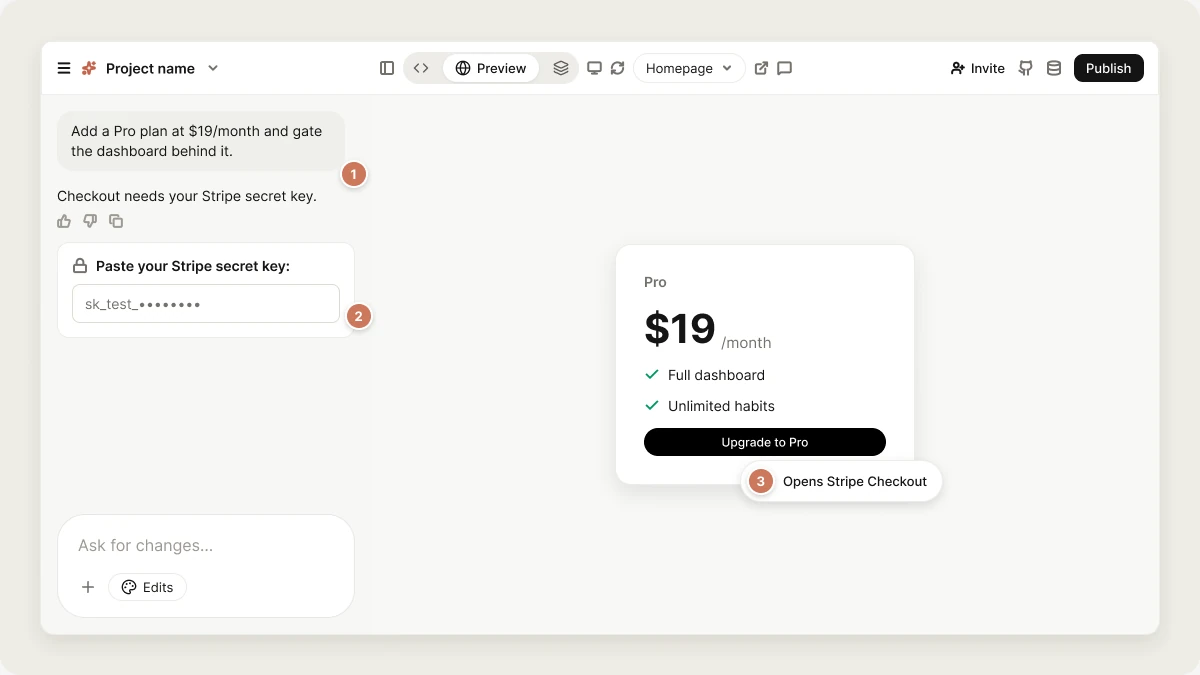 On web, customers pay on Stripe's hosted Checkout page. On mobile, they pay in a native PaymentSheet.
In iOS and Android apps, you can use Stripe **only for physical goods and real-world services**, such as a print order or a booking deposit. Apple and Google require their own in-app purchase for digital goods, premium features, and subscriptions. Use [RevenueCat](/integrations/revenuecat) for those. A Stripe subscription checkout inside a mobile app is rejected under App Store Guideline 3.1.1.
## What you can build
| Use case | Example prompt | What Vibely builds |
| - | - | - |
| Subscription paywall | `Add a Pro plan at $19/month and gate the dashboard behind it.` | Checkout in subscription mode, a `subscribers` table with row-level security, and an entitlement check |
| One-time purchase | `Sell a $49 template download.` | Checkout in payment mode, with fulfilment after the customer returns |
| Self-serve billing | `Let subscribers upgrade, downgrade, or cancel themselves.` | A button that opens the Stripe customer portal |
| Physical goods (mobile) | `Add a checkout for print orders: shipping address, then pay.` | A native PaymentSheet |
| Service deposit (mobile) | `Take a 20% deposit when someone books a cleaning slot.` | A PaymentSheet for a real-world service |
## Before you start
* **A Stripe account.** Create your products and prices in the Stripe Dashboard first. The generated code refers to price IDs (`price_…`), not amounts.
* **A Supabase project linked to your Vibely project.** Stripe's server code runs as Supabase Edge Functions, so it can't run without one. If you haven't linked one, Vibely shows the **Connect Supabase** card when it needs it. See [Supabase](/integrations/supabase).
* **Permission to add connectors** in your workspace. See [Admin controls](/integrations/admin-controls).
Stripe charges its processing fees to your Stripe account. Vibely takes no cut of what your app collects and doesn't appear on your customers' statements.
## Connect Stripe
You can connect Stripe in two ways. Both end with your secret key stored server-side, where only your Edge Functions can read it.
This works for every account and is what usually happens.
Describe what you want to sell, for example `Add a Pro plan at $19/month`.
Vibely pauses and asks **Paste your Stripe secret key:**. Copy it from the Stripe Dashboard under **Developers → API keys**. Use a test key (`sk_test_…`) while you build and a live key (`sk_live_…`) when you're ready to charge real cards. Restricted keys (`rk_…`) also work.
The value never appears in the chat. Vibely rejects a publishable key (`pk_…`) pasted here by mistake.
Vibely saves the key as an encrypted project secret named `STRIPE_SECRET_KEY`, syncs it to your Supabase project's Edge Function secrets, and continues building.
In the sidebar, go to **Customize → Connectors** and select **Stripe**.
Sign in at stripe.com and authorize Vibely. Your keys are copied in automatically, so there's nothing to paste.
In the project chat, describe what you want to sell. When a Supabase project is linked, the keys go straight into its Edge Function secrets as `STRIPE_SECRET_KEY` and `STRIPE_PUBLISHABLE_KEY`.
Never paste a Stripe secret key into the chat. If you do, Vibely removes it from your message and points you to **Secrets** instead. To change a saved key later, see [Secrets](/features/backend/secrets).
## What Vibely adds to your project
On a **web** project, Vibely adds:
* `src/lib/payments.ts`, with `checkout()`, `checkSubscription()`, and `openCustomerPortal()` helpers.
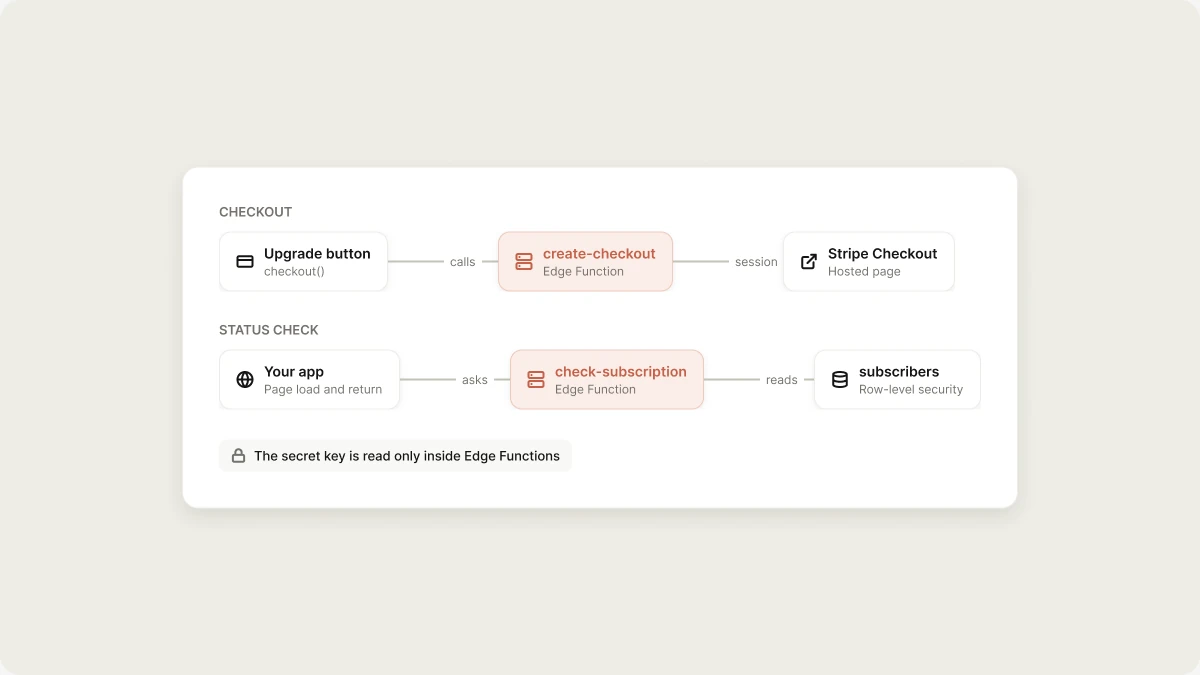
* Three Edge Functions: `create-checkout`, `check-subscription`, and `customer-portal`.
* A `subscribers` table, readable only by the user it belongs to.
On a **mobile** project, Vibely adds `src/lib/payments.ts`, a `create-payment-intent` Edge Function, and wraps the app in Stripe's `StripeProvider`.
The secret key is read only inside Edge Functions. The publishable key is public and safe to ship in your app.
On web, customers pay on Stripe's hosted Checkout page. On mobile, they pay in a native PaymentSheet.
In iOS and Android apps, you can use Stripe **only for physical goods and real-world services**, such as a print order or a booking deposit. Apple and Google require their own in-app purchase for digital goods, premium features, and subscriptions. Use [RevenueCat](/integrations/revenuecat) for those. A Stripe subscription checkout inside a mobile app is rejected under App Store Guideline 3.1.1.
## What you can build
| Use case | Example prompt | What Vibely builds |
| - | - | - |
| Subscription paywall | `Add a Pro plan at $19/month and gate the dashboard behind it.` | Checkout in subscription mode, a `subscribers` table with row-level security, and an entitlement check |
| One-time purchase | `Sell a $49 template download.` | Checkout in payment mode, with fulfilment after the customer returns |
| Self-serve billing | `Let subscribers upgrade, downgrade, or cancel themselves.` | A button that opens the Stripe customer portal |
| Physical goods (mobile) | `Add a checkout for print orders: shipping address, then pay.` | A native PaymentSheet |
| Service deposit (mobile) | `Take a 20% deposit when someone books a cleaning slot.` | A PaymentSheet for a real-world service |
## Before you start
* **A Stripe account.** Create your products and prices in the Stripe Dashboard first. The generated code refers to price IDs (`price_…`), not amounts.
* **A Supabase project linked to your Vibely project.** Stripe's server code runs as Supabase Edge Functions, so it can't run without one. If you haven't linked one, Vibely shows the **Connect Supabase** card when it needs it. See [Supabase](/integrations/supabase).
* **Permission to add connectors** in your workspace. See [Admin controls](/integrations/admin-controls).
Stripe charges its processing fees to your Stripe account. Vibely takes no cut of what your app collects and doesn't appear on your customers' statements.
## Connect Stripe
You can connect Stripe in two ways. Both end with your secret key stored server-side, where only your Edge Functions can read it.
This works for every account and is what usually happens.
Describe what you want to sell, for example `Add a Pro plan at $19/month`.
Vibely pauses and asks **Paste your Stripe secret key:**. Copy it from the Stripe Dashboard under **Developers → API keys**. Use a test key (`sk_test_…`) while you build and a live key (`sk_live_…`) when you're ready to charge real cards. Restricted keys (`rk_…`) also work.
The value never appears in the chat. Vibely rejects a publishable key (`pk_…`) pasted here by mistake.
Vibely saves the key as an encrypted project secret named `STRIPE_SECRET_KEY`, syncs it to your Supabase project's Edge Function secrets, and continues building.
In the sidebar, go to **Customize → Connectors** and select **Stripe**.
Sign in at stripe.com and authorize Vibely. Your keys are copied in automatically, so there's nothing to paste.
In the project chat, describe what you want to sell. When a Supabase project is linked, the keys go straight into its Edge Function secrets as `STRIPE_SECRET_KEY` and `STRIPE_PUBLISHABLE_KEY`.
Never paste a Stripe secret key into the chat. If you do, Vibely removes it from your message and points you to **Secrets** instead. To change a saved key later, see [Secrets](/features/backend/secrets).
## What Vibely adds to your project
On a **web** project, Vibely adds:
* `src/lib/payments.ts`, with `checkout()`, `checkSubscription()`, and `openCustomerPortal()` helpers.
* Three Edge Functions: `create-checkout`, `check-subscription`, and `customer-portal`.
* A `subscribers` table, readable only by the user it belongs to.
On a **mobile** project, Vibely adds `src/lib/payments.ts`, a `create-payment-intent` Edge Function, and wraps the app in Stripe's `StripeProvider`.
The secret key is read only inside Edge Functions. The publishable key is public and safe to ship in your app.
 ## Test your checkout
Checkout opens in a new tab and redirects back to a real URL, so it **only completes on your published app**, not in the editor preview. [Publish](/features/deploy/publish) first, then test with Stripe's test card:
* Card number `4242 4242 4242 4242`
* Any future expiry date and any CVC
When you're ready to go live, switch your Stripe account to live mode and give Vibely your live secret key, either by reconnecting or by updating `STRIPE_SECRET_KEY` in [Secrets](/features/backend/secrets).
## Limitations
* **Requires Supabase.** Without a linked Supabase project there are no Edge Functions, so Stripe can't run.
* **Subscription status is checked, not pushed.** The app refreshes a customer's status when a page loads and when they return from Checkout. You don't need a webhook to launch. If you later need Stripe to notify your app (for failed renewals or async fulfilment), ask for a Stripe webhook. Vibely deploys it as a public function, because Stripe can't send a signed-in user's token, so the function itself should verify Stripe's webhook signature. Any Edge Function can be made public this way by declaring it in its config.
* **Mobile is limited to physical goods and services**, as described above.
## Manage or disconnect Stripe
Open **Customize → Connectors → Stripe** to see the connection. Disconnecting stops Vibely from using your Stripe account. The Edge Function secrets and the generated code stay in your project until you remove them.
Subscriptions your customers already have keep billing in Stripe. Cancel them in the Stripe Dashboard, not in Vibely.
## FAQ
As an encrypted project secret, and in your Supabase project's Edge Function secret store once a Supabase project is linked. It's never written to a file in your project, so it can't leak through GitHub sync or a code download.
No. Apple and Google require in-app purchase for digital subscriptions. Use [RevenueCat](/integrations/revenuecat) for those, and keep Stripe for physical goods and real-world services.
Stripe redirects back to your app's real URL after payment. Publish the app and test there.
## Related
In-app purchases for mobile apps.
Choose how your app takes money.
The backend Stripe runs on.
Store and update API keys.
## Related topics
- [Built-in integrations](/integrations/connectors/native.md)
- [Add payments to your app](/features/grow/payments.md)
- [Store API keys with secrets](/features/backend/secrets.md)
- [FAQ](/faq.md)
- [Connect tools, services, and APIs](/integrations/connectors/overview.md)
This documentation is built and hosted on [Mintlify](https://mintlify.com), a developer documentation platform.
## Test your checkout
Checkout opens in a new tab and redirects back to a real URL, so it **only completes on your published app**, not in the editor preview. [Publish](/features/deploy/publish) first, then test with Stripe's test card:
* Card number `4242 4242 4242 4242`
* Any future expiry date and any CVC
When you're ready to go live, switch your Stripe account to live mode and give Vibely your live secret key, either by reconnecting or by updating `STRIPE_SECRET_KEY` in [Secrets](/features/backend/secrets).
## Limitations
* **Requires Supabase.** Without a linked Supabase project there are no Edge Functions, so Stripe can't run.
* **Subscription status is checked, not pushed.** The app refreshes a customer's status when a page loads and when they return from Checkout. You don't need a webhook to launch. If you later need Stripe to notify your app (for failed renewals or async fulfilment), ask for a Stripe webhook. Vibely deploys it as a public function, because Stripe can't send a signed-in user's token, so the function itself should verify Stripe's webhook signature. Any Edge Function can be made public this way by declaring it in its config.
* **Mobile is limited to physical goods and services**, as described above.
## Manage or disconnect Stripe
Open **Customize → Connectors → Stripe** to see the connection. Disconnecting stops Vibely from using your Stripe account. The Edge Function secrets and the generated code stay in your project until you remove them.
Subscriptions your customers already have keep billing in Stripe. Cancel them in the Stripe Dashboard, not in Vibely.
## FAQ
As an encrypted project secret, and in your Supabase project's Edge Function secret store once a Supabase project is linked. It's never written to a file in your project, so it can't leak through GitHub sync or a code download.
No. Apple and Google require in-app purchase for digital subscriptions. Use [RevenueCat](/integrations/revenuecat) for those, and keep Stripe for physical goods and real-world services.
Stripe redirects back to your app's real URL after payment. Publish the app and test there.
## Related
In-app purchases for mobile apps.
Choose how your app takes money.
The backend Stripe runs on.
Store and update API keys.
## Related topics
- [Built-in integrations](/integrations/connectors/native.md)
- [Add payments to your app](/features/grow/payments.md)
- [Store API keys with secrets](/features/backend/secrets.md)
- [FAQ](/faq.md)
- [Connect tools, services, and APIs](/integrations/connectors/overview.md)
This documentation is built and hosted on [Mintlify](https://mintlify.com), a developer documentation platform.