> ## Documentation Index
> Fetch the complete documentation index at: https://docs.vibely.sh/llms.txt
> Use this file to discover all available pages before exploring further.
# Build from your Miro boards
> Connect Miro so Vibely can read your boards, flows, and sticky notes while you build, and turn them into working screens.
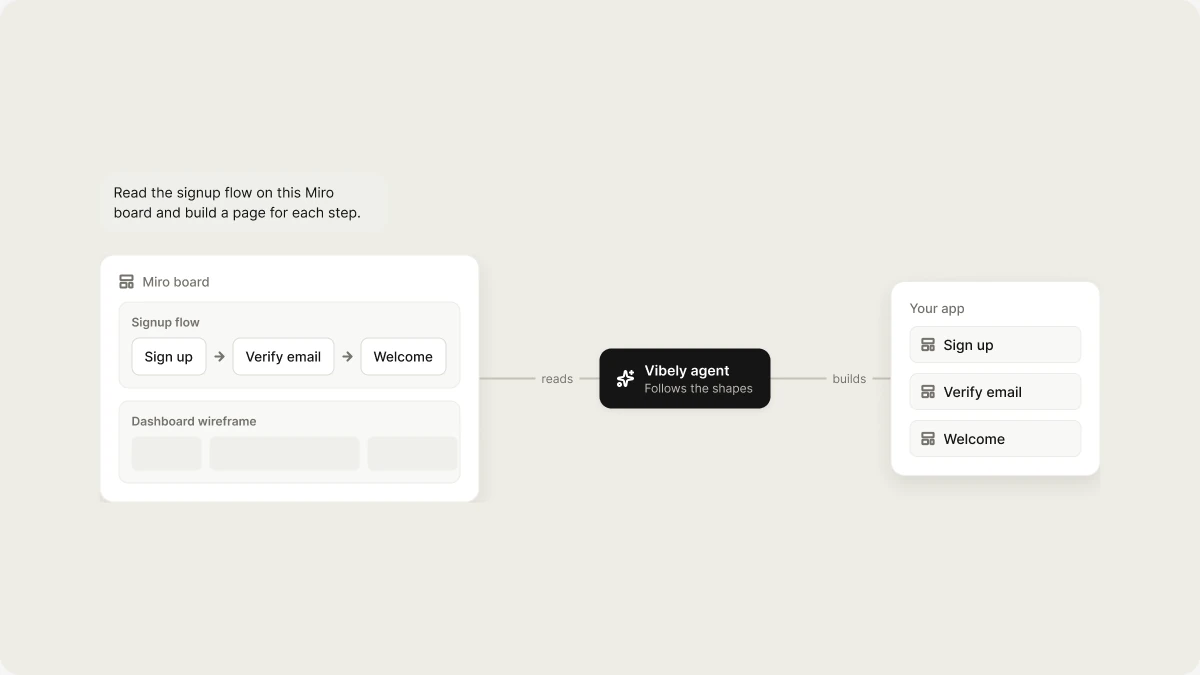
Miro is an online whiteboard. Connect it, and Vibely reads your boards while you build: user flows, wireframes, sticky-note backlogs, and diagrams become the input for your app, without anyone copying them out first.
 Miro is a **chat connector**. Vibely uses it in the project chat while you build. It isn't bundled into the app you publish, and your app's visitors can't reach Miro through it.
## What you can build
| Use case | Example prompt | What Vibely does |
| - | - | - |
| Flow to screens | `Read the signup flow on this Miro board and build a page for each step.` | Follows the connected shapes and creates the routes |
| Wireframe to UI | `Build the dashboard from the frame called Dashboard wireframe.` | Reads the frame's layout and builds the screen |
| Workshop backlog | `Turn the sticky notes in the Ideas frame into a prioritized feature list.` | Reads the stickies and groups them |
| Data model | `Use the entity diagram on the board to design the database tables.` | Reads the entities and relationships |
| Mobile flow | `Build the onboarding screens from the mobile flow frame.` | The same read, with Expo screens as output |
| Write back | `Add a sticky note to the board for each item we didn't build.` | Creates items on the board |
## Before you start
* A Miro account that can open the board. The connection sees only the boards you can see.
* A board that's easy to read: named frames, connected shapes, and grouped sticky notes. `The frame called Checkout` is a much better instruction than `the board`.
Miro seats and usage are billed by Miro on your Miro plan.
## Connect Miro
Go to **Settings → Connectors**. Miro is listed with the other prebuilt chat connectors.
Click **Connect** next to Miro and sign in to Miro in the window that opens.
In the project chat, paste the board URL and name the frame you want, for example `Build the checkout screens from the Checkout frame on https://miro.com/app/board/…`. You can switch Miro on or off for your messages from the composer's **+** menu under **Connectors**.
## How the connection works
* **Personal to you.** You connect with your own Miro account, and only you can use the connection. Teammates connect their own accounts.
* **Build time only.** Vibely reads the board when you ask. There's no live sync, and board content isn't shipped in your app.
* **Read first, write when asked.** Vibely can also create and update items on a board when you ask it to.
## Limitations
* **Only boards your account can open.**
* **A whiteboard isn't a spec.** Overlapping stickies, hand-drawn shapes, and unlabeled arrows are ambiguous, so Vibely may ask you what you meant.
* **No live sync.** Ask again after the board changes.
## Manage or disconnect Miro
Go to **Settings → Connectors** to see or remove your Miro connection. Removing it stops Vibely from reading your boards. Your published app isn't affected.
## FAQ
No. Miro connects only as a chat connector, so it's available to Vibely while you build, not to your app at runtime.
No. Chat connections are personal. Teammates connect their own Miro accounts.
## Related
Build from your Figma designs.
App and chat connectors explained.
Connect a tool that isn't in the catalog.
Every connector you can add.
## Related topics
- [Bring Figma designs into Vibely](/integrations/figma.md)
- [Connect tools, services, and APIs](/integrations/connectors/overview.md)
- [Use npm packages](/features/build/npm-packages.md)
- [Manage connectors in your workspace](/integrations/admin-controls.md)
- [App and chat connectors](/integrations/connectors/catalog.md)
This documentation is built and hosted on [Mintlify](https://mintlify.com), a developer documentation platform.
Miro is a **chat connector**. Vibely uses it in the project chat while you build. It isn't bundled into the app you publish, and your app's visitors can't reach Miro through it.
## What you can build
| Use case | Example prompt | What Vibely does |
| - | - | - |
| Flow to screens | `Read the signup flow on this Miro board and build a page for each step.` | Follows the connected shapes and creates the routes |
| Wireframe to UI | `Build the dashboard from the frame called Dashboard wireframe.` | Reads the frame's layout and builds the screen |
| Workshop backlog | `Turn the sticky notes in the Ideas frame into a prioritized feature list.` | Reads the stickies and groups them |
| Data model | `Use the entity diagram on the board to design the database tables.` | Reads the entities and relationships |
| Mobile flow | `Build the onboarding screens from the mobile flow frame.` | The same read, with Expo screens as output |
| Write back | `Add a sticky note to the board for each item we didn't build.` | Creates items on the board |
## Before you start
* A Miro account that can open the board. The connection sees only the boards you can see.
* A board that's easy to read: named frames, connected shapes, and grouped sticky notes. `The frame called Checkout` is a much better instruction than `the board`.
Miro seats and usage are billed by Miro on your Miro plan.
## Connect Miro
Go to **Settings → Connectors**. Miro is listed with the other prebuilt chat connectors.
Click **Connect** next to Miro and sign in to Miro in the window that opens.
In the project chat, paste the board URL and name the frame you want, for example `Build the checkout screens from the Checkout frame on https://miro.com/app/board/…`. You can switch Miro on or off for your messages from the composer's **+** menu under **Connectors**.
## How the connection works
* **Personal to you.** You connect with your own Miro account, and only you can use the connection. Teammates connect their own accounts.
* **Build time only.** Vibely reads the board when you ask. There's no live sync, and board content isn't shipped in your app.
* **Read first, write when asked.** Vibely can also create and update items on a board when you ask it to.
## Limitations
* **Only boards your account can open.**
* **A whiteboard isn't a spec.** Overlapping stickies, hand-drawn shapes, and unlabeled arrows are ambiguous, so Vibely may ask you what you meant.
* **No live sync.** Ask again after the board changes.
## Manage or disconnect Miro
Go to **Settings → Connectors** to see or remove your Miro connection. Removing it stops Vibely from reading your boards. Your published app isn't affected.
## FAQ
No. Miro connects only as a chat connector, so it's available to Vibely while you build, not to your app at runtime.
No. Chat connections are personal. Teammates connect their own Miro accounts.
## Related
Build from your Figma designs.
App and chat connectors explained.
Connect a tool that isn't in the catalog.
Every connector you can add.
## Related topics
- [Bring Figma designs into Vibely](/integrations/figma.md)
- [Connect tools, services, and APIs](/integrations/connectors/overview.md)
- [Use npm packages](/features/build/npm-packages.md)
- [Manage connectors in your workspace](/integrations/admin-controls.md)
- [App and chat connectors](/integrations/connectors/catalog.md)
This documentation is built and hosted on [Mintlify](https://mintlify.com), a developer documentation platform.