> ## Documentation Index
> Fetch the complete documentation index at: https://docs.vibely.sh/llms.txt
> Use this file to discover all available pages before exploring further.
# Sync your project with GitHub
> Install the Vibely GitHub App, link a project to a new repository, and keep your code in two-way sync with GitHub.
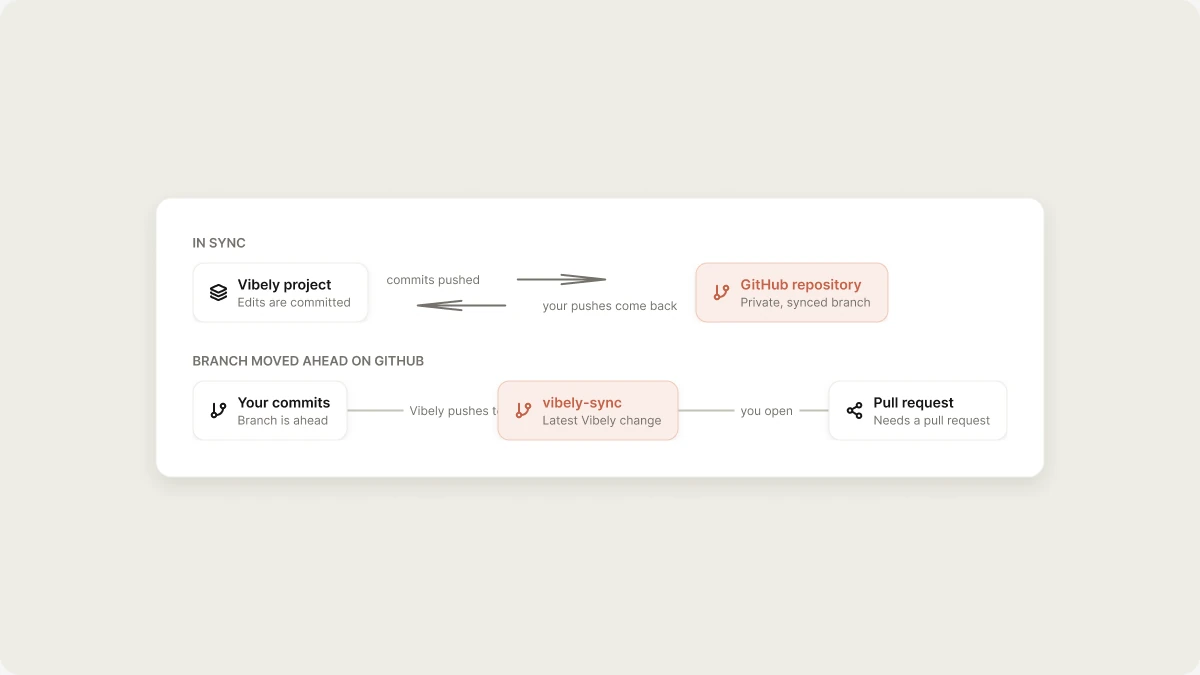
Connect a Vibely project to GitHub and your code is kept in a repository you own. Changes you make in Vibely are committed and pushed automatically, and commits you push to the synced branch come back into Vibely. For how sync works in general, see [Git sync](/integrations/git-sync).
 ## How GitHub sync works
GitHub sync has two parts:
* **A GitHub connection.** You install the Vibely GitHub App on your personal GitHub account or on an organization, and choose which repositories it can access. You can install it on several accounts and organizations.
* **A project repository link.** Each project links to one repository. When you link a project, Vibely creates a new **private** repository named after the project, pushes your code, and starts two-way sync.
### What the GitHub App can access
When you install the Vibely GitHub App, GitHub asks you to approve these repository permissions:
| Permission | Why Vibely needs it |
| - | - |
| Contents: read and write | Push commits, and read your pushes back into Vibely |
| Metadata: read | Required by GitHub for every app |
| Pull requests: read and write | Work with pull requests on the repository |
| Workflows: read and write | Push changes to files in `.github/workflows` |
| Administration: read and write | Create the repository for your project |
The App can only reach repositories you grant it. You can change that later on GitHub.
## Link a project to GitHub
You need edit access to the project.
In the editor, open **Manage → Settings → Git**, then select **GitHub**. You can also choose **GitHub** from the editor's **More** menu.
If you haven't connected GitHub yet, click **Install GitHub App**. GitHub opens in a new window. Choose the account or organization, choose which repositories the App can access, and approve.
Under **Connect project**, pick the account or organization the repository should live under and click **Connect**. To use an account that isn't listed, click **Add connection** and install the App there first.
Vibely creates a private repository named after your project and pushes your code. When it finishes, you see **Project synced** with a **View on GitHub** link.
To install on an organization, you need to be an owner of that organization on GitHub, or have an owner approve the installation.
## Manage a project's repository sync
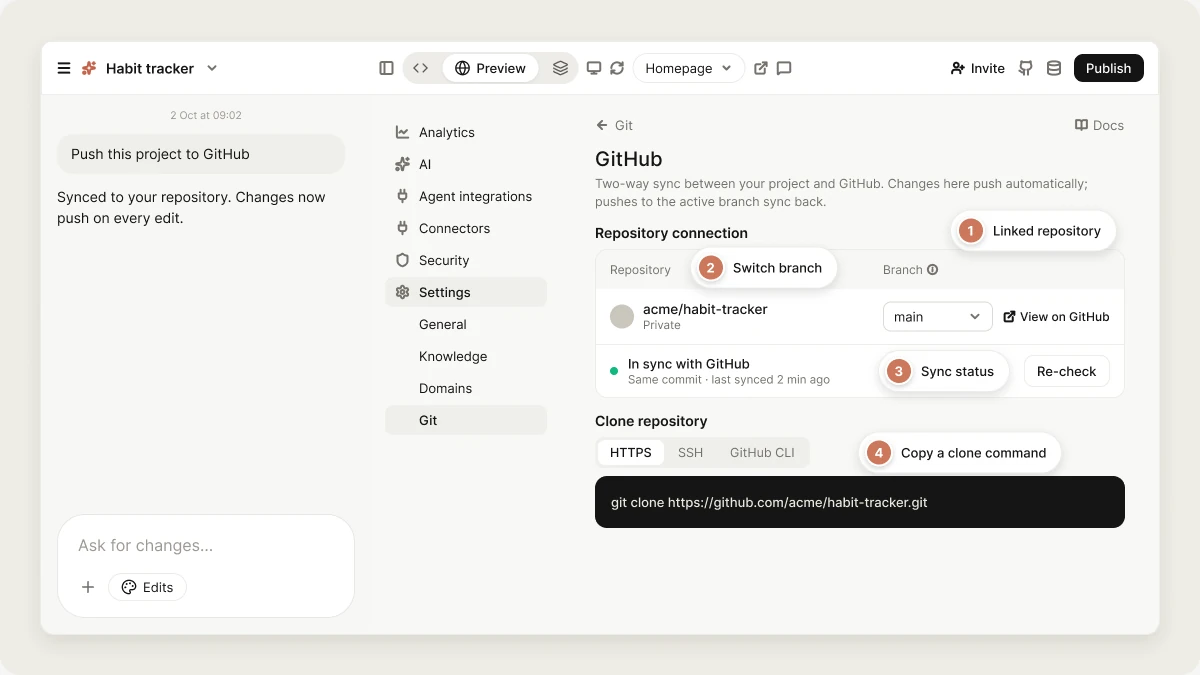
Once a project is linked, **Manage → Settings → Git → GitHub** shows the **Repository connection**: the repository, the synced branch, and the sync status.
### Sync status
The status shows **Connected**, **Needs a pull request**, or **Sync broken**. Click it to see details:
* **In sync with GitHub**: Vibely and GitHub are on the same commit.
* **Needs a pull request**: the branch moved ahead on GitHub, so Vibely pushed its latest change to a separate `vibely-sync` branch instead of overwriting your commits. Open a pull request from `vibely-sync` into your synced branch and merge it.
* **Sync broken**: the repository may have been deleted or moved on GitHub.
The details also show when the project last synced. Click **Re-check** to check again.
### Switch branches
Use the **Branch** dropdown to choose which branch Vibely syncs with. From then on, Vibely pushes to that branch, and only pushes to that branch come back into your project.
### Clone the repository locally
Under **Clone repository**, copy the command for **HTTPS**, **SSH**, or **GitHub CLI**, then run it in your terminal. Edit and commit locally, push to the synced branch, and the changes appear in Vibely.
### View the repository on GitHub
Select the repository name, or open the status details and click **View on GitHub**.
### Disconnect a project from GitHub
Go to **Manage → Settings → Git → GitHub**, open the status details, and click **Disconnect**.
Type the repository name to confirm, then click **Disconnect**.
Your code stays in both Vibely and GitHub, but changes are no longer synced. If you connect the project again later, Vibely creates a new repository.
## Manage GitHub connections for your workspace
Go to **Settings → Git** to see the GitHub accounts and organizations your workspace can sync with.
* **Connect GitHub** installs the Vibely GitHub App on an account. **Add account** installs it on another one, and **Use** switches to an installation that already exists.
* **Configure on GitHub** opens the App's installation settings on GitHub, where you change which repositories it can access or uninstall it.
* **Linked projects** lists the projects synced through a connection. Select projects and click **Disconnect selected** to stop syncing them.
* **Delete this connection** removes the connection and disconnects every linked project. This can't be undone.
## How GitHub sync works
GitHub sync has two parts:
* **A GitHub connection.** You install the Vibely GitHub App on your personal GitHub account or on an organization, and choose which repositories it can access. You can install it on several accounts and organizations.
* **A project repository link.** Each project links to one repository. When you link a project, Vibely creates a new **private** repository named after the project, pushes your code, and starts two-way sync.
### What the GitHub App can access
When you install the Vibely GitHub App, GitHub asks you to approve these repository permissions:
| Permission | Why Vibely needs it |
| - | - |
| Contents: read and write | Push commits, and read your pushes back into Vibely |
| Metadata: read | Required by GitHub for every app |
| Pull requests: read and write | Work with pull requests on the repository |
| Workflows: read and write | Push changes to files in `.github/workflows` |
| Administration: read and write | Create the repository for your project |
The App can only reach repositories you grant it. You can change that later on GitHub.
## Link a project to GitHub
You need edit access to the project.
In the editor, open **Manage → Settings → Git**, then select **GitHub**. You can also choose **GitHub** from the editor's **More** menu.
If you haven't connected GitHub yet, click **Install GitHub App**. GitHub opens in a new window. Choose the account or organization, choose which repositories the App can access, and approve.
Under **Connect project**, pick the account or organization the repository should live under and click **Connect**. To use an account that isn't listed, click **Add connection** and install the App there first.
Vibely creates a private repository named after your project and pushes your code. When it finishes, you see **Project synced** with a **View on GitHub** link.
To install on an organization, you need to be an owner of that organization on GitHub, or have an owner approve the installation.
## Manage a project's repository sync
Once a project is linked, **Manage → Settings → Git → GitHub** shows the **Repository connection**: the repository, the synced branch, and the sync status.
### Sync status
The status shows **Connected**, **Needs a pull request**, or **Sync broken**. Click it to see details:
* **In sync with GitHub**: Vibely and GitHub are on the same commit.
* **Needs a pull request**: the branch moved ahead on GitHub, so Vibely pushed its latest change to a separate `vibely-sync` branch instead of overwriting your commits. Open a pull request from `vibely-sync` into your synced branch and merge it.
* **Sync broken**: the repository may have been deleted or moved on GitHub.
The details also show when the project last synced. Click **Re-check** to check again.
### Switch branches
Use the **Branch** dropdown to choose which branch Vibely syncs with. From then on, Vibely pushes to that branch, and only pushes to that branch come back into your project.
### Clone the repository locally
Under **Clone repository**, copy the command for **HTTPS**, **SSH**, or **GitHub CLI**, then run it in your terminal. Edit and commit locally, push to the synced branch, and the changes appear in Vibely.
### View the repository on GitHub
Select the repository name, or open the status details and click **View on GitHub**.
### Disconnect a project from GitHub
Go to **Manage → Settings → Git → GitHub**, open the status details, and click **Disconnect**.
Type the repository name to confirm, then click **Disconnect**.
Your code stays in both Vibely and GitHub, but changes are no longer synced. If you connect the project again later, Vibely creates a new repository.
## Manage GitHub connections for your workspace
Go to **Settings → Git** to see the GitHub accounts and organizations your workspace can sync with.
* **Connect GitHub** installs the Vibely GitHub App on an account. **Add account** installs it on another one, and **Use** switches to an installation that already exists.
* **Configure on GitHub** opens the App's installation settings on GitHub, where you change which repositories it can access or uninstall it.
* **Linked projects** lists the projects synced through a connection. Select projects and click **Disconnect selected** to stop syncing them.
* **Delete this connection** removes the connection and disconnects every linked project. This can't be undone.
 ## Limitations
* **New repositories only.** Linking always creates a new repository. You can't link a project to an existing repository or import one into Vibely.
* **One repository per project**, and **one synced branch at a time**.
* **Don't delete, archive, or transfer the repository.** Each breaks the sync, unless you transfer it to an account where the Vibely GitHub App is also installed. Renaming the repository is fine.
* **Pushing doesn't publish.** Commits update your project in Vibely; your live site changes only when you [publish](/features/deploy/publish).
## Troubleshooting
The Vibely GitHub App isn't installed there yet. Click **Add connection**, install the App on that account, and try again.
Someone pushed to the synced branch at the same time Vibely made a change. On GitHub, open a pull request from `vibely-sync` into your synced branch and merge it. Until you do, Vibely keeps pushing to `vibely-sync`.
Check that you pushed to the synced branch shown in the **Branch** dropdown. Commits on other branches don't sync until you merge them into that branch or switch the synced branch.
The repository was deleted, archived, or moved to an account without the Vibely GitHub App. Restore it, or install the App on the new owner. Otherwise, disconnect the project and connect it again to create a new repository.
The GitHub window may have been blocked. Allow pop-ups for Vibely and try again.
## FAQ
Private. You can change its visibility on GitHub.
No. Use **Download codebase** in **Manage → Settings → Git** to get a ZIP file.
Yes. Install the Vibely GitHub App on each one. Each project links to one repository under one of them.
Commits are pushed by the Vibely GitHub App. When the connection was authorized by a GitHub user, each commit also has a `Co-authored-by` line for that account, so it shows up on their GitHub profile.
Yes. Use **Add from GitHub** in the composer's **+** menu to attach files from a repository as context for a message. This doesn't link the repository to your project.
## Related
How two-way sync works.
Host your code outside Vibely.
What you own and can take with you.
Put your app live.
## Related topics
- [Sync your project code with GitHub](/integrations/git-sync.md)
- [Deploy and host outside Vibely](/features/deploy/external-hosting.md)
- [Project settings](/features/projects/settings.md)
- [Work with Vibely in the project chat](/features/projects/chat.md)
- [View and edit your project's code](/features/projects/code-editor.md)
This documentation is built and hosted on [Mintlify](https://mintlify.com), a developer documentation platform.
## Limitations
* **New repositories only.** Linking always creates a new repository. You can't link a project to an existing repository or import one into Vibely.
* **One repository per project**, and **one synced branch at a time**.
* **Don't delete, archive, or transfer the repository.** Each breaks the sync, unless you transfer it to an account where the Vibely GitHub App is also installed. Renaming the repository is fine.
* **Pushing doesn't publish.** Commits update your project in Vibely; your live site changes only when you [publish](/features/deploy/publish).
## Troubleshooting
The Vibely GitHub App isn't installed there yet. Click **Add connection**, install the App on that account, and try again.
Someone pushed to the synced branch at the same time Vibely made a change. On GitHub, open a pull request from `vibely-sync` into your synced branch and merge it. Until you do, Vibely keeps pushing to `vibely-sync`.
Check that you pushed to the synced branch shown in the **Branch** dropdown. Commits on other branches don't sync until you merge them into that branch or switch the synced branch.
The repository was deleted, archived, or moved to an account without the Vibely GitHub App. Restore it, or install the App on the new owner. Otherwise, disconnect the project and connect it again to create a new repository.
The GitHub window may have been blocked. Allow pop-ups for Vibely and try again.
## FAQ
Private. You can change its visibility on GitHub.
No. Use **Download codebase** in **Manage → Settings → Git** to get a ZIP file.
Yes. Install the Vibely GitHub App on each one. Each project links to one repository under one of them.
Commits are pushed by the Vibely GitHub App. When the connection was authorized by a GitHub user, each commit also has a `Co-authored-by` line for that account, so it shows up on their GitHub profile.
Yes. Use **Add from GitHub** in the composer's **+** menu to attach files from a repository as context for a message. This doesn't link the repository to your project.
## Related
How two-way sync works.
Host your code outside Vibely.
What you own and can take with you.
Put your app live.
## Related topics
- [Sync your project code with GitHub](/integrations/git-sync.md)
- [Deploy and host outside Vibely](/features/deploy/external-hosting.md)
- [Project settings](/features/projects/settings.md)
- [Work with Vibely in the project chat](/features/projects/chat.md)
- [View and edit your project's code](/features/projects/code-editor.md)
This documentation is built and hosted on [Mintlify](https://mintlify.com), a developer documentation platform.