> ## Documentation Index
> Fetch the complete documentation index at: https://docs.vibely.sh/llms.txt
> Use this file to discover all available pages before exploring further.
# Sync your project code with GitHub
> Git sync keeps your Vibely project in a GitHub repository you own with automatic two-way sync, so you can back up code, collaborate with developers, work in your IDE, and deploy anywhere.
When you build with Vibely, your project's code lives in Vibely. Git sync connects a project to a GitHub repository you own and keeps the two in sync automatically: changes you make in Vibely are committed to the repository, and commits you push to the synced branch come back into your project.
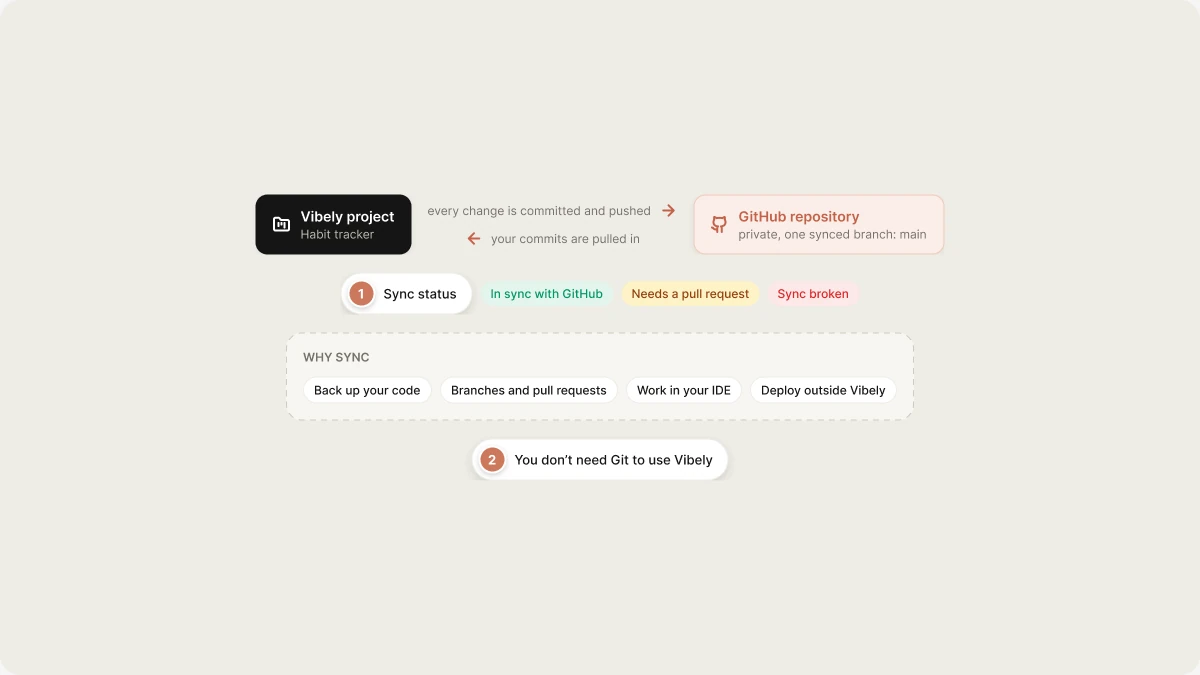 You don't need Git to use Vibely. If you only want a copy of your code, open **Manage → Settings → Git** in your project and use **Download codebase** to get a one-time ZIP, no repository required.
GitHub is the only supported provider. For setup steps, see [Sync with GitHub](/integrations/github).
## Why sync your project to a repository
* **Back up your code.** Keep a copy outside Vibely, in an account you control.
* **Collaborate with developers.** Use branches, pull requests, and code review alongside building in Vibely.
* **Work locally in your IDE.** Clone the repository, edit and commit locally, and push. Your changes sync back into Vibely.
* **Deploy outside Vibely.** The repository is a normal project that installs and runs without Vibely. See [Deploy elsewhere](/features/deploy/external-hosting).
## How Git sync works
Git sync has two layers:
1. **A GitHub connection** authorizes Vibely to work with a GitHub account or organization. You make it by installing the Vibely GitHub App on that account and choosing which repositories it can access. Connections are managed in **Settings → Git**, and a workspace can have more than one.
2. **A project repository link** connects one Vibely project to one repository. When you link a project, Vibely creates a new private repository named after the project and pushes your code to it.
After you link a project:
* Each change Vibely makes to your files is committed and pushed to the synced branch.
* Commits you push to the synced branch are pulled into your project, including deleted and renamed files.
* Vibely syncs **one branch at a time**. Commits on other branches don't appear in Vibely until you merge them into the synced branch or switch the synced branch.
### Sync status
The **Repository connection** section in **Manage → Settings → Git → GitHub** shows the repository, the synced branch, and one of these states:
* **In sync with GitHub**: Vibely and GitHub are on the same commit.
* **Needs a pull request**: the branch moved ahead on GitHub, so Vibely couldn't push without overwriting your commits. See [When the branch has moved ahead](#when-the-branch-has-moved-ahead).
* **Sync broken**: Vibely can no longer reach the repository, usually because it was deleted, archived, or moved to an account where the Vibely GitHub App isn't installed.
The section also shows when the project last synced. Click **Re-check** to check the status again.
### When the branch has moved ahead
Vibely **never force-pushes**. If someone pushed to the synced branch and Vibely's next commit can't be added on top, Vibely pushes its change to a separate branch called `vibely-sync` and the status changes to **Needs a pull request**.
To resolve it, open a pull request from `vibely-sync` into your synced branch on GitHub and merge it.
Nothing is lost or overwritten, but until you merge that pull request, Vibely keeps pushing to `vibely-sync` instead of your synced branch.
## Commit attribution
Commits Vibely pushes are made by the Vibely GitHub App. When the GitHub connection was authorized by a GitHub user, each commit also carries a `Co-authored-by` line for that account, so GitHub links the commit to that person's profile.
## Disconnecting a project
When you disconnect a project, Vibely stops syncing and changes nothing else:
* Your repository stays on GitHub with all its history and files.
* Your project and its code stay in Vibely. Changes you make afterwards stay in Vibely only.
## Limitations
* **GitHub only.** GitLab and Bitbucket aren't supported.
* **New repositories only.** Linking a project creates a new repository. You can't link a project to a repository you already have.
* **One repository per project.** Each project links to exactly one repository.
* **One branch at a time.** Only commits on the synced branch come back into Vibely.
* **Keep the repository where it is.** Deleting or archiving the repository breaks the sync. Transferring it to another account breaks the sync unless the Vibely GitHub App is installed there too. Renaming the repository is fine; Vibely follows the new name.
## FAQ
No. Set it up once and your code is kept in your repository. You only need Git for advanced workflows such as branching, pull requests, or CI/CD.
No. Use **Download codebase** in **Manage → Settings → Git** to get a ZIP file. Git sync is for ongoing two-way sync.
No. Pushed commits update your project in Vibely, but your live site changes only when you [publish](/features/deploy/publish).
No. The repository contains your code, including the migration files that define your database structure, but never the data in your Supabase project.
No. Project [secrets](/features/backend/secrets) are stored encrypted in Vibely and pushed to your Supabase project, never written to a file in your code. For mobile projects, app signing credentials also stay out of the repository.
No. Linking a project always creates a new repository. You can add files from a GitHub repository to a message as context with **Add from GitHub** in the composer's **+** menu.
Yes. Your project stays fully editable in Vibely. The repository is a synced copy you own, and disconnecting deletes no code on either side.
## Related
Connect GitHub and link a project.
Host your code outside Vibely.
What you own and can take with you.
View and edit code in Vibely.
## Related topics
- [Sync your project with GitHub](/integrations/github.md)
- [Deploy and host outside Vibely](/features/deploy/external-hosting.md)
- [Work with Vibely in the project chat](/features/projects/chat.md)
- [View and edit your project's code](/features/projects/code-editor.md)
- [Project settings](/features/projects/settings.md)
This documentation is built and hosted on [Mintlify](https://mintlify.com), a developer documentation platform.
You don't need Git to use Vibely. If you only want a copy of your code, open **Manage → Settings → Git** in your project and use **Download codebase** to get a one-time ZIP, no repository required.
GitHub is the only supported provider. For setup steps, see [Sync with GitHub](/integrations/github).
## Why sync your project to a repository
* **Back up your code.** Keep a copy outside Vibely, in an account you control.
* **Collaborate with developers.** Use branches, pull requests, and code review alongside building in Vibely.
* **Work locally in your IDE.** Clone the repository, edit and commit locally, and push. Your changes sync back into Vibely.
* **Deploy outside Vibely.** The repository is a normal project that installs and runs without Vibely. See [Deploy elsewhere](/features/deploy/external-hosting).
## How Git sync works
Git sync has two layers:
1. **A GitHub connection** authorizes Vibely to work with a GitHub account or organization. You make it by installing the Vibely GitHub App on that account and choosing which repositories it can access. Connections are managed in **Settings → Git**, and a workspace can have more than one.
2. **A project repository link** connects one Vibely project to one repository. When you link a project, Vibely creates a new private repository named after the project and pushes your code to it.
After you link a project:
* Each change Vibely makes to your files is committed and pushed to the synced branch.
* Commits you push to the synced branch are pulled into your project, including deleted and renamed files.
* Vibely syncs **one branch at a time**. Commits on other branches don't appear in Vibely until you merge them into the synced branch or switch the synced branch.
### Sync status
The **Repository connection** section in **Manage → Settings → Git → GitHub** shows the repository, the synced branch, and one of these states:
* **In sync with GitHub**: Vibely and GitHub are on the same commit.
* **Needs a pull request**: the branch moved ahead on GitHub, so Vibely couldn't push without overwriting your commits. See [When the branch has moved ahead](#when-the-branch-has-moved-ahead).
* **Sync broken**: Vibely can no longer reach the repository, usually because it was deleted, archived, or moved to an account where the Vibely GitHub App isn't installed.
The section also shows when the project last synced. Click **Re-check** to check the status again.
### When the branch has moved ahead
Vibely **never force-pushes**. If someone pushed to the synced branch and Vibely's next commit can't be added on top, Vibely pushes its change to a separate branch called `vibely-sync` and the status changes to **Needs a pull request**.
To resolve it, open a pull request from `vibely-sync` into your synced branch on GitHub and merge it.
Nothing is lost or overwritten, but until you merge that pull request, Vibely keeps pushing to `vibely-sync` instead of your synced branch.
## Commit attribution
Commits Vibely pushes are made by the Vibely GitHub App. When the GitHub connection was authorized by a GitHub user, each commit also carries a `Co-authored-by` line for that account, so GitHub links the commit to that person's profile.
## Disconnecting a project
When you disconnect a project, Vibely stops syncing and changes nothing else:
* Your repository stays on GitHub with all its history and files.
* Your project and its code stay in Vibely. Changes you make afterwards stay in Vibely only.
## Limitations
* **GitHub only.** GitLab and Bitbucket aren't supported.
* **New repositories only.** Linking a project creates a new repository. You can't link a project to a repository you already have.
* **One repository per project.** Each project links to exactly one repository.
* **One branch at a time.** Only commits on the synced branch come back into Vibely.
* **Keep the repository where it is.** Deleting or archiving the repository breaks the sync. Transferring it to another account breaks the sync unless the Vibely GitHub App is installed there too. Renaming the repository is fine; Vibely follows the new name.
## FAQ
No. Set it up once and your code is kept in your repository. You only need Git for advanced workflows such as branching, pull requests, or CI/CD.
No. Use **Download codebase** in **Manage → Settings → Git** to get a ZIP file. Git sync is for ongoing two-way sync.
No. Pushed commits update your project in Vibely, but your live site changes only when you [publish](/features/deploy/publish).
No. The repository contains your code, including the migration files that define your database structure, but never the data in your Supabase project.
No. Project [secrets](/features/backend/secrets) are stored encrypted in Vibely and pushed to your Supabase project, never written to a file in your code. For mobile projects, app signing credentials also stay out of the repository.
No. Linking a project always creates a new repository. You can add files from a GitHub repository to a message as context with **Add from GitHub** in the composer's **+** menu.
Yes. Your project stays fully editable in Vibely. The repository is a synced copy you own, and disconnecting deletes no code on either side.
## Related
Connect GitHub and link a project.
Host your code outside Vibely.
What you own and can take with you.
View and edit code in Vibely.
## Related topics
- [Sync your project with GitHub](/integrations/github.md)
- [Deploy and host outside Vibely](/features/deploy/external-hosting.md)
- [Work with Vibely in the project chat](/features/projects/chat.md)
- [View and edit your project's code](/features/projects/code-editor.md)
- [Project settings](/features/projects/settings.md)
This documentation is built and hosted on [Mintlify](https://mintlify.com), a developer documentation platform.