> ## Documentation Index
> Fetch the complete documentation index at: https://docs.vibely.sh/llms.txt
> Use this file to discover all available pages before exploring further.
# Bring Figma designs into Vibely
> Two ways to build from your Figma work in Vibely, connect Figma so Vibely reads your files live, or upload a .fig file.
Bringing your Figma work into Vibely means Vibely builds from your actual designs instead of guessing at layout, color, and component structure. Use it when you have designs you want to turn into a working app, when you need to match a design system closely, or when design and build are happening in parallel.
 | Method | What you get | Best for |
| - | - | - |
| [Connect Figma](#connect-figma) | Live access to your files: frames, components, variables, and Dev Mode specs | Building screens that match your designs closely |
| [Upload a .fig file](#upload-a-fig-file) | The layer names, text, and component names Vibely can read from the file | A quick handoff with no setup |
## Connect Figma
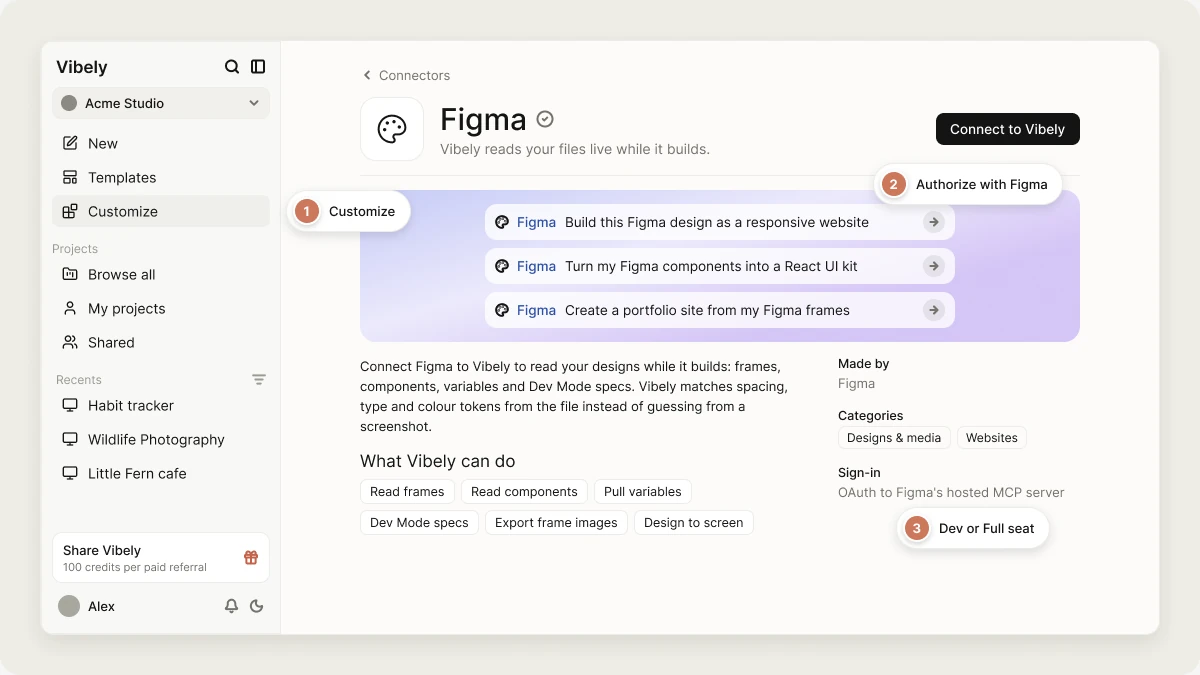
The Figma connector links Vibely to Figma's hosted MCP server. Once connected, Vibely can read the files your Figma account can open while it builds: frame layout, component structure, the variables behind your design tokens, and Dev Mode measurements. You don't need to export or attach anything.
**What Vibely can do with it**
* Read frames, components, and layout from your files
* Pull variables and design tokens into your code
* Get Dev Mode specs and measurements
* Export images of a frame for reference
* Turn a design into a working screen, for web or mobile
The Figma connector is used while you build. Your published app can't call Figma through this connection.
### Prerequisites
* A Figma account that can already open the file. Vibely sees exactly what you can see.
* A **Dev** or **Full** seat in Figma for Dev Mode specs and measurements. With a view-only seat, Vibely gets structure but not measurements.
* Permission to connect connectors in your workspace. See [Admin controls](/integrations/admin-controls).
Figma seats are billed by Figma on your Figma plan.
### Set up the connector
Dev Mode output needs a Dev or Full seat. Confirm yours first, or specs come back empty and look like a connection problem.
Open **Customize** from the sidebar, go to the **Connectors** tab, open **Figma**, and connect it. You authorize in your browser with your Figma account. There's no API key to paste.
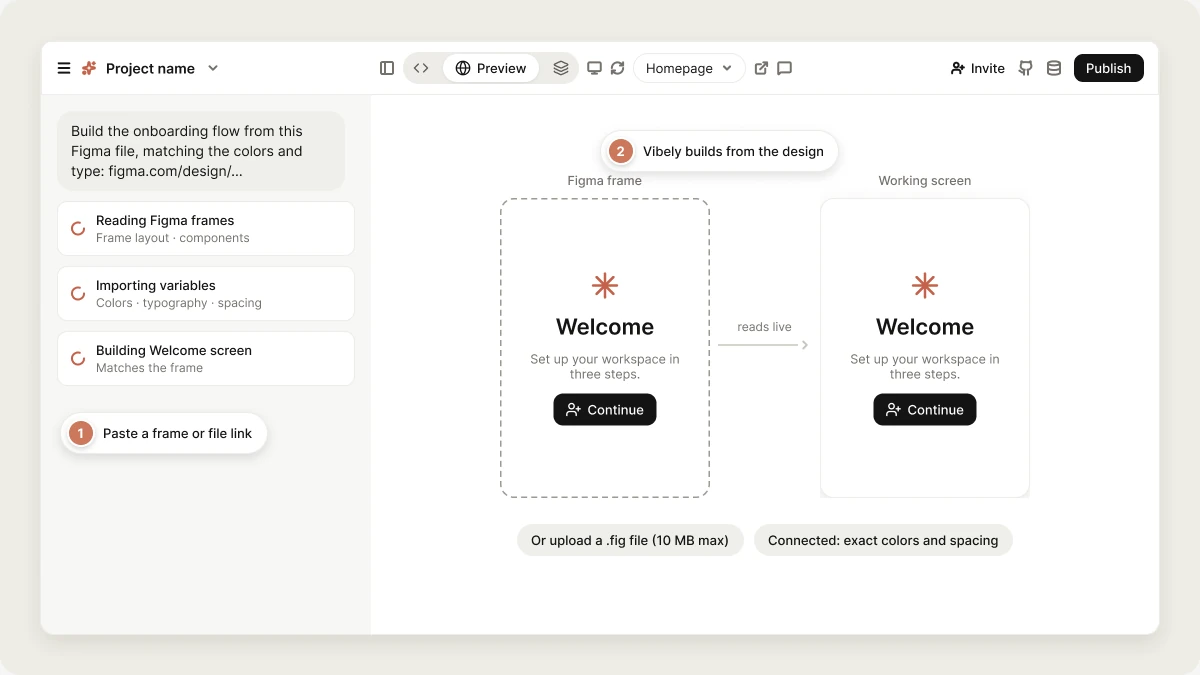
Paste a link to the frame or file in the project chat and describe what you want built.
```text wrap theme={"system"}
Build the onboarding flow from this Figma file, matching the colors, typography, and component layout exactly: https://www.figma.com/design/...
```
More prompts to try:
| Goal | Example prompt |
| - | - |
| Screen from a frame | "Build this screen from the Figma frame at this link" |
| Design tokens | "Import the color and spacing variables from our Figma library into the theme" |
| Component parity | "Make the Button component match the Figma component, all five variants" |
| Spec check | "Compare the header I built against the Figma frame and list the differences" |
| Mobile screen | "Build the settings screen from the mobile frame in this file" |
| Asset export | "Pull the illustrations from this frame into the project as SVGs" |
### Manage or disconnect
Go to **Customize → Connectors → Figma**. Disconnecting stops Vibely from reading your files. Code already generated from a design stays as it is.
## Upload a .fig file
Upload a Figma file to give Vibely the content it can read from it: frame and layer names, text, and component names. It's fast and needs no setup, but it doesn't recreate your designs pixel for pixel.
In Figma, open your design file and choose **File → Save local copy**. The `.fig` file saves to your computer.
Drag the `.fig` file into the prompt box, or click **+** and choose **Upload files or photos**. Files can be up to 10 MB.
```text wrap theme={"system"}
Use the attached Figma file for the page structure and copy. Build the landing page from it.
```
For exact colors, spacing, and layout, connect Figma instead, or attach a screenshot or exported image of the frames alongside the `.fig` file.
| Method | What you get | Best for |
| - | - | - |
| [Connect Figma](#connect-figma) | Live access to your files: frames, components, variables, and Dev Mode specs | Building screens that match your designs closely |
| [Upload a .fig file](#upload-a-fig-file) | The layer names, text, and component names Vibely can read from the file | A quick handoff with no setup |
## Connect Figma
The Figma connector links Vibely to Figma's hosted MCP server. Once connected, Vibely can read the files your Figma account can open while it builds: frame layout, component structure, the variables behind your design tokens, and Dev Mode measurements. You don't need to export or attach anything.
**What Vibely can do with it**
* Read frames, components, and layout from your files
* Pull variables and design tokens into your code
* Get Dev Mode specs and measurements
* Export images of a frame for reference
* Turn a design into a working screen, for web or mobile
The Figma connector is used while you build. Your published app can't call Figma through this connection.
### Prerequisites
* A Figma account that can already open the file. Vibely sees exactly what you can see.
* A **Dev** or **Full** seat in Figma for Dev Mode specs and measurements. With a view-only seat, Vibely gets structure but not measurements.
* Permission to connect connectors in your workspace. See [Admin controls](/integrations/admin-controls).
Figma seats are billed by Figma on your Figma plan.
### Set up the connector
Dev Mode output needs a Dev or Full seat. Confirm yours first, or specs come back empty and look like a connection problem.
Open **Customize** from the sidebar, go to the **Connectors** tab, open **Figma**, and connect it. You authorize in your browser with your Figma account. There's no API key to paste.
Paste a link to the frame or file in the project chat and describe what you want built.
```text wrap theme={"system"}
Build the onboarding flow from this Figma file, matching the colors, typography, and component layout exactly: https://www.figma.com/design/...
```
More prompts to try:
| Goal | Example prompt |
| - | - |
| Screen from a frame | "Build this screen from the Figma frame at this link" |
| Design tokens | "Import the color and spacing variables from our Figma library into the theme" |
| Component parity | "Make the Button component match the Figma component, all five variants" |
| Spec check | "Compare the header I built against the Figma frame and list the differences" |
| Mobile screen | "Build the settings screen from the mobile frame in this file" |
| Asset export | "Pull the illustrations from this frame into the project as SVGs" |
### Manage or disconnect
Go to **Customize → Connectors → Figma**. Disconnecting stops Vibely from reading your files. Code already generated from a design stays as it is.
## Upload a .fig file
Upload a Figma file to give Vibely the content it can read from it: frame and layer names, text, and component names. It's fast and needs no setup, but it doesn't recreate your designs pixel for pixel.
In Figma, open your design file and choose **File → Save local copy**. The `.fig` file saves to your computer.
Drag the `.fig` file into the prompt box, or click **+** and choose **Upload files or photos**. Files can be up to 10 MB.
```text wrap theme={"system"}
Use the attached Figma file for the page structure and copy. Build the landing page from it.
```
For exact colors, spacing, and layout, connect Figma instead, or attach a screenshot or exported image of the frames alongside the `.fig` file.
 ## Limitations
* **Build-time only.** Design data is context for building. Nothing from the connection ships in your app.
* **Only what your account can open.** A file shared with your team but not with you is invisible to Vibely.
* **Seat-dependent specs.** Dev Mode measurements need a Dev or Full seat.
* **Frames and components translate best.** Prototype interactions and plugin-generated layers don't translate into code the same way.
* **.fig uploads are text-level.** Vibely reads names and text from the file, not its visual layout.
## FAQ
Connecting Figma gives Vibely live access to your files, including layout, components, variables, and specs, so it can build screens that match. A `.fig` upload gives Vibely the names and text it can read from one saved file. Use the connector when you want Vibely to build from your actual screen designs.
No. The Figma connector uses Figma's hosted server, so it works from the Vibely web app with your browser.
Connecting Figma and uploading a file are free. The message that uses the design is priced like any other [Build mode](/features/agent/build-mode) message.
Yes. For example, connect Figma for live inspection and attach a `.fig` file or screenshots for extra context.
## Related topics
Pick a look before the first build.
How connectors work in Vibely.
Build from your Miro boards.
Reusable design rules for web projects.
## Related topics
- [Design guidance](/features/design/design-guidance.md)
- [Build from an existing website](/features/design/build-from-url.md)
- [Design systems](/features/design/design-systems.md)
- [Connect tools, services, and APIs](/integrations/connectors/overview.md)
- [Edit from the preview](/features/design/visual-edits.md)
This documentation is built and hosted on [Mintlify](https://mintlify.com), a developer documentation platform.
## Limitations
* **Build-time only.** Design data is context for building. Nothing from the connection ships in your app.
* **Only what your account can open.** A file shared with your team but not with you is invisible to Vibely.
* **Seat-dependent specs.** Dev Mode measurements need a Dev or Full seat.
* **Frames and components translate best.** Prototype interactions and plugin-generated layers don't translate into code the same way.
* **.fig uploads are text-level.** Vibely reads names and text from the file, not its visual layout.
## FAQ
Connecting Figma gives Vibely live access to your files, including layout, components, variables, and specs, so it can build screens that match. A `.fig` upload gives Vibely the names and text it can read from one saved file. Use the connector when you want Vibely to build from your actual screen designs.
No. The Figma connector uses Figma's hosted server, so it works from the Vibely web app with your browser.
Connecting Figma and uploading a file are free. The message that uses the design is priced like any other [Build mode](/features/agent/build-mode) message.
Yes. For example, connect Figma for live inspection and attach a `.fig` file or screenshots for extra context.
## Related topics
Pick a look before the first build.
How connectors work in Vibely.
Build from your Miro boards.
Reusable design rules for web projects.
## Related topics
- [Design guidance](/features/design/design-guidance.md)
- [Build from an existing website](/features/design/build-from-url.md)
- [Design systems](/features/design/design-systems.md)
- [Connect tools, services, and APIs](/integrations/connectors/overview.md)
- [Edit from the preview](/features/design/visual-edits.md)
This documentation is built and hosted on [Mintlify](https://mintlify.com), a developer documentation platform.