> ## Documentation Index
> Fetch the complete documentation index at: https://docs.vibely.sh/llms.txt
> Use this file to discover all available pages before exploring further.
# Connect tools, services, and APIs
> Connect Vibely to the tools you already use, either as app connectors your published app calls or as chat connectors the agent reads while it builds.
**Connectors** link Vibely to external tools and services such as GitHub, Notion, Linear, Figma, Stripe, and RevenueCat. You connect a tool once, and Vibely handles the sign-in, stores the credential, and makes the requests for you. Neither you nor the agent pastes API keys into the chat.
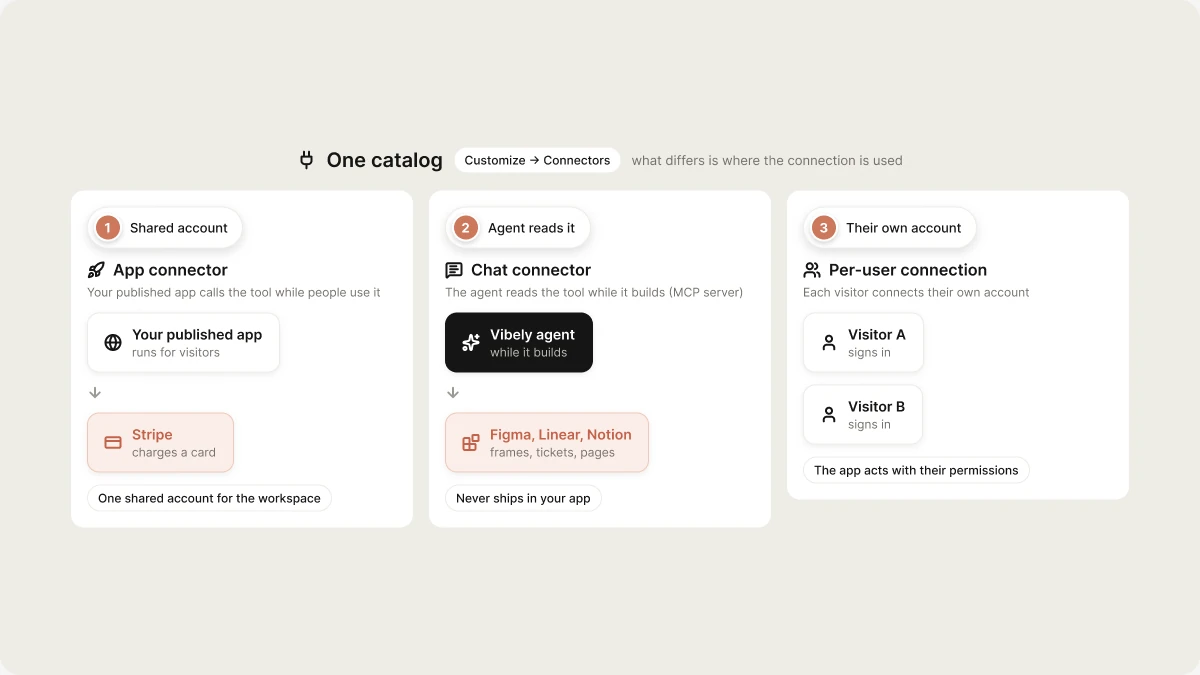
Every connector sits in one catalog. The difference between them is **where the connection is used**:
| Connection type | What it does | Learn more |
| :- | :- | :- |
| **App connector** | Your published app calls the tool while people use it. For example, it charges a card with Stripe or reads pages from your team's Notion. Uses one shared account for the whole workspace. | [App and chat connectors](/integrations/connectors/catalog#app-connectors) |
| **Chat connector (MCP server)** | The agent reads the tool while it builds, for example your Figma frames or your Linear tickets. It never ships in your published app. | [App and chat connectors](/integrations/connectors/catalog#chat-connectors) |
| **Per-user connection** | Each person who signs in to your published app connects their **own** account, and the app acts with their permissions. | [Per-user connections](/integrations/connectors/auth#per-user-connections) |
 Some connectors support more than one type. Notion and Linear each have an app connector and a chat connector, and you authorize them separately. GitHub uses a single connection for both.
For anything the catalog doesn't cover, you have three options:
* A workspace admin can [register a custom REST connector](/integrations/admin-controls#custom-rest-connectors) that the agent and your projects can call.
* You can connect your own [custom MCP server](/integrations/connectors/custom-mcp) as a chat connector.
* You can ask the agent to integrate the API directly. It writes the code in a Supabase Edge Function and asks you for the key in a secure dialog.
**What is an API?** An API (Application Programming Interface) is a structured way for services to exchange data. It defines what you can ask for, what you get back, and how to make the request.
## Where to find connectors
The full catalog is at **Customize → Connectors** in the dashboard sidebar. From there you can:
* Filter by **Enabled**, **All**, or a category, and sort by **Popular** or **A–Z**.
* Search the catalog with the search control in the header.
* Click **Add** to register a [custom MCP server](/integrations/connectors/custom-mcp).
* Click **Request** under **Missing a connector?** to ask the Vibely team for one.
Inside a project there are two more ways in:
* **Manage → Connectors** in the editor header shows the same catalog scoped to that project, plus any [custom REST connectors](/integrations/admin-controls#custom-rest-connectors) your workspace has registered.
* The **+** menu in the chat composer has a **Connectors** submenu. It lists your connectors with a switch next to each chat connector, and has **Manage connectors** and **Add connector** entries.
You can also just ask. When the agent needs a tool that isn't connected yet, it shows a **Connectors that could help** card in the chat with a **Connect** button, and the build continues after you authorize.
## Which connection type do I need?
| Use | If you want to |
| :- | :- |
| [App connector](/integrations/connectors/catalog#app-connectors) | Give your published app a capability every visitor shares, such as taking payments with Stripe or reading your company's Notion. |
| [Chat connector](/integrations/connectors/catalog#chat-connectors) | Let the agent read your own Figma files, Notion docs, Linear tickets, or Miro boards while it builds, without that access reaching your app. |
| [Per-user connection](/integrations/connectors/auth#per-user-connections) | Let each user of your published app sign in with their own GitHub, Notion, or Linear account and see only their own data. |
| [Custom MCP server](/integrations/connectors/custom-mcp) | Bring a tool the catalog doesn't cover into the chat, such as an internal service that already speaks MCP. |
| [Custom REST connector](/integrations/admin-controls#custom-rest-connectors) | Register an internal REST API once for the whole workspace, so the agent and your projects can call it. |
You can combine types. For example, connect Notion as a chat connector so the agent builds from your specs, and as an app connector so the finished app reads and writes your team's pages.
## Backend, payments, and AI
Some integrations are built deeper into Vibely than a regular connector:
* **Supabase** is the backend for every Vibely app: database, auth, storage, and Edge Functions. You connect your own Supabase account. See [Backend (Supabase)](/integrations/supabase).
* **Vibely AI** gives your app AI features without API keys. See [Vibely AI](/features/backend/ai).
* **Stripe** and **RevenueCat** handle payments. See [Stripe](/integrations/stripe) and [RevenueCat](/integrations/revenuecat).
[Built-in integrations](/integrations/connectors/native) explains how the agent works with each one.
## Managing connectors in your workspace
By default, only workspace owners and admins can connect and disconnect connectors. Owners change this with the **Manage connectors** row in **Settings → Permissions**, where admins can also turn off individual chat connectors and block write actions for the whole workspace. See [Admin controls](/integrations/admin-controls).
For where credentials are stored and how to rotate them, see [Auth and credentials](/integrations/connectors/auth).
## FAQ
The catalog has Vibely AI, GitHub, Notion, Linear, Miro, Figma, Supabase, Stripe, and RevenueCat. Beyond the catalog:
* [Custom MCP servers](/integrations/connectors/custom-mcp) bring any MCP-compatible tool into the chat.
* [Custom REST connectors](/integrations/admin-controls#custom-rest-connectors) let an admin register any REST API for the workspace.
* The agent can integrate most public APIs directly. Describe the API in a prompt, and it writes an Edge Function and asks for your key.
An **app connector** is part of your published app and uses one shared workspace account. Every visitor's request goes through that account, so it can't be limited to certain workspace members. See [Where credentials live](/integrations/connectors/auth#where-credentials-live).
A **chat connector** is for the agent while it builds. It uses your own account, it's personal to you, and your published app can't reach it.
Yes, for most public and private APIs. APIs without authentication can be called directly. For authenticated APIs, the agent puts the call in a Supabase Edge Function and stores the key as a project secret, so the key never reaches the browser or a mobile app binary. See [Secrets](/features/backend/secrets).
## Related
The catalog, and how to connect, use, and remove a connection.
Where credentials live, and per-user connections.
Connect a tool that isn't in the catalog.
Decide who can connect, and what the agent may do.
## Related topics
- [Connect a custom MCP server](/integrations/connectors/custom-mcp.md)
- [Tools](/reference/engine/tools.md)
- [MCP Servers API](/api-reference/mcp-servers.md)
- [MCP Client Overview](/reference/mcp/overview.md)
- [Manage connectors in your workspace](/integrations/admin-controls.md)
This documentation is built and hosted on [Mintlify](https://mintlify.com), a developer documentation platform.
Some connectors support more than one type. Notion and Linear each have an app connector and a chat connector, and you authorize them separately. GitHub uses a single connection for both.
For anything the catalog doesn't cover, you have three options:
* A workspace admin can [register a custom REST connector](/integrations/admin-controls#custom-rest-connectors) that the agent and your projects can call.
* You can connect your own [custom MCP server](/integrations/connectors/custom-mcp) as a chat connector.
* You can ask the agent to integrate the API directly. It writes the code in a Supabase Edge Function and asks you for the key in a secure dialog.
**What is an API?** An API (Application Programming Interface) is a structured way for services to exchange data. It defines what you can ask for, what you get back, and how to make the request.
## Where to find connectors
The full catalog is at **Customize → Connectors** in the dashboard sidebar. From there you can:
* Filter by **Enabled**, **All**, or a category, and sort by **Popular** or **A–Z**.
* Search the catalog with the search control in the header.
* Click **Add** to register a [custom MCP server](/integrations/connectors/custom-mcp).
* Click **Request** under **Missing a connector?** to ask the Vibely team for one.
Inside a project there are two more ways in:
* **Manage → Connectors** in the editor header shows the same catalog scoped to that project, plus any [custom REST connectors](/integrations/admin-controls#custom-rest-connectors) your workspace has registered.
* The **+** menu in the chat composer has a **Connectors** submenu. It lists your connectors with a switch next to each chat connector, and has **Manage connectors** and **Add connector** entries.
You can also just ask. When the agent needs a tool that isn't connected yet, it shows a **Connectors that could help** card in the chat with a **Connect** button, and the build continues after you authorize.
## Which connection type do I need?
| Use | If you want to |
| :- | :- |
| [App connector](/integrations/connectors/catalog#app-connectors) | Give your published app a capability every visitor shares, such as taking payments with Stripe or reading your company's Notion. |
| [Chat connector](/integrations/connectors/catalog#chat-connectors) | Let the agent read your own Figma files, Notion docs, Linear tickets, or Miro boards while it builds, without that access reaching your app. |
| [Per-user connection](/integrations/connectors/auth#per-user-connections) | Let each user of your published app sign in with their own GitHub, Notion, or Linear account and see only their own data. |
| [Custom MCP server](/integrations/connectors/custom-mcp) | Bring a tool the catalog doesn't cover into the chat, such as an internal service that already speaks MCP. |
| [Custom REST connector](/integrations/admin-controls#custom-rest-connectors) | Register an internal REST API once for the whole workspace, so the agent and your projects can call it. |
You can combine types. For example, connect Notion as a chat connector so the agent builds from your specs, and as an app connector so the finished app reads and writes your team's pages.
## Backend, payments, and AI
Some integrations are built deeper into Vibely than a regular connector:
* **Supabase** is the backend for every Vibely app: database, auth, storage, and Edge Functions. You connect your own Supabase account. See [Backend (Supabase)](/integrations/supabase).
* **Vibely AI** gives your app AI features without API keys. See [Vibely AI](/features/backend/ai).
* **Stripe** and **RevenueCat** handle payments. See [Stripe](/integrations/stripe) and [RevenueCat](/integrations/revenuecat).
[Built-in integrations](/integrations/connectors/native) explains how the agent works with each one.
## Managing connectors in your workspace
By default, only workspace owners and admins can connect and disconnect connectors. Owners change this with the **Manage connectors** row in **Settings → Permissions**, where admins can also turn off individual chat connectors and block write actions for the whole workspace. See [Admin controls](/integrations/admin-controls).
For where credentials are stored and how to rotate them, see [Auth and credentials](/integrations/connectors/auth).
## FAQ
The catalog has Vibely AI, GitHub, Notion, Linear, Miro, Figma, Supabase, Stripe, and RevenueCat. Beyond the catalog:
* [Custom MCP servers](/integrations/connectors/custom-mcp) bring any MCP-compatible tool into the chat.
* [Custom REST connectors](/integrations/admin-controls#custom-rest-connectors) let an admin register any REST API for the workspace.
* The agent can integrate most public APIs directly. Describe the API in a prompt, and it writes an Edge Function and asks for your key.
An **app connector** is part of your published app and uses one shared workspace account. Every visitor's request goes through that account, so it can't be limited to certain workspace members. See [Where credentials live](/integrations/connectors/auth#where-credentials-live).
A **chat connector** is for the agent while it builds. It uses your own account, it's personal to you, and your published app can't reach it.
Yes, for most public and private APIs. APIs without authentication can be called directly. For authenticated APIs, the agent puts the call in a Supabase Edge Function and stores the key as a project secret, so the key never reaches the browser or a mobile app binary. See [Secrets](/features/backend/secrets).
## Related
The catalog, and how to connect, use, and remove a connection.
Where credentials live, and per-user connections.
Connect a tool that isn't in the catalog.
Decide who can connect, and what the agent may do.
## Related topics
- [Connect a custom MCP server](/integrations/connectors/custom-mcp.md)
- [Tools](/reference/engine/tools.md)
- [MCP Servers API](/api-reference/mcp-servers.md)
- [MCP Client Overview](/reference/mcp/overview.md)
- [Manage connectors in your workspace](/integrations/admin-controls.md)
This documentation is built and hosted on [Mintlify](https://mintlify.com), a developer documentation platform.