> ## Documentation Index
> Fetch the complete documentation index at: https://docs.vibely.sh/llms.txt
> Use this file to discover all available pages before exploring further.
# Connect a custom MCP server
> Connect any remote MCP server as a chat connector so the agent can use your internal tools, private APIs, and data sources while it builds.
A **custom MCP server** is any remote server that speaks the [Model Context Protocol](https://modelcontextprotocol.io) and isn't already in the Vibely catalog. Connect one as a chat connector, and the agent can call its tools while it builds: an internal CRM, a private API, a company knowledge base, or a niche third-party tool.
 Custom MCP servers are available on all plans. Like every chat connector, they're **personal to you** and **never part of your published app**. If your published app needs to call a service while people use it, ask the agent to integrate the API directly, or have an admin register a [custom REST connector](/integrations/admin-controls#custom-rest-connectors).
## How to connect a custom MCP server
You need the server's HTTPS URL and, depending on the server, a credential. There are two places to add one.
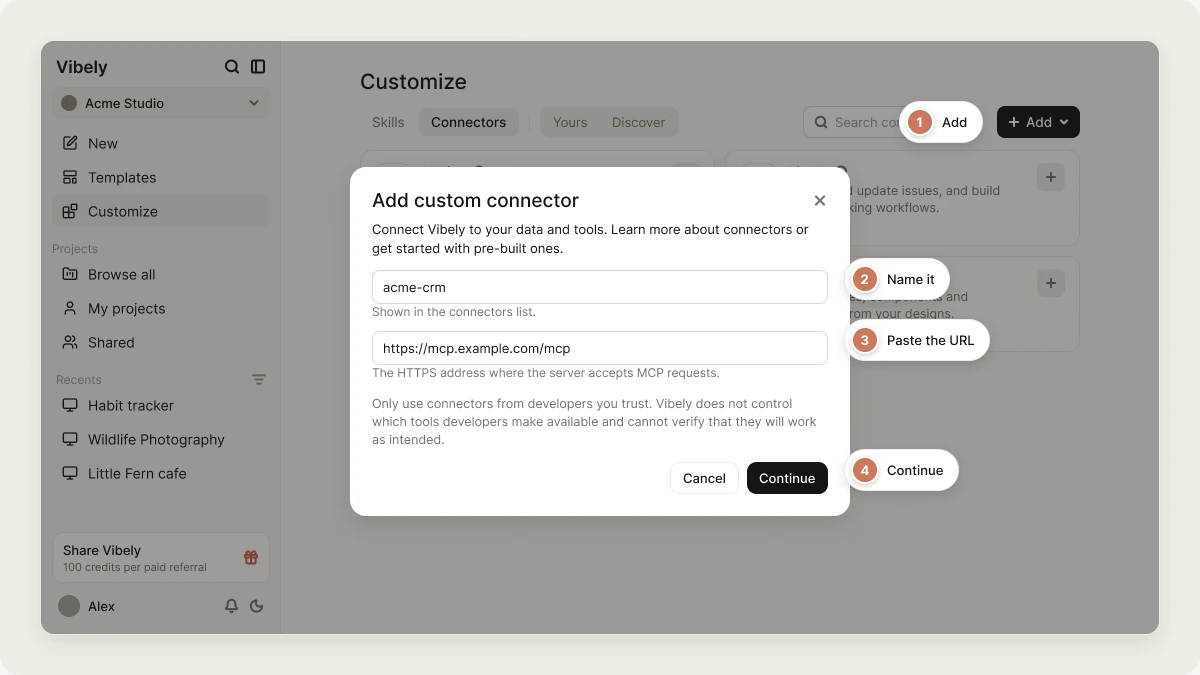
The quickest way, for servers that sign you in with OAuth or need no credentials.
Open **Customize → Connectors** and click **Add**. The **Add custom connector** dialog opens.
Enter a **Name**, for example `acme-crm`. It's shown in the connectors list and saved as a lowercase slug.
Enter the **MCP server URL**, the HTTPS address where the server accepts MCP requests, for example `https://mcp.example.com/mcp`.
Click **Continue**. The server appears in the catalog under the **Custom** category. Open it to connect and to see the tools it offers.
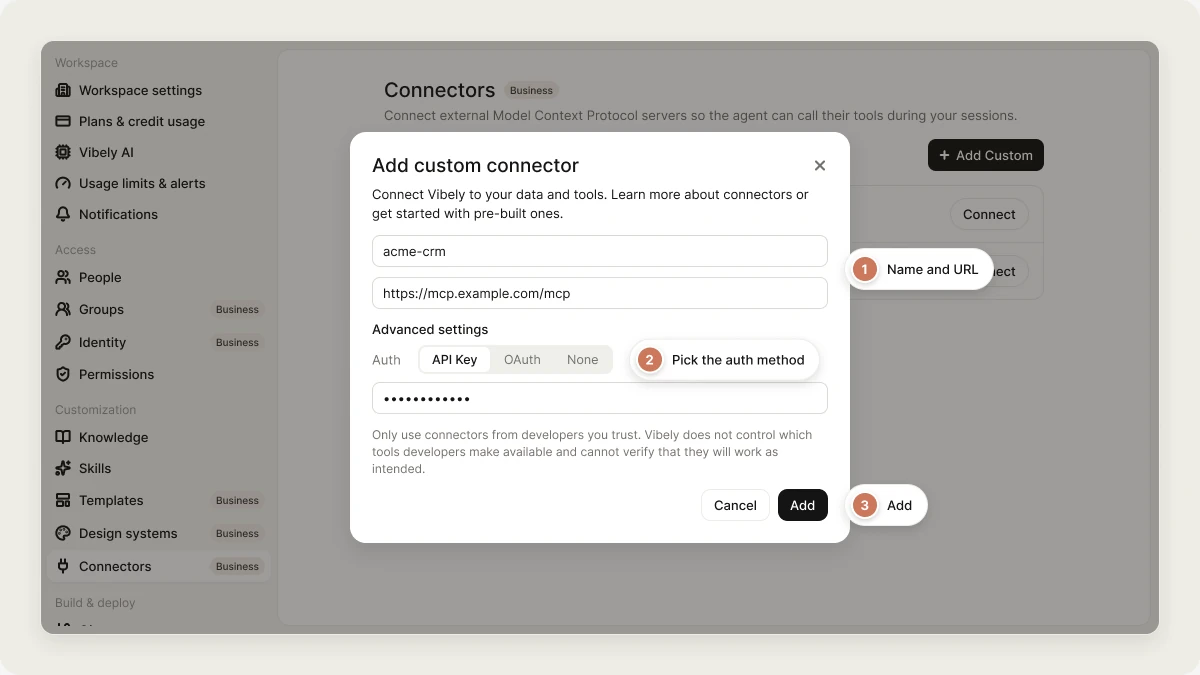
Use this when you need to choose the authentication method, for example to paste an API key.
Open **Settings → Connectors** (under **Customization**), choose the **MCP** filter, and click **Add Custom**.
Enter a name (lowercase letters, digits, `_` or `-`) and the **Remote MCP server URL**.
Open **Advanced settings** and pick **Auth**:
* **API Key**: for servers that take a bearer token. Paste it into **API key (optional)**. It's sent as an `Authorization: Bearer` header.
* **OAuth**: after you save, a pop-up opens so you can sign in. Tokens are stored encrypted, and Vibely refreshes them automatically.
* **None**: for servers that don't require authentication.
Click **Add**. Use **Test** to check that Vibely can reach it and list its tools, or **Connect (OAuth)** to finish signing in.
To confirm it works, ask the agent something only the server can answer:
```text wrap theme={"system"}
Using the acme-crm connector, list my five most recent customer accounts.
```
Only connect servers from developers you trust. Vibely doesn't control which tools a server offers and can't verify that they work as intended or won't change. The agent reads the server's responses as context, so a malicious server can try to steer it.
### Requirements
* The URL must be reachable from the public internet. Vibely refuses URLs that point at `localhost` or private network addresses.
* Use an HTTPS URL. The **Customize → Connectors** form only accepts `https://`.
* Each server name must be unique in your account.
## What the agent can do with it
Once connected, the agent can call the server's tools during your builds, in any of your projects. The same [approval rules](/integrations/connectors/catalog#approve-connector-actions) apply as for catalog connectors: read-only tools run without asking, while tools that create, change, delete, or send something ask for your approval first.
Custom MCP servers are available on all plans. Like every chat connector, they're **personal to you** and **never part of your published app**. If your published app needs to call a service while people use it, ask the agent to integrate the API directly, or have an admin register a [custom REST connector](/integrations/admin-controls#custom-rest-connectors).
## How to connect a custom MCP server
You need the server's HTTPS URL and, depending on the server, a credential. There are two places to add one.
The quickest way, for servers that sign you in with OAuth or need no credentials.
Open **Customize → Connectors** and click **Add**. The **Add custom connector** dialog opens.
Enter a **Name**, for example `acme-crm`. It's shown in the connectors list and saved as a lowercase slug.
Enter the **MCP server URL**, the HTTPS address where the server accepts MCP requests, for example `https://mcp.example.com/mcp`.
Click **Continue**. The server appears in the catalog under the **Custom** category. Open it to connect and to see the tools it offers.
Use this when you need to choose the authentication method, for example to paste an API key.
Open **Settings → Connectors** (under **Customization**), choose the **MCP** filter, and click **Add Custom**.
Enter a name (lowercase letters, digits, `_` or `-`) and the **Remote MCP server URL**.
Open **Advanced settings** and pick **Auth**:
* **API Key**: for servers that take a bearer token. Paste it into **API key (optional)**. It's sent as an `Authorization: Bearer` header.
* **OAuth**: after you save, a pop-up opens so you can sign in. Tokens are stored encrypted, and Vibely refreshes them automatically.
* **None**: for servers that don't require authentication.
Click **Add**. Use **Test** to check that Vibely can reach it and list its tools, or **Connect (OAuth)** to finish signing in.
To confirm it works, ask the agent something only the server can answer:
```text wrap theme={"system"}
Using the acme-crm connector, list my five most recent customer accounts.
```
Only connect servers from developers you trust. Vibely doesn't control which tools a server offers and can't verify that they work as intended or won't change. The agent reads the server's responses as context, so a malicious server can try to steer it.
### Requirements
* The URL must be reachable from the public internet. Vibely refuses URLs that point at `localhost` or private network addresses.
* Use an HTTPS URL. The **Customize → Connectors** form only accepts `https://`.
* Each server name must be unique in your account.
## What the agent can do with it
Once connected, the agent can call the server's tools during your builds, in any of your projects. The same [approval rules](/integrations/connectors/catalog#approve-connector-actions) apply as for catalog connectors: read-only tools run without asking, while tools that create, change, delete, or send something ask for your approval first.
 ## Manage custom MCP servers
* **Remove a server:** in **Settings → Connectors**, click **Remove** next to it. This deletes its stored API key or OAuth token.
* **Change the URL or credentials:** remove the server and add it again.
* **Workspace controls:** on the Business plan, an admin can turn off **Remote MCP connectors** in **Settings → Privacy & security**. That withholds every MCP server, custom ones included, from the agent across the workspace. See [Admin controls](/integrations/admin-controls#chat-connector-controls).
## FAQ
All plans. The workspace-wide **Remote MCP connectors** switch that turns them off requires Business.
No. A custom MCP server only gives the agent context while it builds. For functionality in your published app, ask the agent to integrate the service's API, or use an [app connector](/integrations/connectors/catalog#app-connectors).
No. MCP servers are stored against your own account. Teammates add the same server themselves with their own credentials.
No. Vibely's backend connects to the server, so it has to be reachable over the public internet. Local and private-network addresses are refused.
## Related
* [App and chat connectors](/integrations/connectors/catalog)
* [Admin controls](/integrations/admin-controls)
* [External MCP servers (reference)](/reference/mcp/external-servers)
* [Vibely MCP server](/integrations/vibely-mcp-server): the other direction, where AI tools build in Vibely
## Related topics
- [Vibely MCP server](/integrations/vibely-mcp-server.md)
- [Publish your app as an MCP server](/features/grow/agent-integrations.md)
- [Manage connectors in your workspace](/integrations/admin-controls.md)
- [Connect tools, services, and APIs](/integrations/connectors/overview.md)
- [External MCP Servers](/reference/mcp/external-servers.md)
This documentation is built and hosted on [Mintlify](https://mintlify.com), a developer documentation platform.
## Manage custom MCP servers
* **Remove a server:** in **Settings → Connectors**, click **Remove** next to it. This deletes its stored API key or OAuth token.
* **Change the URL or credentials:** remove the server and add it again.
* **Workspace controls:** on the Business plan, an admin can turn off **Remote MCP connectors** in **Settings → Privacy & security**. That withholds every MCP server, custom ones included, from the agent across the workspace. See [Admin controls](/integrations/admin-controls#chat-connector-controls).
## FAQ
All plans. The workspace-wide **Remote MCP connectors** switch that turns them off requires Business.
No. A custom MCP server only gives the agent context while it builds. For functionality in your published app, ask the agent to integrate the service's API, or use an [app connector](/integrations/connectors/catalog#app-connectors).
No. MCP servers are stored against your own account. Teammates add the same server themselves with their own credentials.
No. Vibely's backend connects to the server, so it has to be reachable over the public internet. Local and private-network addresses are refused.
## Related
* [App and chat connectors](/integrations/connectors/catalog)
* [Admin controls](/integrations/admin-controls)
* [External MCP servers (reference)](/reference/mcp/external-servers)
* [Vibely MCP server](/integrations/vibely-mcp-server): the other direction, where AI tools build in Vibely
## Related topics
- [Vibely MCP server](/integrations/vibely-mcp-server.md)
- [Publish your app as an MCP server](/features/grow/agent-integrations.md)
- [Manage connectors in your workspace](/integrations/admin-controls.md)
- [Connect tools, services, and APIs](/integrations/connectors/overview.md)
- [External MCP Servers](/reference/mcp/external-servers.md)
This documentation is built and hosted on [Mintlify](https://mintlify.com), a developer documentation platform.