> ## Documentation Index
> Fetch the complete documentation index at: https://docs.vibely.sh/llms.txt
> Use this file to discover all available pages before exploring further.
# Manage connectors in your workspace
> Decide who in your workspace can connect connectors, which chat connectors the agent may use, and whether it may write through them.
Workspace owners and admins govern connectors in three places:
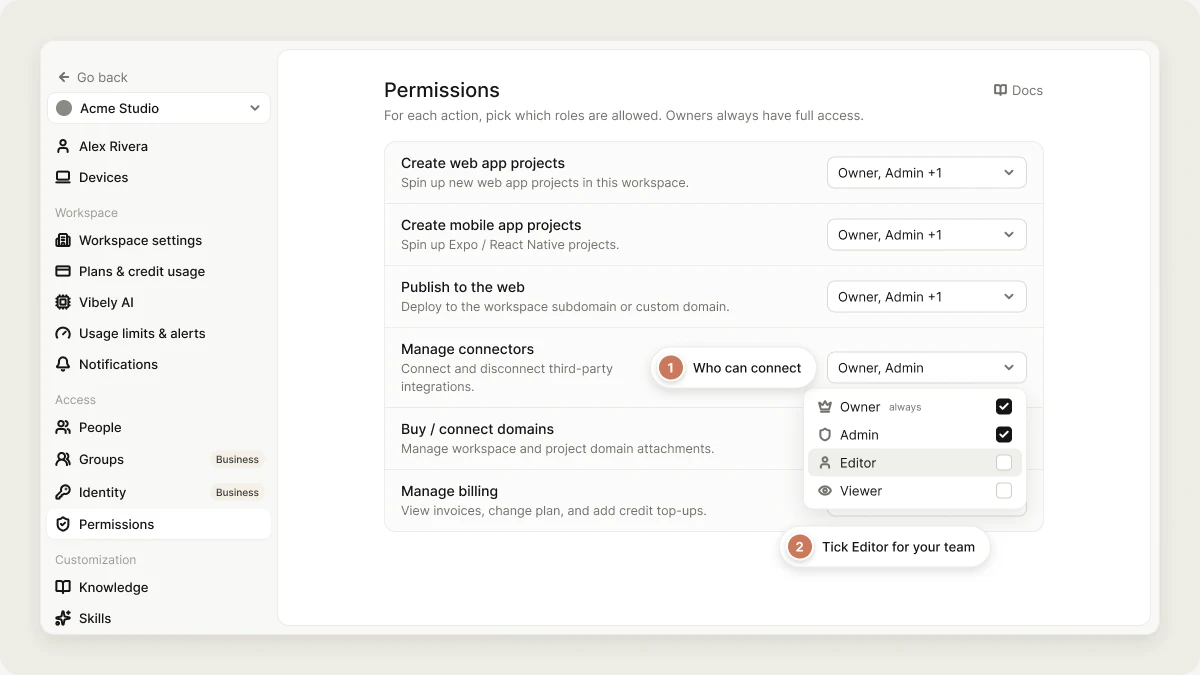
* **Settings → Permissions** has the **Manage connectors** row, which decides which roles can connect and disconnect connectors. Below the role matrix, **Admin settings** controls which chat connectors the agent may use and whether it may write through any of them, and **Custom connectors** is where admins register their own REST APIs.
* **Settings → Privacy & security** has the **Remote MCP connectors** switch, which turns MCP-based chat connectors on or off for the whole workspace.
* Each connector's own **Tool permissions** decide which actions the agent runs without asking. See [Approve connector actions](/integrations/connectors/catalog#approve-connector-actions).
 All of these are enforced on the server. Hiding a button isn't what stops the call.
## Who can connect connectors
**Settings → Permissions** is a matrix of capabilities by role. Owners always have every capability; you set the other three roles.
| Capability | Owner | Admin | Editor | Viewer |
| :- | :-: | :-: | :-: | :-: |
| **Manage connectors** | ✅ | ✅ | — | — |
These are the defaults. **Manage connectors** ("Connect and disconnect third-party integrations") is owner and admin only out of the box. Tick **Editor** if your team connects its own tools.
The capability controls more than the Connect button:
* Without it, connecting or disconnecting a connector is refused by the server.
* Without it, the agent doesn't get its app connector tools (calling a connected app connector, or scaffolding one into the app) when that person is the one prompting. Supabase, Stripe, and the member's own chat connectors keep working, because they have their own flows.
Only owners and admins can change the matrix. See [Workspace settings](/features/workspace/admin-settings) for the rest of it.
## Chat connector controls
Chat connectors are personal connections: each member signs in with their own account, so there's no access list to manage. Admins decide which chat connectors are available.
### Turn off individual chat connectors
Under **Admin settings** in **Settings → Permissions**, each chat connector (GitHub, Notion, Linear, Miro, and Figma) and each [custom REST connector](#custom-rest-connectors) has a switch. Turning one off blocks every read, write, and send the agent makes through it, for every member of the workspace.
### Block write and send actions
The first row, **Write & send actions for this workspace**, is a ceiling over every connector below it.
| State | Effect |
| :- | :- |
| On (default) | Each connector's own tool permissions apply. |
| Off | Every write and send action is blocked across all connectors, even ones individually set to **Always allow**. Read-only access is never affected. |
The switch can only make things stricter. A connector that is already blocked stays blocked whatever this switch says.
The default is **on**, so writes are allowed subject to each connector's approval settings. If your workspace needs read-only connectors, turn it off deliberately.
### Turn off all MCP connectors
**Remote MCP connectors** in **Settings → Privacy & security** ("Allow workspace members to connect MCP servers that Vibely can call from chat") is a single switch for the whole MCP surface. When it's off, the agent doesn't get any MCP server in that workspace, including Figma, Miro, and members' [custom MCP servers](/integrations/connectors/custom-mcp). This switch requires the **Business** plan.
## Custom REST connectors
Admins can register any REST API as a connector for the workspace: an internal service, or a provider that has no built-in connector. The agent can then call it while building, and projects can connect to it.
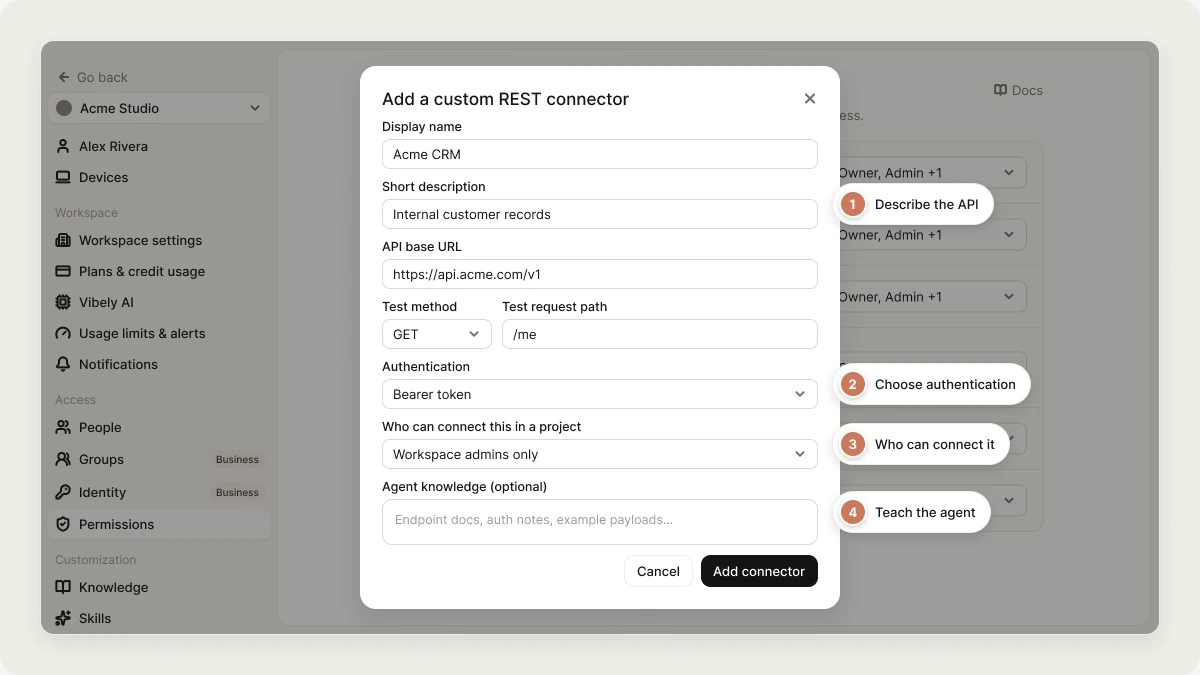
In **Settings → Permissions**, scroll to **Custom connectors** and click **Add connector**.
Fill in **Display name**, **Short description**, and **API base URL**. Add a **Test method** and **Test request path**; Vibely calls this request to check credentials whenever someone connects.
Pick one: **Bearer token**, **API key (header)**, **API key (query param)**, **Basic auth (username/password)**, or **Advanced (multiple fields)**.
Under **Who can connect this in a project**, pick **Workspace admins only**, **Admins and editors**, or **No one (definition only, for now)**.
Under **Agent knowledge**, paste API docs, example requests, or usage notes. The agent reads these when it decides how to call the connector.
Registered connectors appear under **Custom connectors** in each project's **Manage → Connectors**. Anyone allowed to connect one enters the credentials there, and they're verified against the test request before they're saved. Members without permission see **Not available to your role**.
All of these are enforced on the server. Hiding a button isn't what stops the call.
## Who can connect connectors
**Settings → Permissions** is a matrix of capabilities by role. Owners always have every capability; you set the other three roles.
| Capability | Owner | Admin | Editor | Viewer |
| :- | :-: | :-: | :-: | :-: |
| **Manage connectors** | ✅ | ✅ | — | — |
These are the defaults. **Manage connectors** ("Connect and disconnect third-party integrations") is owner and admin only out of the box. Tick **Editor** if your team connects its own tools.
The capability controls more than the Connect button:
* Without it, connecting or disconnecting a connector is refused by the server.
* Without it, the agent doesn't get its app connector tools (calling a connected app connector, or scaffolding one into the app) when that person is the one prompting. Supabase, Stripe, and the member's own chat connectors keep working, because they have their own flows.
Only owners and admins can change the matrix. See [Workspace settings](/features/workspace/admin-settings) for the rest of it.
## Chat connector controls
Chat connectors are personal connections: each member signs in with their own account, so there's no access list to manage. Admins decide which chat connectors are available.
### Turn off individual chat connectors
Under **Admin settings** in **Settings → Permissions**, each chat connector (GitHub, Notion, Linear, Miro, and Figma) and each [custom REST connector](#custom-rest-connectors) has a switch. Turning one off blocks every read, write, and send the agent makes through it, for every member of the workspace.
### Block write and send actions
The first row, **Write & send actions for this workspace**, is a ceiling over every connector below it.
| State | Effect |
| :- | :- |
| On (default) | Each connector's own tool permissions apply. |
| Off | Every write and send action is blocked across all connectors, even ones individually set to **Always allow**. Read-only access is never affected. |
The switch can only make things stricter. A connector that is already blocked stays blocked whatever this switch says.
The default is **on**, so writes are allowed subject to each connector's approval settings. If your workspace needs read-only connectors, turn it off deliberately.
### Turn off all MCP connectors
**Remote MCP connectors** in **Settings → Privacy & security** ("Allow workspace members to connect MCP servers that Vibely can call from chat") is a single switch for the whole MCP surface. When it's off, the agent doesn't get any MCP server in that workspace, including Figma, Miro, and members' [custom MCP servers](/integrations/connectors/custom-mcp). This switch requires the **Business** plan.
## Custom REST connectors
Admins can register any REST API as a connector for the workspace: an internal service, or a provider that has no built-in connector. The agent can then call it while building, and projects can connect to it.
In **Settings → Permissions**, scroll to **Custom connectors** and click **Add connector**.
Fill in **Display name**, **Short description**, and **API base URL**. Add a **Test method** and **Test request path**; Vibely calls this request to check credentials whenever someone connects.
Pick one: **Bearer token**, **API key (header)**, **API key (query param)**, **Basic auth (username/password)**, or **Advanced (multiple fields)**.
Under **Who can connect this in a project**, pick **Workspace admins only**, **Admins and editors**, or **No one (definition only, for now)**.
Under **Agent knowledge**, paste API docs, example requests, or usage notes. The agent reads these when it decides how to call the connector.
Registered connectors appear under **Custom connectors** in each project's **Manage → Connectors**. Anyone allowed to connect one enters the credentials there, and they're verified against the test request before they're saved. Members without permission see **Not available to your role**.
 ## One shared account
An app connector runs as **one shared workspace account**, the connection that was authorized. Every project in the workspace, and every visitor of a published app that calls it, acts through that account.
There's no setting that gives each workspace member their own credential on an app connection. If your app needs each of *its* users to connect their own account, ask the agent for [per-user connections](/integrations/connectors/auth#per-user-connections).
## FAQ
By default only owners and admins have **Manage connectors**. An owner can tick **Editor** for that row in **Settings → Permissions**. If the connector is a chat connector, also check that it hasn't been switched off under **Admin settings**.
Check whether **Remote MCP connectors** is off in **Settings → Privacy & security**, or whether the connector is switched off under **Admin settings** in **Settings → Permissions**. Also check the composer's **+ → Connectors** menu, where each member can switch a chat connector off for themselves.
Write and send actions need approval by default. A member can choose **Always allow** on the approval card, and owners and admins can change a connector's **Tool permissions**. See [Approve connector actions](/integrations/connectors/catalog#approve-connector-actions).
The **Manage connectors** capability, the per-connector switches, the write ceiling, and custom REST connectors are available on every plan. The **Remote MCP connectors** switch requires Business.
## Related
* [Connectors overview](/integrations/connectors/overview)
* [App and chat connectors](/integrations/connectors/catalog)
* [Auth and credentials](/integrations/connectors/auth)
* [Privacy and security settings](/features/workspace/privacy-security)
* [Workspace settings](/features/workspace/admin-settings)
## Related topics
- [Add payments to your app](/features/grow/payments.md)
- [Connect tools, services, and APIs](/integrations/connectors/overview.md)
- [App and chat connectors](/integrations/connectors/catalog.md)
- [Manage workspace members from the People page](/features/workspace/people.md)
- [Add a backend with Supabase](/integrations/supabase.md)
This documentation is built and hosted on [Mintlify](https://mintlify.com), a developer documentation platform.
## One shared account
An app connector runs as **one shared workspace account**, the connection that was authorized. Every project in the workspace, and every visitor of a published app that calls it, acts through that account.
There's no setting that gives each workspace member their own credential on an app connection. If your app needs each of *its* users to connect their own account, ask the agent for [per-user connections](/integrations/connectors/auth#per-user-connections).
## FAQ
By default only owners and admins have **Manage connectors**. An owner can tick **Editor** for that row in **Settings → Permissions**. If the connector is a chat connector, also check that it hasn't been switched off under **Admin settings**.
Check whether **Remote MCP connectors** is off in **Settings → Privacy & security**, or whether the connector is switched off under **Admin settings** in **Settings → Permissions**. Also check the composer's **+ → Connectors** menu, where each member can switch a chat connector off for themselves.
Write and send actions need approval by default. A member can choose **Always allow** on the approval card, and owners and admins can change a connector's **Tool permissions**. See [Approve connector actions](/integrations/connectors/catalog#approve-connector-actions).
The **Manage connectors** capability, the per-connector switches, the write ceiling, and custom REST connectors are available on every plan. The **Remote MCP connectors** switch requires Business.
## Related
* [Connectors overview](/integrations/connectors/overview)
* [App and chat connectors](/integrations/connectors/catalog)
* [Auth and credentials](/integrations/connectors/auth)
* [Privacy and security settings](/features/workspace/privacy-security)
* [Workspace settings](/features/workspace/admin-settings)
## Related topics
- [Add payments to your app](/features/grow/payments.md)
- [Connect tools, services, and APIs](/integrations/connectors/overview.md)
- [App and chat connectors](/integrations/connectors/catalog.md)
- [Manage workspace members from the People page](/features/workspace/people.md)
- [Add a backend with Supabase](/integrations/supabase.md)
This documentation is built and hosted on [Mintlify](https://mintlify.com), a developer documentation platform.