> ## Documentation Index
> Fetch the complete documentation index at: https://docs.vibely.sh/llms.txt
> Use this file to discover all available pages before exploring further.
# Set up SCIM user provisioning
> Create, update, and remove workspace members automatically from Okta, Microsoft Entra ID, or any SCIM 2.0 identity provider.
SCIM lets your identity provider (IdP) be the source of truth for who is in your Vibely workspace. When you assign someone to the Vibely app in your IdP, they get a membership. When you unassign or deactivate them, the membership goes away.
 Vibely implements SCIM 2.0.
## Prerequisites
* A **Business** workspace. SCIM requests to a workspace on another plan are refused with `SCIM provisioning requires the Business plan`.
* The owner or admin role, to issue the token.
* Admin access to your IdP.
* SSO is recommended but not required. See [SSO](/features/workspace/sso).
## How SCIM works in Vibely
### User provisioning
When your IdP pushes a user:
| Situation | Result |
| - | - |
| A Vibely account already exists for that email | The person is added to the workspace at the **Role for SCIM users**. |
| No account exists yet | Vibely creates an invitation. They join when they first sign in. |
| They're already a member | Vibely answers `409 User already provisioned`. That's expected on a re-sync. |
Pending invitations are reported back to your IdP as active users, so it doesn't try to create them again.
### User deprovisioning
When your IdP deactivates or deletes a user, Vibely removes their membership. If they only had a pending invitation, the invitation is deleted instead. Reactivating them adds them back at the current default role.
The workspace owner is never removed by SCIM. Transfer ownership first if you need to remove them.
Names and emails come from the person's Vibely account and aren't overwritten from SCIM.
### Groups
This is where Vibely differs most from other SCIM apps. Vibely always exposes exactly **three groups**, one per workspace role:
| Group ID | Display name | Workspace role |
| - | - | - |
| `role:admin` | Admins | Admin |
| `role:editor` | Editors | Editor |
| `role:viewer` | Viewers | Viewer |
Membership in a group **is** the role. Adding someone to Admins makes them an admin; removing them drops them back to the default role.
Your own IdP groups don't create groups in Vibely. Pushing a group called `Engineering` does nothing. Map your IdP groups onto these three instead, or your first sync will look like it silently did nothing.
These role groups are separate from Vibely's [member groups](/features/workspace/groups), which SCIM can't create or change.
### Supported SCIM operations
| Endpoint | Methods | Notes |
| - | - | - |
| `/ServiceProviderConfig` | `GET` | Advertises PATCH and filter support. No bulk, sorting, ETags, or password changes. |
| `/Users` | `GET`, `POST` | `GET` supports `startIndex`, `count` (up to 200), and `filter=userName eq "…"`. |
| `/Users/{id}` | `GET`, `PATCH`, `PUT`, `DELETE` | |
| `/Groups` | `GET` | Always returns the three role groups. |
| `/Groups/{id}` | `GET`, `PATCH` | `add`, `remove`, and `replace`. |
Only `userName eq` filters are supported; other filters return the full list.
## Set up SCIM provisioning
### Step 1: Configure SCIM in Vibely
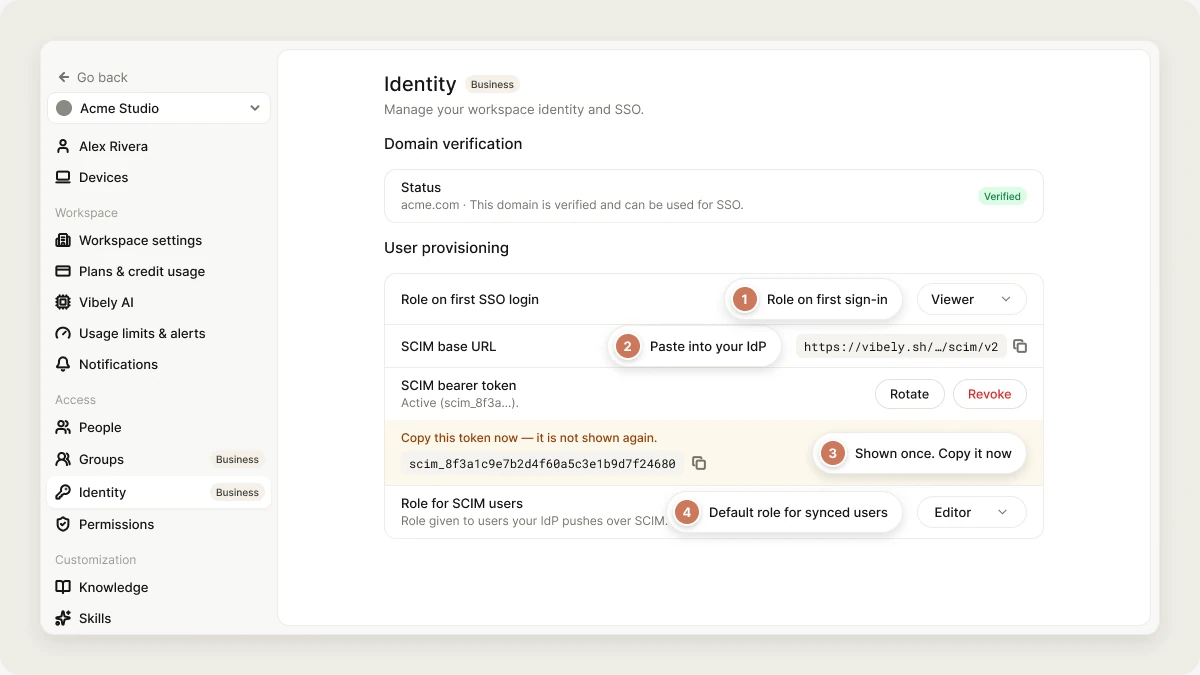
Go to **Settings → Identity** → **User provisioning**. The same controls are on **Settings → Security center**.
Copy it from the page rather than typing it. It ends in `/scim/v2`.
Click **Issue token** and copy the **SCIM bearer token** straight away. It's shown once and never again.
**Role for SCIM users** decides what a pushed user becomes: **Viewer**, **Editor** (the default), or **Admin**.
### Step 2: Configure SCIM in your IdP
1. Open your Vibely app → **Provisioning → Configure API Integration** → **Enable API integration**.
2. **Base URL**: the SCIM base URL. **API Token**: the bearer token. Click **Test API Credentials**.
3. Turn on **Create Users**, **Update User Attributes**, and **Deactivate Users**.
4. For roles, use **Push Groups** to push each Okta group *to* the existing Vibely group with the matching name (Admins, Editors, or Viewers). Don't create new groups.
1. **Enterprise applications** → your Vibely app → **Provisioning** → **Automatic**.
2. **Tenant URL**: the SCIM base URL. **Secret Token**: the bearer token. Click **Test Connection**.
3. In the attribute mappings, keep `userName` (mapped to mail or UPN), `active`, and `displayName`, and delete the rest.
4. In the group mapping, target `role:admin`, `role:editor`, or `role:viewer` by display name.
Authenticate with `Authorization: Bearer ` and send `application/scim+json` (plain `application/json` also works). Start with `GET /ServiceProviderConfig` to confirm the token and plan:
```bash theme={"system"}
curl -s https:///Users \
-H "Authorization: Bearer $SCIM_TOKEN" \
-H "Accept: application/scim+json"
```
## Manage SCIM provisioning
### Rotate the token
A workspace has one active token. **Rotate** issues a new one and revokes the old one in the same step, so update your IdP right away.
The page identifies the active token by its first 12 characters and shows when it was created and last used. **Last used** is the quickest way to check your IdP is actually reaching Vibely.
### Change the default role
Change **Role for SCIM users** at any time. It applies to people provisioned from then on, and to anyone dropped out of a role group.
### Turn off SCIM
Click **Revoke**. Your IdP stops provisioning until you issue a new token. Existing members stay.
## Troubleshooting
| Response | What it means |
| - | - |
| `401 Invalid or missing SCIM bearer token` | The token is wrong, revoked, or was replaced by a rotation. |
| `403 SCIM provisioning requires the Business plan` | The workspace isn't on Business. Not a token problem. |
| `409 User already provisioned` | They're already a member. Expected on a re-sync. |
| `400 userName (email) is required` | The request had neither a `userName` nor a primary email. |
| `400 Could not deactivate user` | Usually the workspace owner, who can't be removed by SCIM. |
| `404 Group not found` | The group ID isn't one of the three role groups. |
| Sync succeeds but nothing changes | You pushed an IdP group that isn't mapped to a role group. |
## FAQ
The Business plan.
No. SCIM only sets workspace roles through the three role groups. Create member groups yourself in **Settings → Groups**.
Their membership is removed and they lose access. Projects they created stay in the workspace.
No, but they work best together: SCIM decides who's a member, SSO decides how they sign in.
## Related
Verify your domain and choose how people join.
Connect your identity provider for sign-in.
## Related topics
- [Manage workspace identity and user provisioning](/features/workspace/identity.md)
- [Manage workspace members from the People page](/features/workspace/people.md)
- [Vibely for Enterprise](/introduction/enterprise.md)
- [Workspace admin settings](/features/workspace/admin-settings.md)
- [Set up workspace single sign-on (SSO)](/features/workspace/sso.md)
This documentation is built and hosted on [Mintlify](https://mintlify.com), a developer documentation platform.
Vibely implements SCIM 2.0.
## Prerequisites
* A **Business** workspace. SCIM requests to a workspace on another plan are refused with `SCIM provisioning requires the Business plan`.
* The owner or admin role, to issue the token.
* Admin access to your IdP.
* SSO is recommended but not required. See [SSO](/features/workspace/sso).
## How SCIM works in Vibely
### User provisioning
When your IdP pushes a user:
| Situation | Result |
| - | - |
| A Vibely account already exists for that email | The person is added to the workspace at the **Role for SCIM users**. |
| No account exists yet | Vibely creates an invitation. They join when they first sign in. |
| They're already a member | Vibely answers `409 User already provisioned`. That's expected on a re-sync. |
Pending invitations are reported back to your IdP as active users, so it doesn't try to create them again.
### User deprovisioning
When your IdP deactivates or deletes a user, Vibely removes their membership. If they only had a pending invitation, the invitation is deleted instead. Reactivating them adds them back at the current default role.
The workspace owner is never removed by SCIM. Transfer ownership first if you need to remove them.
Names and emails come from the person's Vibely account and aren't overwritten from SCIM.
### Groups
This is where Vibely differs most from other SCIM apps. Vibely always exposes exactly **three groups**, one per workspace role:
| Group ID | Display name | Workspace role |
| - | - | - |
| `role:admin` | Admins | Admin |
| `role:editor` | Editors | Editor |
| `role:viewer` | Viewers | Viewer |
Membership in a group **is** the role. Adding someone to Admins makes them an admin; removing them drops them back to the default role.
Your own IdP groups don't create groups in Vibely. Pushing a group called `Engineering` does nothing. Map your IdP groups onto these three instead, or your first sync will look like it silently did nothing.
These role groups are separate from Vibely's [member groups](/features/workspace/groups), which SCIM can't create or change.
### Supported SCIM operations
| Endpoint | Methods | Notes |
| - | - | - |
| `/ServiceProviderConfig` | `GET` | Advertises PATCH and filter support. No bulk, sorting, ETags, or password changes. |
| `/Users` | `GET`, `POST` | `GET` supports `startIndex`, `count` (up to 200), and `filter=userName eq "…"`. |
| `/Users/{id}` | `GET`, `PATCH`, `PUT`, `DELETE` | |
| `/Groups` | `GET` | Always returns the three role groups. |
| `/Groups/{id}` | `GET`, `PATCH` | `add`, `remove`, and `replace`. |
Only `userName eq` filters are supported; other filters return the full list.
## Set up SCIM provisioning
### Step 1: Configure SCIM in Vibely
Go to **Settings → Identity** → **User provisioning**. The same controls are on **Settings → Security center**.
Copy it from the page rather than typing it. It ends in `/scim/v2`.
Click **Issue token** and copy the **SCIM bearer token** straight away. It's shown once and never again.
**Role for SCIM users** decides what a pushed user becomes: **Viewer**, **Editor** (the default), or **Admin**.
### Step 2: Configure SCIM in your IdP
1. Open your Vibely app → **Provisioning → Configure API Integration** → **Enable API integration**.
2. **Base URL**: the SCIM base URL. **API Token**: the bearer token. Click **Test API Credentials**.
3. Turn on **Create Users**, **Update User Attributes**, and **Deactivate Users**.
4. For roles, use **Push Groups** to push each Okta group *to* the existing Vibely group with the matching name (Admins, Editors, or Viewers). Don't create new groups.
1. **Enterprise applications** → your Vibely app → **Provisioning** → **Automatic**.
2. **Tenant URL**: the SCIM base URL. **Secret Token**: the bearer token. Click **Test Connection**.
3. In the attribute mappings, keep `userName` (mapped to mail or UPN), `active`, and `displayName`, and delete the rest.
4. In the group mapping, target `role:admin`, `role:editor`, or `role:viewer` by display name.
Authenticate with `Authorization: Bearer ` and send `application/scim+json` (plain `application/json` also works). Start with `GET /ServiceProviderConfig` to confirm the token and plan:
```bash theme={"system"}
curl -s https:///Users \
-H "Authorization: Bearer $SCIM_TOKEN" \
-H "Accept: application/scim+json"
```
## Manage SCIM provisioning
### Rotate the token
A workspace has one active token. **Rotate** issues a new one and revokes the old one in the same step, so update your IdP right away.
The page identifies the active token by its first 12 characters and shows when it was created and last used. **Last used** is the quickest way to check your IdP is actually reaching Vibely.
### Change the default role
Change **Role for SCIM users** at any time. It applies to people provisioned from then on, and to anyone dropped out of a role group.
### Turn off SCIM
Click **Revoke**. Your IdP stops provisioning until you issue a new token. Existing members stay.
## Troubleshooting
| Response | What it means |
| - | - |
| `401 Invalid or missing SCIM bearer token` | The token is wrong, revoked, or was replaced by a rotation. |
| `403 SCIM provisioning requires the Business plan` | The workspace isn't on Business. Not a token problem. |
| `409 User already provisioned` | They're already a member. Expected on a re-sync. |
| `400 userName (email) is required` | The request had neither a `userName` nor a primary email. |
| `400 Could not deactivate user` | Usually the workspace owner, who can't be removed by SCIM. |
| `404 Group not found` | The group ID isn't one of the three role groups. |
| Sync succeeds but nothing changes | You pushed an IdP group that isn't mapped to a role group. |
## FAQ
The Business plan.
No. SCIM only sets workspace roles through the three role groups. Create member groups yourself in **Settings → Groups**.
Their membership is removed and they lose access. Projects they created stay in the workspace.
No, but they work best together: SCIM decides who's a member, SSO decides how they sign in.
## Related
Verify your domain and choose how people join.
Connect your identity provider for sign-in.
## Related topics
- [Manage workspace identity and user provisioning](/features/workspace/identity.md)
- [Manage workspace members from the People page](/features/workspace/people.md)
- [Vibely for Enterprise](/introduction/enterprise.md)
- [Workspace admin settings](/features/workspace/admin-settings.md)
- [Set up workspace single sign-on (SSO)](/features/workspace/sso.md)
This documentation is built and hosted on [Mintlify](https://mintlify.com), a developer documentation platform.