> ## Documentation Index
> Fetch the complete documentation index at: https://docs.vibely.sh/llms.txt
> Use this file to discover all available pages before exploring further.
# Manage workspace members from the People page
> Invite members, change roles, handle access requests, and set per-member credit limits.
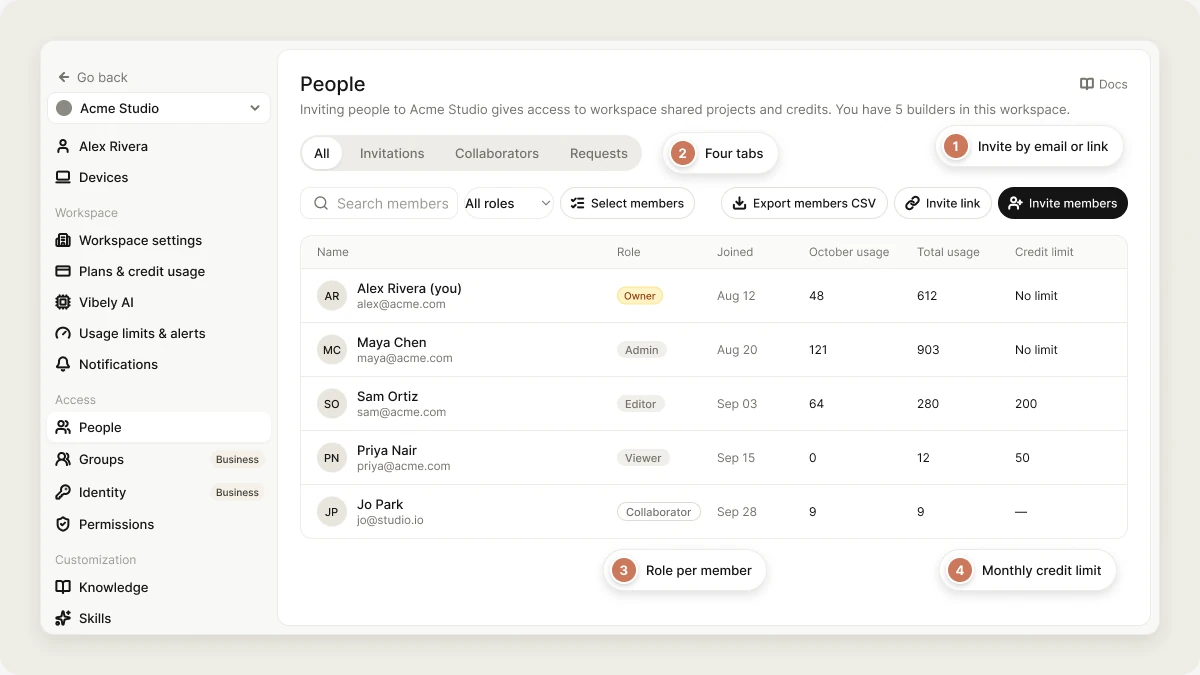
The **People** page is where you manage everyone in your workspace. Every member appears here, whether they joined by invitation, through SSO, through SCIM, or from a join request, along with people who only have access to individual projects.
 Open it from **Settings → People** (`vibely.sh/settings/people`).
The Free plan is single-seat, so you can't invite anyone until the workspace is on Pro or Business.
## Who can do what on the People page
Every workspace member can open the page and see the member list. What you can change depends on your role.
* **Viewers and editors** can browse, search, filter, and export the list. Editors can also invite people if an owner or admin grants them **Invite members** in **Settings → Permissions**, but only as editors or viewers.
* **Admins** can invite members, change the roles of editors and viewers, remove editors and viewers, approve requests, and set credit limits. An admin can't change or remove another admin or the owner.
* **The owner** can do everything, including transferring ownership.
Two rules apply to everyone: nobody can change their own role, and ownership only moves through **Transfer ownership**.
## The member list
The page has four tabs:
| Tab | What it lists |
| - | - |
| **All** | Every workspace member and every project collaborator. |
| **Invitations** | Pending invitations, with when each one expires. |
| **Collaborators** | People who have access to one or more projects but aren't workspace members. |
| **Requests** | Pending requests to access a project. |
For each member you see:
| Column | What it shows |
| - | - |
| **Name** | Name and email. Your own row is marked **(you)**. |
| **Role** | Owner, Admin, Editor, Viewer, or Collaborator. |
| **Joined / invited** | When they joined, or when they were invited. |
| **\ usage** | Credits they've used this calendar month. |
| **Total usage** | Credits they've used in this workspace, all time. |
| **Credit limit** | Their monthly credit limit: a personal limit if one is set, otherwise the workspace default. |
You can:
* **Search members** by name or email.
* **Filter** by role with the **All roles** menu.
* **Sort** by any column.
* **Select members** to remove several people at once.
* **Export members CSV** to download the list (name, email, role, join date, this month's usage, total usage, and credit limit). With members selected, the button exports only those.
## Invite members
You can invite people by email or with an invite link. Both create an invitation for one email address, and both expire after **7 days**.
### Invite by email
1. Go to **Settings → People**.
2. Click **Invite members**.
3. Enter the **Email address**.
4. Choose a role:
* **Admin**: manages billing, integrations, and the team
* **Editor**: builds, edits, and publishes projects
* **Viewer**: read-only access to projects
5. Click **Send invitation**.
Vibely emails an accept link. Pending invitations appear on the **Invitations** tab, where you can revoke them.
### Invite by link
Use a link when you'd rather send the invitation yourself, for example in a chat.
1. Go to **Settings → People**.
2. Click **Invite link**.
3. Choose a role and enter the **Invitee email**.
4. Click **Create link**. The link is copied to your clipboard.
The link is tied to that email address: the person must sign in with it to join. You can revoke the link from the same dialog with **Revoke link**.
### When an invitation is refused
| Message | Why |
| - | - |
| Team collaboration requires a Pro plan or higher. | The workspace is on Free. |
| Only workspace admins and owners can invite members. | **Restrict workspace invitations** is on in [Privacy & security](/features/workspace/privacy-security#restrict-workspace-invitations). |
| Invitations are restricted to: @acme.com | The address isn't on the workspace's allowed email domains. |
| SSO is enforced for this workspace… | With SSO enforced, members join through your identity provider and invitations are off. See [Identity](/features/workspace/identity#require-sso-and-session-duration). |
## Automatic user provisioning
Besides invitations, people can join a workspace automatically:
* **SSO sign-in**: on a Business workspace with SSO set up, someone from your verified domain who signs in through your identity provider is added at the role you choose. See [Identity](/features/workspace/identity).
* **SCIM**: your identity provider creates and removes members for you. See [SCIM](/features/workspace/scim).
* **Join requests**: with **Workspace discovery** on, people on your email domain can ask to join. See [Workspace join requests](#workspace-join-requests).
## External collaborators
A collaborator is someone who has access to a specific project but isn't a member of the workspace. You add them from the project's **Share project** dialog (click **Invite** in the editor header), not from the People page. See [Collaboration](/features/collaboration/overview).
Collaborators appear on the **Collaborators** tab with the role **Collaborator**. Removing one with **Remove collaborator** takes away their project access.
On Business, you can cap what outsiders can be given with **External project collaborators** in [Privacy & security](/features/workspace/privacy-security#external-project-collaborators): allow any role, editor at most, viewer at most, or none.
## Manage existing members
### Change a member's role
Click the role pill next to a member's name and pick **Admin**, **Editor**, or **Viewer**. The change takes effect immediately.
* Giving someone the **Admin** role requires a paid plan.
* Admins can only change editors and viewers.
### Transfer ownership
A workspace has exactly one owner. To hand it over, the owner either picks **Transfer ownership** in the member's role menu, or uses **Settings → Workspace settings → Transfer ownership**. The new owner is promoted and you become an admin in the same step.
### Remove a member
Open the member's row menu and choose **Remove member**, or use **Select members** to remove several at once. They lose access to the workspace's projects immediately. Projects they created stay in the workspace.
You can't remove the owner. On your own row, the menu offers **Leave workspace** instead. See [Leave a workspace](/features/workspace/overview#leave-a-workspace).
### Set a per-member credit limit
Per-member credit limits require the **Business** plan.
A per-member limit caps how many credits one person can spend each calendar month (UTC). It overrides the workspace default from **Settings → Workspace settings**.
1. Open the member's row menu.
2. Choose **Set credit limit**.
3. Enter a **Monthly credit limit**. Enter `0` for no limit.
4. Save.
When a member reaches their limit, their messages are refused until the next month begins. The workspace's other members are unaffected.
For caps on a project or on the whole workspace, and for low-balance alerts, use **Settings → Usage limits & alerts**. See [Credits and usage](/features/account/credits#usage-limits-and-alerts).
### Workspace join requests
When **Workspace discovery** is on, people whose email domain matches your workspace can ask to join from their workspace switcher. Their requests appear at the top of the People page under **Requests to join this workspace**. Click **Approve** to add them as an **Editor**, or **Deny**.
### Project access requests
When someone asks for access to a project, the request appears under **Project access requests** and on the **Requests** tab. Approve it to grant access, or **Deny** it.
## Roles and permissions
Each role has default permissions. Owners and admins can change which roles have each permission in **Settings → Permissions**. The owner always has every permission.
| Permission | Owner | Admin | Editor | Viewer |
| - | - | - | - | - |
| Create web app projects | ✓ | ✓ | ✓ | |
| Create mobile app projects | ✓ | ✓ | ✓ | |
| Publish to the web | ✓ | ✓ | ✓ | |
| Submit to App / Play Store | ✓ | ✓ | | |
| Manage connectors | ✓ | ✓ | | |
| Buy / connect domains | ✓ | ✓ | | |
| Manage billing | ✓ | | | |
| Invite members | ✓ | ✓ | | |
| Set per-member credit limits | ✓ | ✓ | | |
| Read audit logs | ✓ | ✓ | | |
Granting **Invite members** to editors lets them invite editors and viewers only. Inviting an admin always stays an owner or admin action.
## FAQ
Seven days. After that the link stops working. Invite the person again to send a fresh one.
Invitations are tied to the email address they were sent to. Ask them to sign out and sign in with that exact address.
No. There's exactly one owner. Use **Transfer ownership** to hand the workspace to someone else.
They stay in the workspace. The member loses access to them.
No. Plans are priced by credits, not seats. Members spend from the workspace's shared credits.
## Related
Grant project access to a team at once.
Restrict invitations and external collaborators.
Add people automatically through SSO.
How members' usage draws from the shared balance.
## Related topics
- [Collaborate on a project](/features/collaboration/overview.md)
- [Vibely workspace](/features/workspace/overview.md)
- [Manage workspace identity and user provisioning](/features/workspace/identity.md)
- [Groups](/features/workspace/groups.md)
- [Privacy & security settings](/features/workspace/privacy-security.md)
This documentation is built and hosted on [Mintlify](https://mintlify.com), a developer documentation platform.
Open it from **Settings → People** (`vibely.sh/settings/people`).
The Free plan is single-seat, so you can't invite anyone until the workspace is on Pro or Business.
## Who can do what on the People page
Every workspace member can open the page and see the member list. What you can change depends on your role.
* **Viewers and editors** can browse, search, filter, and export the list. Editors can also invite people if an owner or admin grants them **Invite members** in **Settings → Permissions**, but only as editors or viewers.
* **Admins** can invite members, change the roles of editors and viewers, remove editors and viewers, approve requests, and set credit limits. An admin can't change or remove another admin or the owner.
* **The owner** can do everything, including transferring ownership.
Two rules apply to everyone: nobody can change their own role, and ownership only moves through **Transfer ownership**.
## The member list
The page has four tabs:
| Tab | What it lists |
| - | - |
| **All** | Every workspace member and every project collaborator. |
| **Invitations** | Pending invitations, with when each one expires. |
| **Collaborators** | People who have access to one or more projects but aren't workspace members. |
| **Requests** | Pending requests to access a project. |
For each member you see:
| Column | What it shows |
| - | - |
| **Name** | Name and email. Your own row is marked **(you)**. |
| **Role** | Owner, Admin, Editor, Viewer, or Collaborator. |
| **Joined / invited** | When they joined, or when they were invited. |
| **\ usage** | Credits they've used this calendar month. |
| **Total usage** | Credits they've used in this workspace, all time. |
| **Credit limit** | Their monthly credit limit: a personal limit if one is set, otherwise the workspace default. |
You can:
* **Search members** by name or email.
* **Filter** by role with the **All roles** menu.
* **Sort** by any column.
* **Select members** to remove several people at once.
* **Export members CSV** to download the list (name, email, role, join date, this month's usage, total usage, and credit limit). With members selected, the button exports only those.
## Invite members
You can invite people by email or with an invite link. Both create an invitation for one email address, and both expire after **7 days**.
### Invite by email
1. Go to **Settings → People**.
2. Click **Invite members**.
3. Enter the **Email address**.
4. Choose a role:
* **Admin**: manages billing, integrations, and the team
* **Editor**: builds, edits, and publishes projects
* **Viewer**: read-only access to projects
5. Click **Send invitation**.
Vibely emails an accept link. Pending invitations appear on the **Invitations** tab, where you can revoke them.
### Invite by link
Use a link when you'd rather send the invitation yourself, for example in a chat.
1. Go to **Settings → People**.
2. Click **Invite link**.
3. Choose a role and enter the **Invitee email**.
4. Click **Create link**. The link is copied to your clipboard.
The link is tied to that email address: the person must sign in with it to join. You can revoke the link from the same dialog with **Revoke link**.
### When an invitation is refused
| Message | Why |
| - | - |
| Team collaboration requires a Pro plan or higher. | The workspace is on Free. |
| Only workspace admins and owners can invite members. | **Restrict workspace invitations** is on in [Privacy & security](/features/workspace/privacy-security#restrict-workspace-invitations). |
| Invitations are restricted to: @acme.com | The address isn't on the workspace's allowed email domains. |
| SSO is enforced for this workspace… | With SSO enforced, members join through your identity provider and invitations are off. See [Identity](/features/workspace/identity#require-sso-and-session-duration). |
## Automatic user provisioning
Besides invitations, people can join a workspace automatically:
* **SSO sign-in**: on a Business workspace with SSO set up, someone from your verified domain who signs in through your identity provider is added at the role you choose. See [Identity](/features/workspace/identity).
* **SCIM**: your identity provider creates and removes members for you. See [SCIM](/features/workspace/scim).
* **Join requests**: with **Workspace discovery** on, people on your email domain can ask to join. See [Workspace join requests](#workspace-join-requests).
## External collaborators
A collaborator is someone who has access to a specific project but isn't a member of the workspace. You add them from the project's **Share project** dialog (click **Invite** in the editor header), not from the People page. See [Collaboration](/features/collaboration/overview).
Collaborators appear on the **Collaborators** tab with the role **Collaborator**. Removing one with **Remove collaborator** takes away their project access.
On Business, you can cap what outsiders can be given with **External project collaborators** in [Privacy & security](/features/workspace/privacy-security#external-project-collaborators): allow any role, editor at most, viewer at most, or none.
## Manage existing members
### Change a member's role
Click the role pill next to a member's name and pick **Admin**, **Editor**, or **Viewer**. The change takes effect immediately.
* Giving someone the **Admin** role requires a paid plan.
* Admins can only change editors and viewers.
### Transfer ownership
A workspace has exactly one owner. To hand it over, the owner either picks **Transfer ownership** in the member's role menu, or uses **Settings → Workspace settings → Transfer ownership**. The new owner is promoted and you become an admin in the same step.
### Remove a member
Open the member's row menu and choose **Remove member**, or use **Select members** to remove several at once. They lose access to the workspace's projects immediately. Projects they created stay in the workspace.
You can't remove the owner. On your own row, the menu offers **Leave workspace** instead. See [Leave a workspace](/features/workspace/overview#leave-a-workspace).
### Set a per-member credit limit
Per-member credit limits require the **Business** plan.
A per-member limit caps how many credits one person can spend each calendar month (UTC). It overrides the workspace default from **Settings → Workspace settings**.
1. Open the member's row menu.
2. Choose **Set credit limit**.
3. Enter a **Monthly credit limit**. Enter `0` for no limit.
4. Save.
When a member reaches their limit, their messages are refused until the next month begins. The workspace's other members are unaffected.
For caps on a project or on the whole workspace, and for low-balance alerts, use **Settings → Usage limits & alerts**. See [Credits and usage](/features/account/credits#usage-limits-and-alerts).
### Workspace join requests
When **Workspace discovery** is on, people whose email domain matches your workspace can ask to join from their workspace switcher. Their requests appear at the top of the People page under **Requests to join this workspace**. Click **Approve** to add them as an **Editor**, or **Deny**.
### Project access requests
When someone asks for access to a project, the request appears under **Project access requests** and on the **Requests** tab. Approve it to grant access, or **Deny** it.
## Roles and permissions
Each role has default permissions. Owners and admins can change which roles have each permission in **Settings → Permissions**. The owner always has every permission.
| Permission | Owner | Admin | Editor | Viewer |
| - | - | - | - | - |
| Create web app projects | ✓ | ✓ | ✓ | |
| Create mobile app projects | ✓ | ✓ | ✓ | |
| Publish to the web | ✓ | ✓ | ✓ | |
| Submit to App / Play Store | ✓ | ✓ | | |
| Manage connectors | ✓ | ✓ | | |
| Buy / connect domains | ✓ | ✓ | | |
| Manage billing | ✓ | | | |
| Invite members | ✓ | ✓ | | |
| Set per-member credit limits | ✓ | ✓ | | |
| Read audit logs | ✓ | ✓ | | |
Granting **Invite members** to editors lets them invite editors and viewers only. Inviting an admin always stays an owner or admin action.
## FAQ
Seven days. After that the link stops working. Invite the person again to send a fresh one.
Invitations are tied to the email address they were sent to. Ask them to sign out and sign in with that exact address.
No. There's exactly one owner. Use **Transfer ownership** to hand the workspace to someone else.
They stay in the workspace. The member loses access to them.
No. Plans are priced by credits, not seats. Members spend from the workspace's shared credits.
## Related
Grant project access to a team at once.
Restrict invitations and external collaborators.
Add people automatically through SSO.
How members' usage draws from the shared balance.
## Related topics
- [Collaborate on a project](/features/collaboration/overview.md)
- [Vibely workspace](/features/workspace/overview.md)
- [Manage workspace identity and user provisioning](/features/workspace/identity.md)
- [Groups](/features/workspace/groups.md)
- [Privacy & security settings](/features/workspace/privacy-security.md)
This documentation is built and hosted on [Mintlify](https://mintlify.com), a developer documentation platform.