> ## Documentation Index
> Fetch the complete documentation index at: https://docs.vibely.sh/llms.txt
> Use this file to discover all available pages before exploring further.
# Vibely workspace
> Manage your team's projects, members, billing, and settings in one place.
A **workspace** is where you and your team build in Vibely. Every project lives inside a workspace, and everyone who collaborates with you reaches those projects through it.
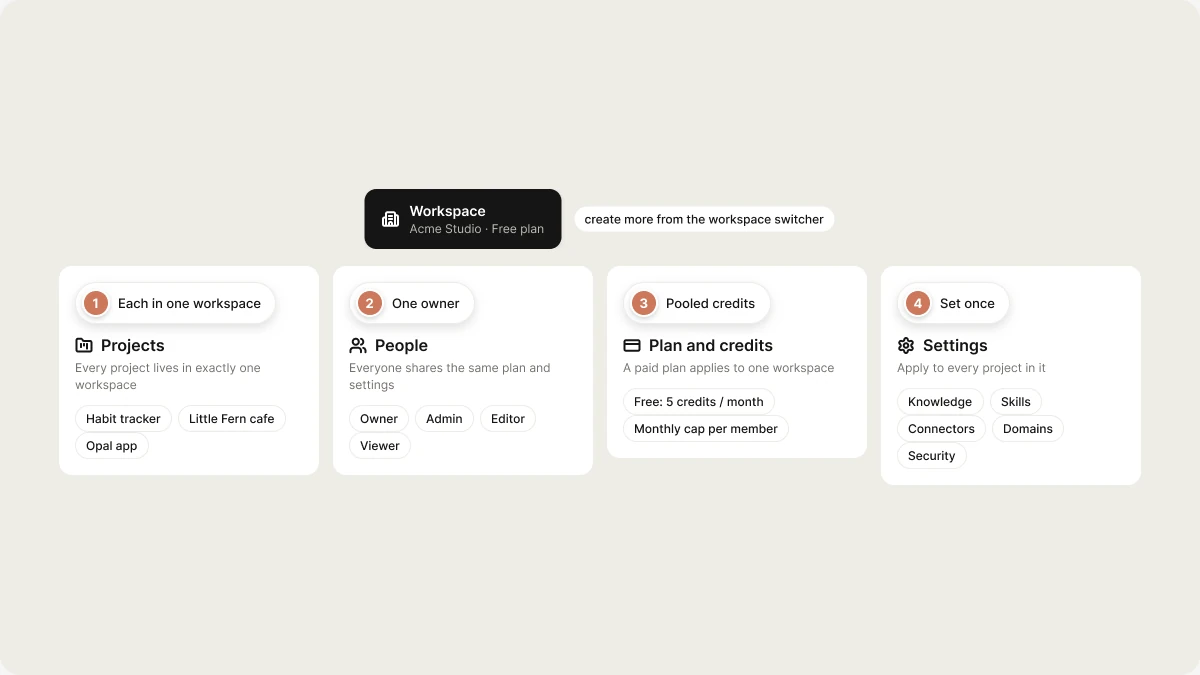 Think of it as your team's home base: it holds your projects, your people, your plan and credits, and your settings.
When you sign up, Vibely creates your first workspace for you on the **Free** plan, with 5 free credits a day plus 5 a month. From there you can:
* Create projects
* Upgrade the plan as your needs grow
* Invite people once you're on a paid plan
You can also create more workspaces from the **workspace switcher** in the top-left corner of the sidebar.
## Workspace basics
These rules define how workspaces work in Vibely.
* **Projects belong to a workspace.** Every project exists inside exactly one workspace.
* **A workspace is shared by a group of people.** Everyone in it works from the same plan, credits, and settings.
* **Plans are per workspace.** Each workspace has its own plan and its own billing. A paid subscription applies to one workspace only. See [Subscription plans](/features/account/plans).
* **Credits are pooled.** Every project in a workspace draws from the workspace's shared balance, whoever sends the message. See [Credits and usage](/features/account/credits).
* **You can cap each member's spend.** Owners and admins can set a default monthly credit limit for every member and, on Business, override it per person, so nobody drains the shared balance.
* **Settings are inherited.** Knowledge, skills, connectors, domains, and security settings are set once at the workspace level and apply to every project in it.
* **You can belong to several workspaces** and switch between them at any time.
## Roles
Every member has one workspace role. There is exactly one owner.
| Role | What they can do |
| - | - |
| **Owner** | Everything, including billing, transferring ownership, and deleting the workspace. |
| **Admin** | Manages members, settings, connectors, domains, and security. Not billing, by default. |
| **Editor** | Creates, builds, and publishes projects. |
| **Viewer** | Read-only access to projects. Can't create or publish. |
Owners and admins can fine-tune what each role may do in **Settings → Permissions**. See [People](/features/workspace/people#roles-and-permissions).
## Create a workspace
Your first workspace is free. Every additional workspace needs its own paid plan, and it's created once payment completes.
Click your workspace name in the top-left corner of the sidebar.
Enter a **Workspace name** (up to 50 characters) and click **Continue**.
Pick Pro or Business, a credit tier, and monthly or yearly billing, then complete checkout. The workspace appears in your switcher as soon as payment succeeds.
Vibely derives the workspace handle from the name. You can change it later in **Settings → Workspace settings**.
## Workspace setup
Owners and admins configure the workspace under **Settings**. Open it from the workspace switcher → **Settings**, or go to `vibely.sh/settings`.
See [Workspace settings](/features/workspace/admin-settings) for every section.
## Invite people to your workspace
The **People** page (**Settings → People**) is where you manage members. Owners and admins can invite people by email or with an invite link, change roles, remove members, approve join requests, set per-member credit limits, and export the member list as CSV.
The Free plan is single-seat. Inviting anyone requires Pro or Business.
See [People](/features/workspace/people).
## Join a workspace
### Email invitation or invite link
An owner or admin invites you by email or sends you an invite link. Invitations are tied to your email address: sign in with that address to accept. Invitations expire after 7 days.
### Find your team's workspace
If you signed up with a work email (for example `you@acme.com`), Vibely can show you workspaces that belong to your organization. This works when an admin of that workspace has turned on **Workspace discovery** (Business) in **Settings → Privacy & security**.
1. Open the **workspace switcher**.
2. Under **Workspaces you can join**, find your team's workspace.
3. Click **Request**.
The workspace's owners and admins approve or deny your request from **Settings → People**. Approved requests join as an **Editor**.
Discovery only matches company domains. Addresses on free mail providers such as `gmail.com` never match.
### Single sign-on
If your company has set up SSO on a Business workspace, signing in through your identity provider can add you to the workspace automatically. See [Identity](/features/workspace/identity).
## Switch workspaces
Open the **workspace switcher** and pick a workspace under **All workspaces**.
## Leave a workspace
Any member except the owner can leave. Go to **Settings → Workspace settings → Leave workspace**, or open your own row's menu in **Settings → People** and choose **Leave workspace**.
### When you can't leave
* **You're the owner.** Transfer ownership to another member first (**Settings → Workspace settings → Transfer ownership**). You become an admin, and then you can leave.
* **It's your only workspace.** Every account must belong to at least one workspace. Join or create another one first.
### What happens when you leave
* You lose access to the workspace's projects immediately. Your work isn't deleted; projects you created stay in the workspace.
* Vibely returns you to the dashboard in another workspace you belong to.
To rejoin, ask an owner or admin to invite you again, or request access through workspace discovery.
## Delete a workspace
The **owner** can delete a workspace from **Settings → Workspace settings → Delete workspace**. Deletion is immediate and permanent: there's no grace period and no restore.
Deleting a workspace is different from [leaving it](#leave-a-workspace), from canceling the plan (see [Subscription plans](/features/account/plans#cancel-your-subscription)), and from [deleting your account](/features/account/deleting).
See [Delete a workspace](/features/workspace/admin-settings#delete-a-workspace) for what you must do first and what's removed.
## FAQ
Free workspaces have one seat, so you can't invite anyone. Pro and Business workspaces have no seat limit.
No. Plans are priced by the credits they include, not by seats. Adding members doesn't change your subscription price; it changes how quickly the shared credits are used.
Upgrade one workspace to a plan with enough credits, then invite everyone into it. Everyone builds from the shared balance on one subscription. Set a default monthly credit limit in **Workspace settings** and, on Business, per-member overrides in **People** so one person can't use it all.
Yes. Your first is free; each additional workspace needs its own paid plan.
Yes. The owner can hand the workspace to another member with **Transfer ownership** in **Settings → Workspace settings**. The new owner is promoted and the old owner becomes an admin in one step. A workspace always has exactly one owner.
Remix it into the other workspace. See [Remix a project](/features/projects/remix). A Business workspace can block this with **Project transfers** in **Settings → Privacy & security**.
Yes, if you're the owner. Cancel any paid plan first. Deletion is immediate and can't be undone. See [Delete a workspace](/features/workspace/admin-settings#delete-a-workspace).
## Related
Every section in Settings and who can change it.
Invite members, change roles, and cap credit spend.
Compare Free, Pro, Business, and Enterprise.
Verify your domain and set up SSO.
## Related topics
- [Workspace admin settings](/features/workspace/admin-settings.md)
- [Workspace templates](/features/design/workspace-templates.md)
- [Workspace Insights](/features/workspace/insights.md)
- [Projects in Vibely](/features/projects/overview.md)
- [Vibely for Enterprise](/introduction/enterprise.md)
This documentation is built and hosted on [Mintlify](https://mintlify.com), a developer documentation platform.
Think of it as your team's home base: it holds your projects, your people, your plan and credits, and your settings.
When you sign up, Vibely creates your first workspace for you on the **Free** plan, with 5 free credits a day plus 5 a month. From there you can:
* Create projects
* Upgrade the plan as your needs grow
* Invite people once you're on a paid plan
You can also create more workspaces from the **workspace switcher** in the top-left corner of the sidebar.
## Workspace basics
These rules define how workspaces work in Vibely.
* **Projects belong to a workspace.** Every project exists inside exactly one workspace.
* **A workspace is shared by a group of people.** Everyone in it works from the same plan, credits, and settings.
* **Plans are per workspace.** Each workspace has its own plan and its own billing. A paid subscription applies to one workspace only. See [Subscription plans](/features/account/plans).
* **Credits are pooled.** Every project in a workspace draws from the workspace's shared balance, whoever sends the message. See [Credits and usage](/features/account/credits).
* **You can cap each member's spend.** Owners and admins can set a default monthly credit limit for every member and, on Business, override it per person, so nobody drains the shared balance.
* **Settings are inherited.** Knowledge, skills, connectors, domains, and security settings are set once at the workspace level and apply to every project in it.
* **You can belong to several workspaces** and switch between them at any time.
## Roles
Every member has one workspace role. There is exactly one owner.
| Role | What they can do |
| - | - |
| **Owner** | Everything, including billing, transferring ownership, and deleting the workspace. |
| **Admin** | Manages members, settings, connectors, domains, and security. Not billing, by default. |
| **Editor** | Creates, builds, and publishes projects. |
| **Viewer** | Read-only access to projects. Can't create or publish. |
Owners and admins can fine-tune what each role may do in **Settings → Permissions**. See [People](/features/workspace/people#roles-and-permissions).
## Create a workspace
Your first workspace is free. Every additional workspace needs its own paid plan, and it's created once payment completes.
Click your workspace name in the top-left corner of the sidebar.
Enter a **Workspace name** (up to 50 characters) and click **Continue**.
Pick Pro or Business, a credit tier, and monthly or yearly billing, then complete checkout. The workspace appears in your switcher as soon as payment succeeds.
Vibely derives the workspace handle from the name. You can change it later in **Settings → Workspace settings**.
## Workspace setup
Owners and admins configure the workspace under **Settings**. Open it from the workspace switcher → **Settings**, or go to `vibely.sh/settings`.
See [Workspace settings](/features/workspace/admin-settings) for every section.
## Invite people to your workspace
The **People** page (**Settings → People**) is where you manage members. Owners and admins can invite people by email or with an invite link, change roles, remove members, approve join requests, set per-member credit limits, and export the member list as CSV.
The Free plan is single-seat. Inviting anyone requires Pro or Business.
See [People](/features/workspace/people).
## Join a workspace
### Email invitation or invite link
An owner or admin invites you by email or sends you an invite link. Invitations are tied to your email address: sign in with that address to accept. Invitations expire after 7 days.
### Find your team's workspace
If you signed up with a work email (for example `you@acme.com`), Vibely can show you workspaces that belong to your organization. This works when an admin of that workspace has turned on **Workspace discovery** (Business) in **Settings → Privacy & security**.
1. Open the **workspace switcher**.
2. Under **Workspaces you can join**, find your team's workspace.
3. Click **Request**.
The workspace's owners and admins approve or deny your request from **Settings → People**. Approved requests join as an **Editor**.
Discovery only matches company domains. Addresses on free mail providers such as `gmail.com` never match.
### Single sign-on
If your company has set up SSO on a Business workspace, signing in through your identity provider can add you to the workspace automatically. See [Identity](/features/workspace/identity).
## Switch workspaces
Open the **workspace switcher** and pick a workspace under **All workspaces**.
## Leave a workspace
Any member except the owner can leave. Go to **Settings → Workspace settings → Leave workspace**, or open your own row's menu in **Settings → People** and choose **Leave workspace**.
### When you can't leave
* **You're the owner.** Transfer ownership to another member first (**Settings → Workspace settings → Transfer ownership**). You become an admin, and then you can leave.
* **It's your only workspace.** Every account must belong to at least one workspace. Join or create another one first.
### What happens when you leave
* You lose access to the workspace's projects immediately. Your work isn't deleted; projects you created stay in the workspace.
* Vibely returns you to the dashboard in another workspace you belong to.
To rejoin, ask an owner or admin to invite you again, or request access through workspace discovery.
## Delete a workspace
The **owner** can delete a workspace from **Settings → Workspace settings → Delete workspace**. Deletion is immediate and permanent: there's no grace period and no restore.
Deleting a workspace is different from [leaving it](#leave-a-workspace), from canceling the plan (see [Subscription plans](/features/account/plans#cancel-your-subscription)), and from [deleting your account](/features/account/deleting).
See [Delete a workspace](/features/workspace/admin-settings#delete-a-workspace) for what you must do first and what's removed.
## FAQ
Free workspaces have one seat, so you can't invite anyone. Pro and Business workspaces have no seat limit.
No. Plans are priced by the credits they include, not by seats. Adding members doesn't change your subscription price; it changes how quickly the shared credits are used.
Upgrade one workspace to a plan with enough credits, then invite everyone into it. Everyone builds from the shared balance on one subscription. Set a default monthly credit limit in **Workspace settings** and, on Business, per-member overrides in **People** so one person can't use it all.
Yes. Your first is free; each additional workspace needs its own paid plan.
Yes. The owner can hand the workspace to another member with **Transfer ownership** in **Settings → Workspace settings**. The new owner is promoted and the old owner becomes an admin in one step. A workspace always has exactly one owner.
Remix it into the other workspace. See [Remix a project](/features/projects/remix). A Business workspace can block this with **Project transfers** in **Settings → Privacy & security**.
Yes, if you're the owner. Cancel any paid plan first. Deletion is immediate and can't be undone. See [Delete a workspace](/features/workspace/admin-settings#delete-a-workspace).
## Related
Every section in Settings and who can change it.
Invite members, change roles, and cap credit spend.
Compare Free, Pro, Business, and Enterprise.
Verify your domain and set up SSO.
## Related topics
- [Workspace admin settings](/features/workspace/admin-settings.md)
- [Workspace templates](/features/design/workspace-templates.md)
- [Workspace Insights](/features/workspace/insights.md)
- [Projects in Vibely](/features/projects/overview.md)
- [Vibely for Enterprise](/introduction/enterprise.md)
This documentation is built and hosted on [Mintlify](https://mintlify.com), a developer documentation platform.