> ## Documentation Index
> Fetch the complete documentation index at: https://docs.vibely.sh/llms.txt
> Use this file to discover all available pages before exploring further.
# Find and search projects
> Find any project fast with the command palette, the sidebar, and the search, filters, and sorting on your projects list.
Vibely gives you several ways to find a project: the command palette for quick keyboard search, the sidebar for the projects you use most, and search, filters, and sorting on your projects list.
 ## Command palette
Press **Cmd+K** (Mac) or **Ctrl+K** (Windows/Linux) to open the command palette, or click **Search** in the sidebar. It works on the dashboard and inside the [editor](/features/projects/editor).
### Searching
Before you type anything, the command palette shows your recent projects, grouped by when you last opened them: **Today**, **Yesterday**, and **Older**. Start typing to filter by project name.
Use the arrow keys to move through the list, **Enter** to open the highlighted row, and **Esc** to close the palette. Clicking a row opens it too.
### Quick navigation
Below your projects, the palette also lets you jump to:
| Group | Commands |
| - | - |
| **Navigate to** | **Dashboard**, **Create new Web App project**, **Create new Mobile App project**, **Documentation** |
| **Settings** | **Workspace**, **Your account** |
Type part of a command's name, such as `mobile` or `account`, to filter to it.
## The sidebar
The sidebar keeps the projects you use most one click away:
* **Pinned**: Projects you pinned. Hover a project under **Recents**, click its **⋯** button, and choose **Pin**. Pins are saved in this browser.
* **Recents**: The projects you opened last. The same **⋯** menu has **Open in new tab**, **Copy link**, **Rename**, and **Delete**.
* **Projects**: Shortcuts to the four views of your projects list: **Browse all**, **Favorites**, **My projects**, and **Shared**.
## Project list
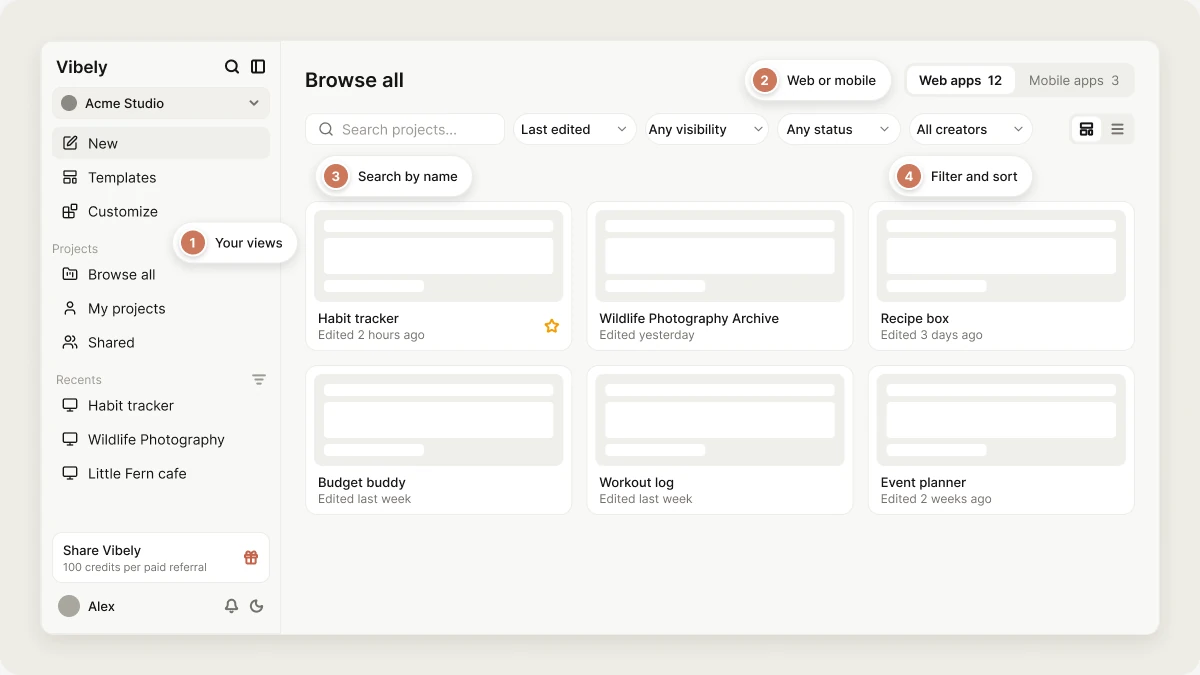
Open **Browse all** in the sidebar to see your projects list. It has four views:
| View | Shows |
| - | - |
| **Browse all** | Every project you can see |
| **My projects** | Projects you created |
| **Shared** | Projects you reach through a workspace you belong to |
| **Favorites** | Projects you starred |
### Web apps and Mobile apps
A switch above the list splits your projects into **Web apps** and **Mobile apps**, with a live count on each side. If you build both, it's the fastest way to get to the right half of your work.
### Search
Type in the **Search projects...** box to filter the list as you type. Search matches a project's name, its tags, and its category. It doesn't search inside your code.
### Filter and sort
Four dropdowns sit next to the search box:
* **Sort**: **Last edited** (the default), **Name A-Z**, **Name Z-A**, or **Newest first**.
* **Visibility**: **Any visibility** (the default), **Public**, or **Private**.
* **Status**: **Any status** (the default), **Active**, or **Archived**.
* **Creator**: **All creators** (the default) or **Me**.
### Switch display mode
Use the buttons at the end of the toolbar to switch between **Grid view**, with a thumbnail for each project, and **List view**, a compact list grouped by when you last worked on each project.
The view you're on and the **Web apps** or **Mobile apps** switch are saved in the page address, so a link you share opens the same view. Your search text, sort order, and filters reset when you reload the page.
## Star your favorite projects
Open a project card's **⋯** menu and choose **Star**. Starred projects appear under **Favorites** and sort to the front of your home screen. Choose **Remove star** in the same menu to unstar a project.
Vibely doesn't have project folders. Stars, pins, the **Web apps** and **Mobile apps** switch, and search are the ways to organize and find your projects.
## FAQ
Check the **Shared** view, and make sure you're in the right workspace. If the project's access is **Restricted**, you only see it after its owner invites you. See [Collaboration](/features/collaboration/overview).
Pins are saved in your browser, so they don't follow you to another browser or device, and clearing your browser data removes them. Use **Star** instead for favorites that follow your account.
Not from the projects list. Open the project, switch to the **Code** view, and use **Search files** to find a file by name. See [View your project's code](/features/projects/code-editor).
## Related topics
A tour of the home screen and sidebar.
Create, organize, and manage projects.
Where every tool in a project lives.
Invite people to a project.
## Related topics
- [Find your way around the editor](/features/projects/editor.md)
- [Projects in Vibely](/features/projects/overview.md)
- [FAQ](/faq.md)
- [Project settings](/features/projects/settings.md)
- [Project comments](/features/collaboration/comments.md)
This documentation is built and hosted on [Mintlify](https://mintlify.com), a developer documentation platform.
## Command palette
Press **Cmd+K** (Mac) or **Ctrl+K** (Windows/Linux) to open the command palette, or click **Search** in the sidebar. It works on the dashboard and inside the [editor](/features/projects/editor).
### Searching
Before you type anything, the command palette shows your recent projects, grouped by when you last opened them: **Today**, **Yesterday**, and **Older**. Start typing to filter by project name.
Use the arrow keys to move through the list, **Enter** to open the highlighted row, and **Esc** to close the palette. Clicking a row opens it too.
### Quick navigation
Below your projects, the palette also lets you jump to:
| Group | Commands |
| - | - |
| **Navigate to** | **Dashboard**, **Create new Web App project**, **Create new Mobile App project**, **Documentation** |
| **Settings** | **Workspace**, **Your account** |
Type part of a command's name, such as `mobile` or `account`, to filter to it.
## The sidebar
The sidebar keeps the projects you use most one click away:
* **Pinned**: Projects you pinned. Hover a project under **Recents**, click its **⋯** button, and choose **Pin**. Pins are saved in this browser.
* **Recents**: The projects you opened last. The same **⋯** menu has **Open in new tab**, **Copy link**, **Rename**, and **Delete**.
* **Projects**: Shortcuts to the four views of your projects list: **Browse all**, **Favorites**, **My projects**, and **Shared**.
## Project list
Open **Browse all** in the sidebar to see your projects list. It has four views:
| View | Shows |
| - | - |
| **Browse all** | Every project you can see |
| **My projects** | Projects you created |
| **Shared** | Projects you reach through a workspace you belong to |
| **Favorites** | Projects you starred |
### Web apps and Mobile apps
A switch above the list splits your projects into **Web apps** and **Mobile apps**, with a live count on each side. If you build both, it's the fastest way to get to the right half of your work.
### Search
Type in the **Search projects...** box to filter the list as you type. Search matches a project's name, its tags, and its category. It doesn't search inside your code.
### Filter and sort
Four dropdowns sit next to the search box:
* **Sort**: **Last edited** (the default), **Name A-Z**, **Name Z-A**, or **Newest first**.
* **Visibility**: **Any visibility** (the default), **Public**, or **Private**.
* **Status**: **Any status** (the default), **Active**, or **Archived**.
* **Creator**: **All creators** (the default) or **Me**.
### Switch display mode
Use the buttons at the end of the toolbar to switch between **Grid view**, with a thumbnail for each project, and **List view**, a compact list grouped by when you last worked on each project.
The view you're on and the **Web apps** or **Mobile apps** switch are saved in the page address, so a link you share opens the same view. Your search text, sort order, and filters reset when you reload the page.
## Star your favorite projects
Open a project card's **⋯** menu and choose **Star**. Starred projects appear under **Favorites** and sort to the front of your home screen. Choose **Remove star** in the same menu to unstar a project.
Vibely doesn't have project folders. Stars, pins, the **Web apps** and **Mobile apps** switch, and search are the ways to organize and find your projects.
## FAQ
Check the **Shared** view, and make sure you're in the right workspace. If the project's access is **Restricted**, you only see it after its owner invites you. See [Collaboration](/features/collaboration/overview).
Pins are saved in your browser, so they don't follow you to another browser or device, and clearing your browser data removes them. Use **Star** instead for favorites that follow your account.
Not from the projects list. Open the project, switch to the **Code** view, and use **Search files** to find a file by name. See [View your project's code](/features/projects/code-editor).
## Related topics
A tour of the home screen and sidebar.
Create, organize, and manage projects.
Where every tool in a project lives.
Invite people to a project.
## Related topics
- [Find your way around the editor](/features/projects/editor.md)
- [Projects in Vibely](/features/projects/overview.md)
- [FAQ](/faq.md)
- [Project settings](/features/projects/settings.md)
- [Project comments](/features/collaboration/comments.md)
This documentation is built and hosted on [Mintlify](https://mintlify.com), a developer documentation platform.