> ## Documentation Index
> Fetch the complete documentation index at: https://docs.vibely.sh/llms.txt
> Use this file to discover all available pages before exploring further.
# Preview and test your app
> Use the live preview to watch changes land, click through your app, check it at different screen sizes, and edit it directly with the preview toolbar.
The **preview** is the live, interactive version of your app on the right side of the editor. It updates as Vibely builds, so you can watch changes appear, click through your app, and test it the way your users will.
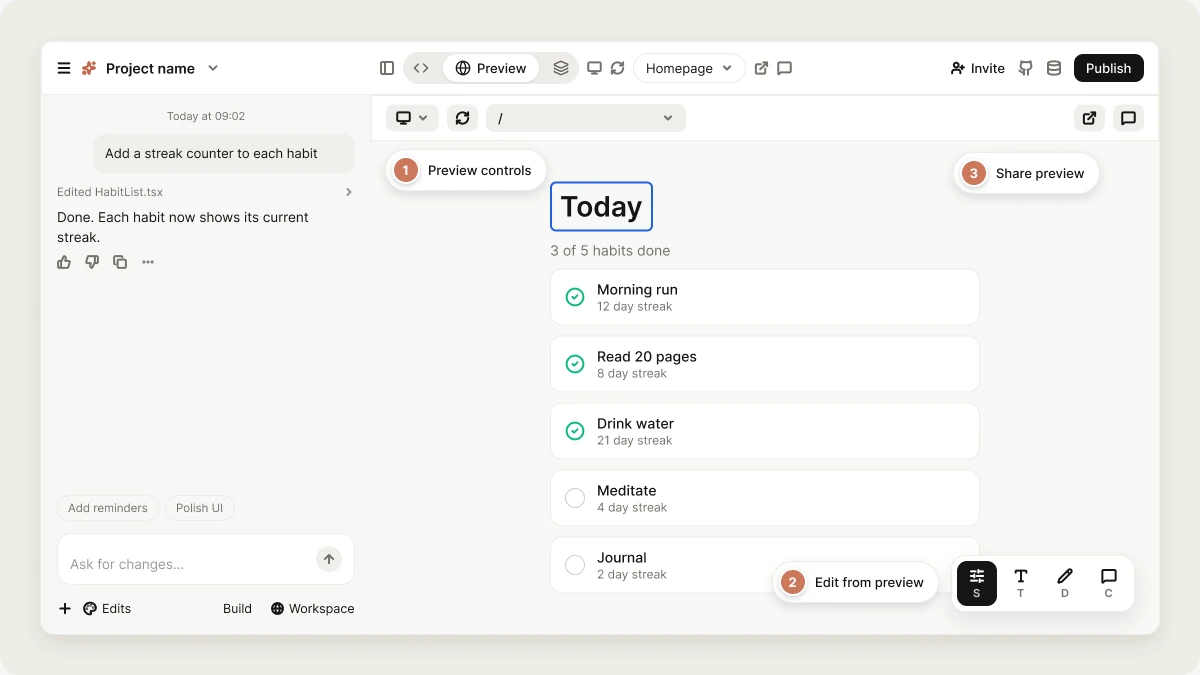 Think of the preview as your app's staging environment: it always runs your latest work, in a private cloud environment Vibely starts for your project. Your visitors see the published version instead, which only changes when you [publish](/features/deploy/publish). Keep in mind that the preview and your published app use the same backend, so changes to your database affect both.
## Why the preview matters
The preview is where you check Vibely's work. Instead of guessing whether a change landed correctly, you click around your app, try the flow you asked for, and give feedback right away. Testing in the preview before you publish keeps unfinished work off your live site.
## Common ways to use the preview
* **Check each change as it lands**: After you send a request, watch the preview update and confirm the result matches what you asked for. It reloads on its own as Vibely writes files.
* **Test a flow end to end**: Sign up, fill in a form, or complete a checkout in the preview before your users do.
* **Review on different screen sizes**: Use the device toggle to make sure your app works on a phone, not just on your laptop.
* **Collect feedback**: Share a preview link from the **Invite** panel so a friend, client, or teammate can see your progress. See [Share a preview](#share-a-preview).
## Preview controls
The controls sit in the header while the **Preview** view is open:
* **Device toggle**: One button that cycles the preview between desktop, tablet, and mobile widths, so you can check responsive layouts. It resizes the rendered app, not your browser window. Mobile projects don't show it, because they already render in a phone frame.
* **Reload preview**: Reloads the preview and reconnects to your app. Use it when the preview has clearly stopped updating.
* **Page selector**: Shows the page you're viewing. Click it to see your app's pages, type in **Find page or enter path** to filter them, or enter a path to jump there.
* **Open preview in new tab**: Opens your preview in its own browser tab, so you can test it full screen. It's disabled until the preview is ready.
* **Comments**: Turn on **Comment mode** to pin feedback to the preview, or open **All comments**. See [Comments](/features/collaboration/comments).
If the preview looks wrong or won't load, click **Reload preview** first. A hard browser refresh (**Cmd+Shift+R** on Mac, **Ctrl+Shift+R** on Windows/Linux) can help too.
On a phone, the preview takes the full screen and the controls move to a bar at the bottom, with a button to go back to chat, a microphone to dictate your next change, the page selector, **Reload preview**, and **Publish**.
## When the preview starts up
The cloud environment that runs your preview shuts down after a period of inactivity to save resources. When you come back, the preview shows **Setting up your preview…** while Vibely starts a fresh environment and loads your saved files into it. This can take a moment the first time. Your project and your published site are never affected.
## Edit directly from the preview
The preview toolbar floats inside the preview and turns it into an editing surface. Its four modes each change what clicking does, and only one can be on at a time:
| Key | Mode | What it does |
| - | - | - |
| **S** | **Select elements** | Click an element to select it and open a panel with its styles. Change a value and the preview updates immediately. |
| **T** | **Edit text inline** | Click text in the preview and retype it in place. |
| **D** | **Draw annotation** | Sketch on top of your app to show a change that's hard to describe. **Send** attaches the drawing to your next message. |
| **C** | **Add a comment** | Pin feedback to a spot on the page for you or your collaborators. |
The single-key shortcuts are ignored while you're typing in a field. You can drag the toolbar, minimize it, or hide it; your choice is remembered in this browser. If you have an unsent drawing or change, the other modes stay locked until you send or discard it.
A style or text change you make with **Select elements** or **Edit text inline** is written straight into your app's source code when you apply it. No AI turn runs, so **visual edits don't use credits**. Selecting an element without editing it also makes it context for your next message, so "make this narrower" means the thing you clicked. The **Edits** button next to the chat input turns on selection too.
See [Visual edits](/features/design/visual-edits) for the full guide.
## Test your app
Test the important flows yourself in the preview: click every button, submit your forms, and try the paths your users will take.
You can also ask Vibely to check its work. Ask in the project chat:
```text wrap theme={"system"}
Test the sign-up flow and fix anything that's broken.
```
See [Test your app](/features/testing/overview).
## Share a preview
To let someone see your working version without giving them access to the project, open the **Invite** panel in the top right of the editor and choose **Share preview**, then **Create preview link**. Anyone with the link can open your in-progress app. You can copy the link, show it as a QR code to open it on a phone, replace it, or delete it.
See [Sharing](/features/collaboration/sharing) for expiry options and how preview links differ from your published site.
## Preview a mobile project
Mobile projects render inside a phone frame, with a picker for **Simulate on Web**, **Simulate on Android**, and **Simulate on iOS**. The web simulation is available on every plan; the Android and iOS simulations need a paid plan. All four preview toolbar modes work inside the phone frame.
To try your app on a real device, scan the QR code with Expo Go. Some native features, like the camera and push notifications, only work on a real device.
Web preview versus Expo Go, and when to use each.
What works in the simulator and what needs a device.
## FAQ
Click **Reload preview** first, then try a hard browser refresh (**Cmd+Shift+R** on Mac, **Ctrl+Shift+R** on Windows/Linux).
A blank preview usually comes from an error in the app itself. Look for a **Runtime error** or **Build error** card in the chat and click **Try to fix · Free**, or ask Vibely:
```text wrap theme={"system"}
The preview is white, investigate and fix it.
```
No. The preview always shows your latest working version. Your published site only changes when you publish. See [Publish your web app](/features/deploy/publish).
Only people you let in. Collaborators see it in the editor. To show your work to someone outside the project, send them a preview link. See [Sharing](/features/collaboration/sharing).
Click the device toggle until the preview shows the mobile width. You can also click **Open preview in new tab** and resize your browser window, or open a preview link on your phone.
## Troubleshooting
Vibely's latest change didn't build, so the preview keeps showing the last version that did. Click **Try to fix · Free** on the build error card in the chat. While Vibely works on it, the banner reads **fixing the build error…**.
The environment running your preview was stopped, for example after inactivity or a server restart. Click **Retry Preview**. If the message stays, send a new message in the chat and Vibely starts a fresh environment from your saved files.
Vibely lost contact with your preview and is reconnecting on its own. Wait a few seconds. If it doesn't recover, click **Reload preview**.
## Related topics
Change styles and text by clicking the preview.
Pin feedback to your app.
How Vibely checks its work.
What happens when you publish.
## Related topics
- [Edit from the preview](/features/design/visual-edits.md)
- [Find your way around the editor](/features/projects/editor.md)
- [Test and verify your app](/features/testing/overview.md)
- [Add payments to your app](/features/grow/payments.md)
- [Build your first mobile app](/features/mobile-apps/quickstart.md)
This documentation is built and hosted on [Mintlify](https://mintlify.com), a developer documentation platform.
Think of the preview as your app's staging environment: it always runs your latest work, in a private cloud environment Vibely starts for your project. Your visitors see the published version instead, which only changes when you [publish](/features/deploy/publish). Keep in mind that the preview and your published app use the same backend, so changes to your database affect both.
## Why the preview matters
The preview is where you check Vibely's work. Instead of guessing whether a change landed correctly, you click around your app, try the flow you asked for, and give feedback right away. Testing in the preview before you publish keeps unfinished work off your live site.
## Common ways to use the preview
* **Check each change as it lands**: After you send a request, watch the preview update and confirm the result matches what you asked for. It reloads on its own as Vibely writes files.
* **Test a flow end to end**: Sign up, fill in a form, or complete a checkout in the preview before your users do.
* **Review on different screen sizes**: Use the device toggle to make sure your app works on a phone, not just on your laptop.
* **Collect feedback**: Share a preview link from the **Invite** panel so a friend, client, or teammate can see your progress. See [Share a preview](#share-a-preview).
## Preview controls
The controls sit in the header while the **Preview** view is open:
* **Device toggle**: One button that cycles the preview between desktop, tablet, and mobile widths, so you can check responsive layouts. It resizes the rendered app, not your browser window. Mobile projects don't show it, because they already render in a phone frame.
* **Reload preview**: Reloads the preview and reconnects to your app. Use it when the preview has clearly stopped updating.
* **Page selector**: Shows the page you're viewing. Click it to see your app's pages, type in **Find page or enter path** to filter them, or enter a path to jump there.
* **Open preview in new tab**: Opens your preview in its own browser tab, so you can test it full screen. It's disabled until the preview is ready.
* **Comments**: Turn on **Comment mode** to pin feedback to the preview, or open **All comments**. See [Comments](/features/collaboration/comments).
If the preview looks wrong or won't load, click **Reload preview** first. A hard browser refresh (**Cmd+Shift+R** on Mac, **Ctrl+Shift+R** on Windows/Linux) can help too.
On a phone, the preview takes the full screen and the controls move to a bar at the bottom, with a button to go back to chat, a microphone to dictate your next change, the page selector, **Reload preview**, and **Publish**.
## When the preview starts up
The cloud environment that runs your preview shuts down after a period of inactivity to save resources. When you come back, the preview shows **Setting up your preview…** while Vibely starts a fresh environment and loads your saved files into it. This can take a moment the first time. Your project and your published site are never affected.
## Edit directly from the preview
The preview toolbar floats inside the preview and turns it into an editing surface. Its four modes each change what clicking does, and only one can be on at a time:
| Key | Mode | What it does |
| - | - | - |
| **S** | **Select elements** | Click an element to select it and open a panel with its styles. Change a value and the preview updates immediately. |
| **T** | **Edit text inline** | Click text in the preview and retype it in place. |
| **D** | **Draw annotation** | Sketch on top of your app to show a change that's hard to describe. **Send** attaches the drawing to your next message. |
| **C** | **Add a comment** | Pin feedback to a spot on the page for you or your collaborators. |
The single-key shortcuts are ignored while you're typing in a field. You can drag the toolbar, minimize it, or hide it; your choice is remembered in this browser. If you have an unsent drawing or change, the other modes stay locked until you send or discard it.
A style or text change you make with **Select elements** or **Edit text inline** is written straight into your app's source code when you apply it. No AI turn runs, so **visual edits don't use credits**. Selecting an element without editing it also makes it context for your next message, so "make this narrower" means the thing you clicked. The **Edits** button next to the chat input turns on selection too.
See [Visual edits](/features/design/visual-edits) for the full guide.
## Test your app
Test the important flows yourself in the preview: click every button, submit your forms, and try the paths your users will take.
You can also ask Vibely to check its work. Ask in the project chat:
```text wrap theme={"system"}
Test the sign-up flow and fix anything that's broken.
```
See [Test your app](/features/testing/overview).
## Share a preview
To let someone see your working version without giving them access to the project, open the **Invite** panel in the top right of the editor and choose **Share preview**, then **Create preview link**. Anyone with the link can open your in-progress app. You can copy the link, show it as a QR code to open it on a phone, replace it, or delete it.
See [Sharing](/features/collaboration/sharing) for expiry options and how preview links differ from your published site.
## Preview a mobile project
Mobile projects render inside a phone frame, with a picker for **Simulate on Web**, **Simulate on Android**, and **Simulate on iOS**. The web simulation is available on every plan; the Android and iOS simulations need a paid plan. All four preview toolbar modes work inside the phone frame.
To try your app on a real device, scan the QR code with Expo Go. Some native features, like the camera and push notifications, only work on a real device.
Web preview versus Expo Go, and when to use each.
What works in the simulator and what needs a device.
## FAQ
Click **Reload preview** first, then try a hard browser refresh (**Cmd+Shift+R** on Mac, **Ctrl+Shift+R** on Windows/Linux).
A blank preview usually comes from an error in the app itself. Look for a **Runtime error** or **Build error** card in the chat and click **Try to fix · Free**, or ask Vibely:
```text wrap theme={"system"}
The preview is white, investigate and fix it.
```
No. The preview always shows your latest working version. Your published site only changes when you publish. See [Publish your web app](/features/deploy/publish).
Only people you let in. Collaborators see it in the editor. To show your work to someone outside the project, send them a preview link. See [Sharing](/features/collaboration/sharing).
Click the device toggle until the preview shows the mobile width. You can also click **Open preview in new tab** and resize your browser window, or open a preview link on your phone.
## Troubleshooting
Vibely's latest change didn't build, so the preview keeps showing the last version that did. Click **Try to fix · Free** on the build error card in the chat. While Vibely works on it, the banner reads **fixing the build error…**.
The environment running your preview was stopped, for example after inactivity or a server restart. Click **Retry Preview**. If the message stays, send a new message in the chat and Vibely starts a fresh environment from your saved files.
Vibely lost contact with your preview and is reconnecting on its own. Wait a few seconds. If it doesn't recover, click **Reload preview**.
## Related topics
Change styles and text by clicking the preview.
Pin feedback to your app.
How Vibely checks its work.
What happens when you publish.
## Related topics
- [Edit from the preview](/features/design/visual-edits.md)
- [Find your way around the editor](/features/projects/editor.md)
- [Test and verify your app](/features/testing/overview.md)
- [Add payments to your app](/features/grow/payments.md)
- [Build your first mobile app](/features/mobile-apps/quickstart.md)
This documentation is built and hosted on [Mintlify](https://mintlify.com), a developer documentation platform.