> ## Documentation Index
> Fetch the complete documentation index at: https://docs.vibely.sh/llms.txt
> Use this file to discover all available pages before exploring further.
# Projects in Vibely
> What a project is in Vibely and how to work with one, from creating and organizing projects to sharing, publishing, and deleting them safely.
A project is one app in Vibely. Every project lives inside a [workspace](/features/workspace/overview) and holds everything that belongs to that app:
* **[Project chat](/features/projects/chat)**: The conversation where you tell Vibely what to build.
* **[Preview](/features/projects/preview)**: The live version of your app that updates as you build.
* **[Code](/features/projects/code-editor)**: Your app's source code, which you can browse and download.
* **[Version history](/features/projects/history)**: A saved version after every change Vibely makes.
* **[Settings](/features/projects/settings)**: The project's name, access, domains, knowledge, Git connection, and more.
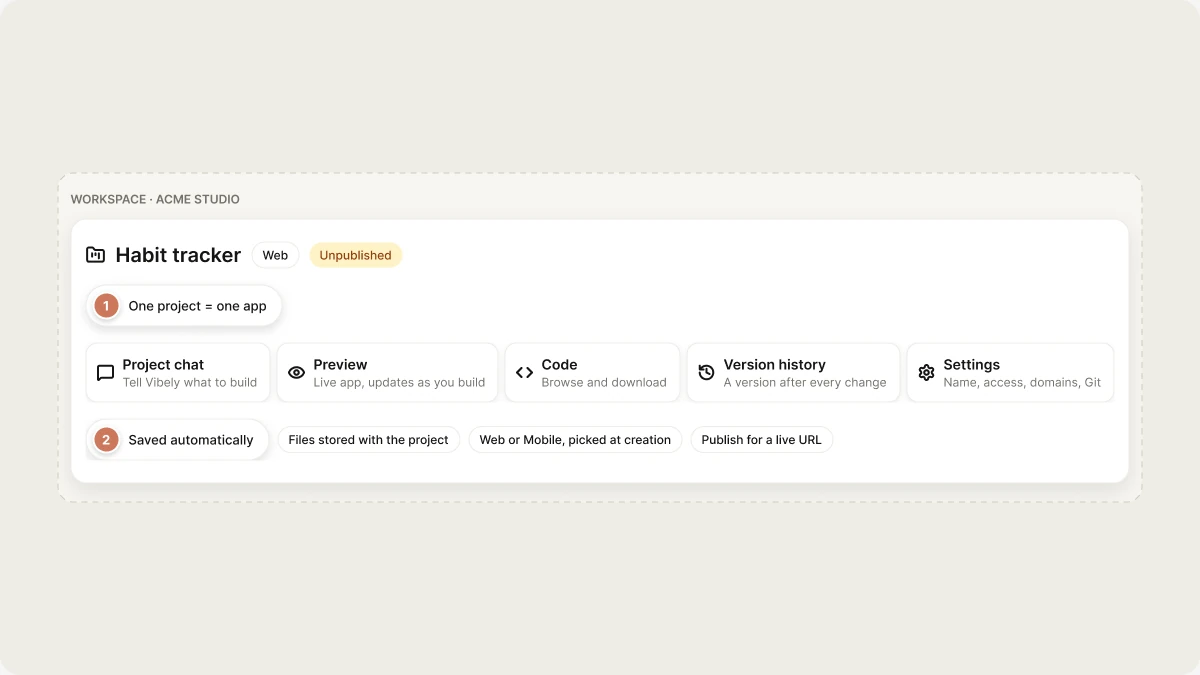 Vibely saves its work automatically. Your files are stored with the project, not in the temporary cloud environment that runs the preview, so nothing is lost when that environment shuts down: the next time you open the project, Vibely rebuilds the preview from your saved files.
Every project is either a **Web** or a **Mobile** project. You pick the mode when you create it, and it decides the starting template, the preview, and how you publish. An existing project stays in the mode it was created in. See [Web apps](/features/web-apps/overview) and [Mobile apps](/features/mobile-apps/overview).
## Ways to create a project
* **From the home screen**: Describe what you want to build in the prompt box on the home screen, choose **Web** or **Mobile**, and send it. You can attach files or screenshots to your first message. See [Quick start](/introduction/quickstart).
* **From a template**: Start from a working app in **Templates** in the sidebar and prompt from there. See [Templates](/features/design/workspace-templates).
* **By remixing**: Create your own independent copy of an existing project, either one you can already open or one whose owner turned on public remixing. See [Remix a project](/features/projects/remix).
* **With a build link**: Open a link that carries a prompt and Vibely starts a project from it. See [Build from a URL](/features/design/build-from-url).
* **From your AI tools**: Create and edit projects from Claude, ChatGPT, Cursor, and other assistants through the [Vibely MCP server](/integrations/vibely-mcp-server).
## Unpublished and published states
A new project is unpublished: only you and the people who can open the project see it, in the editor or through a [preview link](/features/collaboration/sharing). When you're ready, **Publish** deploys your app to a live URL. Changes you make after publishing stay in the preview until you publish again, so visitors never see half-finished work. See [Publish your web app](/features/deploy/publish), or [Ship to the stores](/features/mobile-apps/ship) for mobile projects.
### Your project URL
A published web project gets a `vibelyagent.com` address. The **URL subdomain** row in [project settings](/features/projects/settings) shows it, or reads **Not published** until the first deployment goes out. On paid plans you can also connect a [custom domain](/features/deploy/custom-domain) after you publish.
## Who can work in a project
Access to a project comes from two places:
* **Workspace membership**: Workspace members can open projects in the workspace according to their workspace role and the project's access setting. See [People](/features/workspace/people).
* **Project collaborators**: People you invite to one project from the **Invite** button in the editor, independent of workspace membership.
| Collaborator role | What they can do | Availability |
| - | - | - |
| **Admin** | Full access to the project | Paid plans |
| **Can edit** | Edit the project and its settings | All plans (the default) |
| **Can view** | View the project but not change it | Paid plans |
The **Project access** setting decides who in the workspace can open the project: **Workspace** (every member) or **Restricted** (only you and people you invite). Restricted requires a Business plan. Who can load the *published* site is a separate setting. See [Collaboration](/features/collaboration/overview) and [Sharing](/features/collaboration/sharing).
A project is billed to the workspace that owns it. When a collaborator builds in your project, the credits come from your workspace, and you can see each person's spend under **Usage by member** in [project settings](/features/projects/settings).
## Organize and manage projects
You manage a project from the project card's **⋯** menu on the [dashboard](/introduction/dashboard), from the project's **⋯** menu under **Recents** in the sidebar, or from [project settings](/features/projects/settings).
* **Rename**: From the project card's **⋯** menu, the sidebar's **⋯** menu, or **Manage → Settings → General → Rename project**. Renaming also updates the project's URL slug.
* **Star**: From the project card's **⋯** menu. Starred projects appear under **Favorites** and sort to the front of your home screen.
* **Pin**: From the project's **⋯** menu under **Recents** in the sidebar, to keep it at the top of the sidebar in this browser.
* **Remix**: From the project card's **⋯** menu. See [Remix a project](/features/projects/remix).
* **Delete**: From the project card's **⋯** menu, the sidebar's **⋯** menu, or **Project settings → Danger Zone → Delete**.
Vibely has no project folders. To find a project, use search, the dashboard filters, stars, and pins. See [Find and search projects](/features/projects/projects-and-folders).
Deleting a project is permanent. Its files, preview environment, and deployment history are removed, and there is no trash or restore. If you might need the project later, [download the code](/features/projects/code-editor#download-your-projects-codebase) or [remix it](/features/projects/remix) first.
## FAQ
Yes. Every change Vibely makes is saved to your project as it happens, and each turn that changes files also saves a version you can restore. There is no save button. See [Version history](/features/projects/history).
No. The mode is chosen when you create the project. To build the other kind of app, start a new project and pick the other mode on the home screen.
Not directly. To get a copy into a workspace you belong to, [remix the project](/features/projects/remix). The copy is independent of the original.
No. Deleting a project is permanent. Remix it or download its code before deleting it if you want to keep a copy.
That depends on the project's access setting and who you have invited. Manage both from the **Invite** button in the editor. See [Collaboration](/features/collaboration/overview) and [Sharing](/features/collaboration/sharing).
## Related topics
Where every tool in a project lives.
Name, access, remixing, and the danger zone.
Make your own independent copy.
Put your app on a live URL.
## Related topics
- [Project settings](/features/projects/settings.md)
- [Work with Vibely in the project chat](/features/projects/chat.md)
- [Publish your Vibely project](/features/deploy/publish.md)
- [Remix a project](/features/projects/remix.md)
- [Define workspace and project knowledge](/features/context/knowledge.md)
This documentation is built and hosted on [Mintlify](https://mintlify.com), a developer documentation platform.
Vibely saves its work automatically. Your files are stored with the project, not in the temporary cloud environment that runs the preview, so nothing is lost when that environment shuts down: the next time you open the project, Vibely rebuilds the preview from your saved files.
Every project is either a **Web** or a **Mobile** project. You pick the mode when you create it, and it decides the starting template, the preview, and how you publish. An existing project stays in the mode it was created in. See [Web apps](/features/web-apps/overview) and [Mobile apps](/features/mobile-apps/overview).
## Ways to create a project
* **From the home screen**: Describe what you want to build in the prompt box on the home screen, choose **Web** or **Mobile**, and send it. You can attach files or screenshots to your first message. See [Quick start](/introduction/quickstart).
* **From a template**: Start from a working app in **Templates** in the sidebar and prompt from there. See [Templates](/features/design/workspace-templates).
* **By remixing**: Create your own independent copy of an existing project, either one you can already open or one whose owner turned on public remixing. See [Remix a project](/features/projects/remix).
* **With a build link**: Open a link that carries a prompt and Vibely starts a project from it. See [Build from a URL](/features/design/build-from-url).
* **From your AI tools**: Create and edit projects from Claude, ChatGPT, Cursor, and other assistants through the [Vibely MCP server](/integrations/vibely-mcp-server).
## Unpublished and published states
A new project is unpublished: only you and the people who can open the project see it, in the editor or through a [preview link](/features/collaboration/sharing). When you're ready, **Publish** deploys your app to a live URL. Changes you make after publishing stay in the preview until you publish again, so visitors never see half-finished work. See [Publish your web app](/features/deploy/publish), or [Ship to the stores](/features/mobile-apps/ship) for mobile projects.
### Your project URL
A published web project gets a `vibelyagent.com` address. The **URL subdomain** row in [project settings](/features/projects/settings) shows it, or reads **Not published** until the first deployment goes out. On paid plans you can also connect a [custom domain](/features/deploy/custom-domain) after you publish.
## Who can work in a project
Access to a project comes from two places:
* **Workspace membership**: Workspace members can open projects in the workspace according to their workspace role and the project's access setting. See [People](/features/workspace/people).
* **Project collaborators**: People you invite to one project from the **Invite** button in the editor, independent of workspace membership.
| Collaborator role | What they can do | Availability |
| - | - | - |
| **Admin** | Full access to the project | Paid plans |
| **Can edit** | Edit the project and its settings | All plans (the default) |
| **Can view** | View the project but not change it | Paid plans |
The **Project access** setting decides who in the workspace can open the project: **Workspace** (every member) or **Restricted** (only you and people you invite). Restricted requires a Business plan. Who can load the *published* site is a separate setting. See [Collaboration](/features/collaboration/overview) and [Sharing](/features/collaboration/sharing).
A project is billed to the workspace that owns it. When a collaborator builds in your project, the credits come from your workspace, and you can see each person's spend under **Usage by member** in [project settings](/features/projects/settings).
## Organize and manage projects
You manage a project from the project card's **⋯** menu on the [dashboard](/introduction/dashboard), from the project's **⋯** menu under **Recents** in the sidebar, or from [project settings](/features/projects/settings).
* **Rename**: From the project card's **⋯** menu, the sidebar's **⋯** menu, or **Manage → Settings → General → Rename project**. Renaming also updates the project's URL slug.
* **Star**: From the project card's **⋯** menu. Starred projects appear under **Favorites** and sort to the front of your home screen.
* **Pin**: From the project's **⋯** menu under **Recents** in the sidebar, to keep it at the top of the sidebar in this browser.
* **Remix**: From the project card's **⋯** menu. See [Remix a project](/features/projects/remix).
* **Delete**: From the project card's **⋯** menu, the sidebar's **⋯** menu, or **Project settings → Danger Zone → Delete**.
Vibely has no project folders. To find a project, use search, the dashboard filters, stars, and pins. See [Find and search projects](/features/projects/projects-and-folders).
Deleting a project is permanent. Its files, preview environment, and deployment history are removed, and there is no trash or restore. If you might need the project later, [download the code](/features/projects/code-editor#download-your-projects-codebase) or [remix it](/features/projects/remix) first.
## FAQ
Yes. Every change Vibely makes is saved to your project as it happens, and each turn that changes files also saves a version you can restore. There is no save button. See [Version history](/features/projects/history).
No. The mode is chosen when you create the project. To build the other kind of app, start a new project and pick the other mode on the home screen.
Not directly. To get a copy into a workspace you belong to, [remix the project](/features/projects/remix). The copy is independent of the original.
No. Deleting a project is permanent. Remix it or download its code before deleting it if you want to keep a copy.
That depends on the project's access setting and who you have invited. Manage both from the **Invite** button in the editor. See [Collaboration](/features/collaboration/overview) and [Sharing](/features/collaboration/sharing).
## Related topics
Where every tool in a project lives.
Name, access, remixing, and the danger zone.
Make your own independent copy.
Put your app on a live URL.
## Related topics
- [Project settings](/features/projects/settings.md)
- [Work with Vibely in the project chat](/features/projects/chat.md)
- [Publish your Vibely project](/features/deploy/publish.md)
- [Remix a project](/features/projects/remix.md)
- [Define workspace and project knowledge](/features/context/knowledge.md)
This documentation is built and hosted on [Mintlify](https://mintlify.com), a developer documentation platform.