> ## Documentation Index
> Fetch the complete documentation index at: https://docs.vibely.sh/llms.txt
> Use this file to discover all available pages before exploring further.
# Undo and restore with version history
> How Vibely saves a version after every change, and how to roll your project back from an error card, by editing a message, or from Version history.
Every change Vibely makes to your project saves a version automatically. There is no save button: when a message finishes and has changed files, Vibely keeps a full copy of your project as it was at that moment, so you can go back to it later. Edits you save yourself in the [Code view](/features/projects/code-editor#edit-a-file) are kept as versions too, labelled **Manual edit**.
 ## Why version history matters
Version history is your safety net. If a change breaks something or takes the app in the wrong direction, you can roll back to an earlier state, or go back to an earlier message and try a different instruction.
## Ways to go back
Vibely gives you three ways to restore an earlier version, depending on what went wrong:
| When | Use | Where |
| - | - | - |
| Your app started throwing errors | **Restore last version** | The **Runtime error** card in the chat |
| A message sent things the wrong way | **Edit and try again** | Hover your own message in the chat |
| You want to pick a specific saved version | **Version history** | The **History** button in the editor header, or **⋯** next to the chat input on a phone |
### Restore after an error
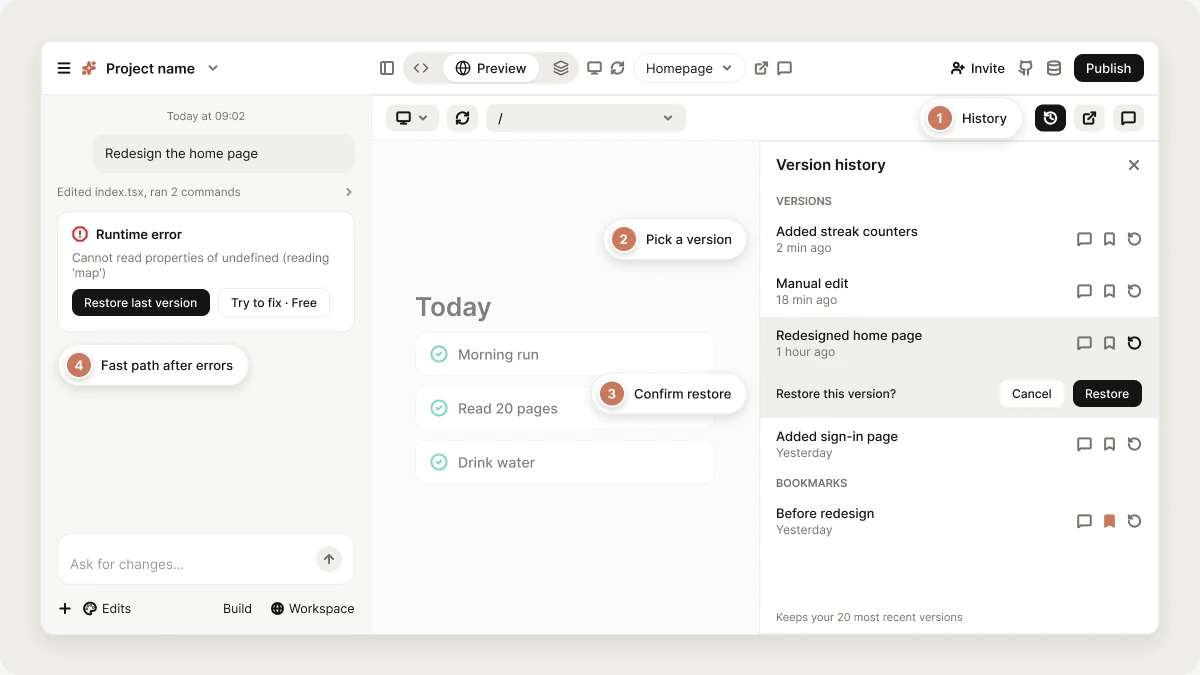
When your running app throws errors, a **Runtime error** card appears in the chat with **Restore last version** next to **Try to fix · Free**. **Restore last version** picks the newest version from *before* the errors started, not simply the previous one, restores it, and reloads the preview.
This is the fast path for "the last change broke my app".
### Go back and try something different
To return to an earlier point and take a different direction, edit a past message:
Hover over one of your own messages and click **Edit and try again**.
Change the text to what you want Vibely to do instead.
Click **Revert and resend**. Your project's files go back to how they were before that message, that message and everything after it leave the conversation, and Vibely runs your new version.
You can only edit your own messages. A collaborator's messages can't be edited, because rewinding would remove their work from the shared history.
### Pick a version from Version history
In the editor header, click the **History** button (the clock icon). It sits with the preview controls while the **Preview** view is open. On a phone, tap **⋯** next to the chat input and choose **History**.
The list shows your saved versions, newest first, each with what changed and when. When a version came from a chat message, click its message icon to jump to that message.
Click the restore icon on the version, then **Restore** to confirm. Your project goes back to that version and the preview reloads.
Vibely keeps your 20 most recent versions. To keep a version for good, for example a known-good state before a big change, click its bookmark icon. Bookmarked versions are never cleared out and are listed under **Bookmarks**; you can bookmark up to 20.
## What a restore does
A restore puts your project's files back exactly as they were in that version. Files that didn't exist yet are removed, and the preview refreshes to show the restored app. When you restore with **Restore last version** or **Edit and try again** and your project uses Supabase Edge Functions, Vibely also redeploys any functions whose code changed, so your app's backend code matches the restored version.
**A restore rolls back your code, not your data.** Rows written to your database after that version stay written, tables created after it stay created, and migrations that already ran stay applied. Restoring code from before a database change can leave your app expecting the old structure, so fix database mistakes forward with a new prompt instead.
Your chat is not affected by **Restore last version** or Version history: the conversation continues from where you are. **Edit and try again** is the one path that also trims the conversation.
### When restore is unavailable
**Restore last version**, **Edit and try again**, and restoring from Version history don't run while Vibely is working. [Stop the run](/features/projects/chat#stop-mid-task) first, then try again.
Before a big change like a redesign or a data model rework, [remix the project](/features/projects/remix) or [download the code](/features/projects/code-editor#download-your-projects-codebase). If the change goes sideways, you have a known-good copy to return to.
## FAQ
No. A restore brings back the whole project as it was. To undo one specific part, ask Vibely in the project chat:
```text wrap theme={"system"}
Bring back the pricing section from before the redesign.
```
No. Credits pay for the work Vibely performed, so messages you later roll back still count. See [Credits](/features/account/credits).
Nothing. Restoring only changes your project's code, so your data stays as it is, and restoring can't undo data changes made after that version.
No. Your published site only changes when you publish. After a restore, publish again if you want visitors to see the restored version. See [Publish your web app](/features/deploy/publish).
Yes. [Remix the project](/features/projects/remix) to make an independent copy, or [download the code](/features/projects/code-editor#download-your-projects-codebase).
## Related topics
Error cards, editing messages, and stopping a run.
Get unstuck when a fix doesn't land.
Keep an independent copy.
Every change as a commit in your repository.
## Related topics
- [FAQ](/faq.md)
- [Work with Vibely in the project chat](/features/projects/chat.md)
- [Implement changes in Build mode](/features/agent/build-mode.md)
- [Add a backend with Supabase](/integrations/supabase.md)
- [Find your way around the editor](/features/projects/editor.md)
This documentation is built and hosted on [Mintlify](https://mintlify.com), a developer documentation platform.
## Why version history matters
Version history is your safety net. If a change breaks something or takes the app in the wrong direction, you can roll back to an earlier state, or go back to an earlier message and try a different instruction.
## Ways to go back
Vibely gives you three ways to restore an earlier version, depending on what went wrong:
| When | Use | Where |
| - | - | - |
| Your app started throwing errors | **Restore last version** | The **Runtime error** card in the chat |
| A message sent things the wrong way | **Edit and try again** | Hover your own message in the chat |
| You want to pick a specific saved version | **Version history** | The **History** button in the editor header, or **⋯** next to the chat input on a phone |
### Restore after an error
When your running app throws errors, a **Runtime error** card appears in the chat with **Restore last version** next to **Try to fix · Free**. **Restore last version** picks the newest version from *before* the errors started, not simply the previous one, restores it, and reloads the preview.
This is the fast path for "the last change broke my app".
### Go back and try something different
To return to an earlier point and take a different direction, edit a past message:
Hover over one of your own messages and click **Edit and try again**.
Change the text to what you want Vibely to do instead.
Click **Revert and resend**. Your project's files go back to how they were before that message, that message and everything after it leave the conversation, and Vibely runs your new version.
You can only edit your own messages. A collaborator's messages can't be edited, because rewinding would remove their work from the shared history.
### Pick a version from Version history
In the editor header, click the **History** button (the clock icon). It sits with the preview controls while the **Preview** view is open. On a phone, tap **⋯** next to the chat input and choose **History**.
The list shows your saved versions, newest first, each with what changed and when. When a version came from a chat message, click its message icon to jump to that message.
Click the restore icon on the version, then **Restore** to confirm. Your project goes back to that version and the preview reloads.
Vibely keeps your 20 most recent versions. To keep a version for good, for example a known-good state before a big change, click its bookmark icon. Bookmarked versions are never cleared out and are listed under **Bookmarks**; you can bookmark up to 20.
## What a restore does
A restore puts your project's files back exactly as they were in that version. Files that didn't exist yet are removed, and the preview refreshes to show the restored app. When you restore with **Restore last version** or **Edit and try again** and your project uses Supabase Edge Functions, Vibely also redeploys any functions whose code changed, so your app's backend code matches the restored version.
**A restore rolls back your code, not your data.** Rows written to your database after that version stay written, tables created after it stay created, and migrations that already ran stay applied. Restoring code from before a database change can leave your app expecting the old structure, so fix database mistakes forward with a new prompt instead.
Your chat is not affected by **Restore last version** or Version history: the conversation continues from where you are. **Edit and try again** is the one path that also trims the conversation.
### When restore is unavailable
**Restore last version**, **Edit and try again**, and restoring from Version history don't run while Vibely is working. [Stop the run](/features/projects/chat#stop-mid-task) first, then try again.
Before a big change like a redesign or a data model rework, [remix the project](/features/projects/remix) or [download the code](/features/projects/code-editor#download-your-projects-codebase). If the change goes sideways, you have a known-good copy to return to.
## FAQ
No. A restore brings back the whole project as it was. To undo one specific part, ask Vibely in the project chat:
```text wrap theme={"system"}
Bring back the pricing section from before the redesign.
```
No. Credits pay for the work Vibely performed, so messages you later roll back still count. See [Credits](/features/account/credits).
Nothing. Restoring only changes your project's code, so your data stays as it is, and restoring can't undo data changes made after that version.
No. Your published site only changes when you publish. After a restore, publish again if you want visitors to see the restored version. See [Publish your web app](/features/deploy/publish).
Yes. [Remix the project](/features/projects/remix) to make an independent copy, or [download the code](/features/projects/code-editor#download-your-projects-codebase).
## Related topics
Error cards, editing messages, and stopping a run.
Get unstuck when a fix doesn't land.
Keep an independent copy.
Every change as a commit in your repository.
## Related topics
- [FAQ](/faq.md)
- [Work with Vibely in the project chat](/features/projects/chat.md)
- [Implement changes in Build mode](/features/agent/build-mode.md)
- [Add a backend with Supabase](/integrations/supabase.md)
- [Find your way around the editor](/features/projects/editor.md)
This documentation is built and hosted on [Mintlify](https://mintlify.com), a developer documentation platform.