> ## Documentation Index
> Fetch the complete documentation index at: https://docs.vibely.sh/llms.txt
> Use this file to discover all available pages before exploring further.
# View and edit your project's code
> Browse the real code Vibely writes for your app, watch files change as Vibely works, edit and delete files yourself, point Vibely at exact files, and download your whole codebase.
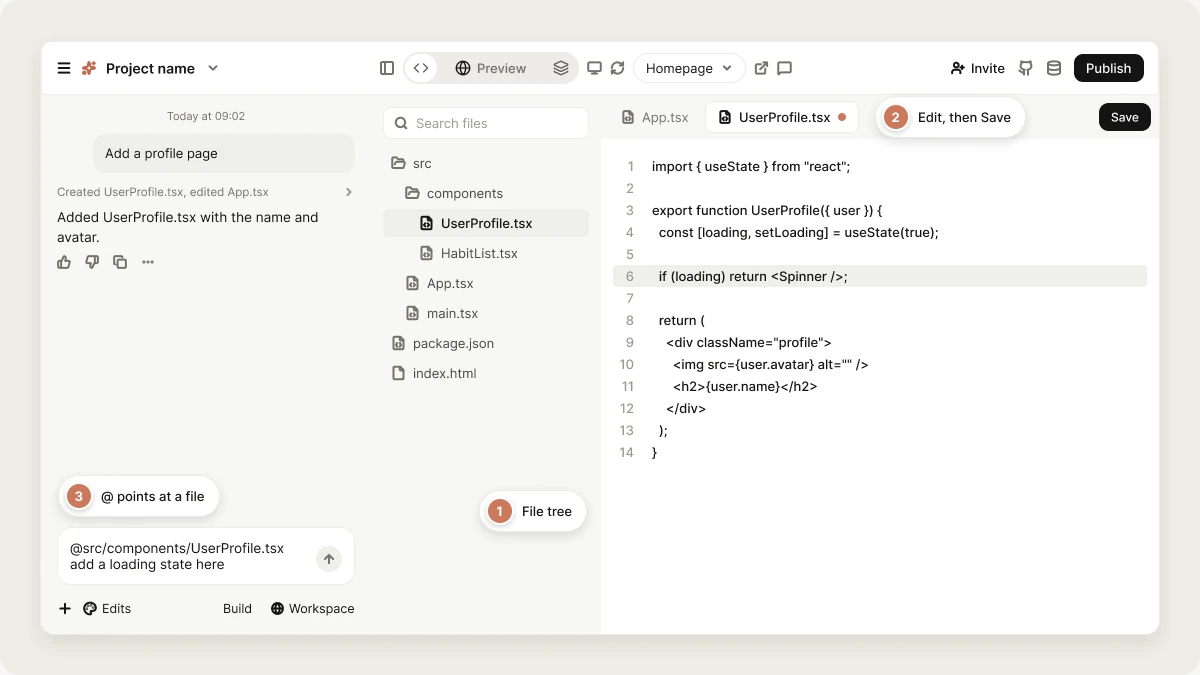
Everything Vibely builds is real, standard code: React and TypeScript for web apps, Expo and React Native for mobile apps. The **Code** view is where you see it. Open it with **Code** in the editor's [view switcher](/features/projects/editor#view-switcher) to browse your project's files, follow Vibely's edits as they happen, make small changes by hand, and download your code.
 You never need the Code view to build with Vibely. It's there for when you want to see exactly what Vibely built, understand how something works, tweak a line yourself, or hand the code to a developer.
The Code view is available on paid plans. On the Free plan, **Code** shows an upgrade card instead. [Downloading your codebase](#download-your-projects-codebase) and [GitHub sync](/integrations/github) work on every plan.
## Browse your files
The left panel shows your project's file tree. Click a folder to expand or collapse it, and use the **Search files** box at the top to find a file by name. Files you open appear as tabs above the code, so you can keep several open and switch between them.
The code opens in a full code editor with syntax highlighting, line numbers, and bracket colors. Images open as a preview, and SVG files have a switch between the rendered image and its source.
## Watch Vibely write code
While Vibely works, the Code view updates live:
* A file Vibely is writing shows a **writing** label in the tree, and its tab shows a sparkle icon.
* The open file scrolls along as new code arrives.
* The editor is read-only while Vibely is working, so nothing you type can collide with its edits.
This is a good way to learn how your app is put together, or to spot early that Vibely is heading in the wrong direction. If it is, [stop it](/features/projects/chat#stop-mid-task) and send a clearer message.
## Change code
You have three ways to change your app's code:
* **Ask Vibely**: Describe the change in the project chat. This is the best option for anything beyond a small tweak. Every change Vibely makes is saved as a version you can roll back. See [Version history](/features/projects/history).
* **Edit in the Code view**: Change a file directly, as described below.
* **Edit in your own tools**: Connect the project to GitHub. Changes Vibely makes are committed to your repository, and commits you push are pulled back into Vibely. Once the project is connected, the **GitHub** button in the header also offers **Edit in VS Code**, which opens the repository in VS Code for the web. See [GitHub](/integrations/github).
### Edit a file
Click the file in the tree. It opens in the editor.
Type as you would in any code editor. A dot appears on the file's tab to show it has unsaved changes.
Press **Cmd+S** (Mac) or **Ctrl+S** (Windows/Linux), or click **Save** at the right of the tab bar. The dot clears once the file is saved.
Saving writes the file to your project and to the running preview, so the preview updates with your change. Saved edits are kept when you reload or come back later, and appear in [Version history](/features/projects/history) as **Manual edit** versions you can restore. If a save fails, the error appears next to **Save** and the file keeps its unsaved dot, so your change isn't lost. Save again to retry.
Editing a file by hand doesn't use credits.
### Delete a file
Select the file in the tree, then click the trash icon next to its name and confirm. The file is removed from your project and from the preview. To bring it back, restore an earlier version from [Version history](/features/projects/history).
You can't edit or delete files while Vibely is working. Wait for it to finish, or [stop it](/features/projects/chat#stop-mid-task). Project viewers can read the code but can't edit or delete files.
## Reference code in the project chat
Pointing at the exact file is often faster than describing it. Type `@` in the chat input and start typing a file name, then pick the file from the list:
```text wrap theme={"system"}
@src/components/UserProfile.tsx add a loading state here
```
Vibely gets the precise file as context and doesn't have to search for what you mean. The same `@` list also finds other projects in your workspace. See [Cross-project referencing](/features/context/cross-project-referencing).
## Download your project's codebase
You can download your project's full source code at any time, on any plan:
In the editor, open **Manage → Settings → Git**.
Under **Download codebase**, click **Download**. Vibely saves the project as a `.zip` file.
You need edit access to the project. The download leaves out secrets like `.env` files and build output.
Workspace admins can turn code downloads off for the whole workspace in **Privacy & security**, in which case the download is refused with a message saying so. See [Privacy & security](/features/workspace/privacy-security).
For ongoing work outside Vibely, connect a repository with [GitHub sync](/integrations/github) instead of downloading snapshots. Sync keeps the repository and your project in step both ways.
## On a phone
On a phone, tap **⋯** next to the chat input and choose **Code** to browse your files and read any of them. Downloads and GitHub sync are in **Project settings → Git**.
## FAQ
No. Vibely writes and manages the code for you, and most people never open the Code view. It's optional, for inspection and for working with developers.
Anyone who can open the project in the editor, on a workspace with a paid plan. On the Free plan the view shows an upgrade card. Anyone with edit access can edit and delete files; viewers can only read them.
Vibely works from your saved files, so it sees your edits and builds on them. Save before you send your next message; unsaved changes stay only in your browser tab.
No. Credits are only used when Vibely does work for you in the project chat. See [Credits](/features/account/credits).
Yes. Use **Download codebase** in **Manage → Settings → Git** to get a `.zip`, or connect [GitHub](/integrations/github) for a full repository that stays up to date. Both work on every plan. Workspace admins can turn off code downloads in **Privacy & security**.
Yes. You can download it, host it anywhere, and keep working on it without Vibely. See [Ownership](/features/deploy/ownership) and [External hosting](/features/deploy/external-hosting).
## Related topics
Two-way sync with your repository.
Roll back any change Vibely made.
Findings for this project's code.
Put your app on a live URL.
## Related topics
- [Find your way around the editor](/features/projects/editor.md)
- [Sync your project code with GitHub](/integrations/git-sync.md)
- [Project security view](/features/security/project-view.md)
- [Work with Vibely in the project chat](/features/projects/chat.md)
- [Undo and restore with version history](/features/projects/history.md)
This documentation is built and hosted on [Mintlify](https://mintlify.com), a developer documentation platform.
You never need the Code view to build with Vibely. It's there for when you want to see exactly what Vibely built, understand how something works, tweak a line yourself, or hand the code to a developer.
The Code view is available on paid plans. On the Free plan, **Code** shows an upgrade card instead. [Downloading your codebase](#download-your-projects-codebase) and [GitHub sync](/integrations/github) work on every plan.
## Browse your files
The left panel shows your project's file tree. Click a folder to expand or collapse it, and use the **Search files** box at the top to find a file by name. Files you open appear as tabs above the code, so you can keep several open and switch between them.
The code opens in a full code editor with syntax highlighting, line numbers, and bracket colors. Images open as a preview, and SVG files have a switch between the rendered image and its source.
## Watch Vibely write code
While Vibely works, the Code view updates live:
* A file Vibely is writing shows a **writing** label in the tree, and its tab shows a sparkle icon.
* The open file scrolls along as new code arrives.
* The editor is read-only while Vibely is working, so nothing you type can collide with its edits.
This is a good way to learn how your app is put together, or to spot early that Vibely is heading in the wrong direction. If it is, [stop it](/features/projects/chat#stop-mid-task) and send a clearer message.
## Change code
You have three ways to change your app's code:
* **Ask Vibely**: Describe the change in the project chat. This is the best option for anything beyond a small tweak. Every change Vibely makes is saved as a version you can roll back. See [Version history](/features/projects/history).
* **Edit in the Code view**: Change a file directly, as described below.
* **Edit in your own tools**: Connect the project to GitHub. Changes Vibely makes are committed to your repository, and commits you push are pulled back into Vibely. Once the project is connected, the **GitHub** button in the header also offers **Edit in VS Code**, which opens the repository in VS Code for the web. See [GitHub](/integrations/github).
### Edit a file
Click the file in the tree. It opens in the editor.
Type as you would in any code editor. A dot appears on the file's tab to show it has unsaved changes.
Press **Cmd+S** (Mac) or **Ctrl+S** (Windows/Linux), or click **Save** at the right of the tab bar. The dot clears once the file is saved.
Saving writes the file to your project and to the running preview, so the preview updates with your change. Saved edits are kept when you reload or come back later, and appear in [Version history](/features/projects/history) as **Manual edit** versions you can restore. If a save fails, the error appears next to **Save** and the file keeps its unsaved dot, so your change isn't lost. Save again to retry.
Editing a file by hand doesn't use credits.
### Delete a file
Select the file in the tree, then click the trash icon next to its name and confirm. The file is removed from your project and from the preview. To bring it back, restore an earlier version from [Version history](/features/projects/history).
You can't edit or delete files while Vibely is working. Wait for it to finish, or [stop it](/features/projects/chat#stop-mid-task). Project viewers can read the code but can't edit or delete files.
## Reference code in the project chat
Pointing at the exact file is often faster than describing it. Type `@` in the chat input and start typing a file name, then pick the file from the list:
```text wrap theme={"system"}
@src/components/UserProfile.tsx add a loading state here
```
Vibely gets the precise file as context and doesn't have to search for what you mean. The same `@` list also finds other projects in your workspace. See [Cross-project referencing](/features/context/cross-project-referencing).
## Download your project's codebase
You can download your project's full source code at any time, on any plan:
In the editor, open **Manage → Settings → Git**.
Under **Download codebase**, click **Download**. Vibely saves the project as a `.zip` file.
You need edit access to the project. The download leaves out secrets like `.env` files and build output.
Workspace admins can turn code downloads off for the whole workspace in **Privacy & security**, in which case the download is refused with a message saying so. See [Privacy & security](/features/workspace/privacy-security).
For ongoing work outside Vibely, connect a repository with [GitHub sync](/integrations/github) instead of downloading snapshots. Sync keeps the repository and your project in step both ways.
## On a phone
On a phone, tap **⋯** next to the chat input and choose **Code** to browse your files and read any of them. Downloads and GitHub sync are in **Project settings → Git**.
## FAQ
No. Vibely writes and manages the code for you, and most people never open the Code view. It's optional, for inspection and for working with developers.
Anyone who can open the project in the editor, on a workspace with a paid plan. On the Free plan the view shows an upgrade card. Anyone with edit access can edit and delete files; viewers can only read them.
Vibely works from your saved files, so it sees your edits and builds on them. Save before you send your next message; unsaved changes stay only in your browser tab.
No. Credits are only used when Vibely does work for you in the project chat. See [Credits](/features/account/credits).
Yes. Use **Download codebase** in **Manage → Settings → Git** to get a `.zip`, or connect [GitHub](/integrations/github) for a full repository that stays up to date. Both work on every plan. Workspace admins can turn off code downloads in **Privacy & security**.
Yes. You can download it, host it anywhere, and keep working on it without Vibely. See [Ownership](/features/deploy/ownership) and [External hosting](/features/deploy/external-hosting).
## Related topics
Two-way sync with your repository.
Roll back any change Vibely made.
Findings for this project's code.
Put your app on a live URL.
## Related topics
- [Find your way around the editor](/features/projects/editor.md)
- [Sync your project code with GitHub](/integrations/git-sync.md)
- [Project security view](/features/security/project-view.md)
- [Work with Vibely in the project chat](/features/projects/chat.md)
- [Undo and restore with version history](/features/projects/history.md)
This documentation is built and hosted on [Mintlify](https://mintlify.com), a developer documentation platform.