> ## Documentation Index
> Fetch the complete documentation index at: https://docs.vibely.sh/llms.txt
> Use this file to discover all available pages before exploring further.
# Add payments to your app
> Charge for your app: Stripe for web checkout and subscriptions, RevenueCat for in-app purchases on iOS and Android.
You can accept one-time payments and subscriptions in any Vibely app. You connect your own payment account, ask Vibely for the feature in chat, and the agent writes the checkout, the entitlement checks and the backend code. Money goes straight to your account: Vibely takes no cut and isn't in the payment path.
 ## Choose your provider
Which provider you use depends on what you build and what you sell:
| You're building | You're selling | Use |
| - | - | - |
| A web app | Subscriptions, one-time purchases, anything | [Stripe](/integrations/stripe) |
| A mobile app | Subscriptions, premium features, digital goods | [RevenueCat](/integrations/revenuecat) |
| A mobile app | Physical goods or real-world services (deliveries, bookings) | [Stripe](/integrations/stripe) (PaymentSheet) |
On iOS and Android, digital goods and subscriptions **must** use the stores' in-app purchase. A Stripe checkout for a subscription in a mobile app is rejected under App Store Guideline 3.1.1. Use RevenueCat for those.
## Before you start
* A Stripe account, with your products and prices created in the Stripe Dashboard. The generated code uses price IDs (`price_…`), not amounts.
* [Supabase](/integrations/supabase) connected to the project. The checkout, subscription check and customer portal run as Supabase Edge Functions, and your secret key is stored there.
* Permission to manage connectors in your workspace. See [Admin controls](/integrations/admin-controls).
* An App Store Connect and/or Play Console account with your in-app products created (and, for iOS, the paid-apps agreement signed).
* A RevenueCat project with your apps added, an entitlement (for example `pro`) and an offering.
* A development build or store build to test with. Purchases don't work in Expo Go.
## Set up payments
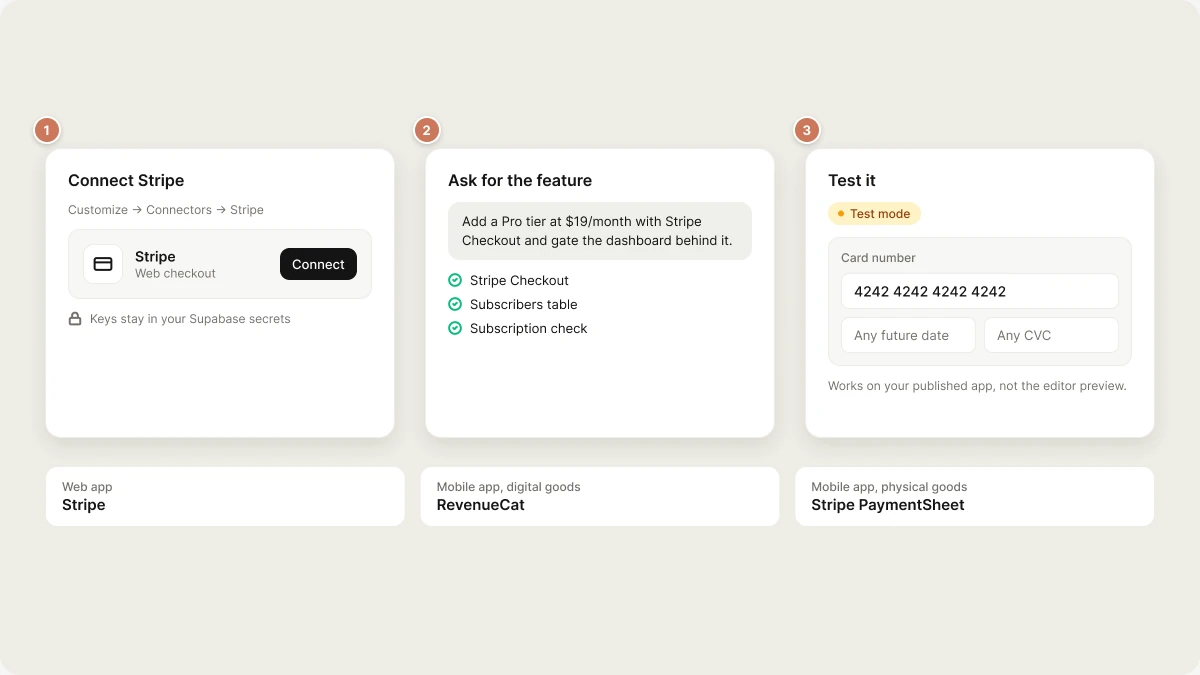
Open **Customize → Connectors → Stripe** and click **Connect**, then sign in to Stripe. Vibely stores your keys in the project's Supabase Edge Function secrets, so the secret key never reaches the browser.
For example: *"Add a Pro tier at \$19/month with Stripe Checkout and gate the dashboard behind it."* Vibely adds the checkout, a subscribers table, and a check that unlocks features for paying users.
*"Let subscribers upgrade or cancel themselves."* Vibely wires up Stripe's customer portal.
Open **Customize → Connectors → RevenueCat**, click **Connect**, and paste your two public SDK keys (iOS and Android). These keys are meant to live in the app.
For example: *"Add a Pro subscription with monthly and annual options, and gate the export screen behind it."* Vibely shows your current offering as a paywall and checks the entitlement before unlocking features.
*"Add a Restore purchases button to the settings screen."* App Store review rejects paid apps without one.
## Test payments
* Connect Stripe in **test mode** while you build.
* Checkout opens Stripe's hosted page and redirects back to your app, so it only completes on your **published** app, not in the editor preview. [Publish](/features/deploy/publish) first, then test.
* Use card `4242 4242 4242 4242`, any future expiry date and any CVC.
* Test on a development build or a TestFlight / Play internal testing build. In Expo Go the paywall is empty, which is expected. See [Ship your app](/features/mobile-apps/ship).
* Use App Store sandbox testers and Play license testers so you aren't charged.
What to check before going live:
* A successful purchase unlocks the right features.
* A cancelled or failed payment doesn't.
* Signing out and back in (or switching devices on mobile) keeps access.
* Upgrading, downgrading and cancelling behave as you expect.
## Go live
* **Stripe:** finish activating your account in the Stripe Dashboard, switch to live mode, and reconnect Stripe in Vibely so your live keys replace the test ones. Then publish.
* **RevenueCat:** submit your in-app products for review with your app build. Once the stores approve them, they appear in your offering. See [Ship your app](/features/mobile-apps/ship).
## Disconnect payments
Open the connector under **Customize → Connectors** and disconnect it.
* **Stripe:** Vibely revokes its access to your Stripe account, so no new charges go through the app. Customers' existing subscriptions keep billing in Stripe; cancel them in the Stripe Dashboard if you need to.
* **RevenueCat:** the SDK keys are removed from the project. Subscriptions are held by Apple and Google; disconnecting doesn't cancel or refund anything.
The generated code stays in your project until you ask Vibely to remove it.
## FAQ
No. Stripe charges its processing fees on your Stripe account, and Apple and Google take their store commission. Vibely takes no cut.
Yes. Create the prices, trials or coupons in Stripe (or the store and RevenueCat for mobile), then ask Vibely to show them in your app.
Stripe Checkout redirects back to a real URL, so it only completes on your published app. Publish and test there.
No. Apple and Google require in-app purchase for digital goods and subscriptions. Use RevenueCat. Stripe is fine for physical goods and real-world services.
For Stripe, yes: the backend code runs as Supabase Edge Functions. RevenueCat doesn't need Supabase, because RevenueCat holds the purchase state.
There's no ready-made connector for them. You can ask Vibely to integrate a provider's API directly, storing its keys as [secrets](/features/backend/secrets).
## Related
Web checkout, subscriptions and the customer portal.
In-app purchases and subscriptions on iOS and Android.
The backend Stripe runs on.
TestFlight, Play testing and store review.
## Related topics
- [Add AI features to your app](/features/backend/ai.md)
- [Accept payments with Stripe](/integrations/stripe.md)
- [FAQ](/faq.md)
- [Built-in integrations](/integrations/connectors/native.md)
- [Welcome to Vibely](/introduction/welcome.md)
This documentation is built and hosted on [Mintlify](https://mintlify.com), a developer documentation platform.
## Choose your provider
Which provider you use depends on what you build and what you sell:
| You're building | You're selling | Use |
| - | - | - |
| A web app | Subscriptions, one-time purchases, anything | [Stripe](/integrations/stripe) |
| A mobile app | Subscriptions, premium features, digital goods | [RevenueCat](/integrations/revenuecat) |
| A mobile app | Physical goods or real-world services (deliveries, bookings) | [Stripe](/integrations/stripe) (PaymentSheet) |
On iOS and Android, digital goods and subscriptions **must** use the stores' in-app purchase. A Stripe checkout for a subscription in a mobile app is rejected under App Store Guideline 3.1.1. Use RevenueCat for those.
## Before you start
* A Stripe account, with your products and prices created in the Stripe Dashboard. The generated code uses price IDs (`price_…`), not amounts.
* [Supabase](/integrations/supabase) connected to the project. The checkout, subscription check and customer portal run as Supabase Edge Functions, and your secret key is stored there.
* Permission to manage connectors in your workspace. See [Admin controls](/integrations/admin-controls).
* An App Store Connect and/or Play Console account with your in-app products created (and, for iOS, the paid-apps agreement signed).
* A RevenueCat project with your apps added, an entitlement (for example `pro`) and an offering.
* A development build or store build to test with. Purchases don't work in Expo Go.
## Set up payments
Open **Customize → Connectors → Stripe** and click **Connect**, then sign in to Stripe. Vibely stores your keys in the project's Supabase Edge Function secrets, so the secret key never reaches the browser.
For example: *"Add a Pro tier at \$19/month with Stripe Checkout and gate the dashboard behind it."* Vibely adds the checkout, a subscribers table, and a check that unlocks features for paying users.
*"Let subscribers upgrade or cancel themselves."* Vibely wires up Stripe's customer portal.
Open **Customize → Connectors → RevenueCat**, click **Connect**, and paste your two public SDK keys (iOS and Android). These keys are meant to live in the app.
For example: *"Add a Pro subscription with monthly and annual options, and gate the export screen behind it."* Vibely shows your current offering as a paywall and checks the entitlement before unlocking features.
*"Add a Restore purchases button to the settings screen."* App Store review rejects paid apps without one.
## Test payments
* Connect Stripe in **test mode** while you build.
* Checkout opens Stripe's hosted page and redirects back to your app, so it only completes on your **published** app, not in the editor preview. [Publish](/features/deploy/publish) first, then test.
* Use card `4242 4242 4242 4242`, any future expiry date and any CVC.
* Test on a development build or a TestFlight / Play internal testing build. In Expo Go the paywall is empty, which is expected. See [Ship your app](/features/mobile-apps/ship).
* Use App Store sandbox testers and Play license testers so you aren't charged.
What to check before going live:
* A successful purchase unlocks the right features.
* A cancelled or failed payment doesn't.
* Signing out and back in (or switching devices on mobile) keeps access.
* Upgrading, downgrading and cancelling behave as you expect.
## Go live
* **Stripe:** finish activating your account in the Stripe Dashboard, switch to live mode, and reconnect Stripe in Vibely so your live keys replace the test ones. Then publish.
* **RevenueCat:** submit your in-app products for review with your app build. Once the stores approve them, they appear in your offering. See [Ship your app](/features/mobile-apps/ship).
## Disconnect payments
Open the connector under **Customize → Connectors** and disconnect it.
* **Stripe:** Vibely revokes its access to your Stripe account, so no new charges go through the app. Customers' existing subscriptions keep billing in Stripe; cancel them in the Stripe Dashboard if you need to.
* **RevenueCat:** the SDK keys are removed from the project. Subscriptions are held by Apple and Google; disconnecting doesn't cancel or refund anything.
The generated code stays in your project until you ask Vibely to remove it.
## FAQ
No. Stripe charges its processing fees on your Stripe account, and Apple and Google take their store commission. Vibely takes no cut.
Yes. Create the prices, trials or coupons in Stripe (or the store and RevenueCat for mobile), then ask Vibely to show them in your app.
Stripe Checkout redirects back to a real URL, so it only completes on your published app. Publish and test there.
No. Apple and Google require in-app purchase for digital goods and subscriptions. Use RevenueCat. Stripe is fine for physical goods and real-world services.
For Stripe, yes: the backend code runs as Supabase Edge Functions. RevenueCat doesn't need Supabase, because RevenueCat holds the purchase state.
There's no ready-made connector for them. You can ask Vibely to integrate a provider's API directly, storing its keys as [secrets](/features/backend/secrets).
## Related
Web checkout, subscriptions and the customer portal.
In-app purchases and subscriptions on iOS and Android.
The backend Stripe runs on.
TestFlight, Play testing and store review.
## Related topics
- [Add AI features to your app](/features/backend/ai.md)
- [Accept payments with Stripe](/integrations/stripe.md)
- [FAQ](/faq.md)
- [Built-in integrations](/integrations/connectors/native.md)
- [Welcome to Vibely](/introduction/welcome.md)
This documentation is built and hosted on [Mintlify](https://mintlify.com), a developer documentation platform.