> ## Documentation Index
> Fetch the complete documentation index at: https://docs.vibely.sh/llms.txt
> Use this file to discover all available pages before exploring further.
# Edit from the preview
> Select elements, edit text inline, draw on the page, and leave comments directly on your app preview.
The **preview toolbar** lets you work on your app by pointing at it. Pick a mode, act on the page, and then either edit text in place, describe a change, sketch what you mean, or leave a comment. The toolbar is available on all plans, in web and mobile projects.
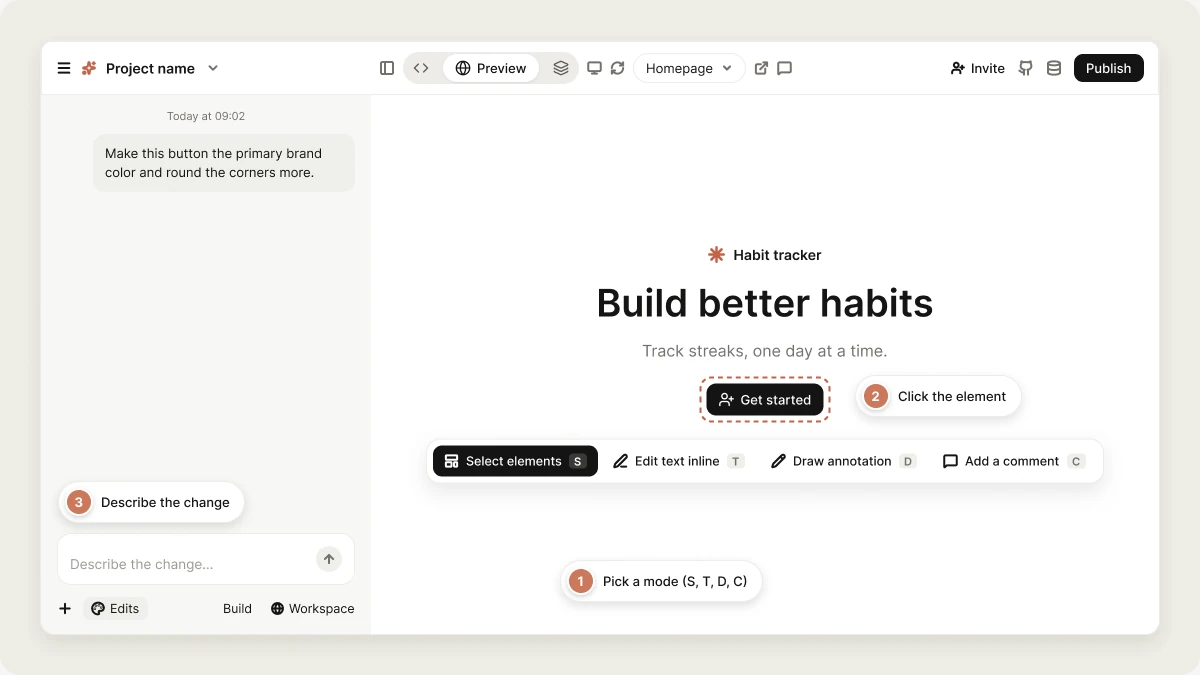 Use it when pointing is faster than describing, when you want to make several small changes in a row, or when a drawing explains a change better than words. The toolbar appears as soon as your app preview is running.
## Preview toolbar modes
| Mode | Shortcut | Use it to |
| - | - | - |
| **Select elements** | `S` | Point Vibely at one or more elements and describe a change |
| **Edit text inline** | `T` | Fix a typo or change wording directly on the page |
| **Draw annotation** | `D` | Show a layout or spatial change that's hard to put into words |
| **Add a comment** | `C` | Leave feedback for yourself or a teammate |
Shortcuts work when you're not typing in a field. Press the same key again to turn a mode off.
You can switch modes at any time. If you have unfinished work in the current mode, such as a drawing you haven't attached yet, the other modes are unavailable until you attach or discard it. Hover over a locked mode to see **Send or discard your current change first**.
### Select elements
Use **Select elements** to point Vibely at a specific part of the page and describe what should change.
Click **Select elements** in the toolbar, or press `S`. In web projects, you can also click **Edits** in the prompt box.
To select more than one, hold **Cmd** (Mac) or **Ctrl** (Windows) and click more elements. Cmd-click or Ctrl-click a selected element again to remove it. Your message applies to everything you selected.
The prompt box reads **Describe the change to the selected element...**. Type what you want and send.
```text wrap theme={"system"}
Make this button the primary brand color and round the corners more.
```
Vibely uses the selected elements, including where they are in your code, as context for the change. A message with selected elements always runs as a build. This uses credits like any other [Build mode](/features/agent/build-mode) message.
In **Select elements** mode, double-click any text to edit it in place, the same way **Edit text inline** works.
### Edit text inline
Use **Edit text inline** to change words on the page without writing a prompt. It's the fastest way to fix a typo, change a headline, or update a label.
Click **Edit text inline** in the toolbar, or press `T`.
The text becomes editable in place.
Press **Enter** or click away to apply it. Press **Esc** to cancel and restore the original text.
Vibely writes the new text straight into your source file, rebuilds the preview, and adds a **Visual edit** entry to the project chat. Text edits applied this way don't use credits. If Vibely can't match the text to a single place in your code, it hands the edit to the agent instead, which runs as a normal build and uses credits.
### Draw annotation
Use **Draw annotation** to sketch on top of your preview and send the sketch with a message. It's useful when words aren't precise enough, such as moving a group of cards, removing a section, or showing where something new should go.
Click **Draw annotation** in the toolbar, or press `D`.
Sketch freehand. Rough lines, arrows, rectangles, and circles are recognized and cleaned up automatically. Use **Undo** or **Clear** to fix mistakes.
Click **Attach to chat**. The sketch is added to the prompt box.
```text wrap theme={"system"}
Remove everything inside this circle and replace it with one button that says "Get started".
```
Vibely receives your message together with a screenshot of the current preview and your sketch on top of it. The marks tell Vibely **where**, and your message tells it **what**. Vibely won't reproduce your strokes in the design. This uses credits like any other Build mode message.
### Add a comment
Use **Add a comment** to pin notes to specific parts of your app, so you and your collaborators can discuss changes in context.
Click **Add a comment** in the toolbar, or press `C`. You can also use **Comment mode** in the editor header.
A pin appears and a comment thread opens next to it.
Teammates can reply in the thread.
Adding comments doesn't use credits. To have Vibely act on a thread, choose **Send to chat** or mention `@vibely` in a reply. The resulting build uses credits like any other message. See [Comments](/features/collaboration/comments).
## Working with the toolbar
### Position, minimize, and hide
The toolbar starts docked at the bottom center of the preview.
* **Move it**: drag it by its handle. It snaps to the four corners and back to the bottom center.
* **Minimize it**: click **Minimize toolbar** to shrink it to its handle. Click **Expand toolbar** to bring the modes back.
* **Hide it**: click **Hide toolbar**. A small bar stays where the toolbar was. Click it (**Show toolbar**) to bring the toolbar back.
Minimizing or hiding the toolbar turns off whichever mode was active. The toolbar remembers its position, theme, and state in your browser for next time.
### Theme
Click the theme button to cycle through **Auto**, **Light**, and **Dark**. **Auto** follows your Vibely theme. **Light** and **Dark** keep a fixed look whatever the page behind it.
### Send changes while Vibely works
You don't have to wait for one change to finish before you start the next. Messages you send with selected elements or a sketch while Vibely is working are queued and run in order after the current request. Inline text edits wait until Vibely finishes its current request, then apply. See [Queue your next message](/features/projects/chat#queue-your-next-message).
## Tips for best results
* **Point first, then describe.** If you can click the thing you want to change, select it so Vibely knows exactly what you mean.
* **Keep prompts short once you've selected something.** "Make this the primary color" is enough.
* **Draw for spatial changes.** Moving, grouping, removing, or sketching a new layout is often faster as a drawing.
* **Combine a sketch with words for ambiguous changes.** The sketch shows the where, your message explains the what.
* **Fix small copy changes directly.** Use **Edit text inline** for typos, labels, and short text.
* **To replace an image,** select it, attach the new image in the prompt box, and describe the change.
## FAQ
**Select elements** and **Draw annotation** send a message, which is priced like any Build mode message. **Edit text inline** is free when Vibely applies the text change directly. If the edit has to go to the agent instead, it's priced as a build. Adding comments is free. Sending a comment thread to Vibely is priced as a build.
Yes. Hold **Cmd** (Mac) or **Ctrl** (Windows) and click more elements. Your message applies to all of them.
Draw annotation recognizes simple shapes, including lines, arrows, rectangles, and circles, and cleans them up so Vibely sees a clear mark. Anything it doesn't recognize stays freehand.
Yes. All four modes work on the mobile preview too.
Click the small bar left in the toolbar's place in the preview. Its tooltip reads **Show toolbar**.
## Related topics
Preview and test your app.
Leave and resolve feedback on your app.
How Vibely makes changes.
Shape the overall look of your app.
## Related topics
- [Implement changes in Build mode](/features/agent/build-mode.md)
- [Design guidance](/features/design/design-guidance.md)
- [Preview and test your app](/features/projects/preview.md)
- [View and edit your project's code](/features/projects/code-editor.md)
- [Find your way around the editor](/features/projects/editor.md)
This documentation is built and hosted on [Mintlify](https://mintlify.com), a developer documentation platform.
Use it when pointing is faster than describing, when you want to make several small changes in a row, or when a drawing explains a change better than words. The toolbar appears as soon as your app preview is running.
## Preview toolbar modes
| Mode | Shortcut | Use it to |
| - | - | - |
| **Select elements** | `S` | Point Vibely at one or more elements and describe a change |
| **Edit text inline** | `T` | Fix a typo or change wording directly on the page |
| **Draw annotation** | `D` | Show a layout or spatial change that's hard to put into words |
| **Add a comment** | `C` | Leave feedback for yourself or a teammate |
Shortcuts work when you're not typing in a field. Press the same key again to turn a mode off.
You can switch modes at any time. If you have unfinished work in the current mode, such as a drawing you haven't attached yet, the other modes are unavailable until you attach or discard it. Hover over a locked mode to see **Send or discard your current change first**.
### Select elements
Use **Select elements** to point Vibely at a specific part of the page and describe what should change.
Click **Select elements** in the toolbar, or press `S`. In web projects, you can also click **Edits** in the prompt box.
To select more than one, hold **Cmd** (Mac) or **Ctrl** (Windows) and click more elements. Cmd-click or Ctrl-click a selected element again to remove it. Your message applies to everything you selected.
The prompt box reads **Describe the change to the selected element...**. Type what you want and send.
```text wrap theme={"system"}
Make this button the primary brand color and round the corners more.
```
Vibely uses the selected elements, including where they are in your code, as context for the change. A message with selected elements always runs as a build. This uses credits like any other [Build mode](/features/agent/build-mode) message.
In **Select elements** mode, double-click any text to edit it in place, the same way **Edit text inline** works.
### Edit text inline
Use **Edit text inline** to change words on the page without writing a prompt. It's the fastest way to fix a typo, change a headline, or update a label.
Click **Edit text inline** in the toolbar, or press `T`.
The text becomes editable in place.
Press **Enter** or click away to apply it. Press **Esc** to cancel and restore the original text.
Vibely writes the new text straight into your source file, rebuilds the preview, and adds a **Visual edit** entry to the project chat. Text edits applied this way don't use credits. If Vibely can't match the text to a single place in your code, it hands the edit to the agent instead, which runs as a normal build and uses credits.
### Draw annotation
Use **Draw annotation** to sketch on top of your preview and send the sketch with a message. It's useful when words aren't precise enough, such as moving a group of cards, removing a section, or showing where something new should go.
Click **Draw annotation** in the toolbar, or press `D`.
Sketch freehand. Rough lines, arrows, rectangles, and circles are recognized and cleaned up automatically. Use **Undo** or **Clear** to fix mistakes.
Click **Attach to chat**. The sketch is added to the prompt box.
```text wrap theme={"system"}
Remove everything inside this circle and replace it with one button that says "Get started".
```
Vibely receives your message together with a screenshot of the current preview and your sketch on top of it. The marks tell Vibely **where**, and your message tells it **what**. Vibely won't reproduce your strokes in the design. This uses credits like any other Build mode message.
### Add a comment
Use **Add a comment** to pin notes to specific parts of your app, so you and your collaborators can discuss changes in context.
Click **Add a comment** in the toolbar, or press `C`. You can also use **Comment mode** in the editor header.
A pin appears and a comment thread opens next to it.
Teammates can reply in the thread.
Adding comments doesn't use credits. To have Vibely act on a thread, choose **Send to chat** or mention `@vibely` in a reply. The resulting build uses credits like any other message. See [Comments](/features/collaboration/comments).
## Working with the toolbar
### Position, minimize, and hide
The toolbar starts docked at the bottom center of the preview.
* **Move it**: drag it by its handle. It snaps to the four corners and back to the bottom center.
* **Minimize it**: click **Minimize toolbar** to shrink it to its handle. Click **Expand toolbar** to bring the modes back.
* **Hide it**: click **Hide toolbar**. A small bar stays where the toolbar was. Click it (**Show toolbar**) to bring the toolbar back.
Minimizing or hiding the toolbar turns off whichever mode was active. The toolbar remembers its position, theme, and state in your browser for next time.
### Theme
Click the theme button to cycle through **Auto**, **Light**, and **Dark**. **Auto** follows your Vibely theme. **Light** and **Dark** keep a fixed look whatever the page behind it.
### Send changes while Vibely works
You don't have to wait for one change to finish before you start the next. Messages you send with selected elements or a sketch while Vibely is working are queued and run in order after the current request. Inline text edits wait until Vibely finishes its current request, then apply. See [Queue your next message](/features/projects/chat#queue-your-next-message).
## Tips for best results
* **Point first, then describe.** If you can click the thing you want to change, select it so Vibely knows exactly what you mean.
* **Keep prompts short once you've selected something.** "Make this the primary color" is enough.
* **Draw for spatial changes.** Moving, grouping, removing, or sketching a new layout is often faster as a drawing.
* **Combine a sketch with words for ambiguous changes.** The sketch shows the where, your message explains the what.
* **Fix small copy changes directly.** Use **Edit text inline** for typos, labels, and short text.
* **To replace an image,** select it, attach the new image in the prompt box, and describe the change.
## FAQ
**Select elements** and **Draw annotation** send a message, which is priced like any Build mode message. **Edit text inline** is free when Vibely applies the text change directly. If the edit has to go to the agent instead, it's priced as a build. Adding comments is free. Sending a comment thread to Vibely is priced as a build.
Yes. Hold **Cmd** (Mac) or **Ctrl** (Windows) and click more elements. Your message applies to all of them.
Draw annotation recognizes simple shapes, including lines, arrows, rectangles, and circles, and cleans them up so Vibely sees a clear mark. Anything it doesn't recognize stays freehand.
Yes. All four modes work on the mobile preview too.
Click the small bar left in the toolbar's place in the preview. Its tooltip reads **Show toolbar**.
## Related topics
Preview and test your app.
Leave and resolve feedback on your app.
How Vibely makes changes.
Shape the overall look of your app.
## Related topics
- [Implement changes in Build mode](/features/agent/build-mode.md)
- [Design guidance](/features/design/design-guidance.md)
- [Preview and test your app](/features/projects/preview.md)
- [View and edit your project's code](/features/projects/code-editor.md)
- [Find your way around the editor](/features/projects/editor.md)
This documentation is built and hosted on [Mintlify](https://mintlify.com), a developer documentation platform.